
1. Introduction
This manual provides detailed instructions for the safe operation and maintenance of your morlyrctooy M18-1 Mini Drone. Please read this manual thoroughly before operating the drone to ensure proper function and to prevent damage.

Image: The morlyrctooy M18-1 Mini Drone, its remote controller, and a smartphone showing the drone's camera view.
2. Package Contents
Verify that all items are present in the package:
- 1x Remote Control
- 1x Drone
- 1x Modular Battery
- 1x Screwdriver
- 1x Carrying Case
- 1x Instruction Manual (this document)
- 1x Charging Cable
- 4x Propeller
- 4x Propeller Guards

Image: All components included with the M18-1 Mini Drone, neatly arranged with the carrying case.
3. Setup
3.1 Battery Installation and Charging
The drone uses a modular Lithium Polymer battery. Ensure the battery is fully charged before first use.
- Insert the modular battery into the drone's battery compartment until it clicks securely.
- Connect the charging cable to the battery and a suitable USB power source.
- Charge the battery until the indicator light shows a full charge.

Image: The modular battery design of the M18-1 drone, highlighting its easy installation.
3.2 Propeller and Propeller Guard Installation
Attach the propellers and propeller guards as shown in the diagram to protect them during flight.
- Identify the correct propellers (A and B) for each motor.
- Securely attach each propeller to its corresponding motor shaft.
- Install the propeller guards around each propeller for added protection.
3.3 Remote Control and App Pairing
The drone can be controlled via the included remote control or a smartphone app.
- Power on the drone and the remote control.
- Follow the instructions in the dedicated drone app to connect your smartphone to the drone's Wi-Fi network.
- Pair the remote control with the drone according to the on-screen prompts in the app or the remote's indicator lights.
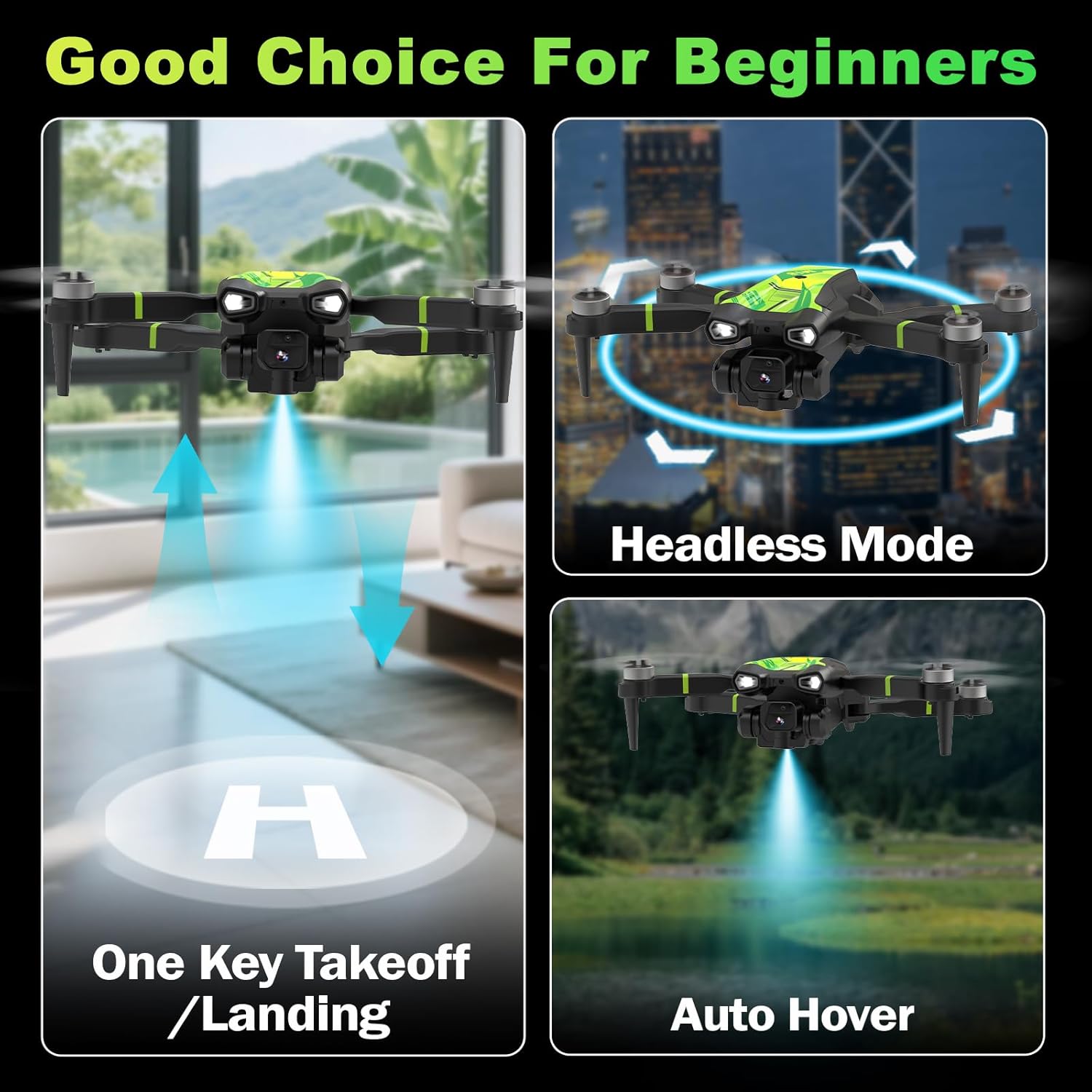
Image: The drone's mobile application interface, demonstrating various control features.
4. Operating Instructions
4.1 Basic Flight Controls
- One-Key Takeoff/Landing: Press the designated button on the remote or in the app for automatic takeoff or landing. The optical flow positioning system assists in stable hovering.
- Auto Hover: The optical flow camera helps the drone maintain a fixed altitude, providing stable flight.
- Headless Mode: In Headless Mode, the drone's orientation is relative to the pilot, simplifying control regardless of the drone's front direction.
- 3 Speed Modes: Adjust flight speed for different scenarios, from beginner-friendly slow flight to faster, more dynamic maneuvers.
- Gravity Control: Use your smartphone's gyroscope to control the drone's movement by tilting the phone.
- Trajectory Flight: Draw a flight path on the app, and the drone will automatically follow the customized route.
- 360° Flip: Execute aerial stunts with a single button press on the remote control.
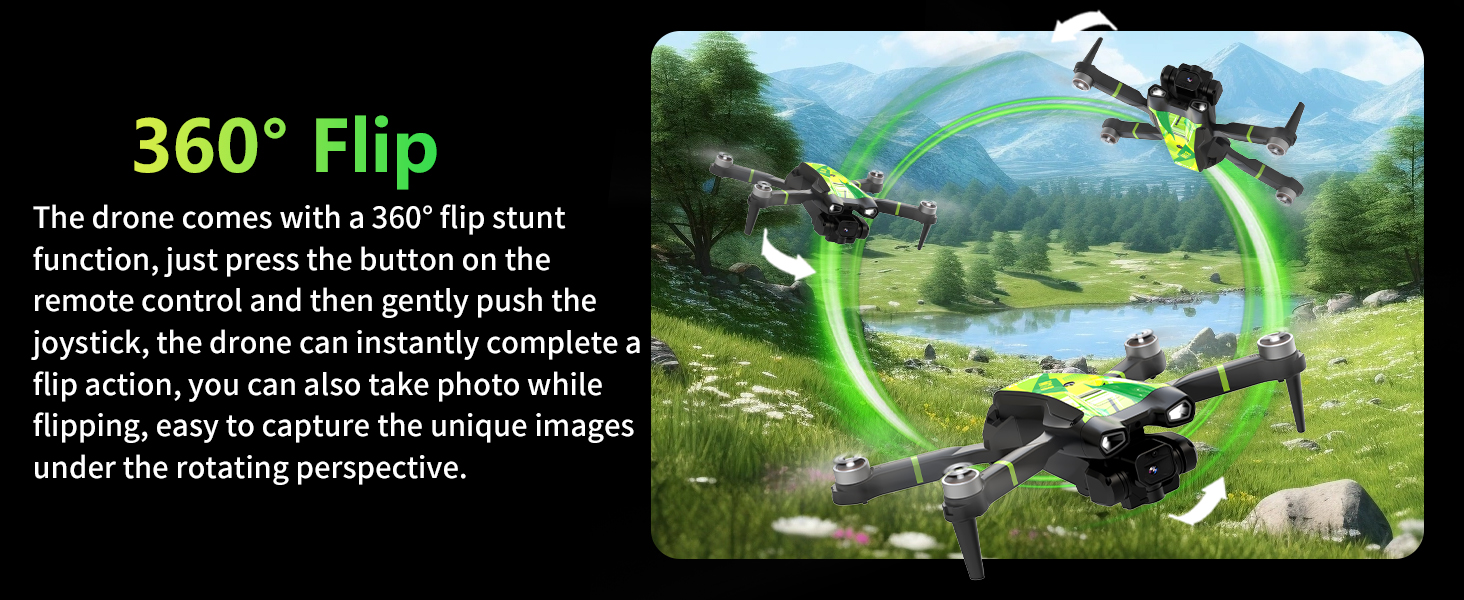
Image: The drone performing a one-key takeoff or landing, utilizing optical flow positioning for stability.
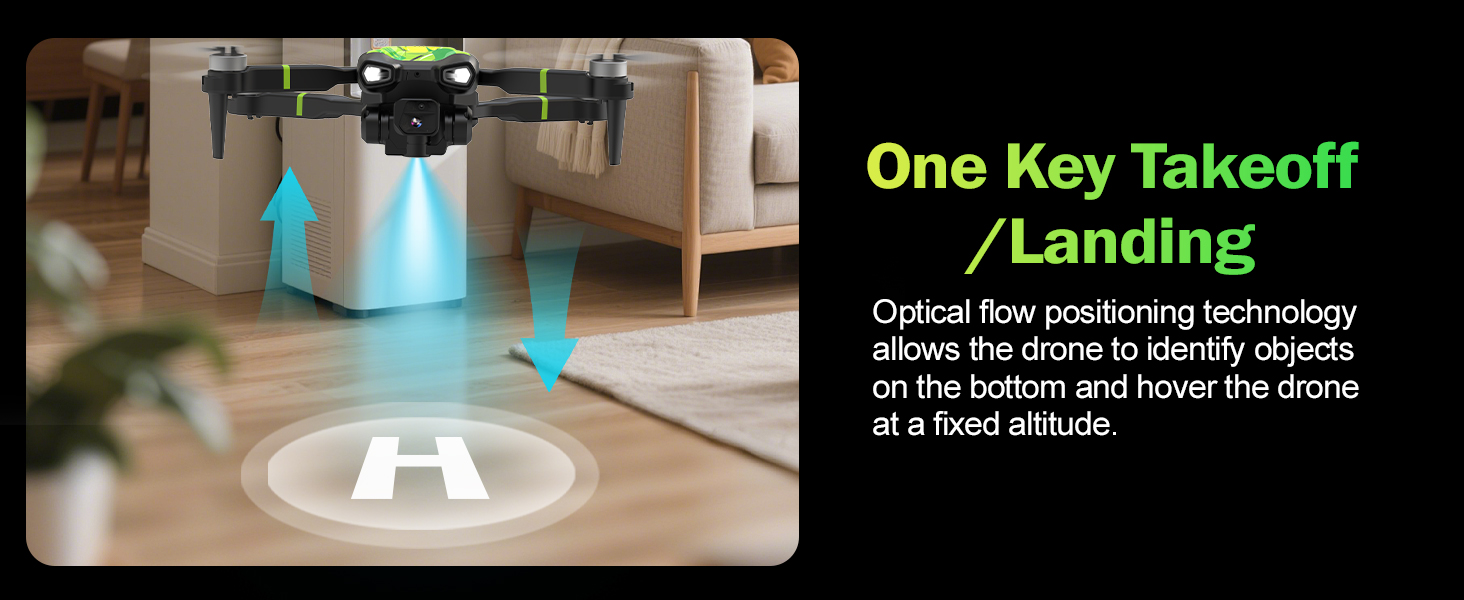
Image: The drone operating in Headless Mode, simplifying directional control for the pilot.
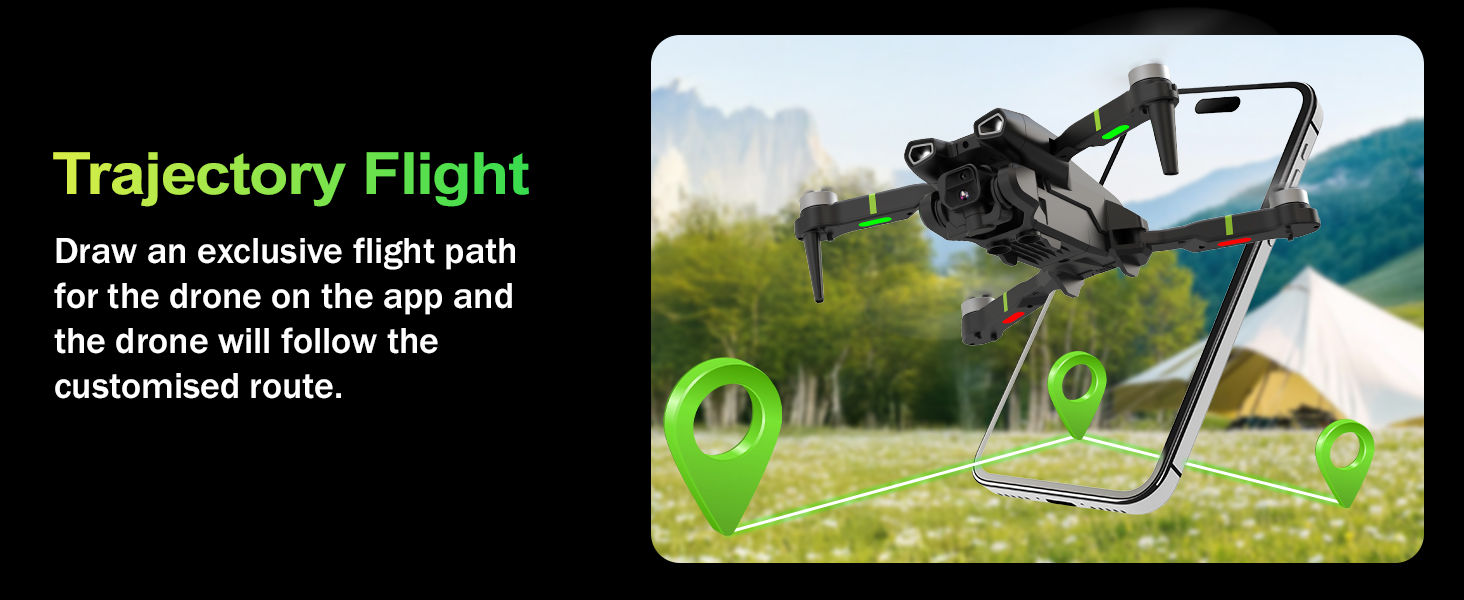
Image: Visual representation of the drone's three adjustable speed modes.
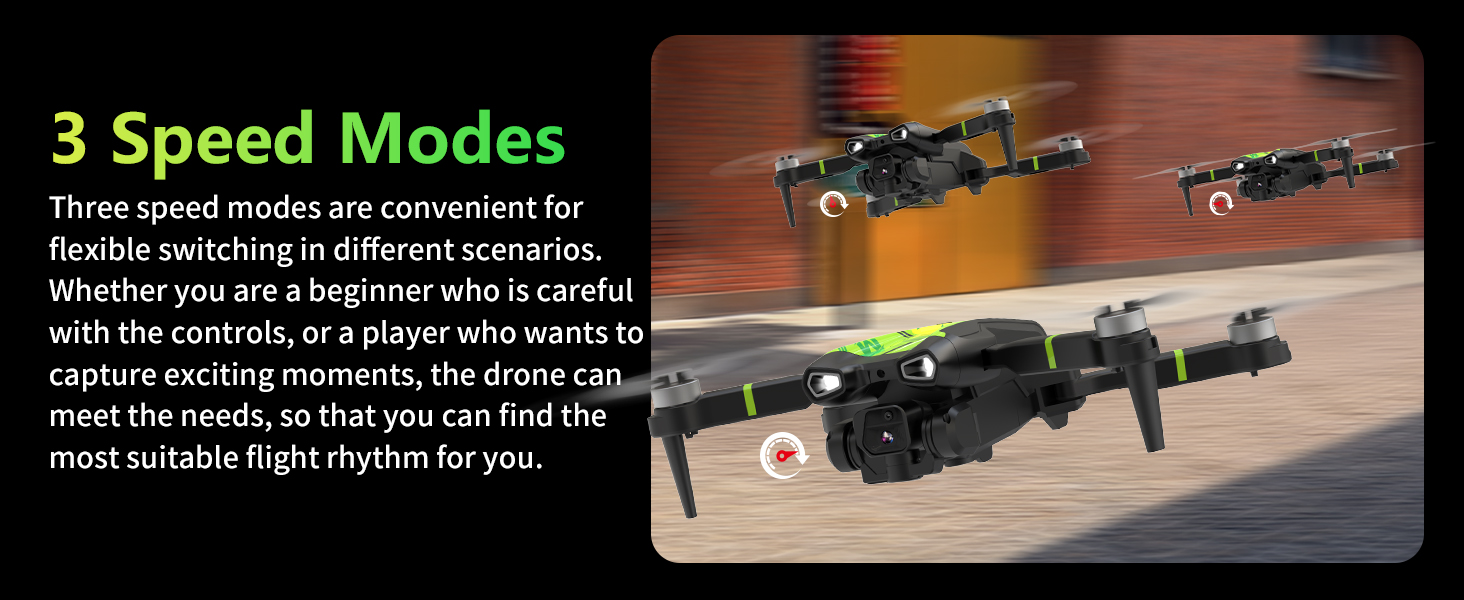
Image: Demonstrating Gravity Control, where tilting a smartphone directs the drone's flight.
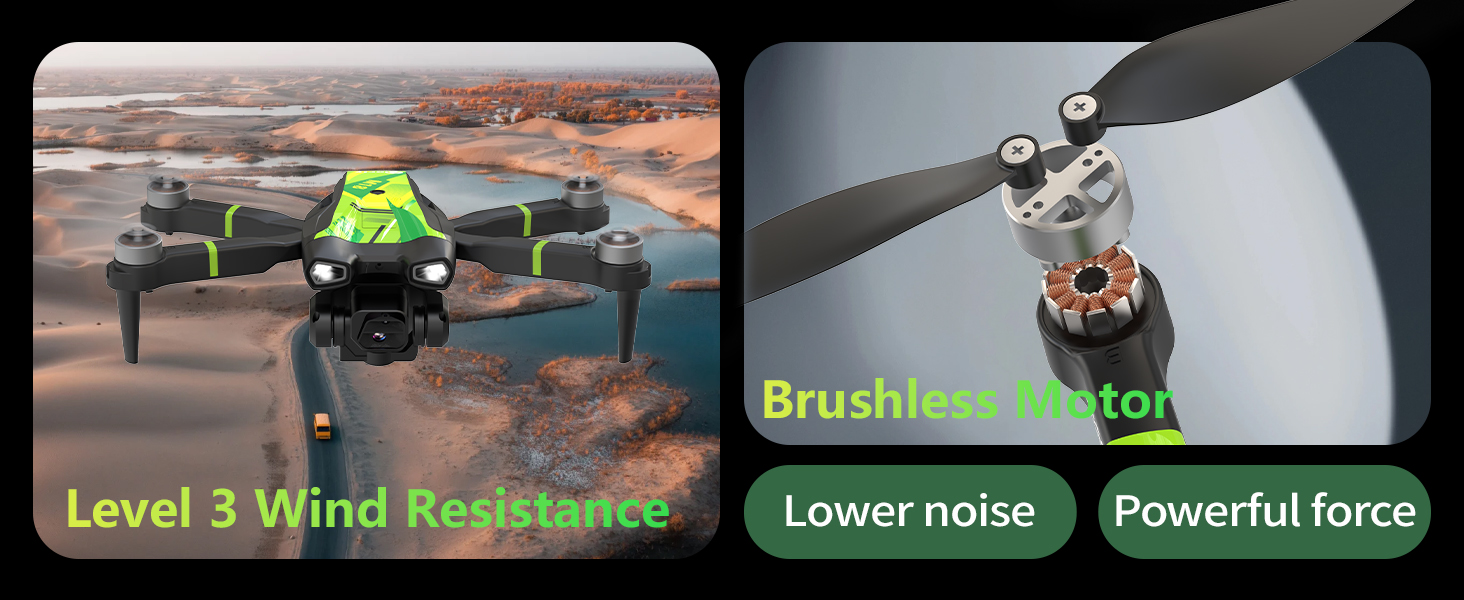
Image: The Trajectory Flight feature, allowing users to pre-program a flight path via the app.
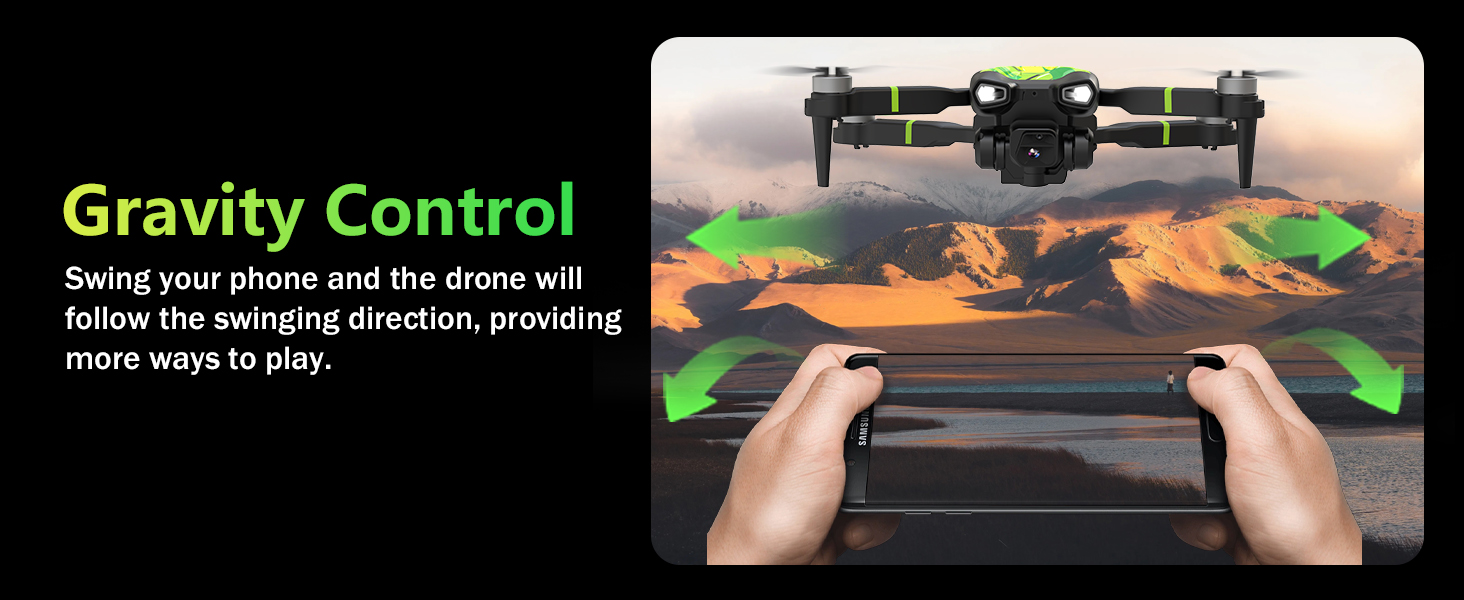
Image: The drone executing a 360-degree flip, a stunt feature.
4.2 Camera Operation
The M18-1 drone is equipped with a 1080P HD camera for capturing photos and videos.
- Take Photo: Press the camera button on the remote or in the app to capture still images.
- Take Video: Press the video button on the remote or in the app to start/stop video recording.

Image: The 1080P HD camera of the M18-1 drone, capable of capturing both photos and videos.
4.3 Safety Guidelines
- Always operate the drone in open areas, away from people, animals, and obstacles.
- Maintain visual line of sight with the drone during flight.
- Do not fly in strong winds (the drone can handle up to Level 3 wind resistance).
- Ensure batteries are fully charged before each flight.
- Avoid flying near airports or restricted airspace.
5. Maintenance
5.1 Cleaning
Regularly clean the drone with a soft, dry cloth to remove dust and debris. Avoid using liquids directly on electronic components.
5.2 Propeller Replacement
If propellers are damaged, replace them immediately using the provided spare propellers and screwdriver. Ensure correct propeller orientation (A and B) for each motor.
5.3 Battery Care
- Store batteries in a cool, dry place.
- Do not overcharge or over-discharge batteries.
- If a battery appears swollen or damaged, discontinue use and dispose of it properly.
6. Troubleshooting
| Problem | Possible Cause | Solution |
|---|---|---|
| Drone does not power on. | Battery not charged or improperly installed. | Ensure battery is fully charged and correctly inserted. |
| Drone unstable during flight. | Uncalibrated gyroscope, strong winds, damaged propellers. | Recalibrate the drone. Avoid flying in strong winds. Check and replace damaged propellers. |
| Remote control or app not connecting. | Incorrect pairing, Wi-Fi interference, low battery. | Ensure drone and remote are powered on. Re-pair devices. Check Wi-Fi connection. Charge batteries. |
| Poor camera image quality. | Dirty lens, insufficient lighting, drone vibration. | Clean the camera lens. Fly in well-lit conditions. Ensure propellers are balanced and undamaged. |
7. Specifications
| Feature | Detail |
|---|---|
| Brand | morlyrctooy |
| Model Name | M18 |
| Video Capture Resolution | 1080p |
| Connectivity Technology | Wi-Fi |
| Skill Level | Beginner |
| Battery Capacity | 1600 Milliamp Hours |
| Video Capture Format | MP4 |
| Remote Control Technology | Wi-Fi |
| Control Type | App Control |
| Wireless Communication Technology | Bluetooth, Wi-Fi |
| Battery Cell Composition | Lithium Polymer |
| Are Batteries Included | Yes |
| Video Output Resolution | 1080 pixels |
| Remote Control Included? | No (Note: A remote control is included in the package contents, but this specification states 'No'. Please refer to package contents for actual inclusion.) |
| Optical Sensor Technology | optical flow |
| Rechargeable Battery Included | Yes |
| Product Dimensions | 8.6"L x 7"W x 2.3"H |
| Item Weight | 1.17 pounds |
8. Warranty and Support
morlyrctooy is committed to providing reliable customer service. For any questions regarding operation, troubleshooting, or product support, please contact our customer service team.
While specific warranty details are not provided in this manual, please retain your proof of purchase for any warranty claims. Our team is available to offer friendly, step-by-step assistance to ensure you get the most out of your drone.