
Introduction
The KCEVE KCNWKC842 KVM Switch allows you to control up to four computers or laptops using a single set of keyboard, mouse, and two monitors. This device is designed for environments requiring high-resolution display support, including 8K@60Hz and 4K@144Hz, and features USB 3.0 for fast and stable data transfer. It is suitable for office, multimedia, and conference room applications, streamlining your workspace by reducing cable clutter and peripheral requirements.
Package Contents
Please verify that all items listed below are included in your package:
- 1x KCEVE KVM Switch (KCNWKC842)
- 4x USB 3.0 Cables
- 1x Wired Remote Control (1.5m)
- 1x Power Adapter
- 1x User Manual

Setup Instructions
Follow these steps to connect your KVM switch and associated devices:
- Power Off Devices: Ensure all computers and monitors are powered off before making any connections.
- Connect Monitors: Connect your two monitors to the KVM switch's HDMI OUTPUT ports (Monitor A and Monitor B).
- Connect Computers (Video): For each computer (PC1, PC2, PC3, PC4), connect two HDMI cables from the computer's video output ports to the corresponding HDMI INPUT ports on the KVM switch (e.g., PC1's HDMI outputs to HD1A and HD1B on the KVM switch). Note: HDMI cables are not provided. Each computer requires two HDMI connections to support two monitors. Ensure your computers, monitors, and HDMI cables support the desired 4K or 8K resolution.
- Connect Computers (USB): Connect the provided USB 3.0 cables from each computer's USB port to the corresponding USB 3.0 INPUT ports on the KVM switch (e.g., PC1's USB port to USB 1 on the KVM switch). These connections enable keyboard, mouse, and other USB device sharing.
- Connect Peripherals: Connect your keyboard, mouse, and any other USB 3.0 devices (e.g., printer, scanner, U-disk) to the USB 3.0 OUTPUT ports on the front of the KVM switch.
- Connect Wired Remote (Optional): If desired, connect the wired remote control to the 'Control' port on the KVM switch.
- Connect Power: Connect the provided power adapter to the DC/12V port on the KVM switch and then to a power outlet.
- Power On: Power on the KVM switch, then your monitors, and finally your computers.


Operating Instructions
The KVM switch supports two methods for switching between connected computers:
- Physical Button Control: Press the corresponding PC selection button (PC1, PC2, PC3, or PC4) on the front panel of the KVM switch to switch to the desired computer. An LED indicator will illuminate to show which computer is currently active.
- Wired Remote Control: Use the wired remote control to switch between computers. This allows you to place the KVM switch out of sight, maintaining a tidy desktop.
Note: Keyboard shortcuts (hotkeys) for switching are not supported by this KVM switch.

Display Modes
The KVM switch supports two primary display modes for your monitors:
- Extended Mode: In this mode, your two monitors act as a single, continuous desktop, allowing you to drag windows and extend your workspace across both screens.
- Copy Mode (Duplicate Mode): In this mode, the same content is displayed on both monitors, mirroring the primary screen.
To set your display mode on a Windows PC, press the Windows key + P simultaneously and select your desired display option (Extend or Duplicate).

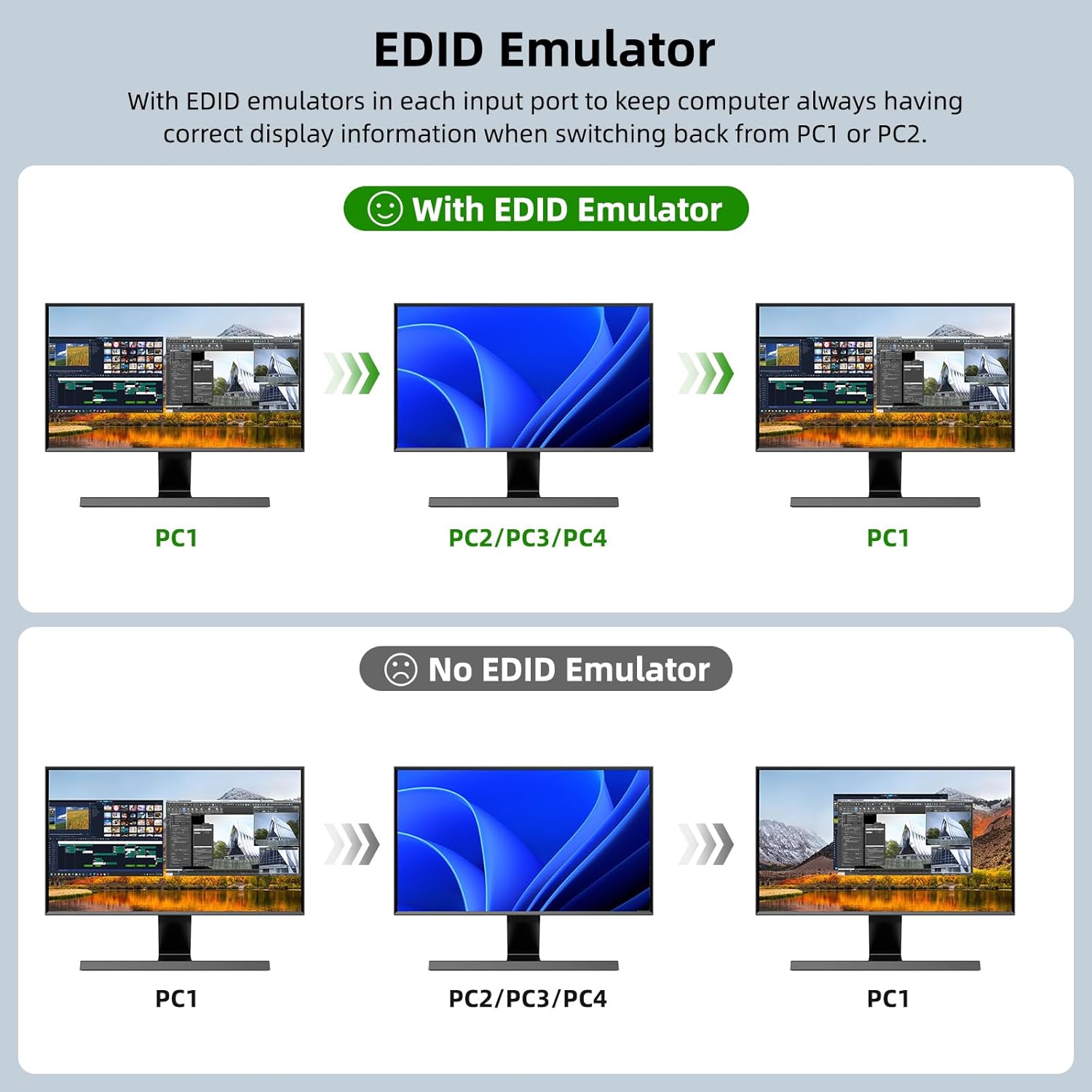
EDID Emulator
The KCEVE KVM switch includes EDID emulators in each input port. This feature ensures that your computers always receive correct display information, preventing display resolution or arrangement issues when switching between PCs. The EDID emulator helps maintain consistent display settings and avoids screen flickering or rearrangement delays during transitions.

Specifications
| Feature | Description |
|---|---|
| Model Number | KCNWKC842 |
| Input Interface | 4x HDMI, 4x USB 3.0 (Type-B) |
| Output Interface | 2x HDMI, 4x USB 3.0 (Type-A) |
| Video Resolution Support | Up to 8K@60Hz, 4K@144Hz/120Hz |
| USB Standard | USB 3.0 (High Speed Transmission) |
| Switching Methods | Physical Button, Wired Remote Control |
| EDID Emulation | Yes |
| Operating System Support | Windows XP/7/8/Vista, Mac OS 8.6 and above |
| Material | Metal |
| Item Weight | 1.32 pounds |
| Package Dimensions | 7.87 x 5.91 x 1.97 inches |

Troubleshooting
If you encounter issues with your KCEVE KVM Switch, please refer to the following common solutions:
- No Display on Monitors:
- Ensure all HDMI cables are securely connected between the computers, KVM switch, and monitors.
- Verify that each computer has two HDMI cables connected to the KVM switch.
- Check if the KVM switch is powered on and the correct input is selected.
- Confirm that your monitors and computers support the selected resolution (e.g., 4K or 8K).
- Try restarting the KVM switch and then the connected computers.
- Keyboard/Mouse Not Responding:
- Ensure the USB 3.0 cables are securely connected from each computer to the KVM switch's USB input ports.
- Verify that your keyboard and mouse are connected to the USB 3.0 output ports on the KVM switch.
- Try connecting the keyboard and mouse directly to the computer to confirm they are functional.
- Some specialized gaming keyboards/mice may require direct connection or specific drivers not compatible with KVM switches.
- Resolution or Refresh Rate Issues:
- Ensure all HDMI cables used are high-speed and rated for the desired resolution (e.g., HDMI 2.0 or 2.1 for 4K/8K).
- Check your computer's display settings to ensure the correct resolution and refresh rate are selected.
- Update your graphics card drivers on the connected computers.
- Intermittent Connectivity:
- Ensure the power adapter is securely connected and providing stable power to the KVM switch.
- Avoid using excessively long or low-quality cables, especially for high-resolution video.
Warranty and Support
KCEVE products are designed for reliability and performance. If you encounter any problems during the use of your KVM switch, please do not hesitate to contact KCEVE customer service. Our support team is available to assist you with troubleshooting, technical questions, and any other concerns you may have.
Please refer to your purchase documentation or the KCEVE official website for specific warranty details and contact information.


