Introduction
This manual provides detailed instructions for the safe and efficient operation of your Morlyrctooy M18LCD Mini Drone. Please read this manual thoroughly before operating the drone and retain it for future reference. The M18LCD drone features a 4K camera, 3D flip capabilities, a foldable design, and an LCD remote control, making it suitable for beginners and experienced pilots alike.
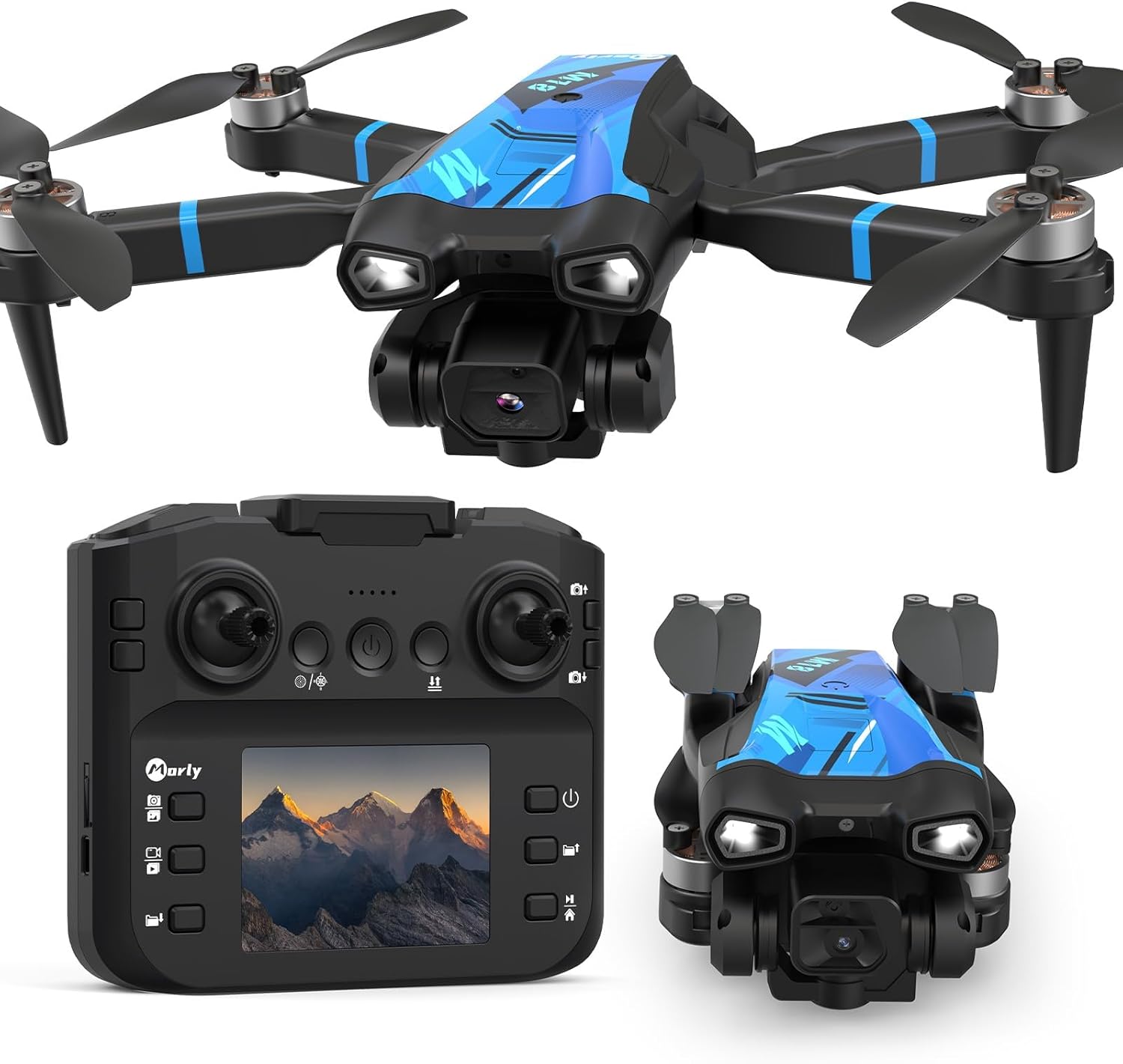
Figure 1: Morlyrctooy M18LCD Mini Drone and Remote Control. This image displays the drone in its unfolded state, the remote control with its integrated LCD screen, and the drone in its compact, folded configuration.
1. Package Contents
Before first use, please verify that all items listed below are present in your package:
- 1x Morlyrctooy M18LCD Drone
- 1x Remote Control with LCD Screen
- 1x Modular Battery
- 1x USB Charging Cable
- 4x Spare Propellers
- 4x Propeller Guards
- 1x Screwdriver
- 1x Transport Case
- 2x Instruction Manuals (this document)

Figure 2: Included Components. This image shows all items typically found in the Morlyrctooy M18LCD Mini Drone package, including the drone, remote, battery, spare parts, and tools.
2. Setup Guide
2.1 Charging the Battery
The drone is powered by a modular Lithium-polymer battery. Ensure the battery is fully charged before each flight.
- Connect the modular battery to the provided USB charging cable.
- Plug the USB cable into a standard USB power adapter (not included) or a computer's USB port.
- The charging indicator on the battery will show its status (e.g., red for charging, green for fully charged).
- Charging typically takes approximately 60-90 minutes. Do not leave the battery unattended while charging.
2.2 Installing the Battery
- Ensure the drone is powered off.
- Locate the battery compartment on the drone.
- Insert the fully charged modular battery into the compartment until it clicks securely into place.

Figure 3: Modular Battery Installation. This image illustrates the modular battery being inserted into the drone's designated compartment, emphasizing its easy and secure fit.
2.3 Propeller Installation and Guards
The drone comes with pre-installed propellers. If replacement is necessary, follow these steps:
- Identify the correct propeller for each motor (marked A or B).
- Align the propeller with the motor shaft and press down firmly.
- To attach propeller guards, snap them onto the drone's arms.
2.4 Remote Control Setup
The remote control features an integrated LCD screen for real-time flight data and video feed.
- Ensure the remote control is charged (if rechargeable) or has fresh batteries.
- Power on the remote control using the power switch.
- Power on the drone.
- The remote control and drone will automatically pair. A successful connection will be indicated on the remote's LCD screen.
2.5 Wi-Fi Connection (for App Control)
For advanced features and real-time video streaming to your smartphone, connect via Wi-Fi:
- Download the official Morlyrctooy drone app from your device's app store.
- Power on the drone.
- On your smartphone, go to Wi-Fi settings and connect to the drone's Wi-Fi network (usually named "Morlyrctooy-M18LCD-XXXX").
- Open the app to access live video feed and additional control options.
3. Operating Instructions
3.1 Remote Control Functions
Familiarize yourself with the remote control layout and functions:

Figure 4: Remote Control Layout. This diagram labels the various buttons and joysticks on the remote control, detailing their respective functions for drone operation and camera control.
- Speed Control Buttons: Adjust flight speed (Low/Medium/High).
- 3D Rotation: Initiates a 3D flip maneuver.
- Camera Up: Adjusts camera angle upwards.
- Camera Down: Adjusts camera angle downwards.
- One-Key Calibration/Headless Mode: Short press for calibration, long press for Headless Mode.
- Power Switch: Turns the remote control on/off.
- One-Key Takeoff/Landing: Initiates automatic takeoff or landing.
- Short Press for Photo/Long Press to View Saved Photo: Captures a still image or reviews photos.
- Short Press for Video Recording/Long Press to View Saved Video: Starts/stops video recording or reviews videos.
- Next File: Navigates to the next media file on the LCD.
- Display Switch: Toggles between different display modes on the LCD.
- Previous File: Navigates to the previous media file on the LCD.
- Short Press to Play/Long Press to Return to Main Interface: Plays selected media or returns to the main screen.
3.2 Basic Flight Operations
- Takeoff: Place the drone on a flat, level surface. Press the One-Key Takeoff button. The drone will automatically ascend to a stable altitude.
- Landing: Press the One-Key Landing button. The drone will automatically descend and land.
- Altitude Hold: The drone maintains its current altitude automatically, simplifying flight control.
- Directional Control: Use the left joystick for altitude and rotation, and the right joystick for forward/backward and left/right movement.
3.3 Advanced Features
- 3D Flip: While flying, press the 3D Rotation button and move the right joystick in the desired direction to perform an aerial flip.
- Speed Modes: The drone offers three adjustable speed settings (low, medium, high) to suit different skill levels and environments.

Figure 5: Three Speed Modes. This image visually represents the drone operating at different speeds, indicating its adaptability for various pilot skill levels and flight conditions.
- Optical Flow Positioning: Ensures stable indoor flight by maintaining position without GPS.
- Wind Resistance: Equipped with brushless motors, the drone offers Level 3 wind resistance for stable outdoor flights.

Figure 6: Wind Resistance. The drone is depicted flying stably in a scenic outdoor environment, highlighting its ability to withstand moderate wind conditions.
3.4 Camera Operation
The drone features a 4K camera with motorized lens adjustment and supports up to 32GB SD cards for storage.
- Motorized Lens Adjustment: Use the "Camera Up" and "Camera Down" buttons on the remote to adjust the camera angle remotely.

Figure 7: Motorized Lens Adjustment. This image focuses on the drone's camera, illustrating the remote-controlled adjustment of its lens angle for optimal photo and video capture.
- Photo/Video Capture: Use the dedicated buttons on the remote control (8 and 9 in Figure 4) to take photos or record videos.
- SD Card Storage: Insert a 32GB (max) SD card into the remote control's slot to store high-definition photos and videos directly.

Figure 8: SD Card Slot. A close-up of the remote control highlights the 32GB SD card slot, indicating its capability for extended media storage.
4. Maintenance
4.1 Propeller Replacement
If propellers are damaged, replace them using the provided spare propellers and screwdriver.
- Power off the drone.
- Carefully remove the damaged propeller by unscrewing it or gently pulling it off the motor shaft.
- Install a new propeller, ensuring it matches the correct 'A' or 'B' marking for its motor.
- Secure the propeller firmly.
4.2 Battery Care
- Store batteries in a cool, dry place.
- Do not overcharge or over-discharge batteries.
- If the drone will not be used for an extended period, charge the battery to approximately 50% before storage.
4.3 Cleaning
Use a soft, dry cloth to clean the drone and remote control. Avoid using harsh chemicals or liquids.
5. Troubleshooting
- Drone does not power on: Ensure the battery is fully charged and correctly installed. Check the power button.
- Remote control does not respond: Ensure the remote control is charged/has fresh batteries and is powered on. Re-pair the drone and remote if necessary.
- Drone loses control or flies erratically:
- Perform a calibration (short press button 5 on remote).
- Check for damaged propellers and replace if needed.
- Ensure you are within the operational range of the remote control.
- Avoid flying in strong winds beyond Level 3 resistance.
- Poor camera quality or no recording:
- Ensure the SD card is correctly inserted and has sufficient free space.
- Check if the camera lens is clean.
- Verify the drone's Wi-Fi connection for live feed issues.
- Remote control LCD screen issues: If the screen is blank or unresponsive, ensure the remote is charged and powered on. If issues persist, contact customer support.
6. Specifications
| Feature | Specification |
|---|---|
| Brand | Morlyrctooy |
| Model Name | M18LCD |
| Item Weight | 570 g |
| Product Dimensions (L x W x H) | 22 x 18 x 6 cm |
| Battery Type | 1 Lithium-polymer (included) |
| Battery Capacity | 1800 mAh |
| Special Features | 4K Camera, 3D Flip, LCD Remote Control, Simplified Precision Flight |
| Age Range (Description) | Youth, Adults |
| Color | Blue |
| Video Recording Resolution | 4K |
| Connectivity Technology | Wi-Fi |
| Video Capture Format | MP4 |
| Motor Type | Brushless (4 motors, up to 10,000 rpm) |
| SD Card Support | Up to 32GB |
| Wind Resistance | Level 3 |
7. Warranty and Support
7.1 Warranty Information
Specific warranty details for the Morlyrctooy M18LCD Mini Drone are typically provided at the point of purchase or within separate documentation. Please refer to your purchase receipt or contact the seller directly for comprehensive warranty terms and conditions.
7.2 Customer Support
For any questions, technical assistance, or operational guidance, our customer support specialists are available to help. We are committed to ensuring a rewarding and hassle-free flight experience.
Please refer to the contact information provided with your product or on the official Morlyrctooy website for support channels.