
1. Introduction and Overview
This manual provides comprehensive instructions for the GTRUI 12.3 Inch Car Stereo, designed to upgrade the factory radio system in BMW X5 E70 and X6 E71 models from 2011-2013 with a CIC System. This unit integrates advanced features like Wireless CarPlay and Android Auto, a high-resolution IPS glass-to-glass touch screen, while retaining your vehicle's original functionalities.
The GTRUI car stereo enhances your driving experience with modern connectivity and a larger display, seamlessly blending with your BMW's interior.

Image: The GTRUI 12.3 Inch Car Stereo seamlessly integrated into a BMW X5/X6 dashboard, showcasing the CarPlay interface.
2. Setup and Installation
The GTRUI 12.3 Inch Car Stereo is designed for a plug-and-play installation, typically completed within a few hours. Ensure your vehicle is a BMW X5 E70 or X6 E71 (2011-2013) with a CIC System. Identifying a CIC system involves checking for a 4-Pin LVDS port at the OEM screen, a CD button on the iDrive controller, and a BMW 'Car Information Computer' Interface.
2.1 Package Contents
Before beginning installation, verify all components are present:
- 12.3 Inch Car Stereo Unit
- Mounting Bracket
- ISO Wiring Harness
- USB Cable
- AUX Cable
- User Manual (this document)

Image: The complete upgrade installation kit, showing the main unit, bracket, wiring harness, USB cable, AUX cable, and user manual.
2.2 Compatibility Check
Confirm your BMW model and year fall within the supported range (X5 E70, X6 E71, 2011-2013) and that your vehicle is equipped with the CIC system. Refer to the images below for visual identification of compatible systems.

Image: A visual guide showing the 'Before' and 'After' installation of the GTRUI screen, along with key features of the CIC system for identification.

Image: Close-up details of the CIC System features, including the 4-Pin LVDS port, CD button on the iDrive controller, and the BMW Connected Drive interface.
2.3 Initial Configuration
After physical installation, power on the unit. Access the settings menu to select the proper vehicle-specific configurations. This step is crucial for optimal performance and integration with your BMW's existing systems.
3. Operating Instructions
3.1 Wireless CarPlay and Android Auto
The unit supports both Wireless CarPlay and Android Auto. To connect your smartphone, simply enable Bluetooth on your phone and pair it with the GTRUI unit. CarPlay or Android Auto will automatically connect. This allows you to safely use your phone's navigation, make calls, send messages, and enjoy music directly from the car stereo display.
- Voice Commands: Utilize voice assistants like Siri or Google Assistant by saying "Hey Siri" or "OK Google" to control various functions without taking your hands off the wheel.
- Note: Some smartphone models may experience limitations with wireless Android Auto connectivity.

Image: The CarPlay interface displayed on the GTRUI 12.3 Inch Car Stereo, featuring common applications.

Image: A visual representation of wireless CarPlay and Android Auto connectivity via Bluetooth.

Image: Demonstrating voice command functionality with Siri and Google Assistant for hands-free operation.
3.2 Retained Original Functions
The GTRUI car stereo is engineered to work seamlessly with and retain all original BMW functions. This includes:
- iDrive System
- Original Fiber Optic Sound System
- Original Radio
- CD Player
- Bluetooth
- Backup Camera Display
- Steering Wheel Control (SWC) Function

Image: A collage illustrating the various original BMW functions that are retained and fully operational with the GTRUI unit.

iDrive System Retained

BMW Amplifier System

Original Radio

Original Bluetooth

Backup Camera Display

Original CD Player

Steering Wheel Control
4. Maintenance
To ensure the longevity and optimal performance of your GTRUI 12.3 Inch Car Stereo, follow these maintenance guidelines:
- Screen Cleaning: Use a soft, lint-free cloth specifically designed for electronics to clean the touch screen. Dampen the cloth slightly with water or a screen-safe cleaning solution if necessary. Avoid harsh chemicals, abrasive materials, or excessive moisture.
- Dust Removal: Regularly wipe down the unit and surrounding areas to prevent dust buildup, which can affect performance and aesthetics.
- Software Updates: Periodically check the GTRUI official website or contact support for any available software updates to ensure the system runs efficiently and securely.
- Environmental Conditions: Avoid exposing the unit to extreme temperatures, direct sunlight for prolonged periods, or high humidity.
5. Troubleshooting
If you encounter issues with your GTRUI car stereo, refer to the following common troubleshooting steps:
- Connection Glitches: If experiencing intermittent connection issues with CarPlay or Android Auto, try restarting your smartphone and the car stereo unit. Ensure Bluetooth and Wi-Fi are enabled on your phone.
- System Communication Issues: Verify that all wiring connections are secure and properly seated. Access the unit's settings menu and confirm that the correct vehicle-specific parameters have been selected during initial configuration. Incorrect settings can lead to communication problems with the BMW system.
- Unresponsive Touch Screen: If the touch screen becomes unresponsive, try restarting the unit. If the problem persists, ensure the screen is clean and free of debris.
- Audio Problems: Check all audio cable connections (e.g., AUX cable). Ensure the correct audio source is selected on both the GTRUI unit and your BMW's original iDrive system.
- General Malfunctions: Perform a factory reset if other troubleshooting steps fail. Note that a factory reset will erase all personalized settings.
For persistent issues or complex problems, GTRUI provides professional technical support. Refer to the 'Warranty and Support' section for contact information.
6. Specifications
Key technical specifications for the GTRUI 12.3 Inch Car Stereo (Model: CIC-12.3"-Linux):
| Brand | GTRUI |
| Model Number | CIC-12.3"-Linux |
| Screen Size | 12.3 inches |
| Resolution | 1920x720 Pixels (IPS Display) |
| Touch Screen Type | Glass to Glass |
| Connectivity Technology | Bluetooth, USB, Wireless |
| Special Features | Wireless CarPlay, Android Auto, Touch Screen, Voice Control, IPS Display, Backup Camera Display, Steering Wheel Control |
| Compatible Devices | Android OS Phone, Apple iPhone |
| Audio Output Type | Speakers |
| Surround Sound Channel Configuration | 5.1 |
| UPC | 725414054950 |
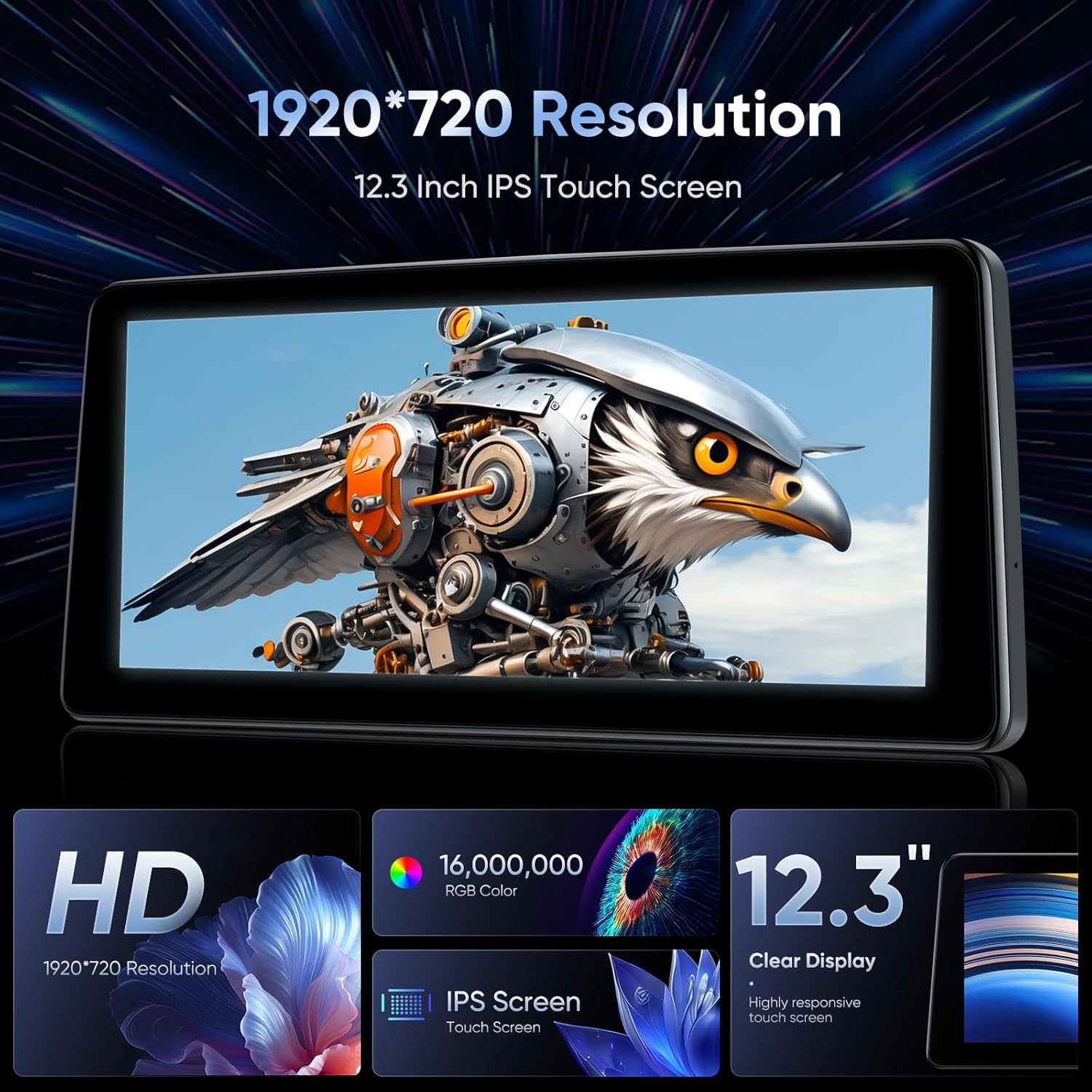
Image: Visual representation of the screen's high resolution, IPS display, and vibrant color capabilities.
7. Warranty and Support
GTRUI is committed to customer satisfaction and provides professional technical support for this product. If you require assistance with installation, operation, or troubleshooting, please contact GTRUI customer service.
- Technical Support: For any technical inquiries or assistance, please refer to the contact information provided on the GTRUI official website or your purchase documentation.
- Warranty Information: For specific warranty terms and conditions, including duration and coverage, please consult the warranty card included with your product or visit the GTRUI official website.