
1. Introduction
This manual provides detailed instructions for the installation, operation, and maintenance of your Oskkude 9 Inch Double Din Car Stereo. Please read this manual thoroughly before use to ensure proper functionality and safety.
1.1 Fitment Information
This car stereo is specifically designed for Kia Rio YB/SC models from 2018 to 2023. It features a 9-inch touchscreen for seamless integration with your vehicle's dashboard. Before purchasing or installing, verify the year, dimensions, and shape of your vehicle's center console to ensure compatibility.
Important Note: If your original equipment manufacturer (OEM) radio includes a backup camera, navigation screen, or amplifier, contact customer support to inquire about additional wiring kits that may be required.

2. Package Contents
Verify that all items listed below are included in your package:
- 9-inch Car Stereo Unit
- Power Cable (x2)
- 2USB Cable
- Camera Input Cable
- GPS Antenna
- RCA Input/Output Cables
- Instruction Manual
- Radio Adapter
- Mounting Screws (x2)
- Backup Camera

3. Installation
Professional installation is recommended for this car stereo. Incorrect wiring can damage the unit or your vehicle's electrical system. Refer to the wiring diagram and consult a qualified technician if you are unsure about any steps.
3.1 Wiring Diagram Overview
The unit comes with specific power cables, USB cables, camera input, GPS antenna, and RCA input/output cables. Ensure each cable is connected to its corresponding port on the car stereo and the vehicle's wiring harness.

3.2 Initial Power-On
After installation, turn on your vehicle's ignition. The car stereo should power on automatically. If it does not, check all power connections and the vehicle's fuse box.
4. Operating Instructions
4.1 Wireless CarPlay & Android Auto
The car stereo supports both wireless CarPlay and wired Android Auto. This feature allows you to integrate your smartphone for navigation, calls, messaging, and music playback, enhancing focus on the road.
- Wireless CarPlay: Connect your iPhone wirelessly via Bluetooth and Wi-Fi.
- Wired Android Auto: Connect your Android phone via a USB cable.

4.2 GPS Navigation & WiFi
The unit includes a built-in WiFi module and supports both online and offline maps. An offline map of North America is pre-installed. Connect to WiFi to use online navigation services and download or delete Android applications from the Application Store, similar to a smartphone.

4.3 Bluetooth Connectivity
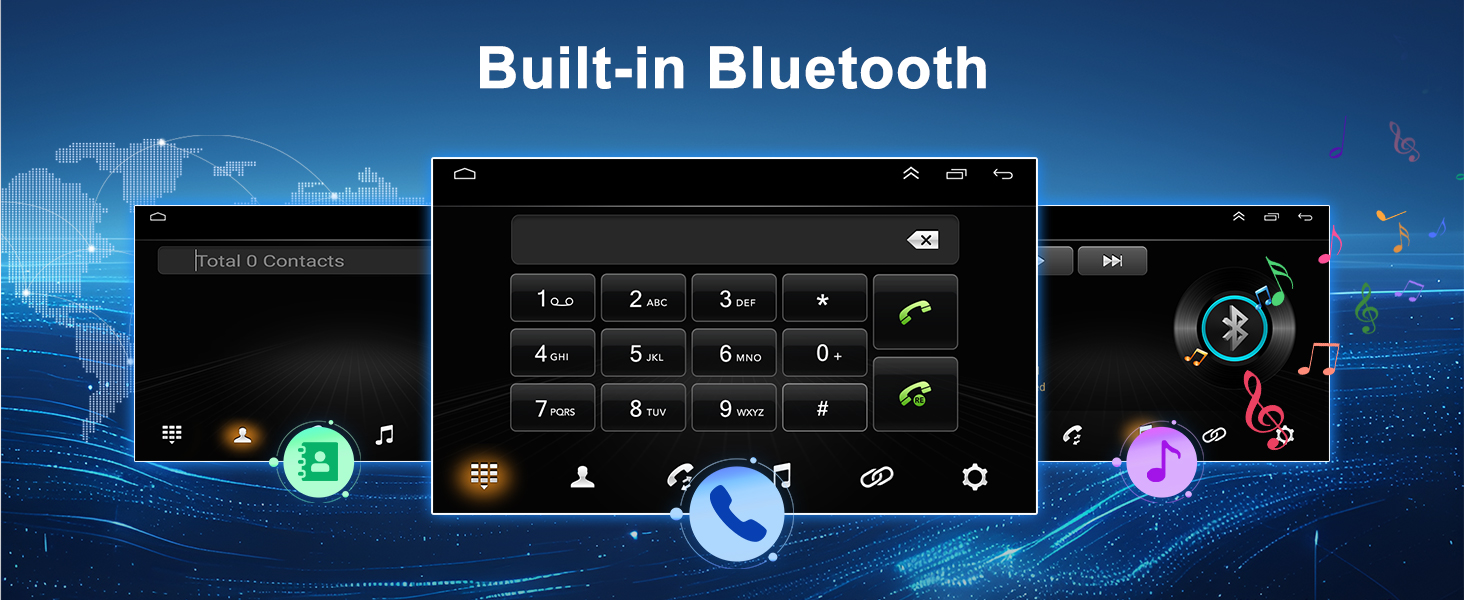
Activate Bluetooth on the car stereo and pair it with your smartphone to enjoy hands-free calling and wireless music streaming.
4.4 Mirror Link
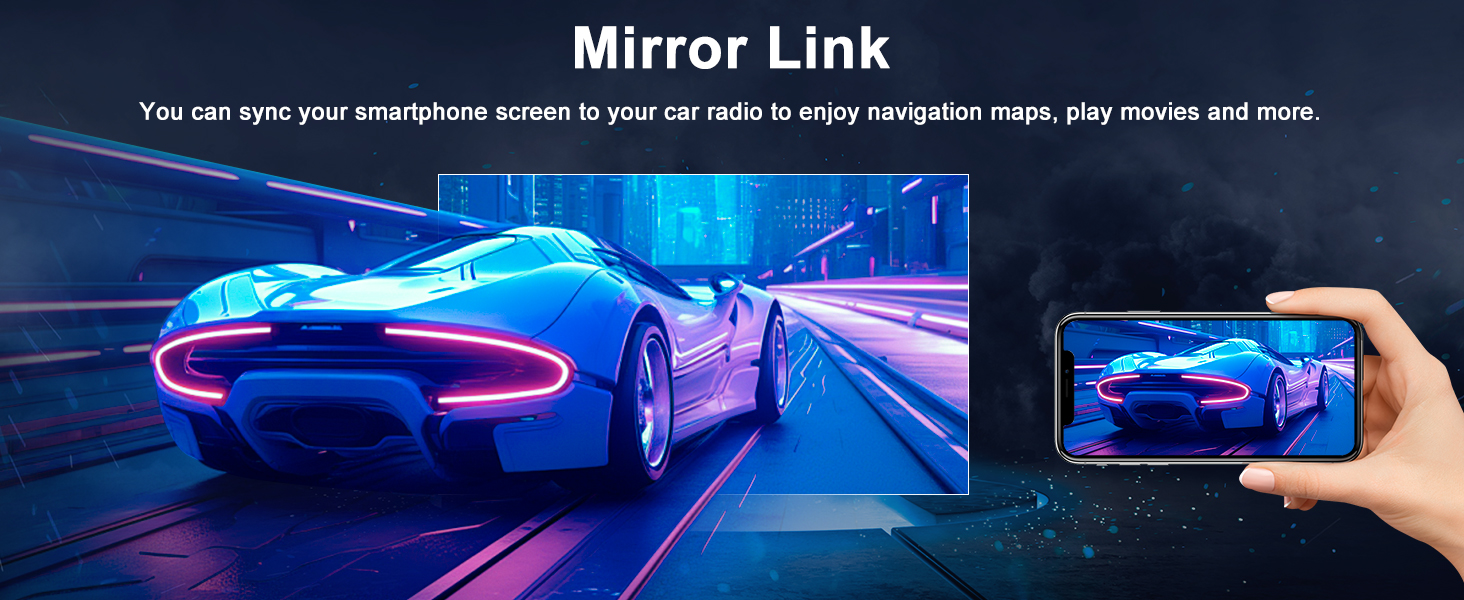
Use the Mirror Link function to display your smartphone screen directly on the car radio. This allows you to view navigation maps, play videos, and access other phone content on the larger screen.
4.5 FM/RDS Radio
The car stereo supports FM/RDS radio, allowing you to search for and save your favorite radio stations. The RDS (Radio Data System) feature provides additional information such as station name and song title where available.

4.6 HD IPS Touchscreen
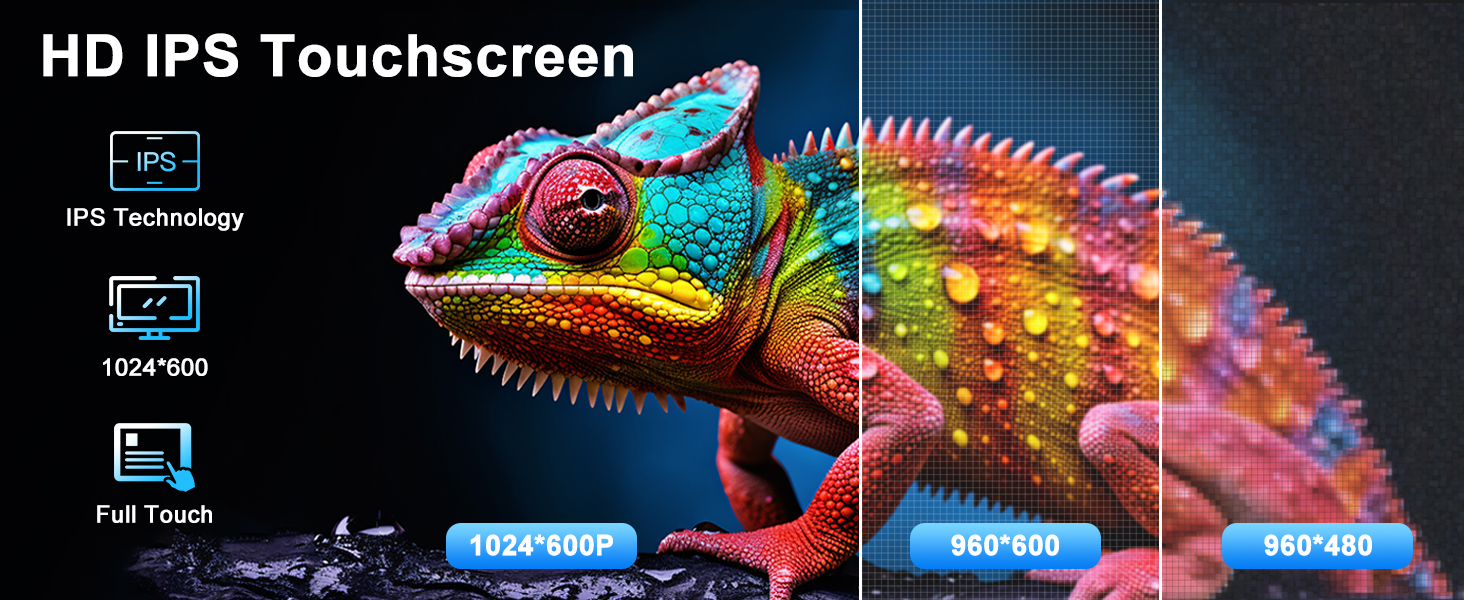
The 9-inch IPS touchscreen provides a clear and vibrant visual experience with a resolution of 1280*800 HD. The IPS technology ensures wide viewing angles and accurate color reproduction.
4.7 Steering Wheel Control (SWC)
The car stereo supports your vehicle's existing steering wheel controls. This allows you to manage media playback, volume, and other functions directly from your steering wheel, promoting safer driving.

4.8 AHD Backup Camera
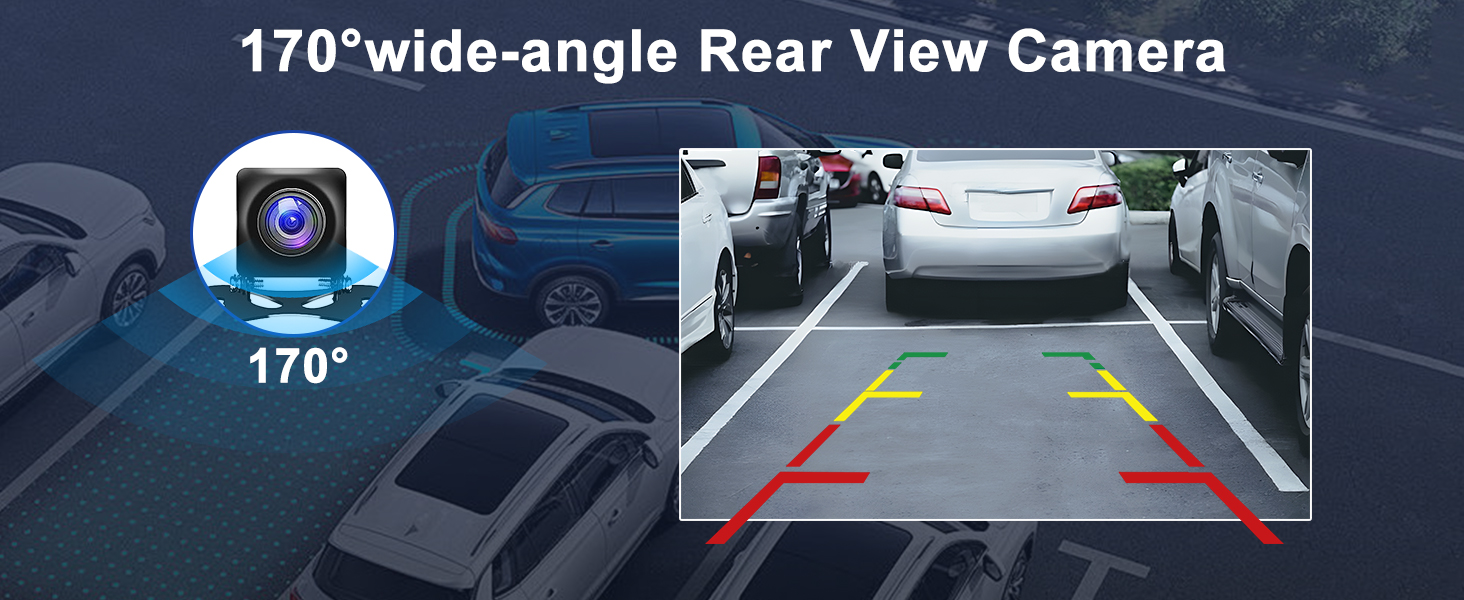
The included AHD backup camera provides a 170° wide field of view and night vision capabilities. When the vehicle is in reverse, the camera feed automatically displays on the car stereo screen, assisting with parking and maneuvering.
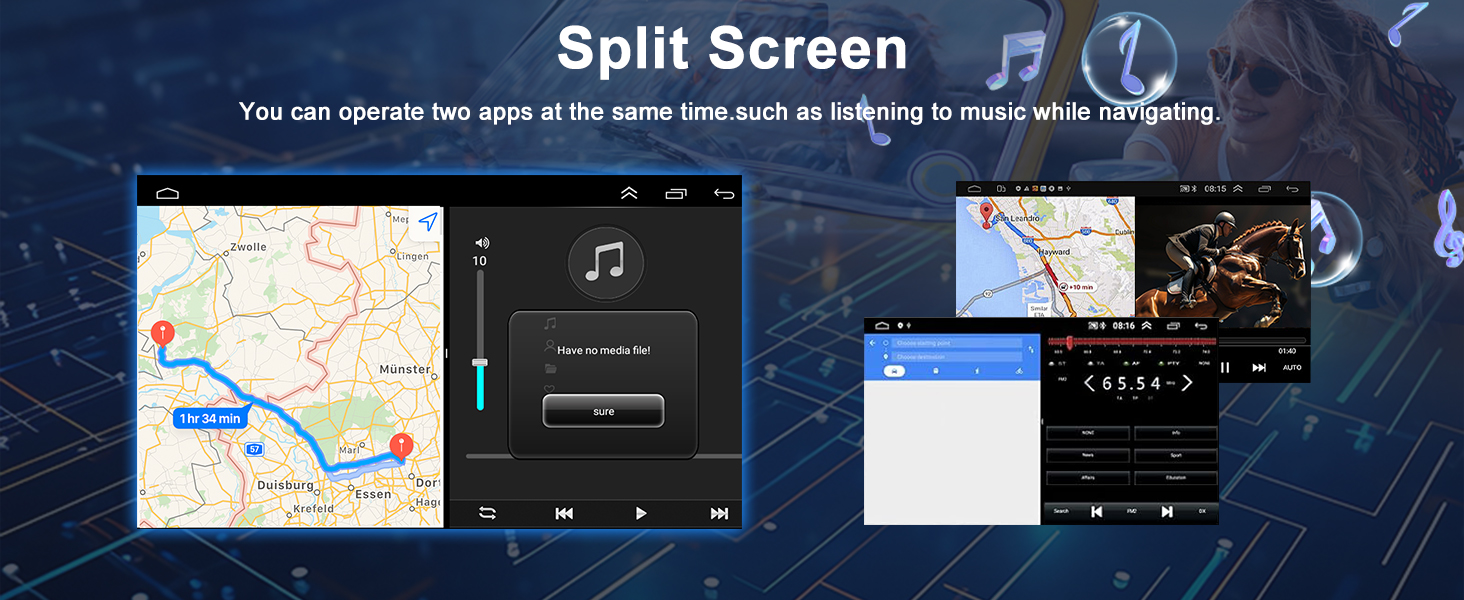
4.9 Split Screen Function
The split-screen feature allows you to operate two applications simultaneously on the 9-inch display. For example, you can view navigation maps on one side while controlling music playback on the other.
5. Specifications
| Feature | Detail |
|---|---|
| Brand | Oskkude |
| Model Number | TISU-05-DYY-25QJ0620X |
| Screen Size | 9 Inches |
| Display Type | LED IPS Touchscreen |
| Operating System | Android 13.0 |
| Memory (RAM+ROM) | 2GB RAM + 32GB ROM |
| Connectivity | Bluetooth, USB, Wi-Fi |
| Special Features | Wireless CarPlay, Wired Android Auto, Steering Wheel Control, GPS Navigation, FM/RDS Radio, AHD Backup Camera, Mirror Link, Split Screen |
| Map Type | Worldwide (Offline North America map included) |
| Audio Output Mode | Stereo |
| Human-Interface Input | Microphone, Touchscreen |
| Item Weight | 1950 Grams |
6. Troubleshooting
If you encounter issues with your car stereo, refer to the following common troubleshooting steps:
- No Power: Check the power cable connections and the vehicle's fuse. Ensure the ignition is on.
- No Sound: Verify speaker connections, volume settings, and audio source selection.
- GPS Signal Loss: Ensure the GPS antenna is properly installed and has a clear view of the sky.
- Bluetooth Pairing Issues: Ensure Bluetooth is enabled on both the stereo and your phone. Delete previous pairings and try reconnecting.
- Touchscreen Unresponsive: Try restarting the unit. If the issue persists, a factory reset may be necessary (consult customer support).
- Backup Camera Not Displaying: Check the camera input cable connection and ensure the vehicle is in reverse.
For persistent issues, contact Oskkude customer support for further assistance.
7. Maintenance
To ensure the longevity and optimal performance of your car stereo, follow these maintenance guidelines:
- Cleaning: Use a soft, dry cloth to clean the screen and exterior. Avoid abrasive cleaners or solvents.
- Temperature: Avoid exposing the unit to extreme temperatures, both hot and cold, for extended periods.
- Software Updates: Periodically check for available software updates to improve performance and add new features.
- Cable Connections: Ensure all cables are securely connected and not pinched or damaged.
8. Warranty and Support
Your Oskkude car stereo is covered by a standard manufacturer's warranty. Please refer to the warranty card included in your package for specific terms and conditions. For technical support, warranty claims, or any questions not covered in this manual, please contact Oskkude customer service.
Contact Information: Refer to the contact details provided on the product packaging or the official Oskkude website.