
1. Setup and Installation
This section provides instructions for the initial setup and installation of your WOWAUTO AG22 car navigation system. Please ensure your vehicle is turned off before beginning installation.
1.1 Unpacking the System
Carefully remove all components from the packaging. Verify that all included accessories are present:
- Toyota dedicated power cable
- Speaker cable
- Radio wiring harness
- GPS antenna
- Video/audio external input/output wiring
- Backup camera input wiring
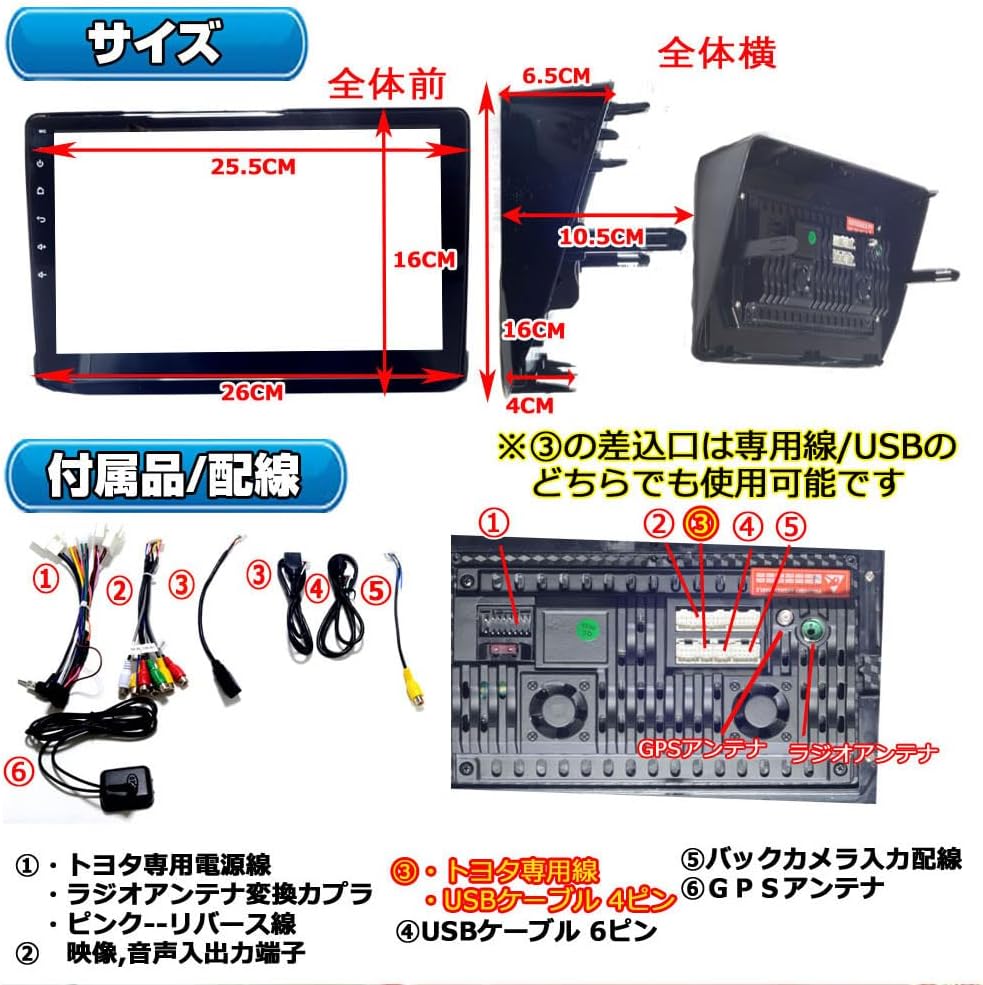
Figure 1.1: Included accessories and wiring diagram. (1) Toyota dedicated power cable, (2) Video/audio input/output terminals, (3) Toyota dedicated wiring / USB cable (4-pin), (4) USB cable (6-pin), (5) Backup camera input wiring, (6) GPS antenna.
1.2 Physical Installation
The AG22 is designed for a panel mount installation, specifically for Toyota Noah/Voxy/Esquire 80 Series vehicles. Professional installation is recommended.

Figure 1.2: The 10.1-inch display seamlessly integrated into a vehicle's dashboard.

Figure 1.3: Detailed dimensions of the AG22 unit for precise installation. Front dimensions: 26cm (width) x 16cm (height). Side dimensions: 10.5cm (depth) x 6.5cm (top width) x 4cm (bottom width).
1.3 Wiring Connections
Connect the provided wiring harnesses to their respective ports on the car navigation system and the vehicle's electrical system. Ensure all connections are secure to prevent disconnections or electrical issues.
- Power Connection: Use the Toyota dedicated power cable.
- Speaker Connection: Connect the speaker cable to your vehicle's speakers.
- Radio Antenna: Connect the radio wiring harness.
- GPS Antenna: Install the GPS antenna in a location with clear sky view.
- External Video/Audio: Use the provided wiring for external video/audio input/output.
- Backup Camera: Connect the dedicated backup camera input wiring.
2. Operating Instructions
This section covers the basic operation of your WOWAUTO AG22 system, including navigation, media playback, and smartphone integration.
2.1 Powering On and Initial Setup
Turn on your vehicle's ignition. The system will boot up, displaying the Android OS. Follow any on-screen prompts for initial language and time settings.

Figure 2.1: Main interface showing various applications like navigation, music, and Bluetooth.
2.2 Smartphone Integration (CarPlay & Android Auto)
The system supports both wired and wireless Apple CarPlay and Android Auto. Connect your smartphone via USB or Bluetooth to access compatible apps directly on the car navigation display.
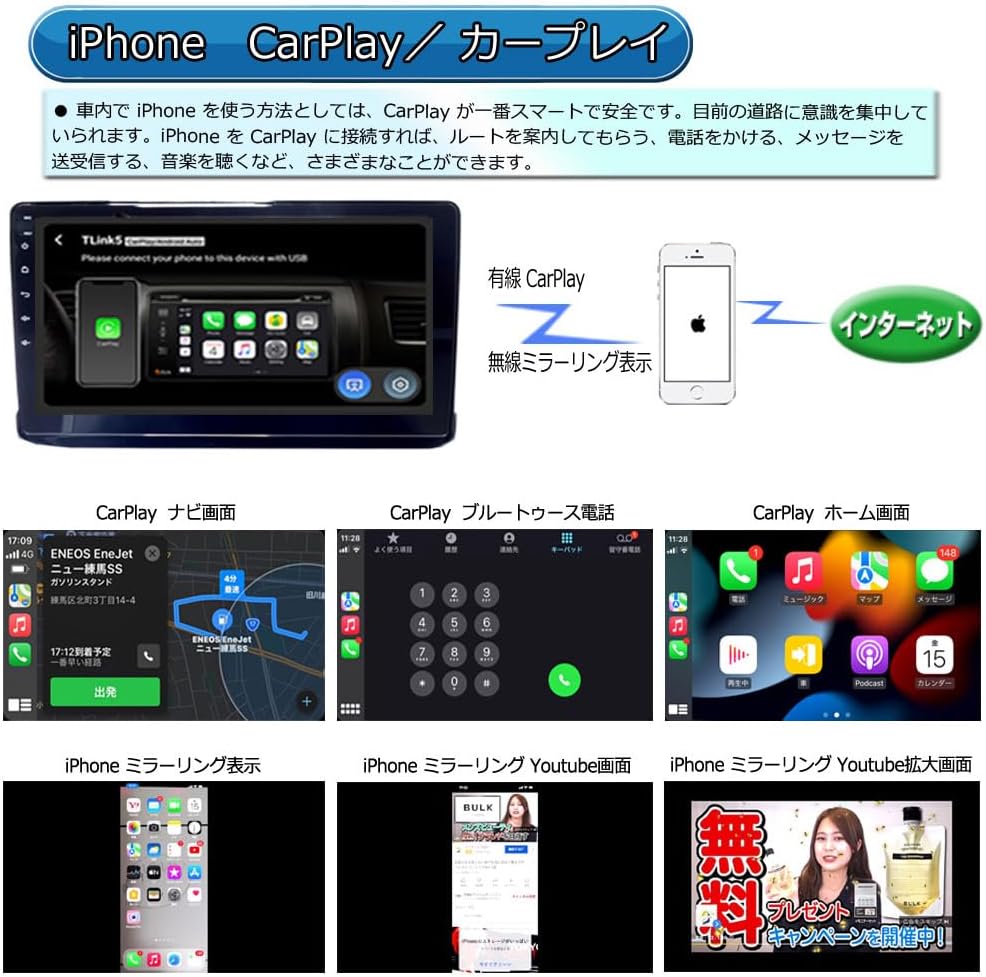
Figure 2.2: Apple CarPlay interface on the AG22 display, showing phone, music, and map applications.

Figure 2.3: Android Auto interface on the AG22 display, showing navigation, music, and messaging applications.
For apps not supported by CarPlay or Android Auto, use the mirroring function to display your smartphone screen on the AG22. This allows you to view content like YouTube videos.
Video 2.1: Demonstration of CarPlay, Android Auto, and screen mirroring features on a similar ATOTOEXCEL unit. This video highlights the seamless integration and expanded app compatibility.
2.3 Navigation and GPS
The system includes a GPS antenna for accurate navigation. Use pre-installed map applications or download your preferred navigation apps from the Play Store.
2.4 Audio and Multimedia
Enjoy various audio and video formats via USB, Bluetooth, or streaming apps. The system features a 24-band EQ and 9 presets for customized sound, along with a high-precision Digital Signal Processor (DSP) for enhanced audio quality.
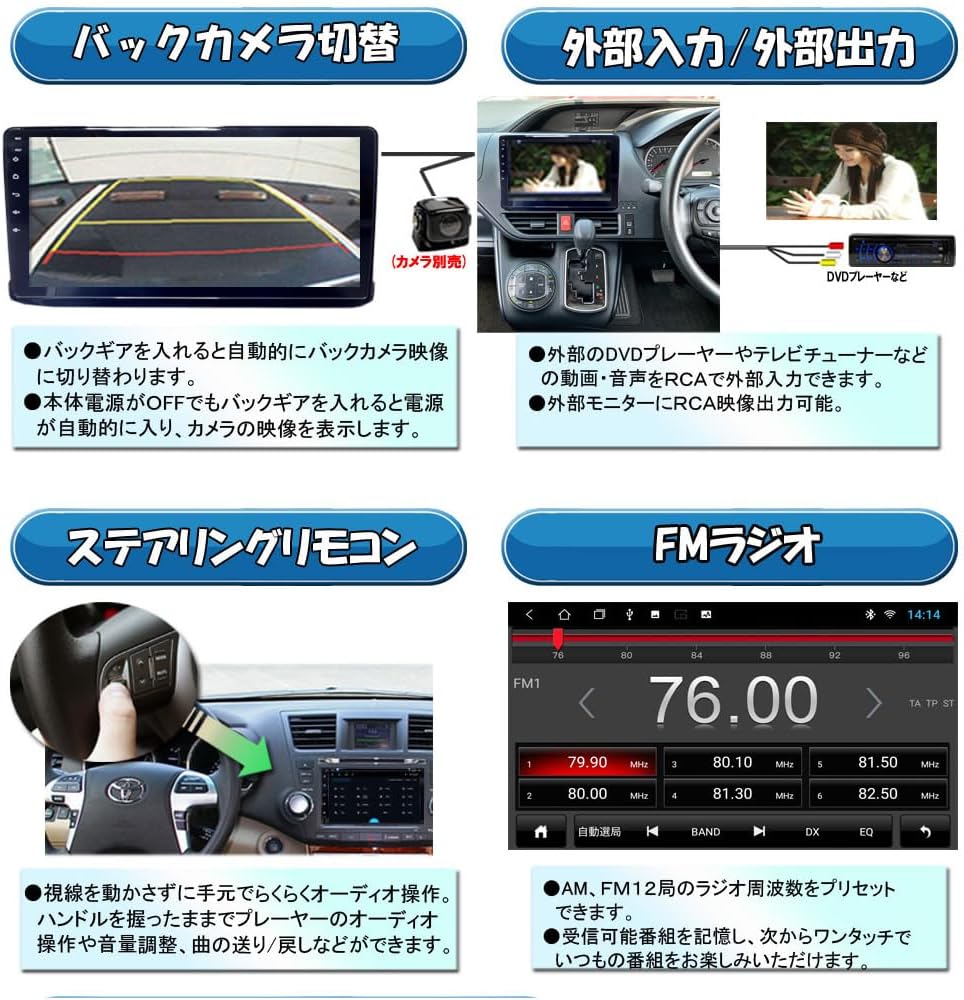
Figure 2.4: Audio equalizer settings for fine-tuning sound output.
Video 2.2: Overview of ATOTOLIFE A5L features, including DSP settings, screen quality, Bluetooth pairing, split-screen functionality, dash cam integration, and OBD-II diagnostics. This video demonstrates various operational aspects of a similar car navigation system.
2.5 Rear View Camera Functionality
When connected to a compatible backup camera (e.g., AC-HD02LR), the system automatically switches to the rear view display when the vehicle is put into reverse. This feature enhances safety during parking and reversing maneuvers.

Figure 2.5: Rear view camera display with parking guidelines for safe maneuvering.
3. Maintenance
Proper maintenance ensures the longevity and optimal performance of your car navigation system.
3.1 Cleaning the Display
Use a soft, lint-free cloth to gently wipe the 10.1-inch capacitive touch screen. For stubborn smudges, slightly dampen the cloth with water or a screen-safe cleaner. Avoid abrasive materials or harsh chemicals.
3.2 Software Updates
The system supports OTA (Over-The-Air) updates. Regularly check for and install software updates to ensure optimal performance, security, and access to new features. Updates can resolve software issues quickly and easily.
3.3 General Care
- Avoid exposing the unit to extreme temperatures or direct sunlight for prolonged periods.
- Ensure all cables are securely connected and not pinched or damaged.
- Do not attempt to disassemble the unit, as this will void the warranty.
4. Troubleshooting
If you encounter issues with your WOWAUTO AG22, refer to the following common problems and solutions.
4.1 No Power
- Check the power connections to ensure they are properly seated.
- Verify that your vehicle's ignition is on and providing power to the unit (DC12V, operating range: 11-16V).
- Inspect the vehicle's fuse box for any blown fuses related to the car stereo.
4.2 Touch Screen Unresponsive
- Perform a soft reset by pressing and holding the power button until the unit restarts.
- Ensure the screen is clean and free of debris or moisture.
4.3 GPS Signal Loss
- Check the GPS antenna connection.
- Ensure the GPS antenna is installed in a location with an unobstructed view of the sky.
- Verify that the GPS settings in the system are correctly configured.
4.4 Bluetooth Connectivity Issues
- Ensure Bluetooth is enabled on both the car navigation system and your smartphone.
- Delete previous pairings on both devices and attempt to re-pair.
- Move your smartphone closer to the car navigation system to ensure it's within range.
4.5 Backup Camera Not Displaying
- Check the backup camera input wiring connection.
- Ensure the camera itself is powered and functioning correctly.
- Verify that the vehicle is in reverse gear.
5. Specifications
| Feature | Detail |
|---|---|
| Brand | WOWAUTO |
| Model Name | AG22 |
| Screen Size | 10.1 inches (Wide LCD) |
| Resolution | 1024 x 768 x 3 RCA (Vertical x Horizontal x Color) |
| Backlight | LED Backlight System |
| Touch Panel Type | Capacitive Touch |
| Operating System | Android 12 |
| RAM | 2GB |
| ROM | 32GB |
| Max Memory Capacity (USB) | 256GB |
| Radio Frequency (FM) | 76.0 - 90.0MHz |
| Supported Audio Formats | MP3, WMA |
| Supported Video Formats | MP4, RM, AVI, MPEG2, FLV |
| Supported Image Formats | JPEG, BMP |
| Max Audio Output | 35W x 4 |
| Video Input | RCA 2 systems (including dedicated backup camera input) |
| Video Output | RCA 1 system |
| Audio Output | RCA Front (L, R), Rear (L, R) |
| Power Voltage | DC12V (Operating range: 11-16V), Negative Ground |
| Operating Temperature | -10℃ to +60℃ |
| Weight | Approx. 0.5kg |
| Connectivity | Bluetooth, Wi-Fi, USB |
| Features | Bluetooth, CarPlay, Android Auto, Mirroring, Touch Screen, Automatic Backup Camera Switching, External Input/Output, GPS |
6. Warranty and Support
6.1 Warranty Information
The product comes with a 1-year warranty from the date of purchase.
- Within 1 week of arrival: Free returns and exchanges.
- 8 days to 1 month after arrival: Repairs/exchanges available (customer bears shipping costs).
- 1 month to 1 year after arrival: Repairs/exchanges available (customer bears shipping costs and repair/exchange fees).
Important: To prevent issues, products are not shipped in advance. Your understanding is appreciated.
6.2 Warranty Exclusions
The warranty does not cover:
- Damage or malfunction due to incorrect usage.
- Modified products.
- Products not properly maintained.
- Circuit board shorts or overcurrent damage due to incorrect installation.
- Installation/removal costs incurred by the customer. Please confirm proper operation before installation.
6.3 Customer Support
For further assistance, please contact WOWAUTO customer support through the Amazon platform or refer to the official WOWAUTO store for contact details.