
1. Product Overview
The Zomolither Android 15 Car Stereo is designed as an upgrade head unit for Subaru Forester, Impreza, and WRX models manufactured between 2008 and 2012. This unit features a 9-inch 1280x720 IPS touchscreen display, powered by an 8-core processor with 4GB RAM and 64GB ROM, running on the Android 15 operating system. It integrates various functionalities including wireless Apple CarPlay, Android Auto, Mirror Link, Bluetooth 5.0, GPS navigation, and FM/RDS radio.
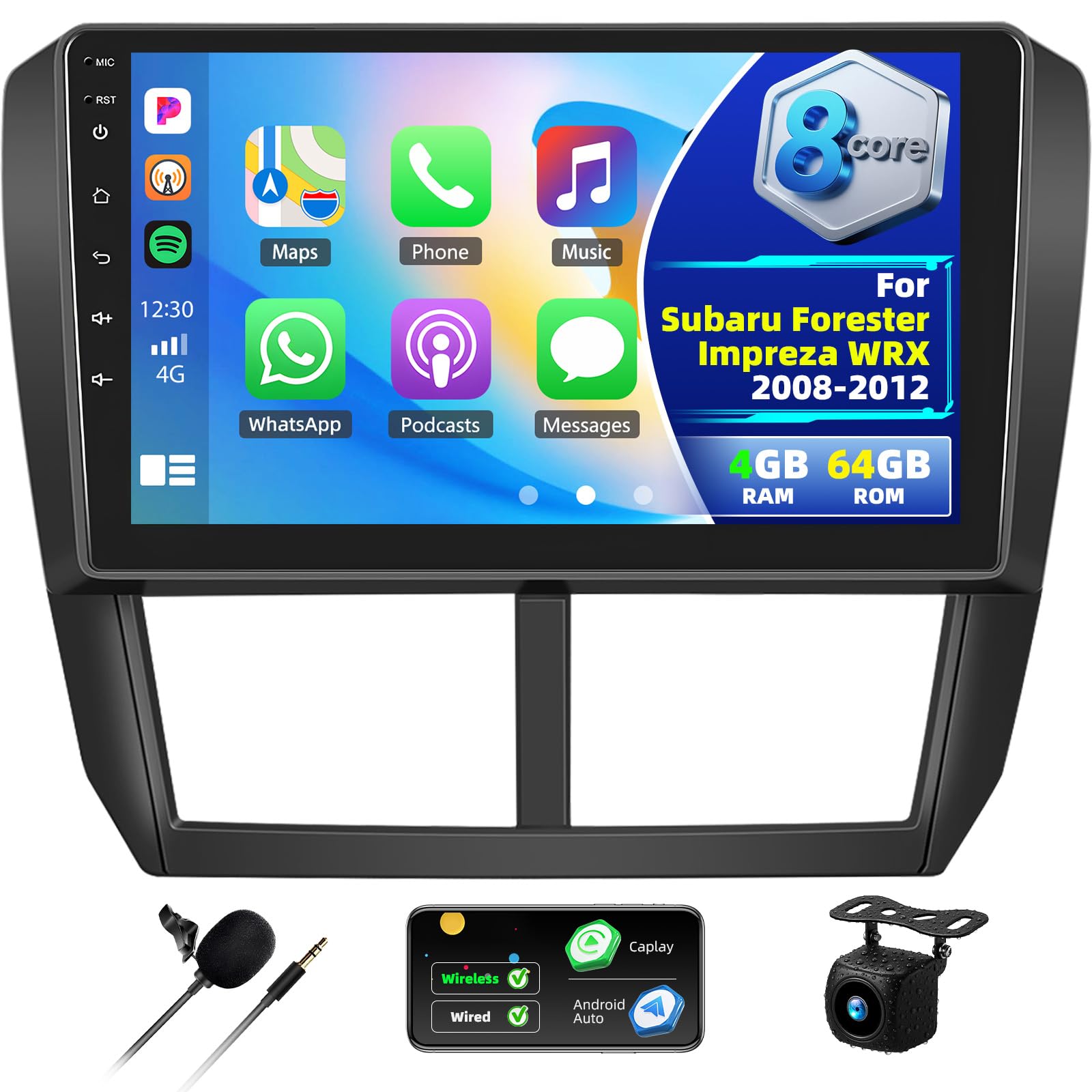
Image 1.1: Zomolither Android 15 Car Stereo installed in a Subaru dashboard, showing the display and surrounding vehicle interior.
Key Features:
- Operating System: Android 15
- Processor: 8-Core
- Memory: 4GB RAM + 64GB ROM
- Display: 9-inch 1280x720 IPS Touchscreen
- Connectivity: Wireless Apple CarPlay, Wireless Android Auto, Mirror Link (WiFi/USB), Bluetooth 5.0, Wi-Fi
- Audio: Built-in DSP with 36-band EQ
- Navigation: Professional GPS Navigation (supports online/offline maps)
- Radio: FM/RDS Radio
- Additional: AHD Backup Camera support, Steering Wheel Control (SWC) compatibility, Multiple UI themes.
2. Package Contents
Verify that all items listed below are included in your package. If any items are missing or damaged, please contact customer support.
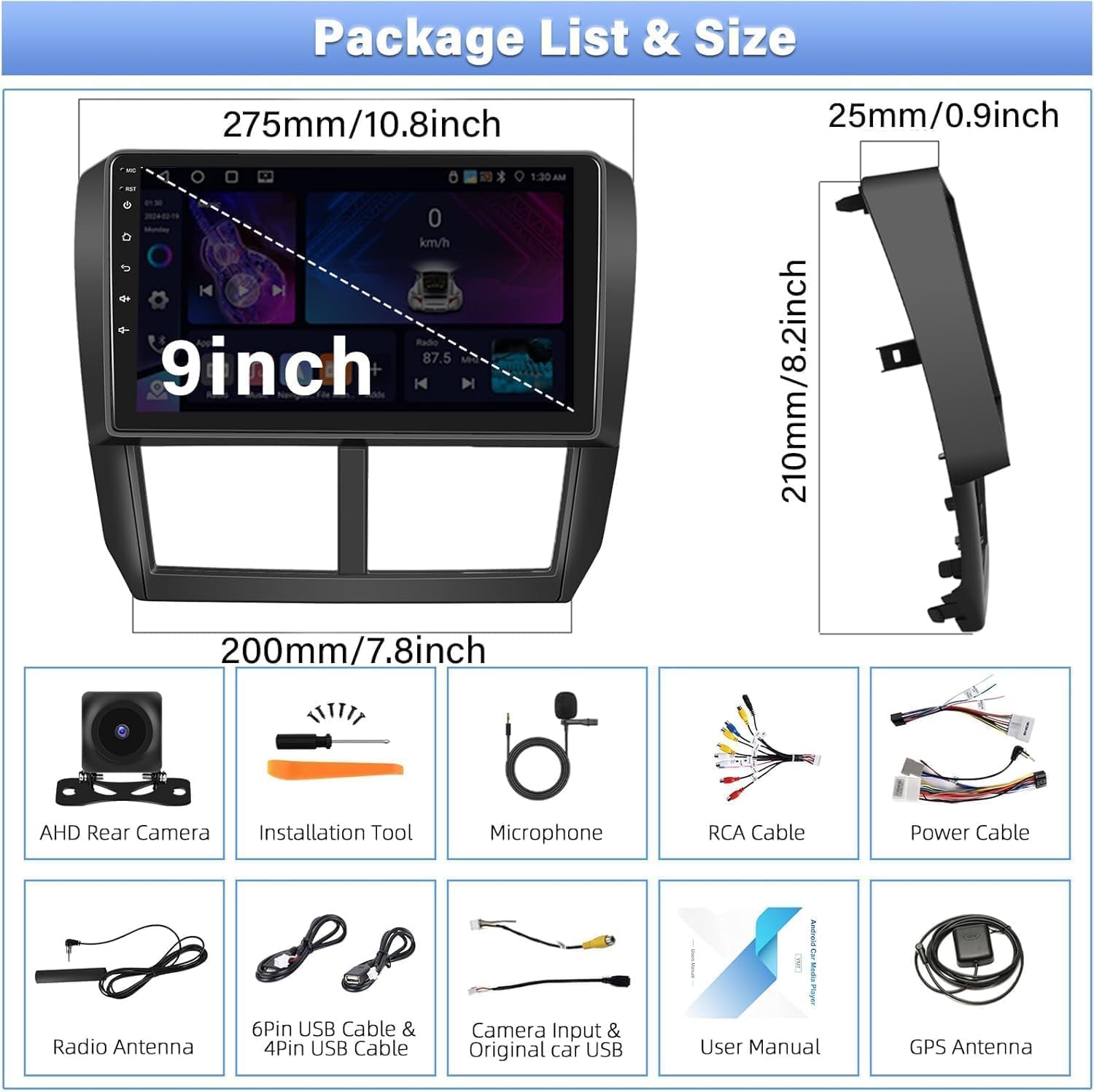
Image 2.1: Visual representation of the package contents, including the main unit and accessories.
- Android Car Stereo (with Frame)
- AHD Backup Camera
- External Microphone
- Power Cable (x2)
- Installation Tool
- GPS Antenna
- USB Cable
- RCA Cable
- User Manual
- Radio Antenna
- Original USB Cable
3. Installation
Professional installation is recommended. Ensure the vehicle's power is disconnected before beginning installation. Refer to your vehicle's specific service manual for dashboard disassembly and reassembly procedures.
3.1 Wiring Connections
Carefully connect all cables according to the provided wiring diagrams. Ensure secure connections to prevent intermittent issues.

Image 3.1: Wiring diagram for the backup camera. Connect the pink wire labeled 'Reverse / Parking Sensor Control / Back in' to the car's reversing light positive pole.
3.2 Backup Camera Installation
The included AHD backup camera supports a 170-degree ultra-wide angle and is waterproof. Connect the camera as shown in the wiring diagram. The display will automatically switch to the rear view when the vehicle is in reverse gear, enhancing safety.
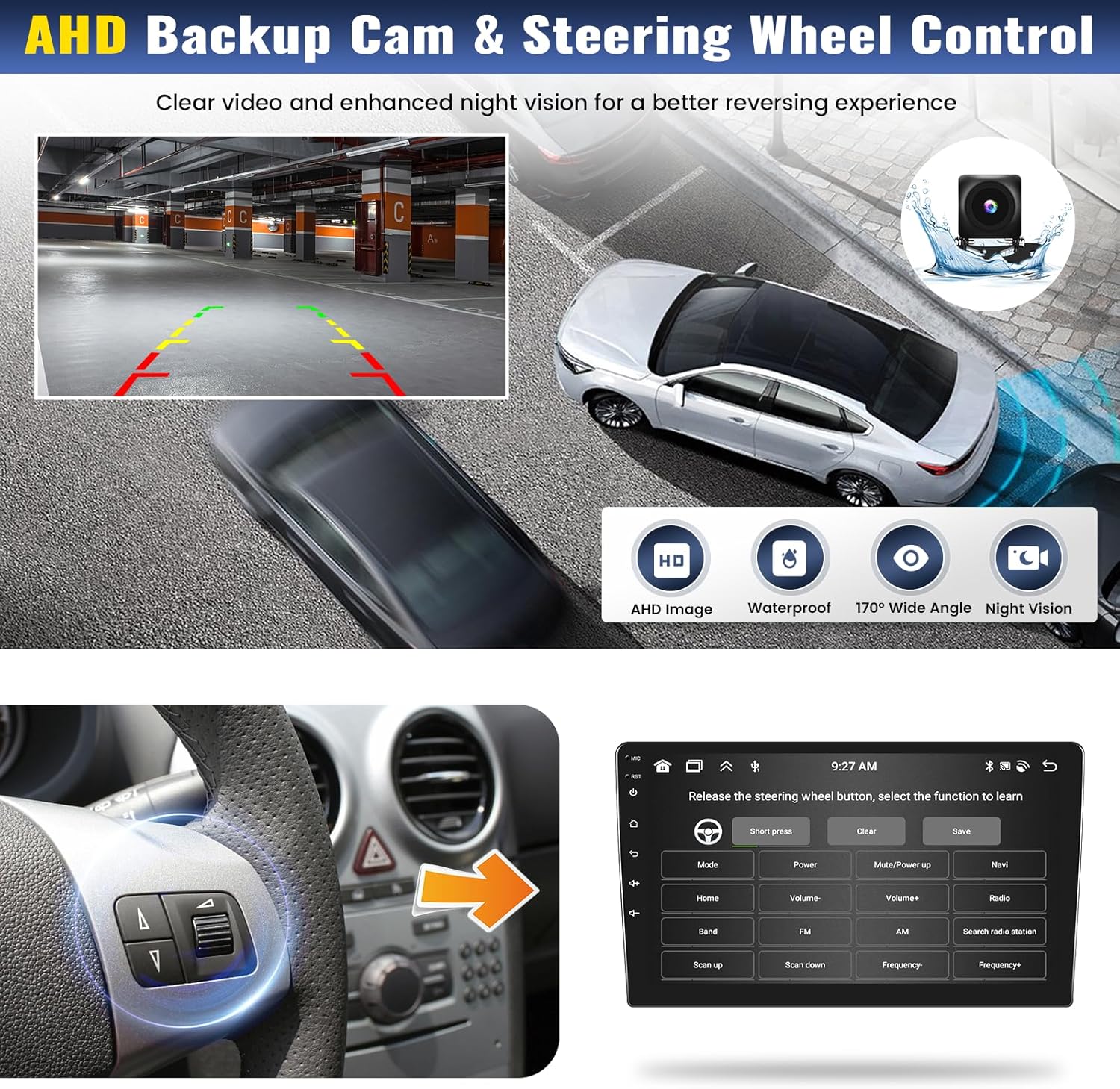
Image 3.2: The backup camera provides a clear view with parking guidelines. The image also shows the steering wheel control interface for programming.
3.3 Steering Wheel Control (SWC) Setup
After correct wiring, access the steering wheel control learning function in the unit's settings. Follow the on-screen prompts to assign functions to your vehicle's steering wheel buttons.
4. Operating Instructions
This section details the primary functions and how to operate your Zomolither car stereo.
4.1 Power On/Off and Basic Interface
Press the power button to turn the unit on or off. The 9-inch IPS touchscreen provides a sensitive and clear display. You can customize the interface with 59 available UI desktop themes.

Image 4.1: The 1280x720 IPS screen offers a wide viewing angle and supports 59 UI themes for personalization.
4.2 Wireless CarPlay & Android Auto & Mirror Link
Connect your smartphone wirelessly via Bluetooth or USB to access Apple CarPlay or Android Auto. This allows for hands-free calling, GPS navigation, messaging, and music streaming directly from your phone. The Mirror Link feature enables casting your phone's screen to the car stereo via WiFi or USB.

Image 4.2: Examples of Apple CarPlay and Android Auto interfaces, along with Mirror Link functionality.
4.3 Bluetooth 5.0 Functionality
The built-in Bluetooth 5.0 module allows for stable hands-free calling and audio streaming. Pair your phone to make and receive calls safely while driving, and enjoy your music library wirelessly.

Image 4.3: The Bluetooth interface showing options for phone calls, music, and phonebook access.
4.4 GPS Navigation and Wi-Fi
The unit comes with pre-installed Google Maps. Connect to Wi-Fi to access real-time traffic conditions and download offline maps for navigation without an internet connection. The Wi-Fi connection also enables access to various online applications.

Image 4.4: The GPS navigation screen displaying map data and route information.
4.5 FM/RDS Radio
Tune into your favorite radio stations using the built-in FM/RDS radio. The RDS (Radio Data System) feature provides additional information like station name and song titles where available.

Image 4.5: The FM/RDS radio interface for selecting and displaying radio stations.
4.6 Audio Equalizer (DSP)
Utilize the built-in DSP (Digital Signal Processor) with a 36-band equalizer to fine-tune your audio experience. Adjust frequency bands to match your preferences and vehicle acoustics.

Image 4.6: The DSP interface showing the 36-band equalizer for detailed audio adjustments.
4.7 Split Screen Functionality
The split-screen feature allows you to run two applications simultaneously on the display, such as navigation and music playback.

Image 4.7: The split screen feature displaying navigation and music applications side-by-side.
5. Troubleshooting
This section addresses common issues you might encounter with your car stereo.
5.1 Unstable Bluetooth Connection
- Check Pairing: Ensure your device is correctly paired with the car stereo. Delete the pairing on both devices and re-pair.
- Interference: Minimize other Bluetooth devices in the vehicle that might cause interference.
- Software Update: Check for available software updates for the car stereo, as these can resolve connectivity issues.
- Reset: Perform a system reset if the issue persists. Refer to the 'System Settings' for the reset option.
5.2 Screen Goes Black Randomly
- Power Connection: Verify all power connections are secure and free from corrosion.
- Overheating: Ensure adequate ventilation around the unit. Prolonged use in extreme temperatures can cause issues.
- System Reset: A system reset can often resolve temporary software glitches causing the screen to go black.
- Firmware: Ensure the unit's firmware is up to date.
5.3 Audio Cuts Off at Higher Volumes
- Speaker Impedance: Ensure your vehicle's speakers are compatible with the car stereo's output specifications. Incorrect impedance can cause protection circuits to activate.
- Wiring: Check speaker wiring for shorts or loose connections.
- DSP Settings: Review the DSP and equalizer settings. Extreme boosts in certain frequencies or volume levels can trigger audio protection.
- Amplifier (if applicable): If an external amplifier is used, check its power supply and settings.
If these troubleshooting steps do not resolve the issue, please contact Zomolither customer support for further assistance.
6. Specifications
| Feature | Specification |
|---|---|
| Model Name | CYA46 |
| Operating System | Android 15 |
| Memory (RAM + ROM) | 4GB + 64GB |
| Display Size | 9 Inches |
| Display Resolution | 1280 x 720 IPS |
| Connectivity Technology | Bluetooth 5.0, USB, Wi-Fi |
| Special Features | Wireless Apple CarPlay, Wireless Android Auto, GPS Navigation, 36-EQ, 59 UI Themes |
| Map Type | North America, Worldwide |
| Item Weight | 2.42 pounds |
| Package Dimensions | 10.24 x 6.3 x 2.76 inches |
7. Warranty and Support
Zomolither offers the following support and warranty for this product:
- Warranty: 1 Year
- Refund Policy: 30-day refund
- Replacement Policy: 12-months replacement
- Technical Support: Lifetime technical support
- Online Support: For any concerns or compatibility questions, please contact us at Zomolither@126.com.