
DYON D800255
DYON nexGo 40F Smart TV 40-inch Full HD Google TV User Manual
Model: D800255
1. Introduction
Welcome to the user manual for your new DYON nexGo 40F Smart TV. This manual provides essential information for setting up, operating, and maintaining your television. Please read it thoroughly before using the device to ensure safe and optimal performance.

Image 1.1: The DYON nexGo 40F Smart TV, featuring Google TV, Google Play, Google Assistant, and Google Cast, with a 40-inch Full HD display.
The DYON nexGo 40F is a 40-inch Full HD Smart TV (1920 x 1080 pixels) powered by Google TV. It offers an intuitive user experience with integrated Google Assistant for voice control, access to thousands of applications via the Google Play Store, and built-in Chromecast for seamless content streaming from your mobile devices. The TV also includes a triple tuner for versatile reception options (DVB-S2, DVB-C, DVB-T2).
2. Important Safety Instructions
Always follow these basic safety precautions when using your television:
- Power Source: Ensure the TV is connected to a power supply with the correct voltage as indicated on the product label.
- Ventilation: Do not block ventilation openings. Allow adequate space around the TV for proper airflow to prevent overheating.
- Water and Moisture: Do not expose the TV to rain or moisture. Do not place objects filled with liquids, such as vases, on the TV.
- Cleaning: Unplug the TV before cleaning. Use a soft, dry cloth. Do not use liquid cleaners or aerosol cleaners.
- Placement: Place the TV on a stable, level surface. Avoid placing it in direct sunlight or near heat sources.
- Lightning: During lightning storms or when unused for long periods, unplug the TV from the wall outlet.
- Servicing: Do not attempt to service the TV yourself. Refer all servicing to qualified service personnel.
3. Package Contents
Please check that all items are present in your package:
- DYON nexGo 40F Smart TV
- Remote Control (with 2 AAA batteries included)
- Power Cable
- TV Stand (2 pieces)
- Screws for TV Stand
- User Manual (this document)
4. Setup
4.1. Attaching the TV Stand
Carefully place the TV face down on a soft, flat surface to prevent screen damage. Align the stand pieces with the mounting holes on the bottom of the TV and secure them with the provided screws. Ensure the stand is firmly attached before placing the TV upright.
4.2. Connecting External Devices
Your DYON nexGo 40F TV offers various connection options:
- HDMI: Connect Blu-ray players, game consoles, or other HDMI-enabled devices to the HDMI ports.
- USB: Insert USB drives for media playback or software updates into the USB ports.
- Antenna/Cable: Connect your antenna or cable TV signal to the DVB-T2/C or DVB-S2 input for terrestrial, cable, or satellite reception.
- Ethernet: For a stable internet connection, connect an Ethernet cable to the LAN port.
4.3. Powering On and Initial Setup
- Connect the power cable to the TV and then to a wall outlet.
- Press the power button on the remote control or on the TV.
- Follow the on-screen instructions to complete the initial setup, which includes selecting your language, connecting to a Wi-Fi network, and signing in with your Google account.
5. Operating Your TV
5.1. Remote Control Functions
The included Bluetooth remote control provides quick access to various functions, including dedicated buttons for popular streaming services. Use the directional pad to navigate menus and the OK button to confirm selections. The microphone button activates Google Assistant for voice commands.
5.2. Google TV Interface

Image 5.1: The Google TV interface provides an overview of your favorite apps and personalized content recommendations.
Google TV organizes your favorite movies, shows, live TV, and more from across your apps and subscriptions. The home screen provides personalized recommendations based on your viewing habits and interests.

Image 5.2: The Google TV interface is designed for clear navigation and fluid operation.
5.3. Accessing Applications via Google Play Store

Image 5.3: Access over 10,000 apps for streaming, media libraries, games, and more directly from the Google Play Store.
The Google Play Store allows you to download and install a wide range of applications, including additional streaming services, games, and utility apps. Navigate to the "Apps" section on your home screen to access the Play Store.
5.4. Voice Control with Google Assistant

Image 5.4: Control your TV quickly, simply, and intuitively using your voice with Google Assistant.
Press the Google Assistant button on your remote control and speak into the microphone to search for content, control playback, get information, or manage smart home devices. For example, say "Hey Google, find action movies" or "Hey Google, what's the weather?"
5.5. Chromecast Built-in
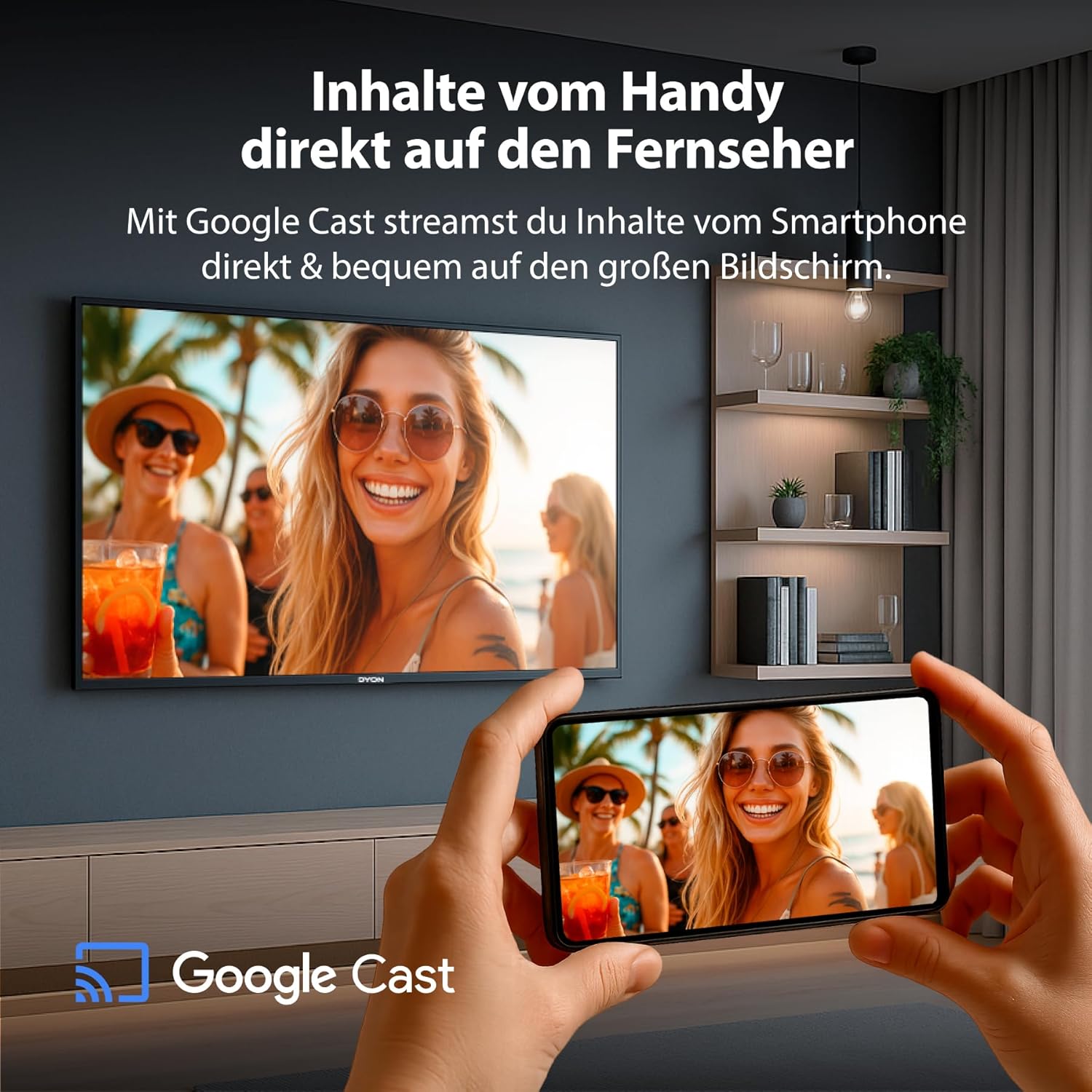
Image 5.5: Stream content directly and conveniently from your smartphone or tablet to the large screen using Google Cast.
With Chromecast built-in, you can cast videos, photos, and music from compatible apps on your smartphone or tablet directly to your TV. Ensure your mobile device and TV are connected to the same Wi-Fi network.
6. Smart Features
6.1. Personalized Home Page and User Profiles

Image 6.1: Google TV remembers what you like and recommends movies and series you will enjoy.
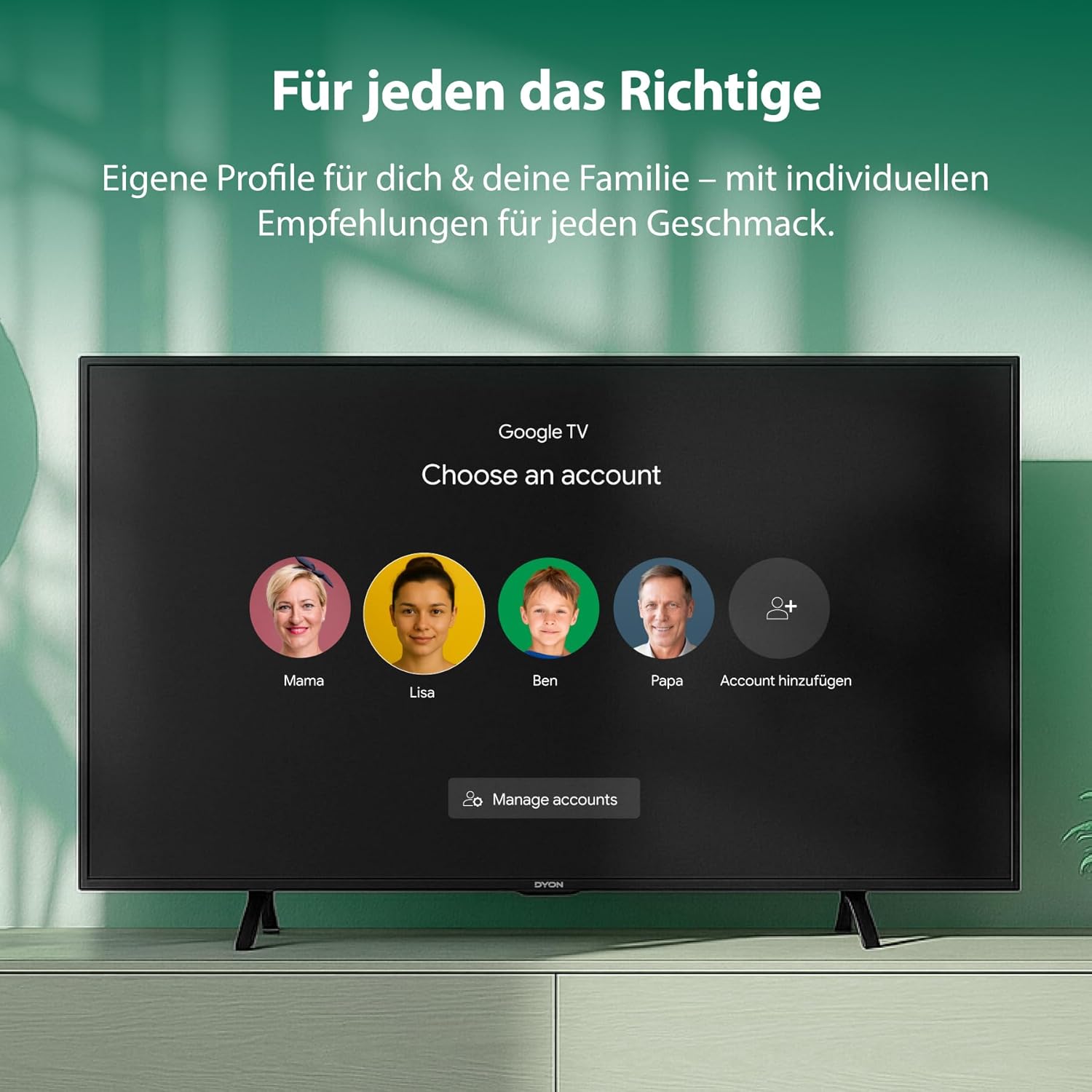
Image 6.2: Create individual user profiles for personalized recommendations tailored to each family member's taste.
Google TV allows you to create multiple user profiles, ensuring that each family member receives personalized content recommendations and a customized viewing experience.
6.2. Parental Control

Image 6.3: The Kids Profile protects your children – you securely determine what they are allowed to watch, appropriate for their age.
Utilize the Kids Profile feature to manage and restrict content access for younger viewers, ensuring a safe and age-appropriate entertainment environment.
6.3. Smart Home Integration

Image 6.4: Control smart home devices such as lights, cameras, and thermostats conveniently via voice command through your TV.
Your DYON nexGo 40F TV can integrate with compatible smart home devices, allowing you to control them using voice commands through Google Assistant.
7. Connectivity
The TV supports various connectivity options:
- Wi-Fi: Built-in Wi-Fi for wireless internet access.
- HDMI: Multiple HDMI ports for connecting high-definition devices.
- USB: Two USB ports for media playback and connecting peripherals.
- Ethernet: For a wired internet connection.
- Triple Tuner: Integrated DVB-S2 (satellite), DVB-C (cable), and DVB-T2 (terrestrial) tuners for receiving broadcast signals without an external receiver. Supports modern HEVC standard.
8. Maintenance
To ensure the longevity and optimal performance of your TV, follow these maintenance guidelines:
- Screen Cleaning: Gently wipe the screen with a soft, lint-free cloth. For stubborn marks, slightly dampen the cloth with water or a specialized screen cleaner (do not spray directly onto the screen).
- Cabinet Cleaning: Use a soft, dry cloth to clean the TV cabinet.
- Dusting: Regularly dust the ventilation openings to prevent dust buildup, which can lead to overheating.
- Avoid Harsh Chemicals: Do not use abrasive cleaners, waxes, or solvents as they can damage the TV's finish.
9. Troubleshooting
If you encounter issues with your TV, refer to the following common problems and solutions:
| Problem | Possible Solution |
|---|---|
| No Power | Check if the power cable is securely connected to both the TV and the wall outlet. Ensure the outlet is functional. Try pressing the power button on the TV itself. |
| No Picture / Black Screen | Verify the correct input source is selected (e.g., HDMI 1, DVB-T2). Check cable connections to external devices. Restart the TV. |
| No Sound | Check the volume level and ensure the TV is not muted. Verify audio settings (e.g., internal speakers, external audio system). Check audio cables for external devices. |
| Remote Control Not Working | Replace the batteries in the remote control. Ensure there are no obstructions between the remote and the TV. Re-pair the Bluetooth remote if necessary (refer to TV settings). |
| Wi-Fi Connection Issues | Restart your Wi-Fi router. Ensure the TV is within range of the Wi-Fi signal. Re-enter the Wi-Fi password in the TV's network settings. Try a wired Ethernet connection as an alternative. |
| Apps Not Loading / Slow Performance | Check your internet connection speed. Clear the cache of the problematic app in the TV's settings. Restart the TV. Ensure the TV's software is up to date. |
10. Specifications
Here are the key technical specifications for the DYON nexGo 40F Smart TV:
- Brand: DYON
- Model Number: D800255
- Screen Size: 40 Inches (100 cm)
- Display Technology: LED
- Resolution: Full HD (1920 x 1080 pixels)
- Operating System: Google TV
- Refresh Rate: 60 Hz
- Connectivity: HDMI, Wi-Fi, USB (2 ports), Ethernet
- Special Features: Chromecast Built-in, Voice Control (Google Assistant), Google Play Store, Triple Tuner (DVB-S2, DVB-C, DVB-T2 with HEVC support)
- Aspect Ratio: 16:9
- Product Dimensions (D x W x H): 19.8 cm x 89.3 cm x 56.1 cm
- Color: Black
- Power Consumption (SDR): 39.0 W (as per product data sheet)
- Energy Efficiency Class (SDR): F

Image 10.1: Official Product Data Sheet for DYON nexGo 40F. For more details, refer to the EPREL database.

Image 10.2: Energy Efficiency Label for DYON nexGo 40F, indicating an F rating. More information is available on the EPREL database.
11. Warranty and Support
Your DYON nexGo 40F Smart TV comes with a manufacturer's warranty. Please refer to the warranty card included in your package or visit the official DYON website for detailed warranty terms and conditions specific to your region.
For technical support, troubleshooting assistance beyond this manual, or service inquiries, please contact DYON customer support. Contact information can typically be found on the manufacturer's website or in the documentation provided with your product.
Software Updates: Software updates are guaranteed for a period of 2 years from the date of placing the product on the market (as per product data sheet). Ensure your TV is connected to the internet to receive automatic updates.