1. Introduction
Welcome to the user manual for your AOOSTAR WTR PRO AMD Ryzen 7 5825u 4 Bay NAS Mini PC. This document provides essential information for setting up, operating, maintaining, and troubleshooting your device. Please read this manual thoroughly before using the product to ensure optimal performance and longevity.
The AOOSTAR WTR PRO is a versatile mini PC designed for various applications, including Network Attached Storage (NAS), home server, and desktop computing. It features an AMD Ryzen 7 5825U processor, support for multiple storage drives, and extensive connectivity options.
2. Product Overview
2.1 Key Features
- Processor: AMD Ryzen 7 5825U (8 Cores, 16 Threads, up to 4.5 GHz) with integrated Radeon Vega graphics.
- Storage Bays: 4 x 3.5" SATA bays (up to 22TB each) for NAS functionality.
- M.2 Slots: 2 x M.2 2280-NVMe slots for high-speed storage.
- RAM: Dual-channel DDR4 3200MHz RAM support (2 slots, up to 64GB).
- Video Output: Triple 4K display support via DP1.4 (144Hz), HDMI 2.1, and Type-C.
- Network: 2 x 2.5G LAN ports.
- Connectivity: 2 x USB 3.0, 2 x USB 2.0, 1 x 3.5mm Audio Jack, 1 x Micro SD Card Port, Type-C (100W power supply support).
- Cooling: Efficient cooling system with a 12CM fan and dustproof design.
- Power Consumption: Low power consumption (15W - 25W).
2.2 Component Identification
Familiarize yourself with the external and internal components of your AOOSTAR WTR PRO Mini PC.

Figure 1: Front view of the AOOSTAR WTR PRO Mini PC with the magnetic cover removed, revealing the four 3.5-inch drive bays. The "WTR PRO" logo is visible at the bottom.

Figure 2: Rear panel connectivity of the AOOSTAR WTR PRO. Ports include 2x USB 3.0, 2x USB 2.0, 1x DisplayPort, 1x HDMI, 2x 2.5G LAN, 1x Type-C, 1x Micro SD slot, 1x 3.5mm Audio Jack, and DC power input.
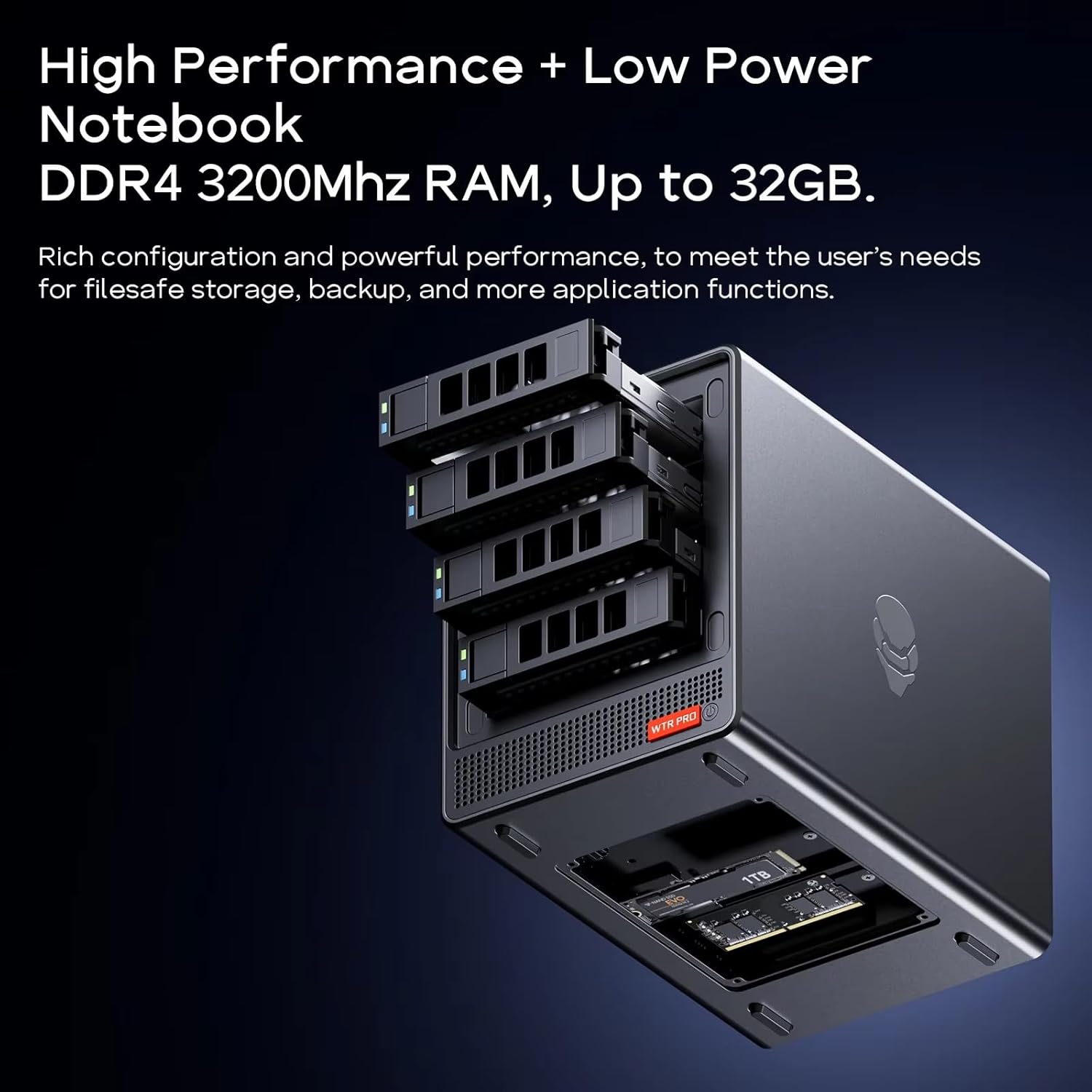
Figure 3: Internal view of the AOOSTAR WTR PRO, illustrating the two DDR4 RAM slots and two M.2 NVMe SSD slots. The four 3.5-inch SATA drive bays are also visible.
3. Setup Guide
3.1 Installing RAM and M.2 NVMe SSDs
The AOOSTAR WTR PRO is shipped without RAM or SSDs. Follow these steps to install them:
- Carefully open the chassis to access the internal components.
- Locate the two DDR4 SO-DIMM slots. Insert RAM modules firmly until the clips secure them.
- Identify the two M.2 2280-NVMe slots. Insert your M.2 SSDs at an angle and secure them with the provided screw.
- Ensure all components are seated correctly before proceeding.
3.2 Installing 3.5" SATA Hard Drives
The device supports up to four 3.5" SATA hard drives.
- Open the front magnetic cover to reveal the drive bays.
- Slide out an empty drive tray.
- Mount your 3.5" SATA HDD onto the tray using the provided screws.
- Carefully slide the tray back into the bay until it clicks into place.
- Repeat for additional drives.
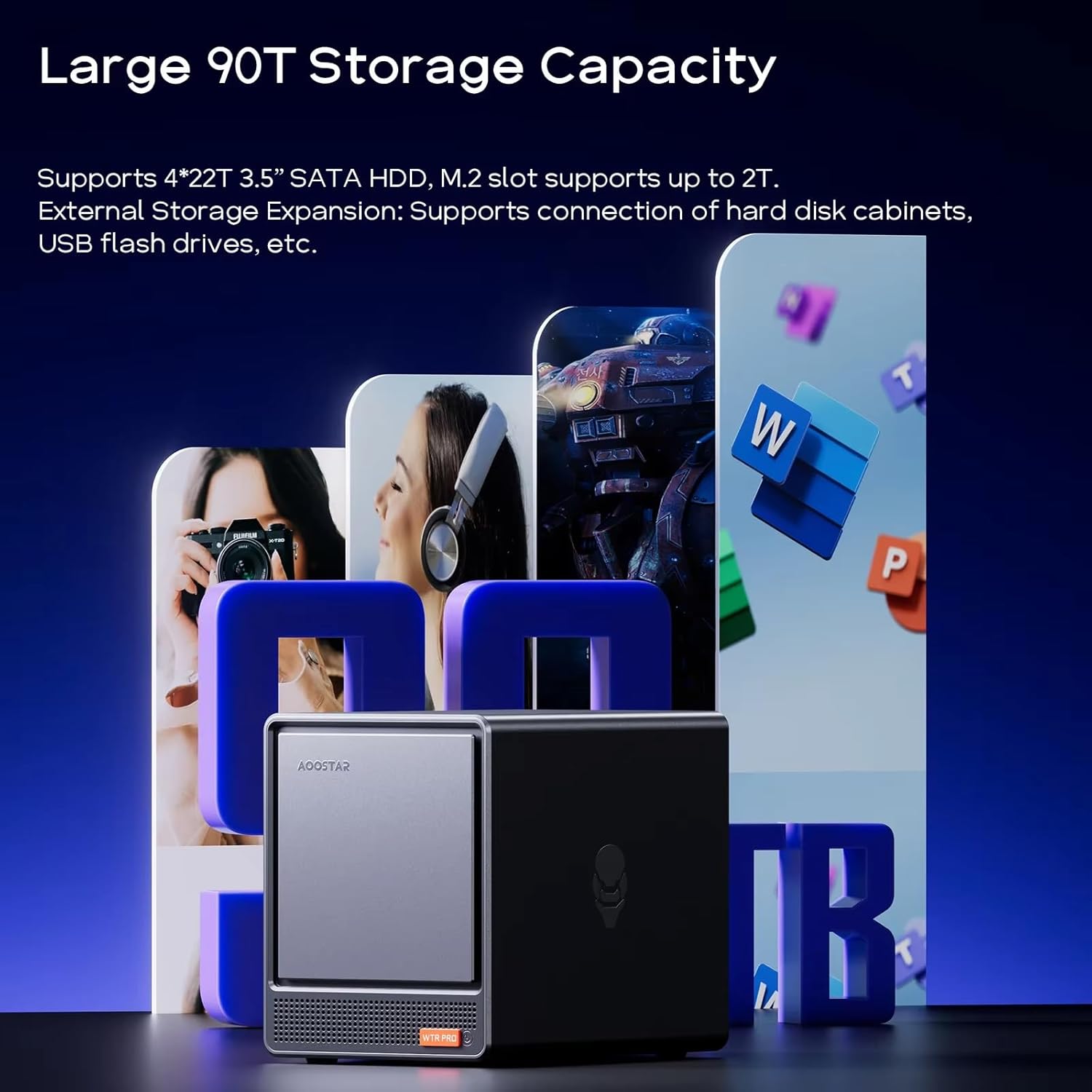
Figure 4: The AOOSTAR WTR PRO showcasing its large storage capacity with four 3.5-inch SATA HDDs and M.2 SSDs.
3.3 Connecting Peripherals
- Power: Connect the power adapter to the DC input port and then to a power outlet.
- Display: Connect your monitor(s) to the HDMI, DisplayPort, or Type-C video output ports. The device supports up to three 4K displays simultaneously.
- Network: Connect an Ethernet cable from your router/switch to one of the 2.5G LAN ports.
- USB Devices: Connect your keyboard, mouse, and other USB peripherals to the available USB 2.0 or USB 3.0 ports.
4. Operating Instructions
4.1 Power On/Off
- Power On: Press the power button located on the front panel. The power indicator light will illuminate.
- Power Off: Perform a proper shutdown through your operating system. Alternatively, press and hold the power button for 5 seconds to force a shutdown.
- Wake on LAN (WOL): The Mini PC supports WOL. Ensure this feature is enabled in the BIOS/UEFI settings and your network adapter properties for remote wake-up.
4.2 Operating System Installation
The AOOSTAR WTR PRO is compatible with various operating systems, including Windows 11 Pro, Linux, and other server operating systems. You will need to install your preferred operating system onto an M.2 NVMe SSD or a SATA HDD. Refer to your chosen operating system's installation guide for detailed steps.
4.3 NAS Functionality
With its four drive bays, the WTR PRO is ideal for Network Attached Storage (NAS) setups. You can install NAS-specific operating systems like TrueNAS, Unraid, or FreeNAS to manage your storage, create RAID configurations, and share files across your network.
Video 1: An overview of the AOOSTAR WTR PRO Mini PC, highlighting its features and potential uses as a NAS or mini PC.
4.4 Multi-Display Setup
The Mini PC supports connecting up to three 4K displays simultaneously. Connect your monitors to the available HDMI, DisplayPort, and Type-C video outputs. Configure your display settings within your operating system to extend or duplicate your desktop across multiple screens.

Figure 5: The AOOSTAR WTR PRO Mini PC configured with a triple 4K display setup, suitable for multitasking and enhanced productivity.
5. Maintenance
5.1 Cleaning
To ensure optimal cooling and prevent dust buildup, regularly clean the exterior of the Mini PC and the ventilation grilles.
- Use a soft, dry cloth to wipe down the exterior.
- For ventilation grilles, use a can of compressed air to gently remove dust. Ensure the device is powered off and unplugged before cleaning.
- Avoid using liquid cleaners directly on the device.

Figure 6: Internal cooling system of the AOOSTAR WTR PRO, highlighting the 12CM fan and airflow path for efficient heat dissipation.
5.2 Environmental Considerations
Operate the Mini PC in a well-ventilated area, away from direct sunlight, heat sources, and excessive moisture. Ensure adequate space around the device for proper airflow.
6. Troubleshooting
If you encounter issues with your AOOSTAR WTR PRO, refer to the following common troubleshooting steps:
- No Power:
- Ensure the power adapter is securely connected to both the device and a working power outlet.
- Verify the power button is pressed correctly.
- No Display Output:
- Check all display cable connections (HDMI, DisplayPort, Type-C).
- Ensure your monitor is set to the correct input source.
- If using multiple displays, try connecting only one display at a time.
- Hard Drive Overheating:
- Ensure the device is in a well-ventilated area.
- Verify that the internal fan is operating correctly and not obstructed by dust.
- Consider reducing the number of active drives or improving ambient cooling if temperatures remain high.
- Network Connectivity Issues:
- Check Ethernet cable connections.
- Verify your router/switch is functioning correctly.
- Ensure network drivers are properly installed in your operating system.
- System Instability:
- Ensure RAM and SSDs are correctly installed and seated.
- Update your operating system and device drivers to the latest versions.
If the issue persists, please contact AOOSTAR customer support for further assistance.
7. Specifications

Figure 7: Detailed technical specifications of the AOOSTAR WTR PRO Mini PC.
| Feature | Detail |
|---|---|
| Brand | AOOSTAR |
| Model Name | WTR PRO 5825U |
| Processor | AMD Ryzen 7 5825U (8 Cores, 16 Threads, 2.0 GHz Base, 4.5 GHz Max Boost) |
| Graphics | Integrated Radeon Vega Graphics (2000 MHz Graphics Clock) |
| RAM Type | DDR4 3200MHz (Dual Channel, 2 slots, up to 64GB) |
| Storage Bays | 4 x 3.5" SATA (up to 22TB each) |
| M.2 Slots | 2 x M.2 2280-NVMe (up to 4TB total) |
| Video Output | 1 x HDMI 2.1, 1 x DisplayPort 1.4 (4K@144Hz), 1 x Type-C (Triple 4K Display Support) |
| LAN Ports | 2 x 2.5G LAN |
| USB Ports | 2 x USB 3.0, 2 x USB 2.0 |
| Other Ports | 1 x 3.5mm Audio Jack, 1 x Micro SD Card Port, 1 x DC Power Input |
| Operating System Compatibility | Windows 11 Pro, Linux, etc. |
| Dimensions (LxWxH) | 7.3 x 5.9 x 9 inches (18.5 x 15 x 22.8 cm) |
| Item Weight | 11 pounds (5.0 KG) |
8. Warranty and Support
8.1 Warranty Information
AOOSTAR provides 12 months of after-sales service from the date of purchase. Please retain your proof of purchase for warranty claims.

Figure 8: AOOSTAR's commitment to service. (Note: Product description states 12 months, A+ content image shows "THREE YEARS OF SERVICE".)
8.2 Customer Support
For any questions or issues regarding your AOOSTAR WTR PRO Mini PC, you can contact customer support through the following methods:
- Amazon Support: Log in to your Amazon account, check your order, and click "Get Help" to request support for this product.
- Email Support: Send your inquiries to the official after-sales email address: aoostar-shop@outlook.com.
- Online Customer System: Contact us using the desktop client. If the after-sales service system client is not installed, you can reach out via email or Amazon, and they will provide the client.

Figure 9: Available customer support channels for AOOSTAR products.


