
Introduction
This manual provides detailed instructions for the installation, operation, and maintenance of your Toeeklsa Car Radio Upgrade. This unit features Wireless CarPlay, Android Auto, a 7-inch touch screen, Bluetooth, GPS navigation, Steering Wheel Control (SWC) support, and backup camera compatibility. Please read this manual thoroughly before installation and use to ensure optimal performance and safety.
Applicable Vehicle Models
This car radio is designed for specific Chevrolet, GMC, and Hummer H2 models. Verify your vehicle's compatibility before installation.
- Chevrolet: Silverado SSR 2003-2006, Tahoe 2003-2006, Suburban 2003-2006, Avalanche 2003-2006, C/K Pickup Trucks 2003-2006, Express-Passenger 2003-2006, G Van 2003-2006. (Also 2007 Silverado Classical, verify console fit).
- GMC: Sierra 2003-2006, Yukon 2003-2006, Canyon 2003-2006, Envoy 2003-2006, Denali 2003-2006, Savanna 2003-2006.
- Hummer: H2 2003-2007.

Figure 1: Compatible vehicle models and examples of dashboard installations.
Key Features
- Wireless CarPlay & Android Auto: Seamless smartphone integration for navigation, calls, and music.
- 7-Inch IPS Touch Screen: High-definition 1280*720 display for clear visuals.
- High Performance: 4-Core CPU, 2GB RAM, 32GB ROM for smooth operation.
- GPS Navigation: Supports online/offline maps, real-time traffic updates.
- Wi-Fi Connectivity: Access online apps and services.
- AHD Backup Camera Support: Enhances parking safety with a clear reversing image.
- Steering Wheel Control (SWC): Retains OEM steering wheel button functionality.
- Premium Audio: 16-band equalizer, subwoofer support, built-in Hi-Fi for customizable sound.
- Bluetooth 5.4: For hands-free calling and wireless audio streaming.
Setup and Installation
The Toeeklsa Car Radio is designed for a true plug-and-play installation, retaining most OEM features. Installation tools and instructions are provided.
Installation Steps:
- Preparation: Ensure the vehicle's battery is disconnected before starting installation.
- Remove Old Unit: Carefully remove the existing car radio from the dashboard.
- Connect Wiring Harness: Connect the provided wiring harness to the vehicle's existing connectors and to the new Toeeklsa unit. Ensure all connections are secure.
- Connect Accessories: Connect the GPS antenna, Wi-Fi antenna, and backup camera (if applicable) to their respective ports on the unit.
- Test Functionality: Before fully securing the unit, temporarily reconnect the battery and test basic functions like power, audio, and touch screen response.
- Secure Unit: Mount the new radio securely into the dashboard opening.
- Final Checks: Reconnect the battery, turn on the vehicle, and perform a comprehensive test of all features, including CarPlay/Android Auto, Bluetooth, GPS, and steering wheel controls.
Note: This unit supports all OEM features including steering wheel control, rear camera, and radar. No additional accessories are typically required.
Operating Instructions
Wireless CarPlay & Android Auto:
To use Wireless CarPlay or Android Auto, ensure your smartphone's Bluetooth and Wi-Fi are enabled. Connect your phone to the car radio via Bluetooth first, then follow the on-screen prompts to activate CarPlay or Android Auto. This allows hands-free access to navigation, calls, messages, and music via Siri or Google Assistant.

Figure 2: Wireless CarPlay and Android Auto functionality.
GPS Navigation & Wi-Fi:
The unit supports online and offline GPS navigation. Connect to a Wi-Fi hotspot (e.g., from your smartphone) to access online maps, real-time traffic updates, and other internet-based applications like Instagram, YouTube, Facebook, and TikTok. Pre-installed navigation apps can be used offline after downloading maps.

Figure 3: GPS Navigation and Wi-Fi connection interface.
Audio Settings (DSP & Equalizer):
Utilize the built-in 16-band equalizer to customize your audio experience. Access the DSP (Digital Sound Processor) settings to adjust sound profiles, balance, fader, and subwoofer output for optimal listening pleasure. The unit supports both manual and automatic search for FM radio stations.

Figure 4: Digital Sound Processor (DSP) and equalizer interface.
AHD Backup Camera:
When a compatible AHD backup camera is connected, the display will automatically switch to the reversing image when the vehicle is put into reverse gear. This feature provides a clear, waterproof night vision view, enhancing parking safety.

Figure 5: AHD Backup Camera display and steering wheel control buttons.
Steering Wheel Control (SWC):
The unit supports the vehicle's original steering wheel control functions. After installation, you can use your steering wheel buttons to control volume, track changes, answer calls, and other desired functions without taking your hands off the wheel.
Maintenance
To ensure the longevity and optimal performance of your car radio, follow these maintenance guidelines:
- Cleaning: Use a soft, dry cloth to clean the touch screen and unit exterior. Avoid abrasive cleaners or solvents.
- Software Updates: Periodically check for and install any available software updates to ensure the system runs efficiently and securely.
- Environmental Conditions: Avoid exposing the unit to extreme temperatures, direct sunlight for prolonged periods, or excessive moisture.
- Wiring: Ensure all wiring connections remain secure. If you experience intermittent issues, check the connections.
Troubleshooting
If you encounter issues with your Toeeklsa Car Radio, refer to the following common problems and solutions:
- No Power:
- Check all power connections and fuses.
- Ensure the vehicle's battery is fully charged.
- No Sound or Distorted Audio:
- Verify speaker connections.
- Check audio settings (volume, balance, fader, equalizer).
- For Bose "Lux" Amp Equipped Vehicles (RPO code Y91): If experiencing static or hissing, the factory low-level line inputs may be overdriven. Consider splicing a high-to-low level adjustable line converter into the included harness (left-front & right-front, + and -) and using an RCA cable to connect to the converter's output, then splicing the RCA cable's cut end to the harness speaker wires. This allows adjustment to prevent overdriving the amp.
- CarPlay/Android Auto Not Connecting:
- Ensure Bluetooth and Wi-Fi are enabled on your smartphone.
- Forget the device from both the car radio and your phone, then attempt to reconnect.
- Update your phone's operating system and the car radio's software.
- GPS Signal Issues:
- Ensure the GPS antenna is properly installed and has a clear view of the sky.
- Check Wi-Fi connection for online map services.
- Steering Wheel Controls Not Working:
- Verify the SWC wiring connections.
- Access the unit's settings to configure or recalibrate the steering wheel controls.
If issues persist, contact customer support for further assistance.
Specifications
| Brand | Toeeklsa |
| Model Name | Toeeklsa Car Radio |
| Screen Size | 7 Inches |
| Display Type | IPS LED, 1280*720 Resolution |
| Operating System | Android |
| CPU | 4-Core Processor |
| Memory (RAM/ROM) | 2GB RAM / 32GB ROM |
| Connectivity | Bluetooth 5.4, USB, Wi-Fi |
| Special Features | Wireless CarPlay, Android Auto, Touchscreen, GPS, AHD Backup Camera Support, Steering Wheel Control, 16-band Equalizer |
| Map Type | Worldwide (Online/Offline) |
| Mounting Type | Dashboard Mount |
| Item Weight | 2.6 Pounds |
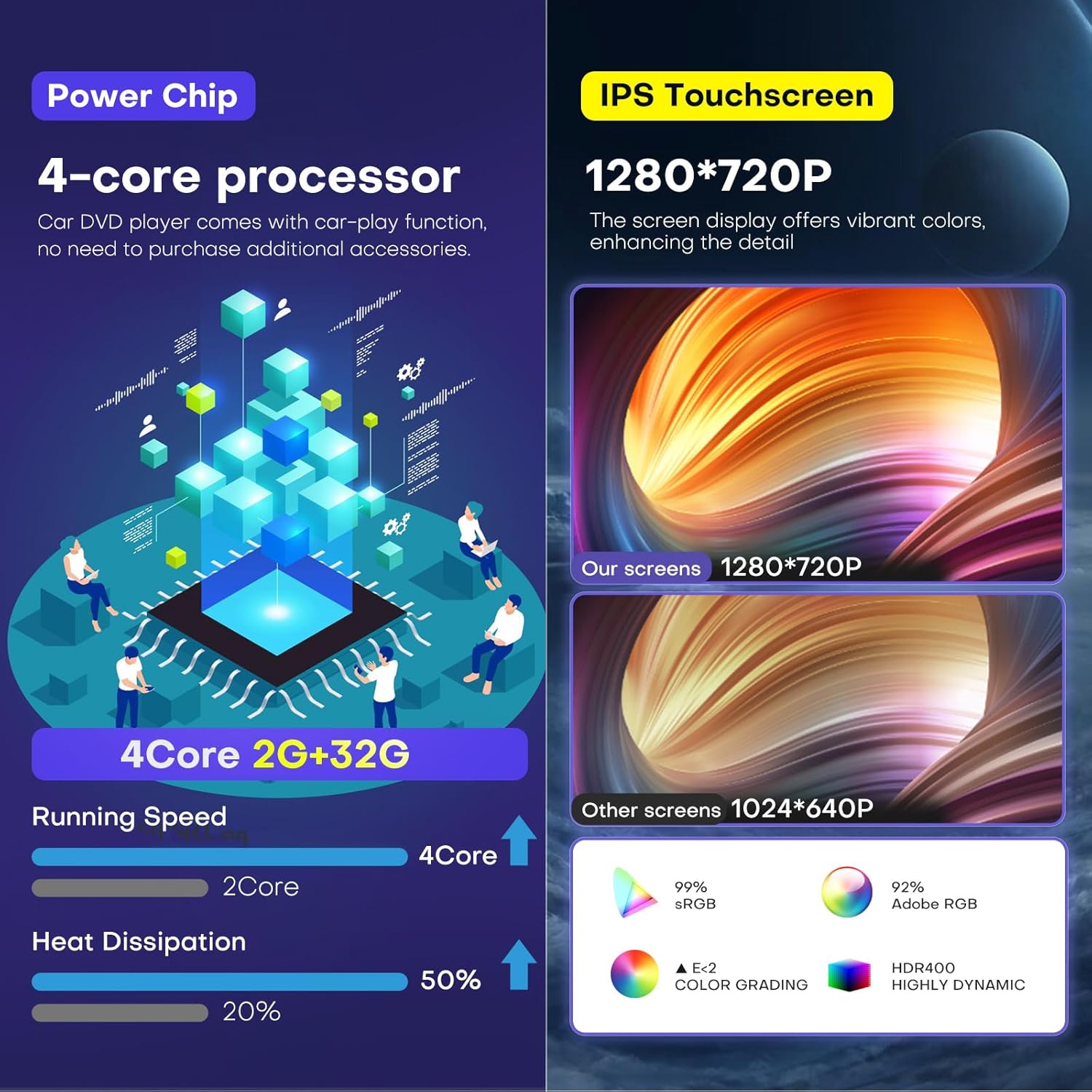
Figure 6: Internal hardware specifications and display technology.
Warranty and Support
Toeeklsa provides comprehensive after-sales support for your satisfaction:
- 30-Day Refund Guarantee: For any dissatisfaction.
- 12-Month Warranty Policy: Covers manufacturing defects.
- Lifelong Technical Support: Assistance with assembly, operation, and any other issues.
If you encounter any challenges, please contact our professional technical team for assistance. Refer to your purchase documentation for contact details.