
Introduction
This manual provides essential information for the proper setup, operation, and maintenance of your SunTrok S-08 Karaoke Soundbar System. This 2.1 channel soundbar with a powerful subwoofer and two wireless microphones is designed to enhance your home entertainment experience, offering immersive audio for movies, music, and karaoke.
What's in the Box
- 1 x Soundbar
- 1 x Wired Subwoofer
- 2 x Wireless Microphones
- 1 x Remote Control
- 1 x HDMI (ARC) Cable
- 1 x RCA to 3.5mm Cable
- 1 x USB Cable
- 2 x User Manuals
- 2 x Wall Mounting Screws
- 2 x Sponges
Setup
1. Soundbar Assembly
The soundbar consists of two detachable parts. Connect the end cover with the lock to the other soundbar part and turn clockwise until securely assembled into a single unit.

Image: Visual guide for connecting the two soundbar sections.
2. Subwoofer Connection
Insert the subwoofer's connection cable into the 'SW-OUT' port on the soundbar.
Image: Diagram showing the subwoofer cable connecting to the soundbar.
3. Power On and Microphone Pairing
Connect the power supply to the soundbar. Switch on the microphones and the soundbar. The soundbar will automatically connect to the microphones.
Image: Illustration of connecting power and the soundbar automatically pairing with microphones.
4. Connecting to TV (HDMI ARC/Optical/AUX)
Follow these steps to connect the soundbar to your TV:
- Plug the appropriate cable (HDMI ARC, Optical, or AUX) into both the TV and the soundbar.
- Power on both the TV and the soundbar.
- Switch the soundbar to the correct input mode (HDMI ARC, Optical, or AUX) by pressing the corresponding button on the remote control or short-pressing the power button on the side of the soundbar.
- In your TV settings, change the audio output to match the connection type. The soundbar should then start working.

Image: Step-by-step guide for connecting the soundbar to a TV using various cable types.
Video: A seller-provided video demonstrating the setup process of the SunTrok Home Karaoke Soundbar System with 2 Microphones.
Operating Instructions
Sound Modes
The soundbar offers 4 distinct sound effect modes to optimize your listening experience:
- 3D Mode: For an immersive, room-filling surround sound experience.
- Music Mode: Enhances rich, layered music with deep bass and crystal highs, simulating a live concert.
- Movie Mode: Delivers cinematic sound with powerful bass and clear dialogues for an enhanced movie experience.
- News Mode: Optimizes for sharp, detailed speech clarity, making every word count.

Image: Visual representation of 3D Surround Sound.

Image: Scene depicting Music Mode for a live concert feel.
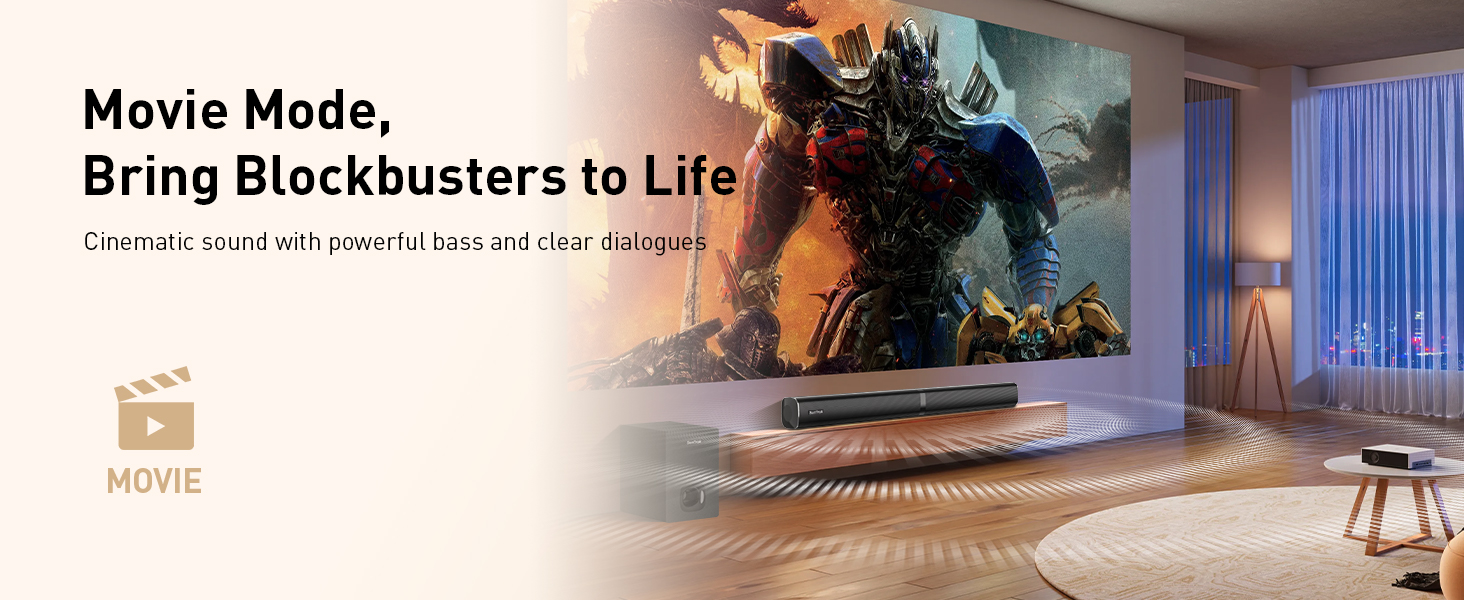
Image: Cinematic scene representing Movie Mode.

Image: News broadcast scene representing News Mode.
Bass and Treble Control
Adjust bass and treble levels separately using the remote control for a personalized audio experience. Treble can be adjusted from TR00 to TR16, and Bass from BR00 to BR16.

Image: Remote control showing treble adjustment buttons.

Image: Remote control showing bass adjustment buttons.
Wireless Microphones
The system includes two wireless karaoke microphones with stable 66ft connectivity and advanced noise reduction. They feature adjustable volume, echo, and reverb for optimal vocal performance. The bottom button on the microphone is a mute button; press it again to unmute if accidentally pressed.

Image: Two wireless microphones with features highlighted.
Remote Control
The included remote control allows for effortless operation, letting you quickly change modes, adjust sound effects, volume, and fine-tune bass and treble from anywhere in the room.

Image: Hand holding the remote control with various functions.
Connection Options
The SunTrok S-08 soundbar offers versatile connectivity for various devices:
- Bluetooth 5.3: For faster, more stable wireless connections up to 33ft with your phone, tablet, or TV.
- HDMI ARC: Connects to your TV's HDMI ARC port for high-quality audio transmission (cable included).
- Optical: For digital audio connection to compatible devices.
- AUX: For analog audio connection using the included RCA to 3.5mm cable.
- USB: For playing audio directly from USB devices (cable included).

Image: Devices connecting via Bluetooth 5.3 to the soundbar.

Image: Close-up of the soundbar's rear panel showing various input ports.
Specifications
| Feature | Detail |
|---|---|
| Output Wattage | 80 Watts |
| Speaker Configuration | 2.1 Channel (Soundbar + Subwoofer) |
| Subwoofer Size | 6.9-inch |
| Microphones | 2 Wireless Microphones (66ft range, noise reduction) |
| Sound Modes | 3D, Music, Movie, News |
| Connectivity | Bluetooth 5.3, HDMI ARC, Optical, AUX, USB |
| Control | Remote Control, On-device buttons |
| Dimensions | 2.99 x 32.09 x 2.99 inches |
| Item Weight | 14.72 pounds |
| Power Source | Corded Electric |
Troubleshooting
Q: No sound from soundbar?
- TV audio output not set correctly (e.g., still using internal speakers).
- Soundbar input source not matched with TV output (e.g., on Optical but TV using HDMI ARC).
- Volume too low or soundbar muted.
- Incorrect cable connection or cable is faulty.
- TV and soundbar not powered on or one of them is in standby mode.
Solution:
First, go to the TV's settings and switch the audio output back to the TV's internal speakers. Then, change the audio output again to HDMI ARC (or your selected connection type). This usually refreshes the output and resolves the issue.
Q: HDMI ARC not working at all?
- Ensure that your TV fully supports ARC.
- Confirm you're using the HDMI port labeled "ARC."
- Make sure TV audio output is set to HDMI-ARC or External Speaker.
- Confirm the soundbar input is set to ARC.
- Unplug and replug the HDMI cable to refresh the connection.
- Restart your TV and soundbar.
- Try a different HDMI cable.
Q: Microphone not working/no sound?
- The microphone will automatically connect to the soundbar after both are powered on. Once connected, the mic screen stays on, and your voice will play through the soundbar.
- If the soundbar is off, the mic cannot connect. Its screen will keep flashing, and no sound will be transmitted. Please turn on the soundbar.
- The button at the bottom of the mic is the mute button. If pressed by mistake, the mic won't output sound even when connected and the screen is on. This is not a fault—press the button again to unmute.
Q: Bluetooth not working?
- The Soundbar is not in Bluetooth pairing mode. Use the remote to switch it to Bluetooth mode.
- The Soundbar is already connected to another device. Disconnect that device first.
- Clear the paired device list on your phone or computer, then search again to pair.
- Make sure the Bluetooth function is enabled on your phone or TV.
- If the Bluetooth devices are too far apart, move closer to the Soundbar and try again.
Warranty and Support
Your SunTrok S-08 Karaoke Soundbar System comes with a 2-year warranty and lifetime technical support. For any issues or assistance, please refer to the contact information provided in your product packaging or visit the official SunTrok website.

