1. Introduction and Overview
Enhance your home security with the Generic Smart Video Doorbell U9. This device offers crystal-clear 1080P HD video monitoring, two-way audio communication, and real-time mobile notifications. Designed for outdoor use, it features integrated solar charging for continuous operation and a waterproof rain cover for enhanced durability. Enjoy peace of mind with advanced features like human detection, night vision, and multi-device sharing capabilities.
The package includes:
- Video Doorbell
- Solar Panel
- Rain Cover
- Indoor Chime
2. Setup
2.1 Initial Charging
Before first use, ensure the doorbell unit is fully charged. Connect the provided USB cable to the charging port on the back of the doorbell. A full charge ensures optimal performance from the start.

Figure 1: Generic Smart Video Doorbell U9 with solar charging rain cover and indoor chime. This image displays the complete Smart Video Doorbell U9 system, including the main doorbell unit, its protective solar charging rain cover, and the compact indoor chime.
2.2 Mobile App Installation and Wi-Fi Connection
Download the companion mobile application (e.g., BoifunCam / CloudEdge APP or V380 Pro) from your device's app store. Follow the in-app instructions to register an account and add your new Smart Video Doorbell. Ensure your mobile device is connected to a 2.4GHz Wi-Fi network during the connection process, as the doorbell supports 2.4GHz Wi-Fi only.
Video 1: Smart Doorbell Connection Guide. This video provides a step-by-step guide on connecting a smart doorbell to a mobile application, including pairing the device and setting up Wi-Fi. It illustrates the process of pressing the doorbell button, resetting the device, and connecting to a 2.4GHz Wi-Fi network.
2.3 Chime Connection
Plug the indoor chime into a power outlet. Press the settings button on the chime until red lights flash. Then, press the doorbell button on the main unit. The chime's blue light will turn on, indicating a successful connection. You can select from 38 melodies and adjust the volume.
Video 2: Wireless Video Doorbell Camera Setup. This video demonstrates the chime connection process, showing how to pair the indoor chime with the doorbell unit and select different ringtones.
2.4 Mounting the Doorbell
The doorbell can be mounted using either screws for permanent installation or double-sided adhesive tape for a less permanent solution. Ensure the mounting location provides a clear view of your entrance and optimal sunlight exposure for the solar panel. The rain cover should be installed to protect the unit from weather elements.

Figure 2: Smart Video Doorbell U9 with solar charging rain cover. A close-up of the Smart Video Doorbell U9 encased in its transparent solar charging rain cover, emphasizing its waterproof design and protection against elements.

Figure 3: Transparent solar charging rainproof cover. A clear view of the transparent rainproof cover designed to protect the doorbell while allowing its integrated solar panel to charge effectively.

Figure 4: Dimensions of the solar charging rainproof cover. This image provides the physical dimensions (length, width, height) of the solar charging rainproof cover, useful for installation planning.
3. Operating Instructions
3.1 Real-Time Monitoring and Notifications
Once connected, you can access a live video feed of your doorstep from anywhere via the mobile app. The doorbell sends instant push notifications to your smartphone when motion is detected or the doorbell button is pressed.
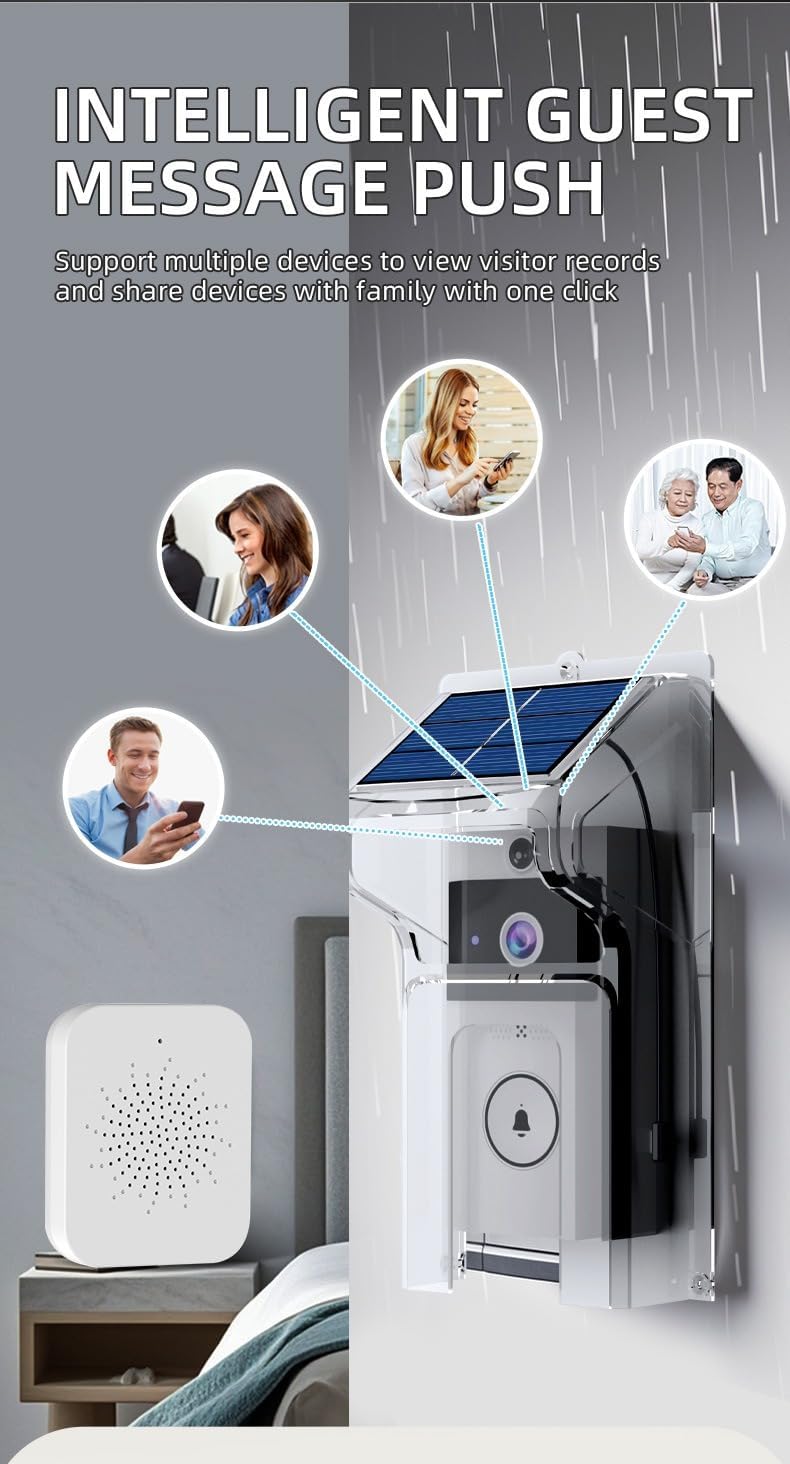
Figure 5: Intelligent guest message push and multi-device sharing. An illustration showing how the doorbell sends notifications to multiple family members' devices, enabling shared monitoring and visitor interaction.
3.2 Two-Way Audio Communication
Engage in real-time conversations with visitors at your door using the two-way audio feature. This allows you to speak and listen through the doorbell via your smartphone, even when you're not home.
3.3 Night Vision
The doorbell is equipped with night vision capabilities, ensuring clear video footage and monitoring even in complete darkness. This feature automatically activates in low-light conditions.
3.4 Human Detection
The advanced human detection feature minimizes false alarms by specifically identifying human shapes, sending you relevant alerts for activity at your door.
Video 3: Video Doorbell with Solar Rain Cover, Long Standby. This video demonstrates the real-time monitoring, two-way audio, night vision, and human detection features of the doorbell, showing how it functions in various scenarios.
3.5 Cloud Storage and Multi-Device Sharing
The system supports lifetime free cloud storage for your recordings, allowing you to review past events. Additionally, you can share device access with multiple family members, enabling everyone to receive notifications and view visitor records simultaneously.
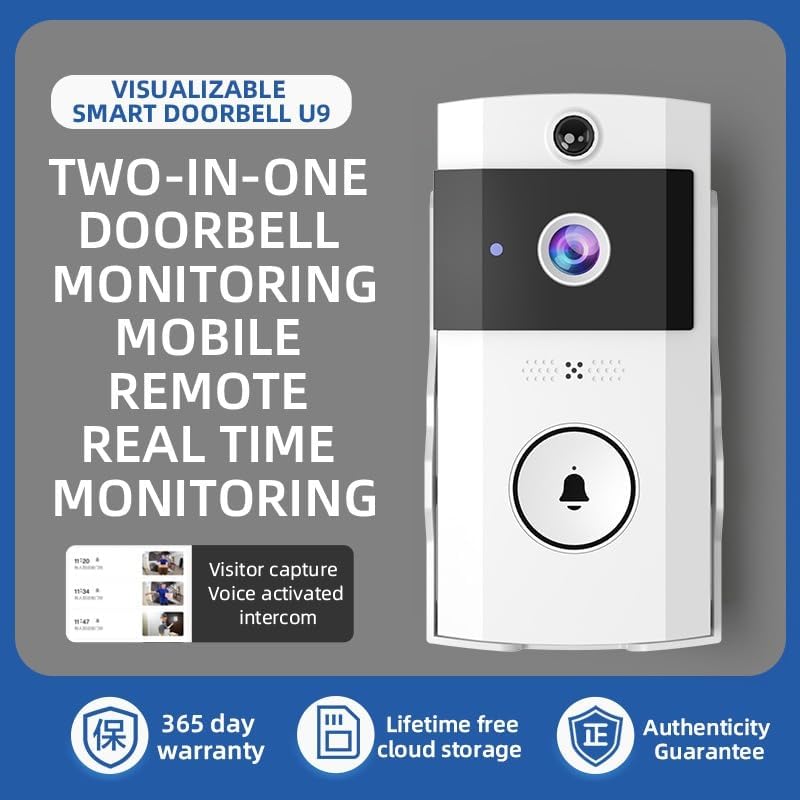
Figure 6: Visualizable Smart Doorbell U9 features. This image showcases the core features of the Smart Doorbell U9, including its monitoring capabilities, two-way communication, warranty, and cloud storage benefits.
4. Maintenance
4.1 Charging
The doorbell features an integrated solar panel for continuous charging. For optimal solar charging, ensure the solar panel is exposed to direct sunlight. If the doorbell's battery level is low due to insufficient sunlight, you can manually charge it via the USB-C port using the provided cable.

Figure 7: Solar panel automatic charging. This image highlights the doorbell's solar panel, illustrating its ability to automatically convert sunlight into electrical energy for continuous operation.

Figure 8: Long-lasting battery life. An internal view of the doorbell showing its built-in lithium battery, indicating strong endurance and low power consumption for extended use.
4.2 Cleaning
Regularly clean the camera lens and the solar panel with a soft, damp cloth to ensure clear video quality and efficient solar charging. Avoid using harsh chemicals that may damage the device.
5. Troubleshooting
5.1 No Wi-Fi Connection
- Ensure your home Wi-Fi network is 2.4GHz, as the doorbell does not support 5GHz.
- Verify your mobile device is connected to the same 2.4GHz Wi-Fi network during setup.
- Try resetting the doorbell unit and attempting the connection process again.
- Place the indoor chime closer to your Wi-Fi router to improve signal strength.
5.2 Poor Video Quality
- Check the Wi-Fi signal strength at the doorbell's mounting location. A weak signal can affect video quality.
- Ensure the camera lens is clean and free from dust, dirt, or condensation.
5.3 Battery Not Charging
- Confirm that the solar panel is exposed to sufficient direct sunlight for several hours daily.
- If solar charging is insufficient, manually charge the doorbell using the USB-C cable and a compatible power adapter.
6. Specifications
| Feature | Specification |
|---|---|
| Model Name | U9 |
| Indoor/Outdoor Usage | Outdoor |
| Power Source | Solar Powered |
| Connectivity Protocol | 2.4GHz Wi-Fi |
| Video Capture Resolution | 1080p (1920 pixels) |
| Viewing Angle | 140 Degrees |
| Night Vision Range | 32 Feet |
| Frame Rate | 30fps |
| Water Resistance Level | Waterproof (IP66) |
| Item Dimensions (L x W x H) | 3 x 3.5 x 6 inches |
| Item Weight | 1.32 pounds |
| Special Features | 2-Way Audio, Cloud Storage, Mobile Remote Monitoring, Real-time Push Notifications, Solar Powered |
7. Warranty
The Generic Smart Video Doorbell U9 comes with a 365-day warranty from the date of purchase. Please retain your proof of purchase for any warranty claims.
8. Support
For further assistance, technical support, or inquiries regarding your Smart Video Doorbell U9, please refer to the manufacturer's official website or contact their customer support channels. Detailed contact information can typically be found in the product packaging or on the manufacturer's website.