
1. Introduction
Welcome to the STGAubron Gaming PC experience. This manual provides essential information for setting up, operating, maintaining, and troubleshooting your new computer. Please read this guide thoroughly to ensure optimal performance and longevity of your system.
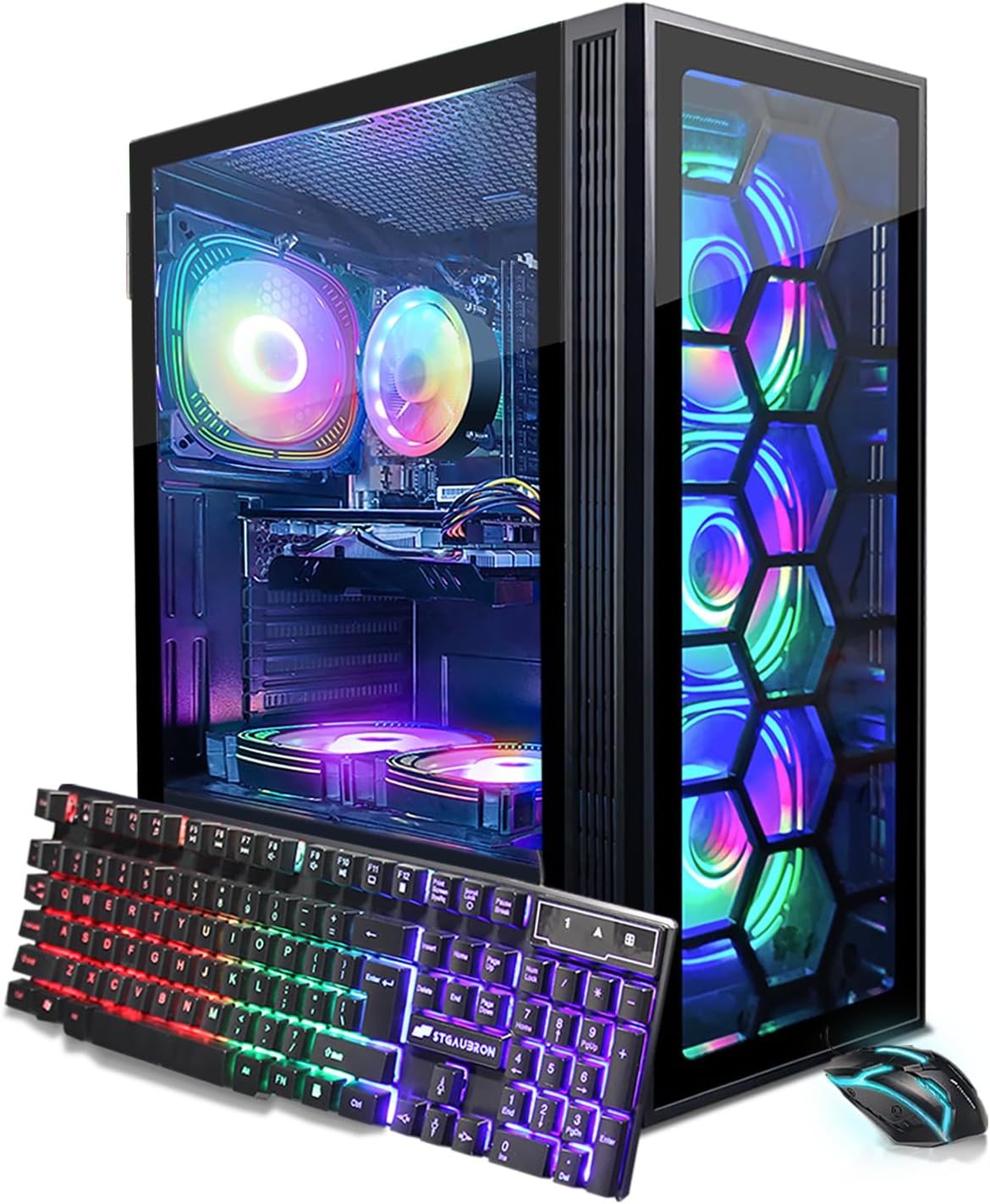
Image 1.1: The STGAubron Gaming PC Desktop, accompanied by its RGB keyboard and mouse.
2. Package Contents
Verify that all items listed below are included in your package:
- STGAubron Gaming PC Desktop Tower
- RGB Keyboard
- RGB Mouse
- Power Cable
- NVIDIA GeForce RTX 2060 Super 8G GDDR6 (pre-installed)
3. Setup Guide
3.1 Unboxing and Placement
- Carefully remove the PC tower and accessories from the packaging.
- Place the PC tower on a stable, flat surface with adequate ventilation. Ensure that air vents are not obstructed.
3.2 Connecting Peripherals
Connect your monitor, keyboard, mouse, and other devices to the appropriate ports on the rear of the PC.
- Monitor: Connect your display cable (HDMI, DisplayPort, or DVI) to the dedicated graphics card ports.
- Keyboard and Mouse: Plug the USB cables of the RGB keyboard and mouse into any available USB ports.
- Power: Connect the power cable to the power supply unit (PSU) on the back of the PC, then plug it into a wall outlet.
- Network: For wired internet, connect an Ethernet cable to the RJ-45 port. For wireless, ensure Wi-Fi antennas are connected (if applicable) or the internal Wi-Fi 6 module is active.
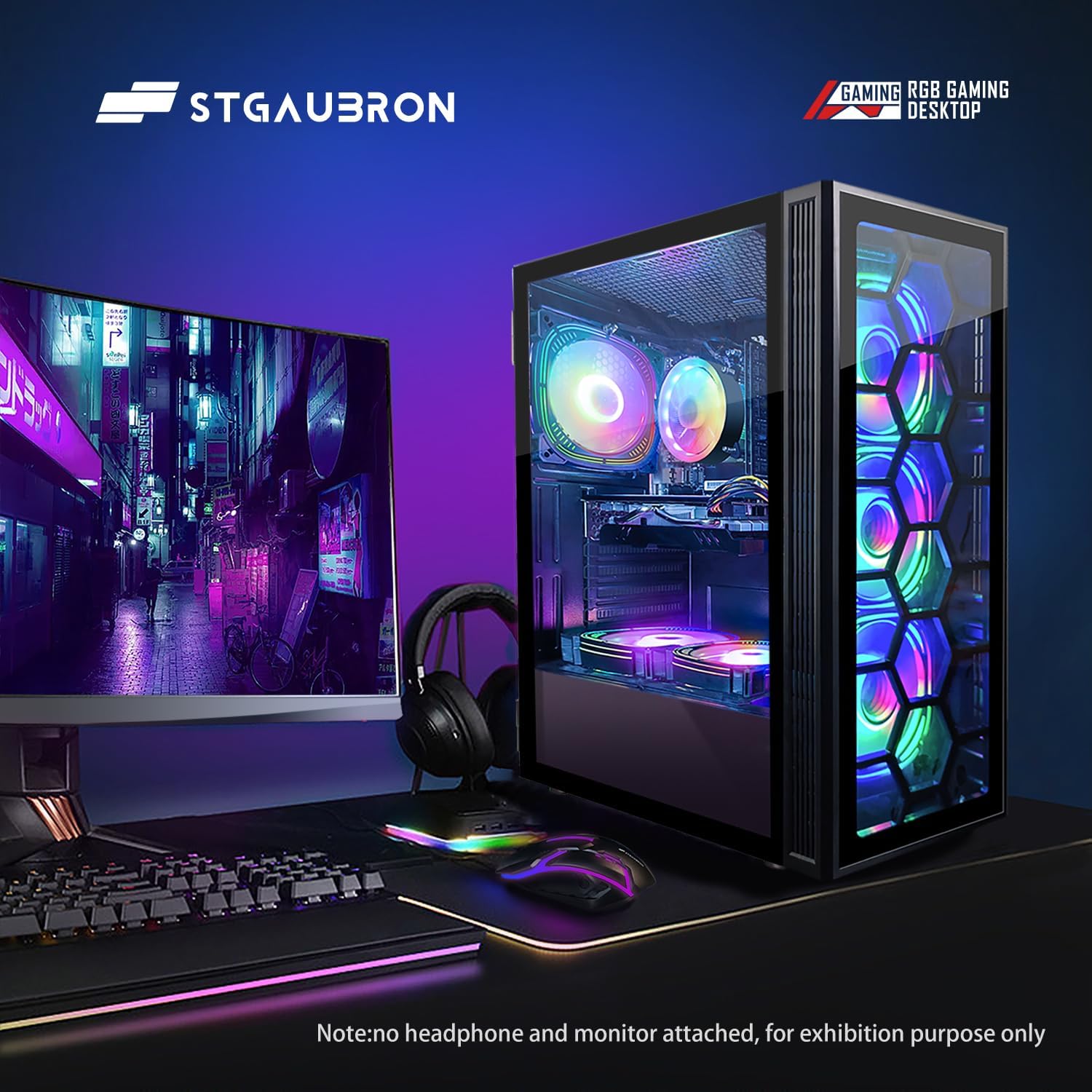
Image 3.1: The STGAubron Gaming PC Desktop integrated into a workstation, demonstrating connectivity.
3.3 First Boot
- Press the power button located on the front of the PC tower.
- Follow the on-screen instructions to complete the initial setup of Windows 11 Home. This may include setting up user accounts, network connections, and privacy settings.
4. Operating Your PC
4.1 Power On/Off
- To Power On: Press the power button once.
- To Shut Down: Click the Start button in Windows, then select Power > Shut down. Avoid forced shutdowns unless necessary to prevent data loss.
4.2 Windows 11 Home
Your PC comes pre-installed with Windows 11 Home 64-bit, offering a modern and secure operating environment. Familiarize yourself with the Windows interface for optimal use.
4.3 Gaming and Performance
This system is equipped with an Intel Core i7 8th Gen processor and an NVIDIA GeForce RTX 2060 Super 8G GDDR6 graphics card, designed to deliver smooth performance for a wide range of PC games and demanding applications.

Image 4.1: Illustrative gaming performance data for popular titles at 1080p resolution.
4.4 Connectivity
The PC supports Wi-Fi 6 for high-speed wireless internet and Bluetooth 5.2 for connecting wireless peripherals such as headphones or game controllers.
5. Maintenance
Proper maintenance ensures the longevity and optimal performance of your STGAubron PC.
- Cleaning: Regularly clean dust from the exterior and air vents using compressed air or a soft, dry cloth. Ensure the PC is powered off and unplugged before cleaning.
- Software Updates: Keep your Windows operating system and graphics drivers updated to the latest versions for security and performance improvements.
- Environmental Care: Avoid placing the PC in direct sunlight, near heat sources, or in excessively dusty or humid environments. Keep liquids away from the computer.
- Cable Management: Ensure cables are neatly organized and not obstructing airflow or ports.
6. Troubleshooting
This section addresses common issues you might encounter.
- PC Does Not Power On:
- Check if the power cable is securely connected to both the PC and the wall outlet.
- Verify the power switch on the PSU (if present) is in the 'On' position.
- Test the outlet with another device to ensure it has power.
- No Display on Monitor:
- Ensure the monitor is powered on and the correct input source is selected.
- Check that the display cable (HDMI, DisplayPort, DVI) is firmly connected to both the graphics card on the PC and the monitor.
- Try a different display cable or monitor if available.
- Keyboard or Mouse Not Responding:
- Ensure USB cables are securely plugged into the PC's USB ports.
- Try plugging the peripherals into different USB ports.
- If wireless, check battery levels and ensure Bluetooth is enabled on the PC.
- System Performance Issues:
- Ensure all drivers (especially graphics drivers) and Windows are up to date.
- Check for excessive dust buildup inside the case, which can lead to overheating.
- Close unnecessary background applications.
If you encounter issues not covered here or require further assistance, please contact STGAubron customer support.
7. Specifications
Detailed technical specifications for your STGAubron Gaming PC Desktop.

Image 7.1: Overview of the STGAubron Gaming PC's core components and features.
| Feature | Detail |
|---|---|
| Model Number | ABR1924 |
| Processor | Intel Core i7 8th Gen (2.2 GHz, up to 4.1 GHz Turbo Boost, 6-Cores 12-Threads) |
| RAM | 32 GB DDR4 SDRAM |
| Storage | 1 TB SSD (Solid State Drive) |
| Graphics Coprocessor | NVIDIA GeForce RTX 2060 Super 8G GDDR6 |
| Operating System | Windows 11 Home 64-bit |
| Wireless Connectivity | Wi-Fi 6 (802.11ax), Bluetooth 5.2 |
| Ports | 1x RJ-45, 1x Serial, 1x HDMI, 1x DisplayPort, 1x DVI, USB Ports (quantity not specified) |
| Cooling | RGB Fan x 6 |
| Item Weight | 23.3 pounds |
| Product Dimensions (LxWxH) | 14.6 x 13.8 x 9 inches |
8. Warranty and Support
Your STGAubron Gaming PC Desktop is covered by the following:
- Warranty: 1 Year parts & labor.
- Technical Support: Free lifetime technical support.
For warranty claims, technical assistance, or any questions regarding your product, please contact STGAubron customer support through the official channels provided at the time of purchase or on the STGAubron website.