
1. Introduction
Welcome to the POWMUS 2025 Tablet M1401C user manual. This guide provides essential information for setting up, operating, maintaining, and troubleshooting your new 14-inch Android 14 tablet. Designed for optimal performance and user experience, this tablet features a vibrant 2K display, powerful 8-core processor, ample storage, and long-lasting battery life. Please read this manual thoroughly to ensure proper use and to maximize your tablet's capabilities.
2. What's in the Box
Upon opening your POWMUS Tablet package, please verify that all the following items are included:
- Android 14 Tablet
- 5V/3A/15W Charger
- Tablet Case
- Protective Film
- User Manual (this document)
3. Product Overview
Familiarize yourself with the physical components of your POWMUS M1401C Tablet.

Figure 3.1: Front and rear view of the POWMUS 14-inch Android 14 Tablet. The front features the large display and a front-facing camera, while the rear shows the dual camera module and sleek design.
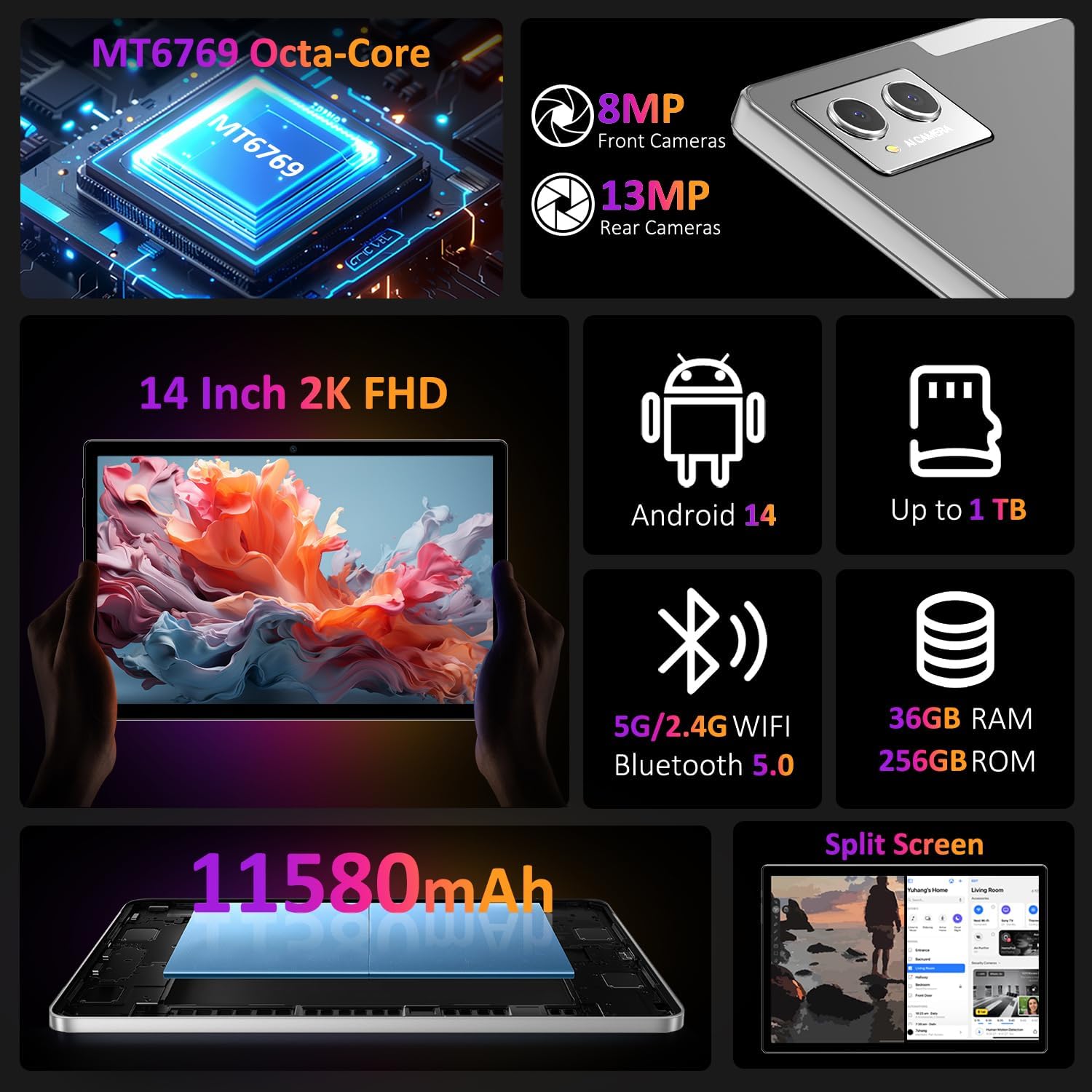
Figure 3.2: An illustrative diagram detailing the tablet's internal components and external features, including the MT6769 Octa-Core processor, 8MP front camera, 13MP rear camera, 14-inch 2K FHD display, Android 14 OS, up to 1TB expandable storage, 5G/2.4G WiFi, Bluetooth 5.0, 36GB RAM, 256GB ROM, 11580mAh battery, and split-screen functionality.
Key Components:
- Front Camera: Located at the top center of the display when held horizontally, used for video calls and selfies.
- Rear Cameras: Dual camera module on the back for high-resolution photography.
- Power Button: Typically on the side, used to power on/off or wake/sleep the device.
- Volume Buttons: Adjacent to the power button, for adjusting audio levels.
- USB-C Port: For charging and data transfer.
- Speakers: Four high-quality speakers for immersive audio.
- MicroSD Card Slot: For expanding storage up to 1TB.
4. Setup
4.1. Charging the Tablet
Before first use, fully charge your tablet. Connect the provided 5V/3A/15W charger to the USB-C port on the tablet and plug it into a power outlet. The charging indicator on the screen will show the charging status.
4.2. Powering On/Off
- To Power On: Press and hold the Power button until the POWMUS logo appears on the screen.
- To Power Off: Press and hold the Power button until the power options menu appears, then select 'Power off'.
- To Sleep/Wake: Briefly press the Power button.
4.3. Initial Setup Wizard
The first time you power on your tablet, you will be guided through an initial setup process:
- Select your preferred language.
- Connect to a Wi-Fi network (see section 4.4).
- Sign in with your Google Account or create a new one. This is necessary to download apps from the Google Play Store.
- Follow the on-screen prompts to set up security, privacy settings, and other preferences.
4.4. Connecting to Wi-Fi
To access the internet, connect your tablet to a Wi-Fi network:
- Go to Settings > Network & internet > Internet.
- Turn on Wi-Fi.
- Select your desired Wi-Fi network from the list.
- If prompted, enter the network password and tap Connect.
5. Operating Instructions
5.1. Android 14 Operating System
Your tablet runs on the latest Android 14 OS, offering enhanced performance, security, and user experience. Enjoy smoother multitasking, faster app launches, and advanced privacy controls, giving you full command over app permissions for a safer experience.

Figure 5.1: The Android 14 Tablet OS interface, highlighting features like privacy control, a convenient taskbar, and security updates for a smooth and clean user experience.
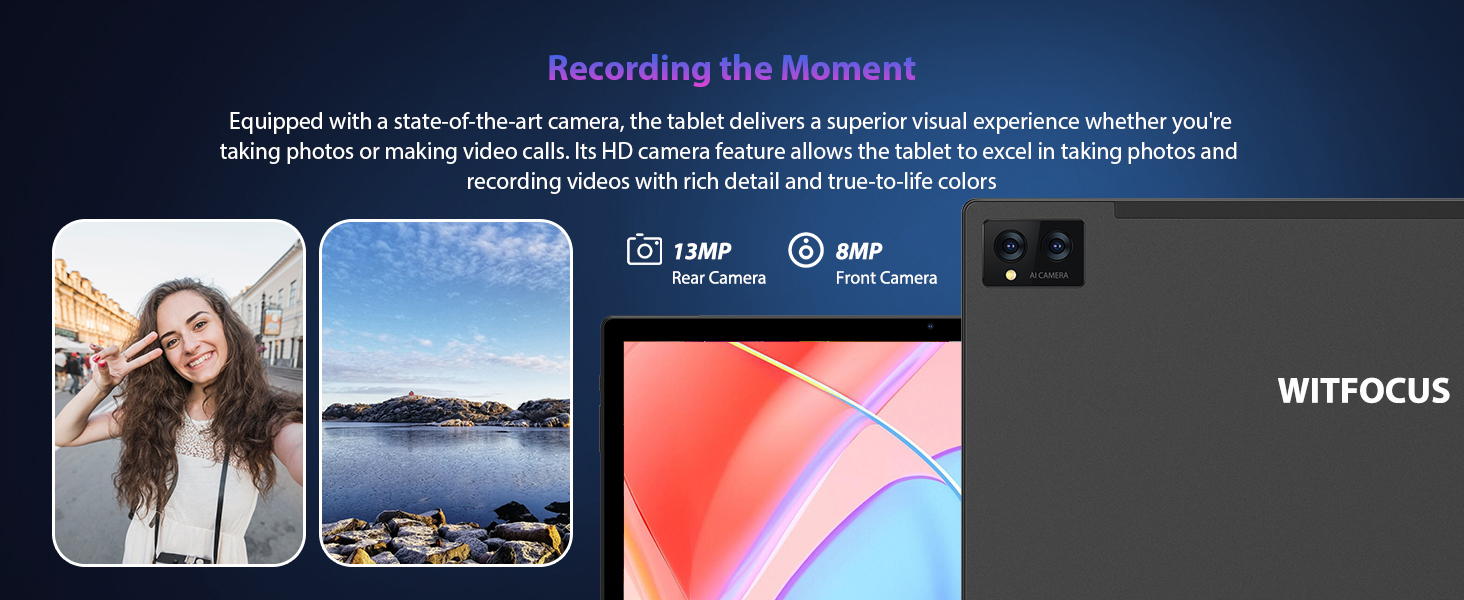
Figure 5.2: Android 14 features, including Parallel View for optimized landscape experience, a convenient Taskbar for multitasking, enhanced Privacy and Security settings, and Parental Controls for managing screen time.
5.2. Display and Visuals
The 14-inch Incell screen with 2000x1200 resolution delivers sharp, vibrant visuals. The advanced touch technology ensures precise accuracy and a responsive experience, perfect for work or entertainment.

Figure 5.3: A visual representation of the 14-inch FHD IPS Incell Display, emphasizing its wide-angle vision, 2K resolution (2000*1200), 93% Golden Ratio, and 16:9 aspect ratio for stunning visuals.
5.3. Camera Usage
Capture crisp, detailed photos and videos with the tablet's cameras. The 13MP rear camera is ideal for high-quality images, while the 8MP front camera is perfect for video calls and selfies.
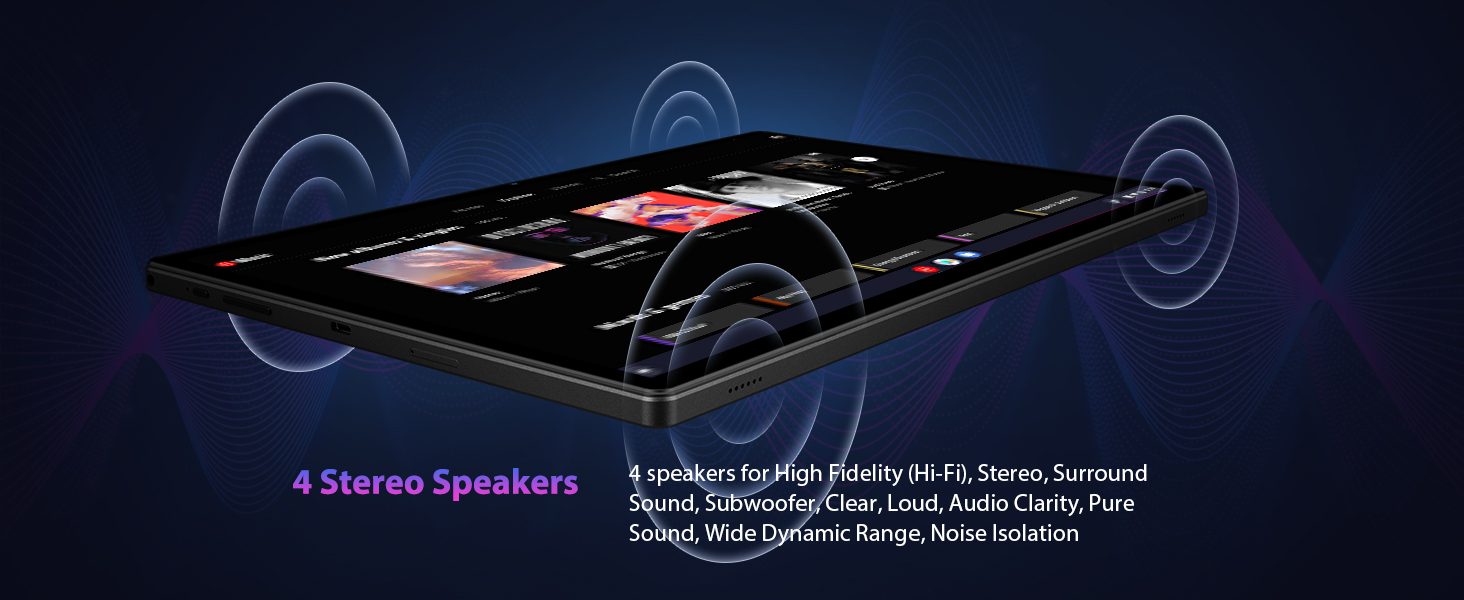
Figure 5.4: The tablet's camera capabilities, featuring a 13MP rear camera and an 8MP front camera, suitable for capturing moments and making video calls.
5.4. Immersive Audio
Enjoy a cinematic experience with the tablet's four high-quality stereo speakers. Whether you’re watching movies, gaming, or listening to music, this tablet brings your content to life with rich sound.
Figure 5.5: A diagram illustrating the placement and function of the tablet's four stereo speakers, designed for high-fidelity audio, surround sound, and clear audio clarity.
5.5. Storage and Memory
Equipped with 36GB of high-speed RAM (12GB physical + 24GB virtual), this tablet ensures seamless multitasking. Combined with 256GB of internal storage, expandable up to 1TB via microSD card, you’ll have plenty of space for apps, media, and files.

Figure 5.6: The tablet's home screen filled with various applications, demonstrating the ample 256GB internal memory, 12GB physical RAM, 24GB virtual RAM, and support for up to 1TB expandable storage.
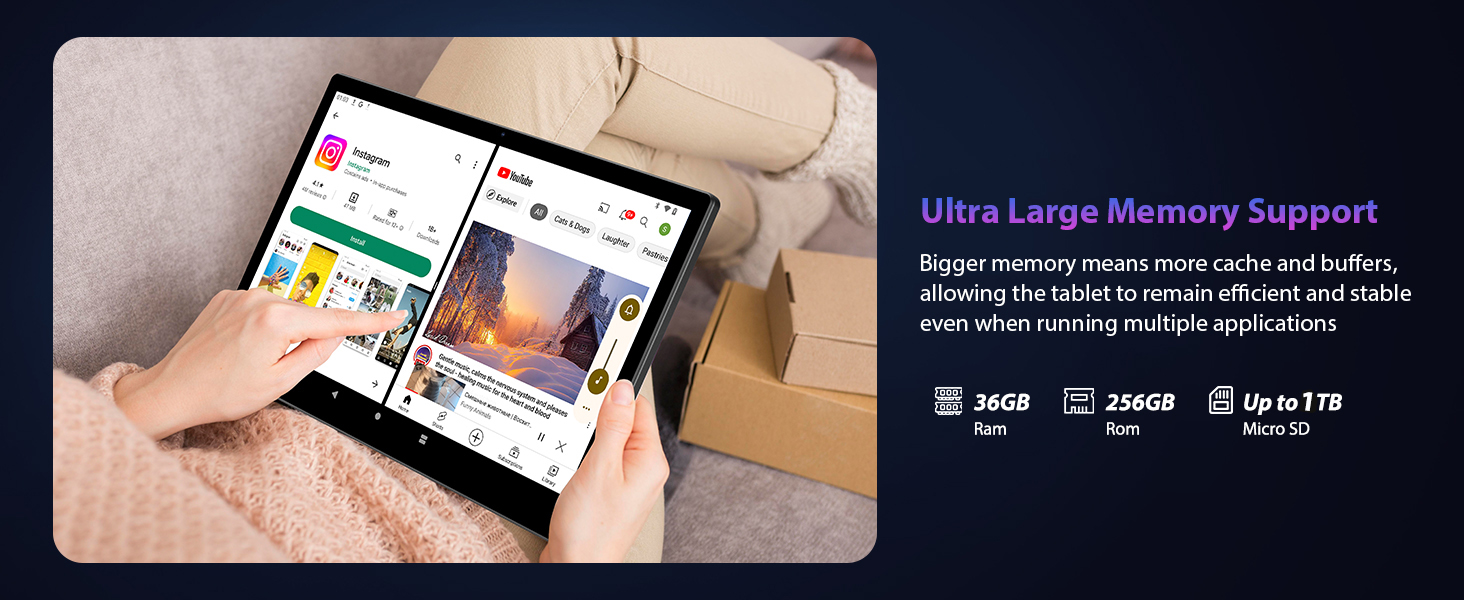
Figure 5.7: A visual summary of the tablet's memory capabilities, including 36GB RAM, 256GB ROM, and support for Micro SD expansion up to 1TB.
5.6. Connectivity
With Wi-Fi 6 and Bluetooth 6, enjoy fast, reliable connections for streaming, browsing, and gaming. The tablet also supports 4-mode satellite positioning (Baidou, GPS, GLONASS, GALILEO, and A-GPS) for accurate navigation.
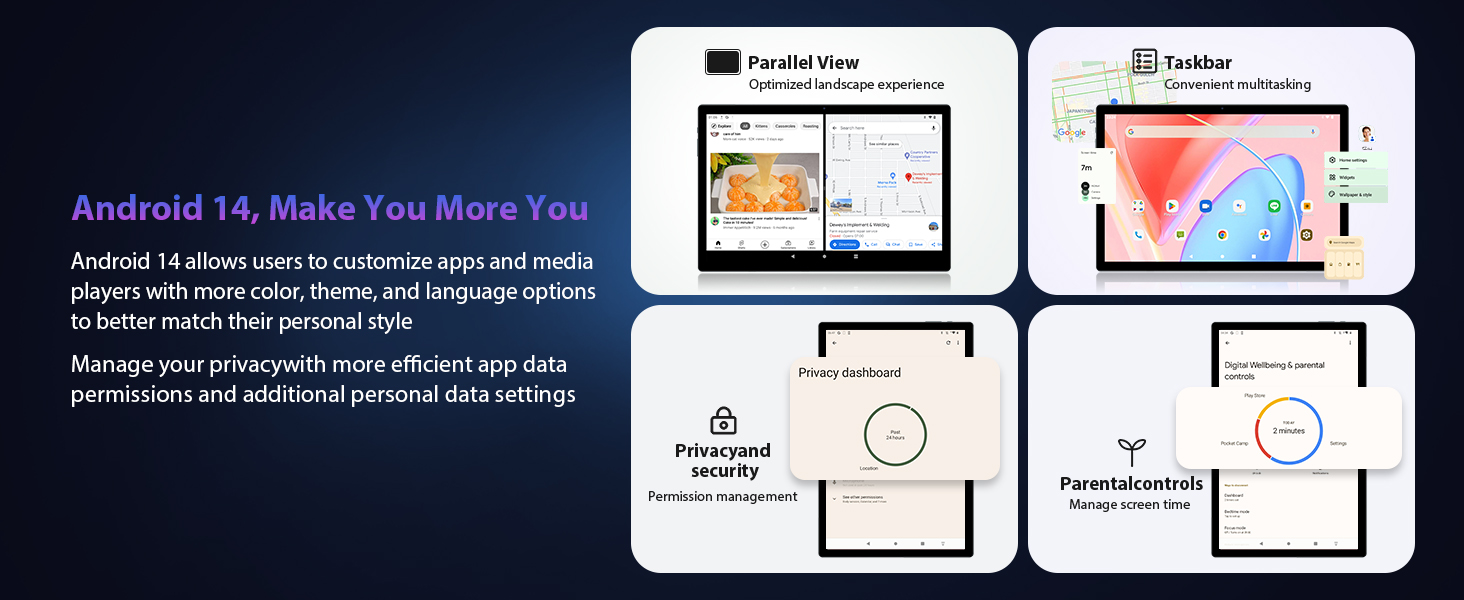
Figure 5.8: The tablet's connectivity options, featuring WiFi (2.4G+5G) and Bluetooth 5.0 with LDAC support for enhanced audio, alongside examples of video calls and GPS navigation.
6. Maintenance
6.1. Battery Care
- Avoid extreme temperatures, which can degrade battery life.
- Do not let the battery completely drain frequently.
- Use only the provided charger or a certified compatible charger.
6.2. Cleaning
- Use a soft, lint-free cloth to clean the screen and body.
- Avoid using harsh chemicals or abrasive materials.
- Do not spray cleaners directly onto the tablet.
6.3. Software Updates
Regularly check for and install software updates to ensure your tablet has the latest features, security patches, and performance improvements. Go to Settings > System > System update.
7. Troubleshooting
If you encounter issues with your tablet, refer to the following common solutions:
| Problem | Possible Solution |
|---|---|
| Tablet does not turn on | Ensure the battery is charged. Connect the charger and wait a few minutes before attempting to power on again. |
| Cannot connect to Wi-Fi | Check if Wi-Fi is enabled in Settings. Restart your router and tablet. Verify the Wi-Fi password. |
| Apps are crashing or freezing | Close and restart the app. Clear the app's cache (Settings > Apps > [App Name] > Storage > Clear cache). Restart the tablet. |
| Slow performance | Close unnecessary background apps. Clear cache and temporary files. Ensure sufficient storage space is available. Restart the tablet. |
| Battery drains quickly | Reduce screen brightness. Disable unused features like Bluetooth or GPS. Close background apps. Check for apps consuming excessive power in battery settings. |
If the problem persists, please contact POWMUS customer support for further assistance.
8. Specifications
Detailed technical specifications for the POWMUS M1401C Tablet:
| Feature | Specification |
|---|---|
| Model Name | M1401C |
| Operating System | Android 14 |
| Screen Size | 14 Inches |
| Screen Resolution | 2000 x 1200 Pixels (2K) |
| Processor | 2 GHz 8-Core (Unisoc) |
| Graphics Coprocessor | ARM Mali G52 |
| RAM | 36GB (12GB physical + 24GB virtual) |
| Internal Storage | 256GB |
| Expandable Storage | Up to 1TB via MicroSD card |
| Rear Camera | 13 MP |
| Front Camera | 8 MP |
| Battery Capacity | 11580mAh |
| Average Battery Life | 8 Hours |
| Wireless Type | 802.11a/b/g/n/ac (Wi-Fi 6), 5GHz WiFi |
| Bluetooth | Bluetooth 6 |
| Dimensions (LxWxH) | 12.8 x 8.5 x 0.35 inches |
| Item Weight | 4.6 pounds |
| Color | Gray A |
9. Warranty and Support
9.1. Warranty Information
Your POWMUS M1401C Tablet is backed by a 1-year warranty from the date of purchase. This warranty covers manufacturing defects and ensures your device functions as intended under normal use. Please retain your proof of purchase for warranty claims.
9.2. Technical Support
POWMUS provides lifetime technical support for your tablet. Our dedicated customer service team is available 24/7 to assist you with any questions or issues you may encounter. For support, please visit the official POWMUS website or refer to the contact information provided with your product documentation.
For additional resources and FAQs, please visit the POWMUS Store on Amazon.