1. Introduction
This manual provides essential information for the safe and efficient operation of your Generic 4K Drone Model 22028158. Please read this manual thoroughly before operating the drone to ensure proper usage and to prevent damage or injury. This drone features a 4K adjustable triple camera, brushless motors, 360° obstacle avoidance, optical flow positioning, and a 4.5-inch LCD remote control.
2. Safety Information
Important Safety Guidelines:
- Always operate the drone in open areas, away from people, animals, and obstacles.
- Maintain a safe distance from the drone during operation.
- Do not operate the drone near airports, restricted airspace, or sensitive areas.
- Ensure all propellers are securely attached and undamaged before each flight.
- Keep batteries away from naked flames or direct heat sources.
- Do not attempt to modify the drone or its components.
- Supervise children when they are operating or near the drone.
- Always turn off the drone and remote control when not in use.
- Refer to local regulations regarding drone operation in your area.
3. Package Contents
Verify that all items listed below are included in your package. If any items are missing or damaged, please contact customer support.

Image 3.1: Contents of the drone package. This includes the foldable drone, the 4.5-inch LCD remote control, one body battery, a set of spare propeller blades, a screwdriver, a USB charging cable, and a storage bag.
- Generic 4K Drone (Model 22028158)
- 4.5-Inch LCD Remote Control
- Body Battery (x1)
- Spare Propeller Blades (x4)
- USB Charging Cable
- Screwdriver
- Storage Bag
- User Manual (this document)
4. Components Overview
4.1 Drone Components

Image 4.1: The Generic 4K Drone in both unfolded and folded states, alongside its 4.5-inch LCD remote control. Key features visible include the triple camera system, propellers, and motor arms.
- Propellers: Generate lift for flight.
- Brushless Motors: Provide efficient and powerful propulsion.
- Adjustable Triple Camera: Captures 4K UHD video and photos from multiple angles.
- Obstacle Avoidance Sensors: Detect obstacles in multiple directions.
- Optical Flow Sensor: Assists with stable hovering, especially indoors.
- Battery Compartment: Houses the drone's flight battery.
- Foldable Arms: Allow for compact storage and transport.
4.2 Remote Control Components

Image 4.2: The 4.5-inch LCD remote control, showing the screen, joysticks, and various control buttons for drone operation and camera functions.
- 4.5-Inch LCD Screen: Displays real-time video feed and flight data.
- Control Sticks: Left stick for throttle/yaw, right stick for pitch/roll.
- Power Button: Turns the remote control on/off.
- Takeoff/Landing Button: One-key automatic takeoff and landing.
- Return-to-Home (RTH) Button: Initiates automatic return to the takeoff point.
- Photo/Video Button: Captures images or starts/stops video recording.
- Camera Angle Adjustment: Controls the tilt of the drone's camera.
- Speed Mode Button: Toggles between different flight speeds.
5. Setup
5.1 Charging the Battery
- Connect the drone battery to the USB charging cable.
- Plug the USB cable into a 5V/2A USB power adapter (not included).
- The charging indicator light will show the charging status. Charge until fully charged (refer to battery indicator for full charge).
- Charge the remote control using its dedicated charging port and cable.
Note: Ensure batteries are fully charged before each flight for optimal performance and safety.
5.2 Installing Propellers
- Unfold the drone arms.
- Identify the 'A' and 'B' marked propellers and corresponding motor arms.
- Attach each propeller to its designated motor shaft, ensuring a secure fit. Use the provided screwdriver if necessary.
- Double-check that all propellers are firmly attached and rotate freely without obstruction.
5.3 Installing Drone Battery
- Locate the battery compartment on the drone.
- Insert the fully charged battery into the compartment, ensuring it clicks into place.
- Close the battery compartment cover securely.
5.4 Pairing the Remote Control
- Place the drone on a flat, level surface.
- Press and hold the power button on the drone until the indicator lights begin to flash.
- Turn on the remote control.
- Push the left control stick (throttle) all the way up, then all the way down.
- The drone's indicator lights will stop flashing and remain solid, indicating successful pairing.
6. Operating Instructions
6.1 Pre-Flight Checklist
- Ensure drone and remote control batteries are fully charged.
- Check that propellers are correctly installed and undamaged.
- Verify the drone and remote control are successfully paired.
- Choose an open, clear area for flight, free from obstacles and people.
- Check weather conditions; avoid strong winds (drone has 5-level wind resistance, but extreme conditions should be avoided).
6.2 Takeoff and Landing
- Automatic Takeoff: After pairing, press the One-Key Takeoff/Landing button on the remote control. The drone will automatically ascend to a safe hovering altitude.
- Manual Takeoff: Push both control sticks down and outwards simultaneously to unlock the motors. Then, slowly push the left control stick (throttle) upwards to ascend.
- Automatic Landing: Press the One-Key Takeoff/Landing button again. The drone will slowly descend and land.
- Manual Landing: Slowly pull the left control stick (throttle) downwards until the drone lands. Once landed, push both control sticks down and inwards to lock the motors.
6.3 Flight Controls (4.5-Inch LCD Remote)
The 4.5-inch LCD screen provides real-time flight data and video feed. Familiarize yourself with the control stick functions:
- Left Stick (Throttle/Yaw):
- Up/Down: Ascend/Descend (Throttle)
- Left/Right: Rotate Left/Right (Yaw)
- Right Stick (Pitch/Roll):
- Up/Down: Fly Forward/Backward (Pitch)
- Left/Right: Fly Left/Right (Roll)
6.4 Camera Operation
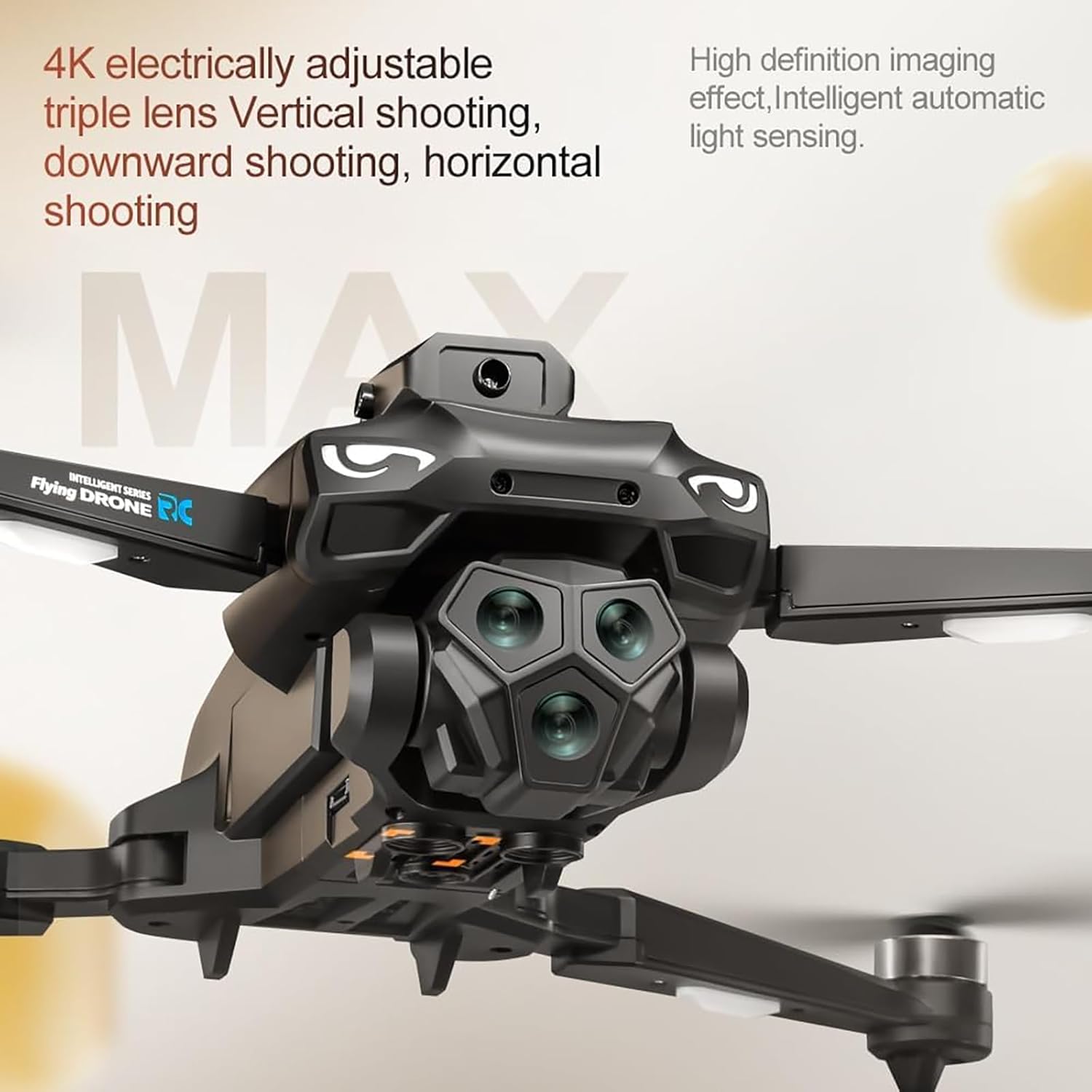
Image 6.1: The drone's triple camera setup, capable of vertical, downward, and horizontal shooting with intelligent light sensing for 4K UHD capture.
- 4K UHD Triple Camera: The drone is equipped with a high-resolution 4K camera system that can be adjusted to capture vertical, downward, and horizontal views.
- Taking Photos: Press the Photo button on the remote control once to capture an image.
- Recording Video: Press the Video button once to start recording. Press it again to stop recording.
- Camera Angle Adjustment: Use the dedicated button/dial on the remote control to adjust the camera's tilt angle during flight.
- Intelligent Light Sensing: The camera system automatically adjusts for optimal clarity in varying light conditions.
6.5 Advanced Flight Features
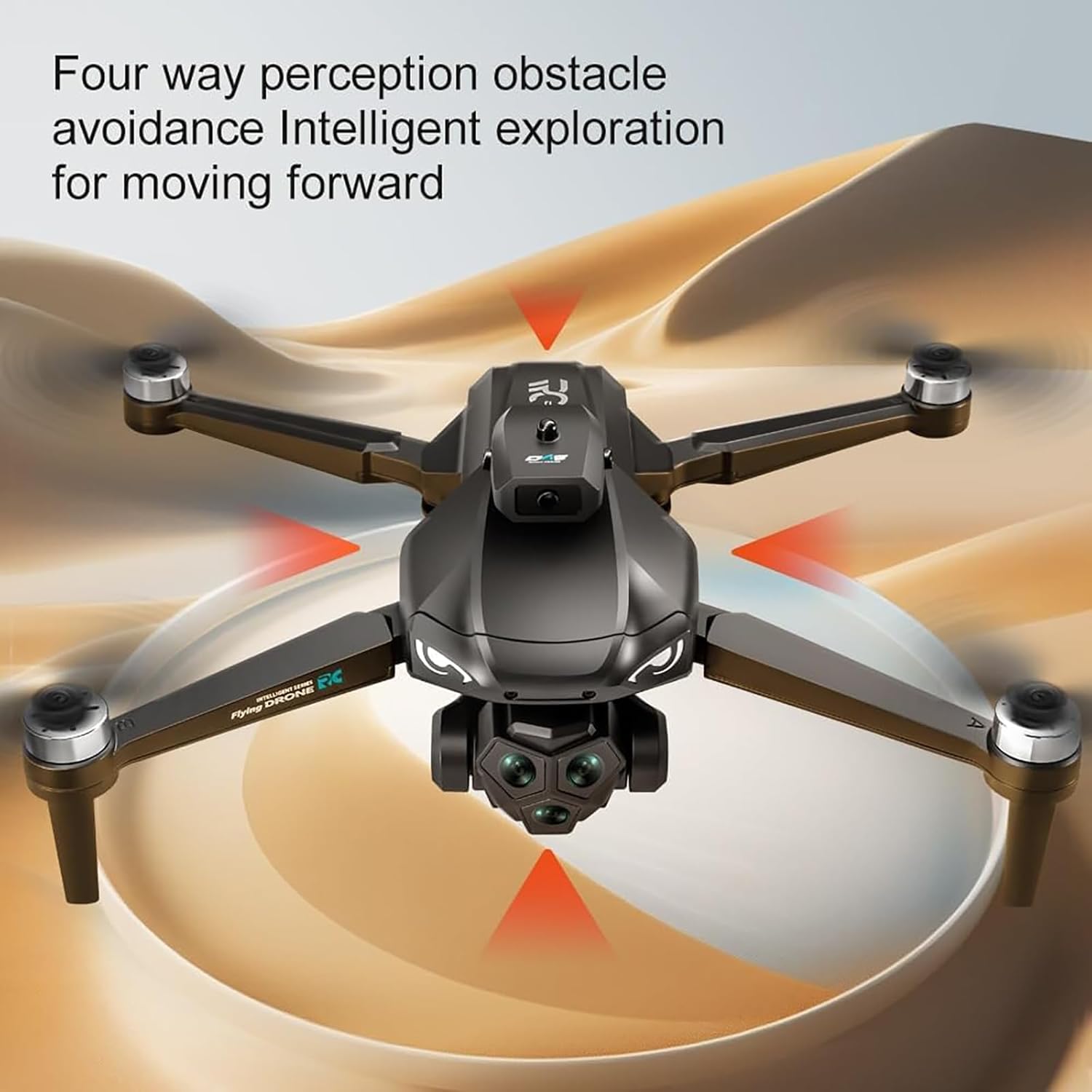
Image 6.2: Visualization of the drone's four-way perception obstacle avoidance system, detecting obstacles from multiple directions.
- 360° Obstacle Avoidance: The drone features four-way perception obstacle detection. When an obstacle is detected, the drone will automatically adjust its flight path to avoid collision. This system enhances safety, especially for new pilots.
- Optical Flow Positioning: This technology helps the drone maintain a stable hover, particularly in indoor environments or when GPS signals are weak. It uses a downward-facing camera to track ground patterns.
- 5-Level Wind Resistance: Equipped with powerful brushless motors, the drone can maintain stable flight even in moderate wind conditions. Exercise caution in strong winds.
- GPS Return-to-Home (RTH): Press the RTH button on the remote control. The drone will automatically fly back to its recorded takeoff point. Ensure a clear path for return.
- Trajectory Flight: (If available via app) Draw a path on the connected app interface, and the drone will follow the specified route.
- Stunt Roll: (If available) Perform aerial stunts by pressing the designated button and moving the right control stick in a desired direction.
7. Maintenance
- Cleaning: Use a soft, dry cloth to clean the drone and remote control. Avoid using liquids or solvents. Ensure camera lenses and sensors are free from dust and debris.
- Propeller Inspection: Regularly check propellers for cracks, bends, or damage. Replace any damaged propellers immediately using the provided spare blades and screwdriver.
- Battery Care:
- Store batteries in a cool, dry place.
- Do not overcharge or over-discharge batteries.
- If storing for extended periods, charge batteries to approximately 50-60%.
- Do not expose batteries to extreme temperatures.
- Storage: When not in use, fold the drone arms and store the drone and remote control in the provided storage bag to protect them from dust and physical damage.
8. Troubleshooting
| Problem | Possible Cause | Solution |
|---|---|---|
| Drone does not power on. | Battery not charged or incorrectly installed. | Ensure battery is fully charged and correctly inserted into the drone. |
| Remote control does not connect to drone. | Not paired correctly or low remote battery. | Re-attempt pairing process. Charge remote control battery. |
| Drone drifts during flight. | Not calibrated on a flat surface; strong wind. | Recalibrate the drone on a level surface. Avoid flying in strong winds. |
| Poor camera image quality. | Dirty lens; insufficient light; SD card issue. | Clean camera lens. Ensure adequate lighting. Check SD card for proper insertion and format. |
| Obstacle avoidance not working. | Sensors obstructed or dirty. | Clean all obstacle avoidance sensors. Ensure no physical obstructions. |
9. Specifications
| Feature | Detail |
|---|---|
| Model Name | 22028158 |
| Brand | Generic |
| Camera | 4K UHD Adjustable Triple Camera |
| Motor Type | Brushless Motor |
| Obstacle Avoidance | 360° Four-way Perception |
| Positioning System | Optical Flow Positioning, GPS Return |
| Wind Resistance | 5-Level |
| Remote Control | 4.5-Inch LCD Screen Remote |
| Material | Plastic |
| Product Dimensions | 0.39 x 0.39 x 0.39 inches (Note: These dimensions appear to be placeholder values and may not reflect the actual size of the drone.) |
| Item Weight | 2.2 pounds (1 Kilogram) |
| Recommended Age | Adult (Manufacturer also suggests 6-15 years, but adult supervision is recommended for younger users.) |
10. Warranty and Support
For warranty information or technical support, please refer to the documentation provided with your purchase or contact the retailer/manufacturer directly. Keep your proof of purchase for any warranty claims.