
Smart Watch, 45800
GT21 Y13 Smart Watch User Manual
Model: Smart Watch, 45800
1. Introduction
This manual provides comprehensive instructions for the setup, operation, maintenance, and troubleshooting of your GT21 Y13 Smart Watch. Please read this manual carefully before using the device to ensure proper functionality and longevity.

Image: The GT21 Y13 Smart Watch in black, showcasing its sleek design. Smaller images to the right display the watch in gold, silver, and pink variants, highlighting the customizable watch faces.
2. Package Contents and Setup
2.1 Package Contents
Verify that all items are present in the package:
- 1x GT21 Y13 Smart Watch
- 1x USB Charging Cable
- 1x Instruction Manual (this document)
2.2 Charging the Device
Before first use, fully charge your smart watch. The charging time is approximately 1.5 hours.
- Connect the magnetic end of the USB charging cable to the charging contacts on the back of the watch.
- Connect the USB-A end of the cable to a standard USB power adapter (not included) or a computer's USB port.
- The watch screen will indicate charging status.

Image: The magnetic USB charging cable, showing the circular charging dock that attaches to the back of the smart watch and the standard USB-A connector.
2.3 Initial Power On and App Pairing
To begin using your smart watch, power it on and pair it with your smartphone via the dedicated mobile application.
- Power On: Press and hold the side key until the screen lights up.
- Download App: Scan the QR code in the quick start guide (if provided) or search for the companion app in your smartphone's app store (App Store for iOS, Google Play Store for Android).
- Pairing:
- Enable Bluetooth on your smartphone.
- Open the downloaded app and follow the on-screen instructions to add a new device.
- Select "GT21 Y13" or the corresponding device name from the list of available Bluetooth devices.
- Confirm the pairing request on both your phone and the watch.
The app supports multiple languages including English, Simplified Chinese, Traditional Chinese, Dutch, Russian, French, German, Portuguese, Spanish, Turkish, Japanese, Polish, Malaysian, Thai, Czech, and Slovak.
3. Operating Instructions
3.1 Basic Functions and Navigation
The GT21 Y13 Smart Watch features full screen touch control and a side key for navigation.
- Time and Date: Displays current time, date, and day of the week.
- Step Counter: Tracks your daily steps.
- Calories: Estimates calories burned based on activity.
- Distance: Measures distance covered.
- Stopwatch: Built-in stopwatch function.
- Brightness Adjustment: Adjust screen brightness for optimal viewing.
- Information Storage: Stores various data points.
- UI Switching: Six different user interfaces can be switched from the main screen.

Image: The GT21 Y13 Smart Watch screen showing the time (10:08) and date (MON 08) with a vibrant blue fish as the background, demonstrating a typical watch face.
3.2 Alert and Notification Functions
Stay connected with real-time alerts and notifications directly on your wrist.
- Call Reminder: Notifies you of incoming calls.
- Message Notifications: Displays messages from various apps (e.g., SMS, QQ, WeChat).
- Sedentary Reminder: Prompts you to move after periods of inactivity.
- Alarm Reminder: Vibrates to alert you at set alarm times.
- WeChat Sports Connect: Integrates with WeChat for sports data sharing and goal setting.
- Raise Hand to Brighten Screen: Automatically illuminates the screen when you raise your wrist.
- Find Phone/Bracelet: Helps locate your paired phone or watch.
- Call Rejection: Allows you to reject incoming calls from the watch.
3.3 Custom Dial Feature
Personalize your watch by setting custom dial backgrounds using photos from your phone.
- Open the companion app on your smartphone.
- Navigate to the "Dial Settings" or "Watch Face" section.
- Select the option to "Customize Dial" or "Select Picture".
- Choose a photo from your phone's gallery.
- Adjust the image and text position as desired, then save.

Image: A smartphone screen displaying the "Custom Dial" interface within the companion app, showing options to select a picture, restore default, and adjust text color and position for the watch face. The smart watch next to it shows a customized dial with a whale image.
4. Maintenance and Care
4.1 Cleaning Your Smart Watch
To maintain the appearance and functionality of your watch:
- Wipe the screen and strap regularly with a soft, dry, lint-free cloth.
- For stubborn dirt, slightly dampen the cloth with water. Avoid using harsh chemicals or abrasive materials.
- Ensure the charging contacts are clean and dry before charging.
4.2 Water Resistance (IP67)
The GT21 Y13 Smart Watch has an IP67 rating, meaning it is protected from dust and can withstand immersion in water up to 1 meter for up to 30 minutes. While it is resistant to splashes and brief immersion, it is not recommended for swimming, showering, or prolonged water activities.
- Do not expose the watch to hot water, steam, or high-pressure water.
- Dry the watch thoroughly if it gets wet.
4.3 Storage
When not in use for extended periods, store the watch in a cool, dry place away from direct sunlight and extreme temperatures. Ensure the battery is partially charged (around 50%) before storing to prolong battery life.
5. Troubleshooting
5.1 Common Issues and Solutions
| Issue | Possible Cause | Solution |
|---|---|---|
| Watch does not power on. | Low battery. | Charge the watch for at least 30 minutes. |
| Cannot pair with smartphone. | Bluetooth off, app issue, or watch not discoverable. | Ensure Bluetooth is on. Restart both watch and phone. Reinstall the app. Check watch's Bluetooth settings. |
| Notifications not received. | App permissions, Bluetooth disconnected, or notification settings. | Check app notification permissions on your phone. Ensure watch is connected. Verify notification settings within the app. |
| Inaccurate step count. | Improper wearing, arm movements, or software calibration. | Wear the watch snugly on your wrist. Ensure your profile settings (height, weight) are accurate in the app. |
5.2 Device Reset
If the watch is unresponsive or experiencing persistent issues, a device reset may resolve the problem. This will erase all data on the watch and restore factory settings.
- Navigate to the "Settings" menu on your watch.
- Look for an option like "Reset" or "Factory Reset".
- Confirm the reset when prompted.
6. Specifications
Detailed technical specifications for the GT21 Y13 Smart Watch:
- Model: Smart Watch, 45800
- Screen: 1.7 inches, 240x280 resolution
- Control Mode: Full screen touch + side key, mobile APP control
- Battery Capacity: 3.7V/180mAh
- FLASH Memory: 512KB+16M
- Charging Time: Approximately 1.5 hours
- Working Time: Around 3 days
- Shell Material: Alloy + ABS
- Water Resistance Rating: IP67
- Product Dimensions: 19.69 x 19.69 x 19.69 inches (approx. 50 x 50 x 50 cm)
- Item Weight: 6.6 ounces (approx. 187 grams)
- Bracelet Language Support: English, French, Spanish, Portuguese, Russian, German, Dutch, Turkish, Malaysian, Polish, Czech, Slovak, Simplified Chinese
- APP Language Support: English, Simplified Chinese, Traditional Chinese, Dutch, Russian, French, German, Portuguese, Spanish, Turkish, Japanese, Polish, Malaysian, Thai, Czech, Slovak
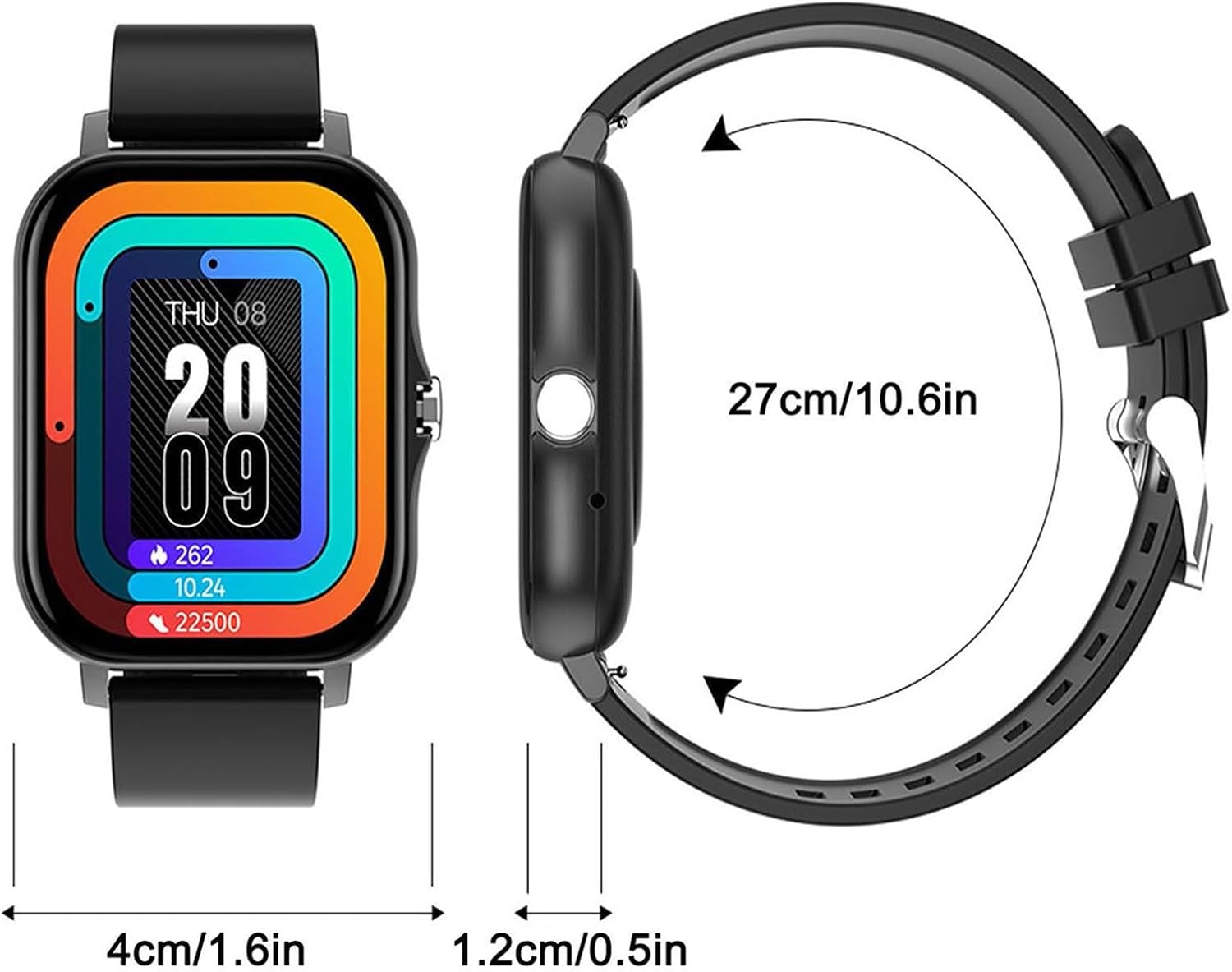
Image: A diagram illustrating the dimensions of the GT21 Y13 Smart Watch. The watch face measures approximately 4cm (1.6 inches) in width, the thickness is 1.2cm (0.5 inches), and the total circumference of the watch with the strap is 27cm (10.6 inches).
7. Warranty and Support
Information regarding product warranty and customer support is typically provided by the seller or manufacturer at the time of purchase. Please refer to your purchase documentation or contact the seller directly for details on warranty coverage and support options for your GT21 Y13 Smart Watch.
Ask a question about this manual
Ask about setup, troubleshooting, compatibility, parts, safety, or missing instructions. Manuals+ will review the question and use this page’s manual context to help answer it.