1. Introduction
Welcome to the RUSHAR M90 11-inch Android 15 Tablet user manual. This guide provides essential information for setting up, operating, maintaining, and troubleshooting your new tablet. Please read this manual thoroughly to ensure optimal performance and longevity of your device.
The RUSHAR M90 tablet features the latest Android 15 operating system, an 11-inch HD display, an Octa-Core processor, 36GB RAM, 256GB ROM, dual-band WiFi, Bluetooth 5.0, and an 8000mAh battery. It is designed for a smooth and efficient user experience across various applications, from entertainment to productivity.
2. What's in the Box
Upon opening your RUSHAR M90 tablet package, you should find the following items:
- RUSHAR M90 11-inch Android 15 Tablet
- Bluetooth Keyboard
- Mouse
- Stylus Pen
- Charger
- Earphones
- Protective Case
- OTG Adapter
- Data Cable (USB-C)
- User Manual (this document)

Figure 2.1: RUSHAR M90 Tablet and Included Accessories
3. Product Overview
3.1 Physical Design
The RUSHAR M90 tablet features an ultra-thin metallic shell, measuring only 8.3mm in thickness and weighing approximately 515 grams. Its sleek design and comfortable grip make it highly portable and suitable for daily use.
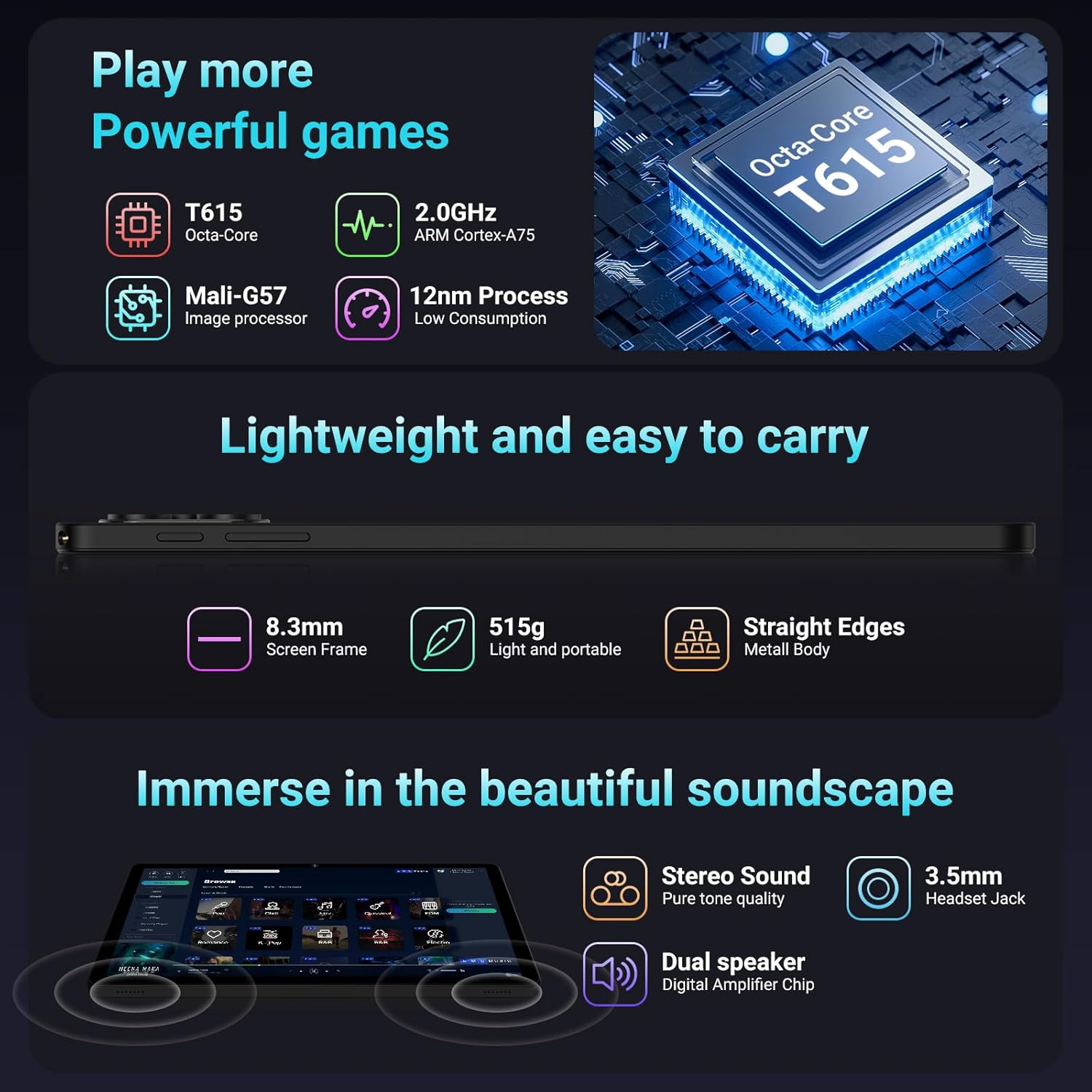
Figure 3.1: RUSHAR M90 Tablet Performance, Design, and Audio
3.2 Key Components
Familiarize yourself with the tablet's main components:
- 11-inch HD Display: High-resolution screen for clear visuals.
- Front Camera (8MP): For video calls and selfies.
- Rear Camera (13MP): For capturing photos and videos.
- Power Button: To turn the device on/off or wake/sleep.
- Volume Buttons: To adjust audio levels.
- USB-C Port: For charging and data transfer.
- 3.5mm Headset Jack: For connecting earphones.
- Micro SD Card Slot: For storage expansion.
- Dual Speakers: For enhanced audio output.
4. Setup
4.1 Initial Charging
- Connect the provided USB-C data cable to the tablet's USB-C port.
- Connect the other end of the data cable to the provided charger.
- Plug the charger into a power outlet.
- Allow the tablet to charge fully before first use. The 8000mAh battery supports 18W fast charging.
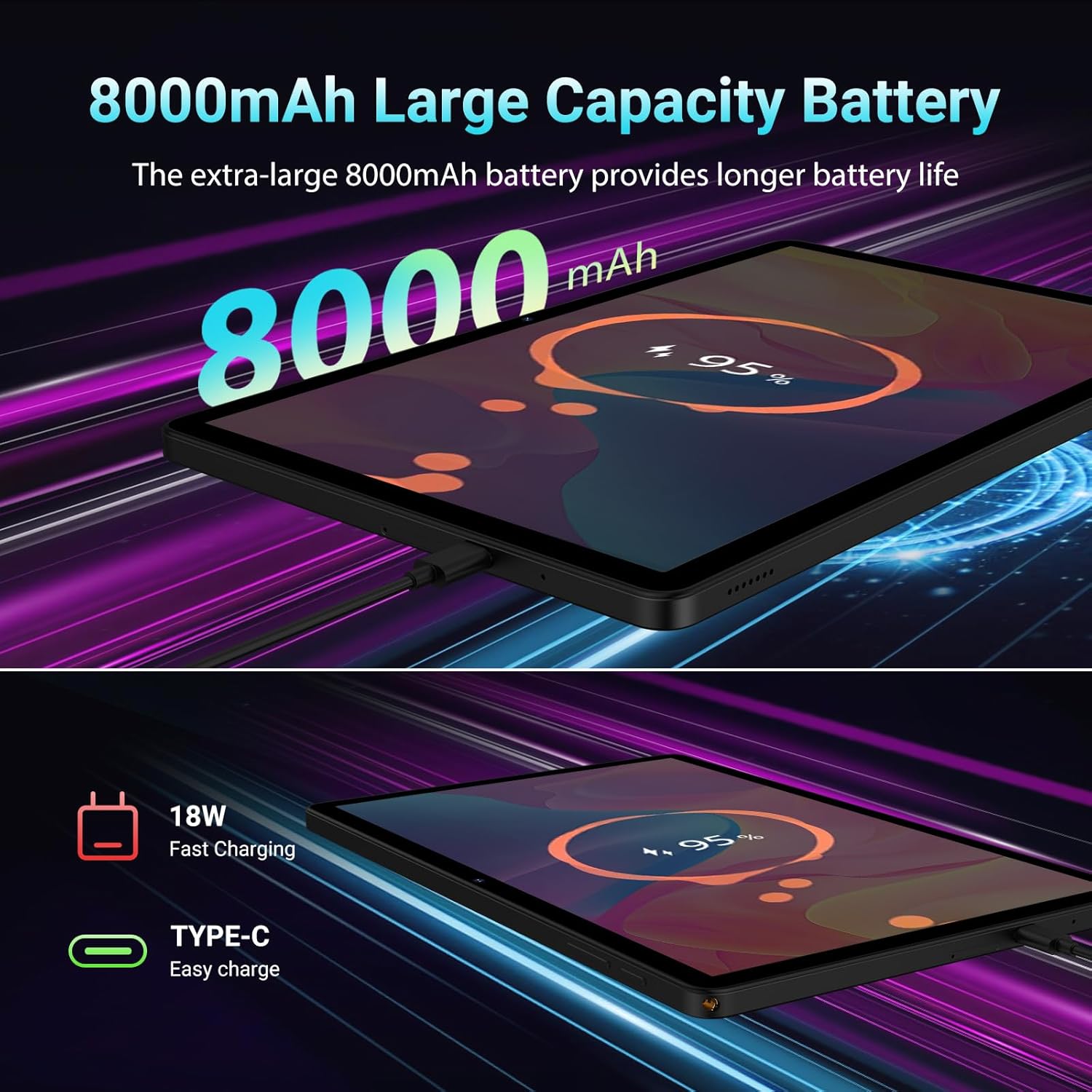
Figure 4.1: Charging the RUSHAR M90 Tablet
4.2 Powering On/Off
- To Power On: Press and hold the Power button until the RUSHAR logo appears on the screen.
- To Power Off: Press and hold the Power button until a power menu appears. Select "Power off" and confirm.
- To Restart: From the power menu, select "Restart" and confirm.
4.3 Initial Setup Wizard
The first time you power on your tablet, you will be guided through an initial setup wizard. Follow the on-screen instructions to:
- Select your language.
- Connect to a Wi-Fi network.
- Sign in with your Google account or create a new one.
- Set up screen lock (PIN, pattern, password, or Face ID).
- Review and accept terms and conditions.

Figure 4.2: Android 15 System Interface
5. Operating Your Tablet
5.1 Android 15 Operating System
Your RUSHAR M90 tablet runs on the latest Android 15, offering a fluid and efficient user experience. It features an intuitive interface, enhanced privacy protections, and improved security functionalities.
5.2 Display and Visuals
The 11-inch HD display boasts a 2000x1200 pixel resolution with a 16:10 aspect ratio, providing clear and vibrant images. It supports Widevine L1, enabling 1080P high-definition streaming on platforms like Netflix, YouTube, and Google Play.

Figure 5.1: 11-inch Display Features
5.3 Performance and Storage
Equipped with an Octa-Core 2.0GHz Unisoc T615 processor, the tablet ensures optimal performance for gaming, work, and entertainment. It features 36GB of RAM (12GB physical + 24GB virtual) and 256GB of internal storage. Storage can be expanded up to 2TB using a Micro SD card (FAT32 format).

Figure 5.2: Memory and Storage Capabilities
5.4 Connectivity
- Wi-Fi: Supports dual-band 2.4GHz and 5GHz Wi-Fi for faster and more stable internet connectivity.
- Bluetooth 5.0: For connecting wireless accessories such as the included keyboard, mouse, and earphones.
- GPS: Integrated GPS for navigation and location services.

Figure 5.3: Connectivity and Core Features
5.5 Cameras and Audio
The tablet features a 13MP rear camera and an 8MP front camera, suitable for video calls and capturing moments. AI noise cancellation technology ensures clear audio during calls and recordings. Dual stereo speakers provide impressive sound quality.

Figure 5.4: Camera and Video Call Functionality
5.6 Special Features
- Face ID: Securely unlock your tablet using facial recognition.
- Split Screen: Multitask efficiently by running two applications side-by-side.

Figure 5.5: Face ID, Split Screen, and GPS in Use
6. Maintenance
6.1 Battery Care
- Avoid exposing the tablet to extreme temperatures (hot or cold).
- Do not allow the battery to fully discharge frequently. Charge it before it drops below 20%.
- Use only the provided charger and cable to prevent damage.
6.2 Cleaning
- Use a soft, lint-free cloth to clean the screen and body of the tablet.
- For stubborn smudges, slightly dampen the cloth with water or a screen-cleaning solution.
- Avoid using harsh chemicals, abrasive materials, or excessive moisture.
6.3 Storage
- Store the tablet in a cool, dry place away from direct sunlight.
- If storing for an extended period, ensure the battery is charged to about 50-70% to preserve its health.
7. Troubleshooting
This section addresses common issues you might encounter with your RUSHAR M90 tablet.
7.1 Tablet Does Not Turn On
- Ensure the tablet is sufficiently charged. Connect it to the charger and wait a few minutes before attempting to power on again.
- Press and hold the Power button for at least 10-15 seconds to force a restart.
7.2 Slow Performance
- Close unnecessary background applications.
- Clear cache data for frequently used apps.
- Ensure you have sufficient free storage space. Delete old files or transfer them to an SD card.
- Restart the tablet.
7.3 Wi-Fi Connectivity Issues
- Ensure Wi-Fi is enabled on your tablet.
- Restart your Wi-Fi router.
- Forget the network and reconnect, entering the password again.
- Check if other devices can connect to the same Wi-Fi network.
7.4 Accessories Not Connecting (Keyboard/Mouse)
- Ensure Bluetooth is enabled on your tablet and the accessory.
- Make sure the accessory is charged or has fresh batteries.
- Put the accessory into pairing mode and search for it in the tablet's Bluetooth settings.
- For the mouse, ensure the USB wireless receiver is properly connected via the OTG adapter to the tablet's USB-C port.
7.5 Screen Unresponsive
- Restart the tablet by holding the Power button.
- If the issue persists, perform a factory reset (Warning: This will erase all data on your tablet. Back up important data first. Go to Settings > System > Reset options > Erase all data (factory reset)).
8. Specifications
| Feature | Specification |
|---|---|
| Brand | RUSHAR |
| Model Name | M90 |
| Operating System | Android 15 |
| Processor | Unisoc Octa-Core 2.0 GHz |
| RAM | 36 GB (12GB physical + 24GB virtual) |
| Internal Storage | 256 GB |
| Expandable Storage | Up to 2 TB via Micro SD card (FAT32) |
| Screen Size | 11 inches |
| Display Resolution | 2000 x 1200 pixels |
| Rear Camera | 13 MP |
| Front Camera | 8 MP |
| Wi-Fi | Dual-band 2.4GHz/5GHz (802.11ac, 802.11g) |
| Bluetooth | Bluetooth 5.0 |
| Battery Capacity | 8000 mAh |
| Charging | 18W Fast Charging, USB-C |
| Special Features | Face ID, GPS, Widevine L1 (1080P Netflix compatibility) |
| Dimensions | 8.3 mm thickness |
| Weight | Approx. 515 grams |
9. Warranty and Support
9.1 Manufacturer's Warranty
The RUSHAR M90 tablet comes with a 1-year manufacturer's warranty. This warranty covers defects in materials and workmanship under normal use. Please retain your proof of purchase for warranty claims.
9.2 Customer Support
If you encounter any issues or have questions regarding your RUSHAR M90 tablet, please do not hesitate to contact our customer support team. We are committed to resolving any problems within 24 hours.
For support, please refer to the contact information provided on the product packaging or the official RUSHAR website.