
1. Introduction
Thank you for choosing the Orestree 100W USB-C Laptop Charger. This manual provides essential information for the safe and efficient use of your new power adapter. Please read this manual thoroughly before use and retain it for future reference.

Image: The Orestree 100W USB-C Laptop Charger with its AC power cord.
2. Package Contents
Verify that all items listed below are included in your package:
- 1 x Orestree 100W USB-C Power Adapter
- 1 x AC Power Cord
- 2 x USB Cables
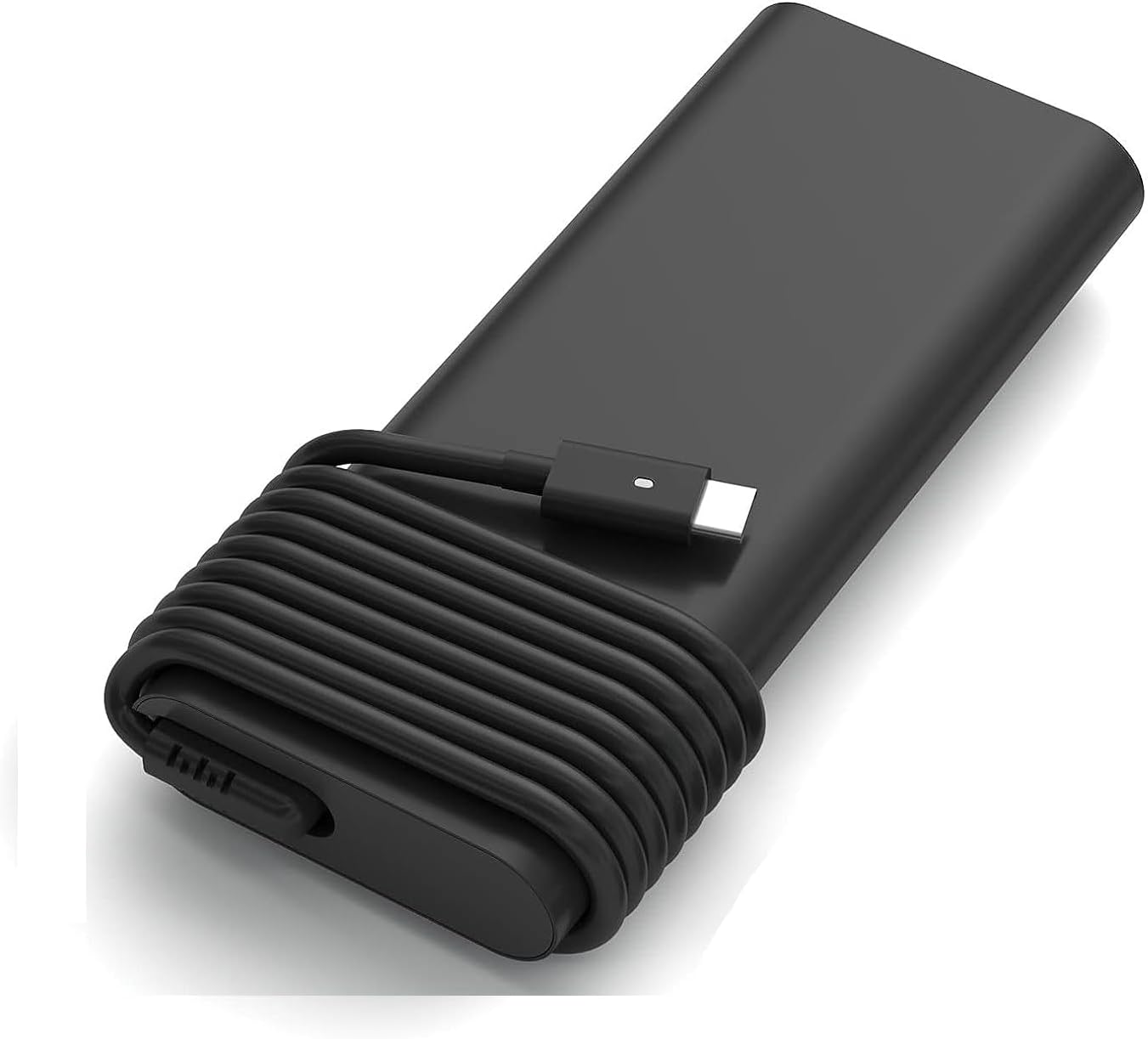
Image: The Orestree 100W USB-C Laptop Charger with its integrated USB-C cable coiled.
3. Specifications
| Model Number | DA130PM130 |
| Input | 100-240V ~ 50-60Hz, 1.6A |
| Output | 20V 5A, 100W |
| Connector Type | USB-C |
| Compatible Devices | Laptops (Dell Pro 16 Plus PB16250 P135F P135F001) |
| Item Weight | 8 ounces |
| Color | Black |
The USB-C connector is designed for durability and flexibility, featuring a pure copper wire for efficient power delivery and a lifespan exceeding 50,000 bends.

Image: Features of the USB-C connector, highlighting its flexibility and internal construction.
4. Safety Information and Features
Your Orestree charger is equipped with multiple protection features to ensure the safety of your devices and the charger itself:
- Short-Circuit Protection: Prevents damage from electrical shorts.
- Over-Temperature Protection: Monitors and regulates internal temperature to prevent overheating.
- Over-Voltage Protection: Safeguards against excessive voltage input.
- Over-Charge Protection: Protects devices from being overcharged.
- Over-Current Protection: Prevents damage from excessive current flow.
- Resistant to Burning: Constructed with materials designed to resist burning.
- Automatic Off: The charger features an automatic shut-off mechanism for enhanced safety.

Image: The charger's internal power delivery chip and its multi-protection capabilities.
5. Setup
Follow these steps to set up your Orestree 100W USB-C Laptop Charger:
- Connect the AC Power Cord: Insert one end of the AC power cord into the charger's AC input port.
- Plug into Wall Outlet: Plug the other end of the AC power cord into a standard electrical wall outlet (100-240V).
- Connect to Laptop: Insert the USB-C connector of the charger into the USB-C charging port on your compatible Dell laptop.
Ensure all connections are secure before use.
6. Operating Instructions
Once connected, the charger will automatically begin supplying power to your laptop. The charger is designed for fast charging and will adjust its output based on your device's power requirements, up to 100W.
- Charging Indication: Your laptop's charging indicator (usually an LED light or on-screen icon) will show that it is receiving power.
- Disconnecting: To disconnect, first unplug the USB-C connector from your laptop, then unplug the AC power cord from the wall outlet.
7. Maintenance
Proper maintenance ensures the longevity and optimal performance of your charger:
- Cleaning: Use a soft, dry cloth to clean the charger. Do not use liquid cleaners or solvents.
- Storage: Store the charger in a cool, dry place when not in use. Avoid extreme temperatures.
- Cable Care: Do not bend or crimp the cables excessively. Avoid placing heavy objects on the cables.
- Inspection: Periodically inspect the charger and cables for any signs of damage, such as frayed wires or cracked casing. Discontinue use if damage is found.
8. Troubleshooting
If you encounter issues with your charger, refer to the following common problems and solutions:
| Problem | Possible Cause | Solution |
|---|---|---|
| Charger not powering laptop | Loose connection, faulty outlet, incompatible device, damaged charger/cable. | Ensure all connections are secure. Try a different wall outlet. Verify laptop compatibility. Inspect charger and cable for damage. |
| Slow charging | Laptop consuming high power, background processes, cable issue. | Close unnecessary applications. Ensure the charger is directly connected to the laptop (not via a hub). Check cable for damage. |
| Charger feels hot | Normal operation under load, poor ventilation. | A slight warmth is normal. Ensure the charger is in a well-ventilated area and not covered. If it's excessively hot, disconnect immediately and contact support. |
If the problem persists after trying these solutions, please contact customer support.
9. Warranty and Support
This Orestree 100W USB-C Laptop Charger comes with a 12-month warranty from the date of purchase. This warranty covers manufacturing defects and ensures the product is free from defects in material and workmanship under normal use.
The warranty does not cover damage caused by misuse, accident, unauthorized modification, or external causes such as power surges. Please retain your proof of purchase for warranty claims.
For technical support, warranty claims, or any questions regarding your product, please contact Orestree customer service through the retailer where the product was purchased.