
Introduction
This manual provides detailed instructions for setting up, operating, and maintaining your Eyoyo 7-inch 1024x600 LCD Capacitive Touchscreen Monitor. Designed for versatility, this portable display is compatible with a wide range of devices, including Raspberry Pi models, Windows, Linux, and Android systems. Please read this manual thoroughly before use to ensure optimal performance and longevity of your device.
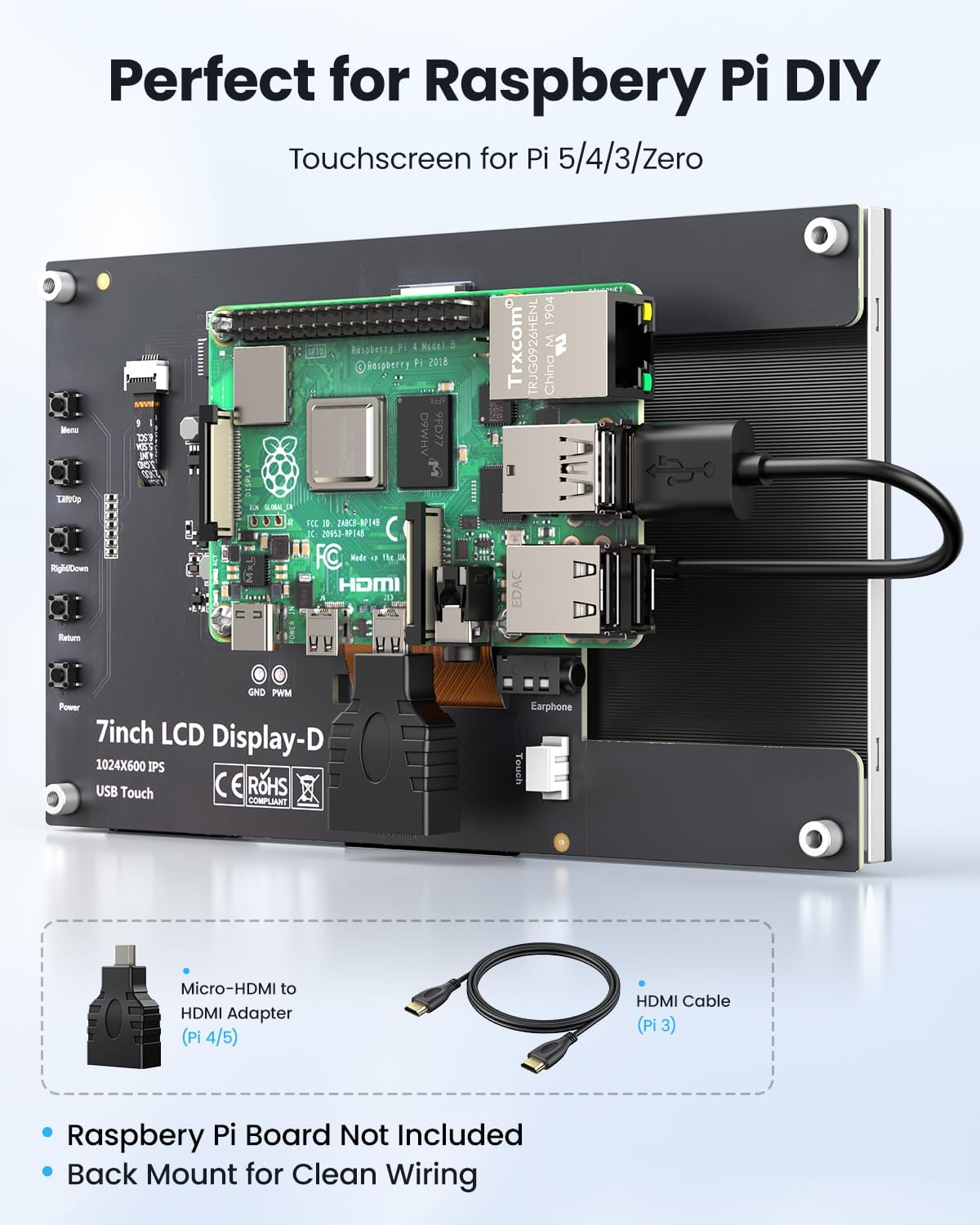
Figure 1: Eyoyo 7-inch 1024x600 LCD Capacitive Touchscreen Monitor.
Package Contents
Verify that all items listed below are included in your package:
- 1x Eyoyo 7-inch Raspberry Pi Screen
- 1x HDMI Cable
- 1x USB Touch Cable
- 1x Micro HDMI to HDMI Adapter
- 1x Screws Kit
- 2x Brackets (for stand)
- 1x Screwdriver
- 1x User Manual

Figure 2: All components included in the Eyoyo 7-inch monitor package.
Setup
1. Raspberry Pi Connection Setup
To ensure proper functionality with your Raspberry Pi, specific configuration adjustments are required. The monitor supports Raspberry Pi 5/4/3/2/Zero.
- Prepare the SD Card: Open the
config.txtfile located in the root directory of your Raspberry Pi's SD card on your computer. - Add Configuration Lines: Add the following lines at the end of the
config.txtfile:ini
max_usb_current=1
hdmi_force_hotplug=1
config_hdmi_boost=7
hdmi_group=2
hdmi_mode=87
hdmi_drive=1
display_rotate=0
hdmi_cvt 1024 600 60 6 0 0 0 - For Official Raspberry Pi OS (2021-10-30) or later: If you are using the official Raspberry Pi OS (2021-10-30), change:
dtoverlay=vc4-kms-v3d
to:
#dtoverlay=vc4-kms-v3d - Save and Eject: Save the changes and safely eject the SD card.
- Mount Raspberry Pi: Securely attach your Raspberry Pi board to the back of the monitor using the provided screws and standoffs.
- Connect Cables: Insert the HDMI and USB Touch interfaces of the monitor to the Raspberry Pi's card slot. Use the Micro HDMI to HDMI adapter for Raspberry Pi 4/5.
- Power On: Power up the Raspberry Pi, and the display and touch functionality should work properly.

Figure 3: Raspberry Pi connected to the Eyoyo 7-inch monitor, showing cable management and stand.

Figure 4: Detailed connection diagrams for Raspberry Pi 3 and Raspberry Pi 4/5.
Video: How to install the Raspberry Pi board with the screen?
Video 1: This video demonstrates the step-by-step process of installing a Raspberry Pi board onto the Eyoyo 7-inch touchscreen monitor, including securing the board and connecting the necessary cables.
2. PC Connection Setup
The monitor can also be used as a secondary display for PCs running Windows, Debian, Ubuntu, and Kodi. Simply connect the monitor to your PC via HDMI for video and USB for touch functionality. No additional drivers are typically required for basic display and touch.
- Connect HDMI: Use the provided HDMI cable to connect the monitor to your PC's HDMI output.
- Connect USB for Touch: Use the provided USB Touch Cable to connect the monitor's USB-C port to a USB-A port on your PC. This enables the 5-point capacitive touch feature.
- Adjust Resolution: On your PC, go to Display Settings to set the resolution to 1024x600 pixels for optimal display.

Figure 5: Eyoyo 7-inch monitor extending a laptop's display with touch input.
Video: Eyoyo Raspberry Pi Screen 7-inch Touchscreen Monitor 1024x600
Video 2: This video showcases the Eyoyo 7-inch touchscreen monitor's features, including its vibrant display and responsive touch, demonstrating its use as an extended display for a laptop and with a Raspberry Pi.
Operating Instructions
Touch Functionality
The monitor features a 5-point capacitive touchscreen, offering smooth and accurate input. Simply tap, swipe, and gesture as you would on a smartphone or tablet. No additional setup is needed for touch functionality once the USB Touch Cable is connected (Note: Touch functionality is not supported on iOS devices).
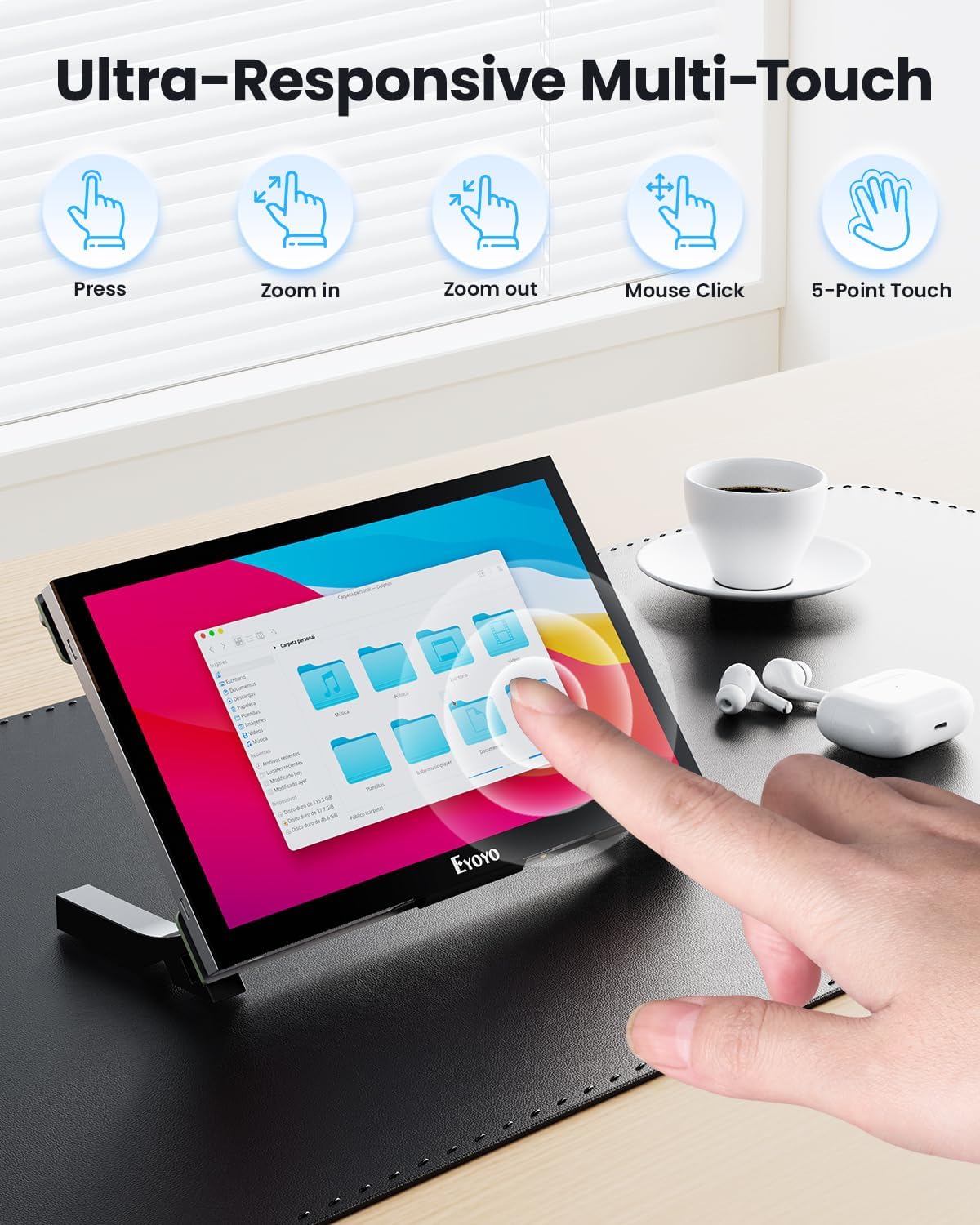
Figure 6: Demonstrating the ultra-responsive multi-touch capabilities of the monitor.
OSD Menu Instructions
The monitor includes tactile buttons on the side for accessing and navigating the On-Screen Display (OSD) menu. These buttons allow you to adjust various display settings.

Figure 7: Key functions and ports on the back of the Eyoyo 7-inch LCD Display.
- Menu (1): Press to open the main menu or enter a sub-menu.
- Left/Up (2): Navigate left/up in the menu or decrease values.
- Right/Down (3): Navigate right/down in the menu or increase values.
- Return (4): Exit the current menu or return to the previous menu.
- Power (5): Turn the display on/off.
The OSD menu categories include:
- Picture: Adjust backlight, brightness, contrast, and sharpness.
- Color: Modify panel uniformity, gamma, temperature, and color effects.
- Advance: Adjust aspect ratio.
- Audio: Control volume and mute (requires external speakers).
- Other: Reset settings, adjust OSD menu time, and OSD position.
Compatibility
The Eyoyo 7-inch monitor offers broad compatibility, making it suitable for various applications and devices.
- Operating Systems: Works seamlessly with Windows (11/10/7), Debian, Ubuntu, and Kodi.
- Devices: Compatible with most Raspberry Pi models (5/4/3/2/Zero), Banana Pi, RetroPie, game consoles, PCs, laptops, and other HDMI-enabled devices.
- Applications: Ideal for DIY projects, smart home control interfaces, secondary monitors, and gaming.
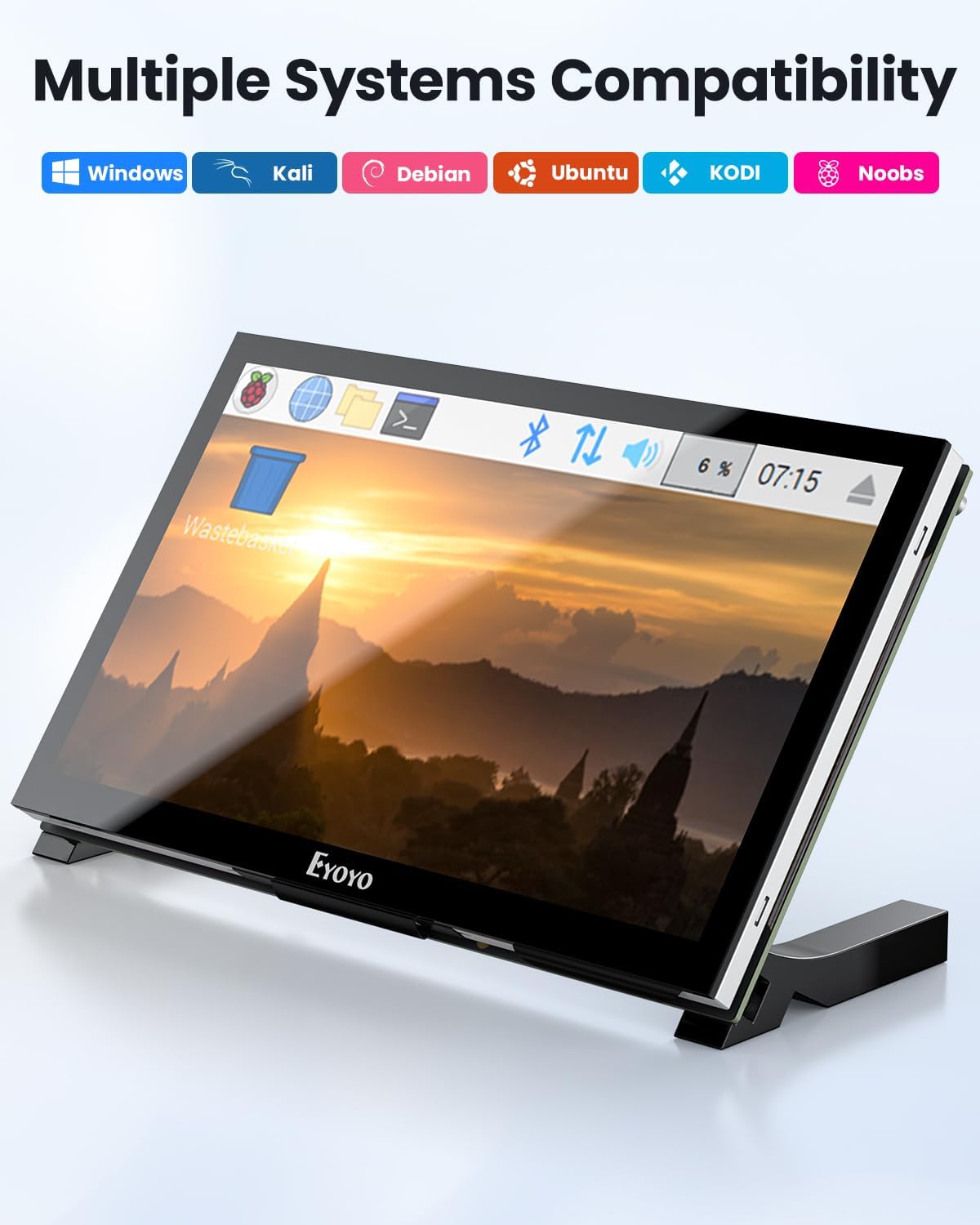
Figure 8: Multiple operating systems compatible with the Eyoyo 7-inch monitor.
Figure 9: Examples of how the Eyoyo 7-inch monitor can be used with different devices and projects.
Specifications
| Feature | Specification |
|---|---|
| Brand | Eyoyo |
| Model Number | EM07KD |
| Screen Size | 7 Inches |
| Panel Type | IPS |
| Resolution | 1024x600 Pixels (HD+) |
| Touch Type | 5-point Capacitive Touch |
| Brightness | 420 Candela |
| Viewing Angle | 170 Degrees (H/V) |
| Refresh Rate | 60 Hz |
| Aspect Ratio | 16:9 |
| Response Time | 5 Milliseconds |
| Connectivity | 1x HDMI, 1x USB-C (for touch/power), 1x 3.5mm Audio Jack |
| Input Voltage | 5 Volts |
| Power Consumption | 2.55 Watts |
| Item Weight | 0.86 Pounds |
| Item Dimensions (D x W x H) | 4"D x 6.5"W x 0.6"H |
| Additional Features | Blue Light Filter, Eye Care, Frameless, Lightweight, Portable |
Troubleshooting
If you encounter any issues with your Eyoyo monitor, please refer to the following common troubleshooting steps:
- Monitor is not powering on: Ensure the power cable (USB-A to C) is securely plugged into both the Raspberry Pi (or other power source) and the monitor.
- No signal on the display: Verify that the HDMI cable is properly connected between the source device and the monitor. If using a Raspberry Pi 4/5, ensure the Micro HDMI to HDMI adapter is correctly used.
- Touch functionality not working: Confirm that the USB Touch Cable is securely connected from the monitor's USB-C port to a USB-A port on your source device. Ensure the Raspberry Pi configuration file (
config.txt) has been updated as per the setup instructions. - No sound output: This monitor does not have built-in speakers. Connect external speakers or headphones via the 3.5mm audio jack for sound output.
- Image is reversed: The monitor does not support image flip.
For further assistance, please consult the full user manual or contact customer support.
Warranty and Support
Eyoyo products offer a 1-Year Manufacturer Warranty for quality-related issues. This warranty covers any undamaged product within 12 months of purchase for a refund or replacement. Please note that the warranty does not include shipping costs, import duties, taxes, and charges after 3 months.
For technical support or warranty claims, please contact Eyoyo USA:
- Email: support@eyoyousa.com
- Phone: 909-317-8588 (9:00 AM - 5:00 PM; Monday - Friday)
- Office Address: 10700 Jersey Blvd Ste 640, Rancho Cucamonga, CA 91730, USA
