
Introduction
This manual provides comprehensive instructions for the installation, operation, and maintenance of your RONGJI 13 Inch Touch Screen Car Stereo. This multimedia player is designed for Toyota RAV4 2019-2023 models, featuring Android 13 OS, an Octa-Core CPU, 4GB RAM, and 64GB ROM. It includes a 1280x720 capacitive touch screen, built-in Wireless/Wired Car-Play and Android Auto, Bluetooth for hands-free calling and music, FM/AM/RDS radio, built-in DSP, WiFi, and GPS navigation capabilities. Please read this manual thoroughly before use to ensure proper functionality and safety.
Safety Information
- Always operate the device safely and responsibly. Distracted driving can lead to accidents.
- Ensure all wiring is correctly connected to prevent electrical shorts or damage. Consult a professional if unsure about installation.
- Do not disassemble or modify the unit. This may void the warranty and pose safety risks.
- Keep the screen clean and free from obstructions to maintain clear visibility.
- Avoid exposing the unit to extreme temperatures, direct sunlight for prolonged periods, or excessive moisture.
Product Overview
The RONGJI 13-inch car stereo integrates seamlessly into your Toyota RAV4's dashboard, offering advanced multimedia and navigation features. Below is an image of the unit installed in a vehicle.

Figure 1: RONGJI 13 Inch Touch Screen Car Stereo installed in a Toyota RAV4 dashboard, displaying navigation and media information.
The unit features a large, responsive touch screen and intuitive controls for an enhanced in-car experience. Key components and connections are detailed in the installation section.
Setup and Installation
This section outlines the general steps for installing your new car stereo. Professional installation is recommended. Ensure your vehicle is turned off and the battery is disconnected before beginning installation.
Compatibility Note:
This unit is specifically designed for Toyota RAV4 models from 2019 to 2023. If your vehicle has an OEM backup camera or an amplifier, please contact customer support to inquire about purchasing an additional compatible cable.
Installation Overview:

Figure 2: Visual comparison of the dashboard before and after the installation of the 13-inch car stereo.
Connecting the Unit:
Refer to the diagram below for the various ports and connections on the back of the unit. Ensure all cables are securely connected to their corresponding ports.

Figure 3: Back panel connections and included accessories for the car stereo. Key connections include Power Cable (A), RCA Cable and 4G card slot (B), 360° panoramic device (C), Digital TV CAN (D), 4-pin USB cable (E), 6-pin USB cable (F), Reverse video cable (G), Radio (H), 5G WiFi (I), GPS interface (J), 4G+ wireless network interface (K), Cooling fan (L), Coaxial Interface (M), and Optical Interface (N).
Key Connections:
- Power Cable (A): Connects the unit to the vehicle's power supply.
- RCA Cable and 4G Card Slot (B): For audio/video output and 4G SIM card insertion.
- GPS Interface (J): Connect the external GPS antenna for navigation functionality.
- USB Cables (E, F): For connecting USB devices such as flash drives or smartphones.
- Reverse Video Cable (G): For connecting a rear-view camera (camera not included).
- Radio Antenna (H): Connect the vehicle's radio antenna.
- WiFi Antenna (I): For wireless internet connectivity.
- Cooling Fan (L): Helps dissipate heat from the unit.
After all connections are made, carefully reassemble the dashboard components. Reconnect the vehicle battery and test the unit's functionality.
Operating Instructions
Basic Operation
- Power On/Off: Press and hold the power button (usually located on the front panel or integrated into the volume knob) to turn the unit on or off.
- Touch Screen: The 13-inch capacitive touch screen allows for intuitive control. Tap, swipe, and pinch-to-zoom gestures are supported for navigation and app interaction. The high resolution (1280x720) ensures a clear visual experience.
- Volume Control: Adjust the volume using the physical knob or on-screen controls.
Built-in Car-Play and Android Auto
The unit supports both wireless and wired connections for Apple Car-Play and Android Auto, allowing seamless integration with your smartphone for navigation, music, calls, and messages.

Figure 4: Display of Car-Play and Android Auto interfaces, showing app icons and connection types (wireless/wired).
- Wireless Connection: Ensure Bluetooth and Wi-Fi are enabled on your smartphone. Follow the on-screen prompts on the car stereo to pair your device.
- Wired Connection: Connect your smartphone to the unit using a compatible USB cable. The system will automatically detect and launch Car-Play or Android Auto.
Bluetooth (BT 5.0) Function
Connect your smartphone via Bluetooth for hands-free calling, phonebook access, and audio streaming.

Figure 5: Bluetooth interface displaying phonebook, call records, and device pairing options.
- Pairing: Go to the Bluetooth settings on the car stereo and enable Bluetooth. Search for available devices on your phone and select the car stereo's name to pair.
- Hands-Free Calling: Once paired, you can make and receive calls directly from the car stereo. The built-in microphone ensures clear communication.
- BT Music Streaming: Play audio from your phone through the car stereo's speakers.
FM/AM Radio
Access your favorite radio stations with stable frequency reception and RDS support.
- Scanning: Use the auto-scan function to find and save available stations.
- Manual Tuning: Manually adjust the frequency to tune into specific stations.
- Presets: Save your preferred stations for quick access.
GPS Navigation
The unit features a built-in GPS module and supports both online and offline navigation.
- Online Navigation: Connect to Wi-Fi or a mobile hotspot to use online map services.
- Offline Navigation: Download maps for specific regions or countries directly to the unit's storage (64GB ROM) for navigation without an internet connection. Access this feature via the navigation app's menu.
DSP Equalizer Adjustments
Enhance your audio experience with the built-in Digital Signal Processor (DSP), offering various sound effects and equalization options.
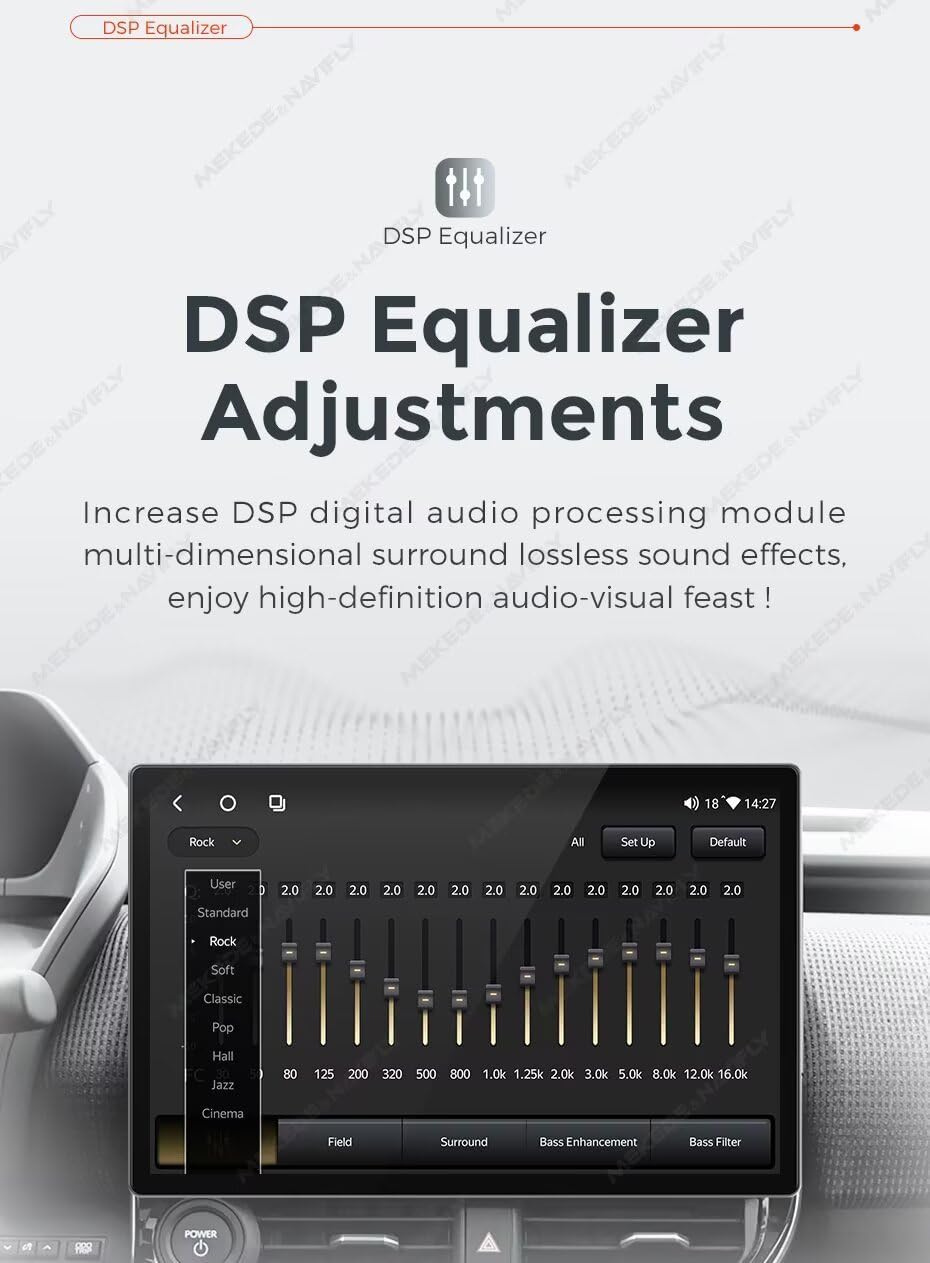
Figure 6: DSP Equalizer interface with adjustable frequency bands and preset sound modes (e.g., Rock, Pop, Jazz).
- Adjusting EQ: Navigate to the DSP settings to customize sound frequencies, bass, and surround effects to your preference.
- Preset Modes: Select from pre-defined sound modes like Rock, Pop, Jazz, and Cinema for quick audio optimization.
Steering Wheel Control (SWC)
Control essential functions like changing songs or answering calls directly from your vehicle's steering wheel for safer driving.

Figure 7: Illustration of steering wheel controls being used to manage media playback on the car stereo.
- Configuration: The unit supports digital SWC. Access the steering wheel control settings in the system menu to map your vehicle's steering wheel buttons to specific functions on the stereo.
Split Screen and Picture-in-Picture (PIP)
Multitask efficiently by displaying two applications simultaneously on the screen.

Figure 8: Split screen functionality displaying a radio interface on one side and a navigation map on the other.
- Activating Split Screen: Depending on the app, you can usually long-press the recent apps button or drag an app to one side of the screen to activate split-screen mode.
- PIP Mode: Some video applications may support Picture-in-Picture mode, allowing a small video window to float over other applications.
Maintenance
- Screen Cleaning: Use a soft, lint-free cloth specifically designed for electronic screens. Do not use abrasive cleaners or solvents.
- Software Updates: Periodically check for software updates via the system settings (requires Wi-Fi connection) to ensure optimal performance and access to new features.
- General Care: Avoid spilling liquids on the unit. If the unit becomes wet, power it off immediately and allow it to dry completely before use.
Troubleshooting
If you encounter issues with your car stereo, refer to the following common problems and solutions. If the problem persists, contact customer support.
| Problem | Possible Cause | Solution |
|---|---|---|
| Unit does not power on. | Loose power connection, blown fuse, vehicle battery issues. | Check power cable connections. Inspect vehicle fuses. Ensure vehicle battery is charged. |
| No sound from speakers. | Volume too low, mute activated, incorrect speaker wiring, audio source issue. | Increase volume. Check if unit is muted. Verify speaker wire connections. Try different audio source. |
| GPS signal lost or inaccurate. | GPS antenna obstructed or disconnected, poor satellite reception. | Ensure GPS antenna is properly connected and has a clear view of the sky. Move to an open area. |
| Bluetooth connection issues. | Device not in pairing mode, interference, incorrect pairing process. | Ensure both devices are in pairing mode. Delete previous pairings and re-pair. Move closer to the unit. |
| Touch screen unresponsive. | Temporary software glitch, screen dirty, physical damage. | Restart the unit. Clean the screen. If problem persists, contact support. |
Specifications
| Feature | Detail |
|---|---|
| Applicable Car Models | Toyota RAV4 2019-2023 |
| Operating System | Android 13.0 |
| CPU | Octa Core |
| RAM | 4GB |
| ROM (Internal Storage) | 64GB |
| Display Size | 13 Inches |
| Display Resolution | 1280x720 (Capacitive Touch Screen) |
| Connectivity Technology | Wireless (Wi-Fi, Bluetooth) |
| Bluetooth Version | BT 5.0 |
| Special Features | Built-in Wireless/Wired Car-Play, Android Auto, DSP Equalizer, GPS Navigation, FM/AM/RDS Radio, Steering Wheel Control, Split Screen, Picture-in-Picture (PIP) |
| Map Type | Worldwide (supports offline map download) |
| Manufacturer | Shenzhen Rongji Electronics Co., Ltd |
| Model Name | For Toyota RAV4 2019-2023 |
Warranty and Support
Specific warranty information for this product is not provided within this document. Please refer to the product packaging or the seller's website for detailed warranty terms and conditions.
Customer Support:
For technical assistance, troubleshooting, or inquiries regarding your RONGJI car stereo, please contact the seller or manufacturer directly through their official support channels. Keep your purchase receipt and product model information handy when contacting support.