
Introduction
This manual provides detailed instructions for the installation, operation, and maintenance of your RONGJI 13 Inch QLED Touch Screen Car Stereo. Please read this manual thoroughly before using the product to ensure proper function and safety. Keep this manual for future reference.
Safety Information
- Always consult a professional for installation to avoid damage to the unit or your vehicle.
- Do not operate the device in a way that distracts you from driving. Always prioritize road safety.
- Avoid exposing the unit to extreme temperatures, direct sunlight for prolonged periods, or excessive moisture.
- Do not attempt to disassemble or modify the unit. This may cause damage and void the warranty.
- Ensure all wiring connections are secure and properly insulated to prevent short circuits.
Package Contents
Verify that all items are present in the package:
- RONGJI 13 Inch QLED Touch Screen Car Stereo Unit
- Power Cable
- RCA Cable
- Reversing Cable
- USB Cables (x2)
- 4G Antenna
- GPS Antenna
- Microphone (MIC)
Product Overview
The RONGJI 13 Inch QLED Touch Screen Car Stereo features an Android operating system, an 8-Core CPU, 4GB RAM, and 64GB ROM, providing a responsive and clear visual experience with its 1280*720 resolution capacitive touch screen.
Rear Panel Connections
The following diagram illustrates the various ports and connections on the rear panel of the car stereo unit. Refer to this diagram for proper wiring during installation.

Image: Rear panel connections of the RONGJI car stereo. This image displays the various input and output ports on the back of the unit, including power, RCA, USB, GPS, and antenna connections.
- A: Power Cable: Connects to the vehicle's power supply.
- B: RCA Cable and 4G Card Slot: For audio/video input/output and 4G SIM card insertion.
- C: 360° Panoramic Device: Connection for a 360-degree camera system.
- D: Digital TV CAN: For digital TV tuner connection. Use this port if your car requires a CANbus connection.
- E: 4-pin USB Cable*1: One of two USB ports for external devices.
- F: 6-pin USB Cable*1: The second USB port for external devices.
- G: Reverse Video Cable: Connects to a rear-view camera for automatic display when reversing.
- H: Radio: Antenna input for FM/AM radio reception.
- I: 5G WIFI: Internal 5G WiFi module.
- J: GPS Interface: Connects to the external GPS antenna for navigation.
- K: 4G+ Wireless Network Interface: For enhanced 4G connectivity.
- L: Cooling Fan: Integrated fan for thermal management.
- M: COAXIAL Interface: (Note: Supported only by M500-M700 models)
- N: OPTICAL Interface: (Note: Supported only by M500-M700 models)
Setup and Installation
Vehicle Compatibility
Before installation, compare your vehicle's dashboard with the product images to ensure compatibility. If you are uncertain, provide a photo of your dashboard and the back of your original equipment manufacturer (OEM) radio to the seller for verification.
Wiring Connections
- Power Connection: Connect the power cable (A) to your vehicle's power harness. Ensure correct polarity.
- Antenna Connections: Connect the GPS antenna to the GPS interface (J) and the 4G antenna to the 4G+ wireless network interface (K). Connect the radio antenna to port H.
- USB Devices: Connect any USB devices (e.g., USB drives) to the 4-pin (E) or 6-pin (F) USB cables.
- Rear View Camera: If installing a rear-view camera, connect its video output to the reverse video cable (G).
- RCA Connections: Use the RCA cable (B) for additional audio/video input or output as needed.
- CANbus (Optional): If your vehicle requires CANbus for steering wheel controls or other functions, connect the Digital TV CAN port (D) as instructed by your vehicle's wiring diagram.
Mounting the Unit
Securely mount the car stereo unit into your vehicle's dashboard opening. Ensure all cables are routed safely and do not interfere with vehicle operation.
Initial Power On
After all connections are made and the unit is securely mounted, turn on your vehicle's ignition. The unit should power on automatically. Follow any on-screen prompts for initial setup.
Operating Instructions
User Interface (UI) Display
The unit features a customizable user interface with various display options. Navigate through different screens and applications using the capacitive touch screen.

Image: UI Display Collection. This image showcases multiple user interface layouts and themes available on the car stereo, demonstrating different arrangements of apps, widgets, and navigation elements.
CarPlay and Android Auto
The car stereo supports both wireless and wired CarPlay and Android Auto. This feature allows seamless integration with your smartphone, providing access to navigation, music, calls, and messages directly from the car's display.

Image: Built-in Car-play Android Auto. This image illustrates the user interfaces of both wireless/wired CarPlay and Android Auto as displayed on the car stereo screen, showing app icons for phone, music, maps, and messages.
Bluetooth 5.0 Function
The unit features Bluetooth 5.0 for stable and fast wireless connections. It supports hands-free calling, phone book synchronization, and audio streaming from your mobile device. The built-in microphone ensures clear call quality.

Image: Support BT 5.0 Function. This image displays the Bluetooth interface on the car stereo, showing options for phone calls, phone book access, and music streaming, along with a visual of an incoming call notification.
FM/AM Radio
Access FM and AM radio stations with high-quality stereo reception. The unit supports full-automatic, semi-automatic, and manual tuning methods to find your preferred channels.
DSP Equalizer Adjustments
Utilize the built-in Digital Signal Processor (DSP) to fine-tune your audio experience. Adjust various frequency bands and sound effects to achieve optimal sound quality and a multi-dimensional surround sound experience.
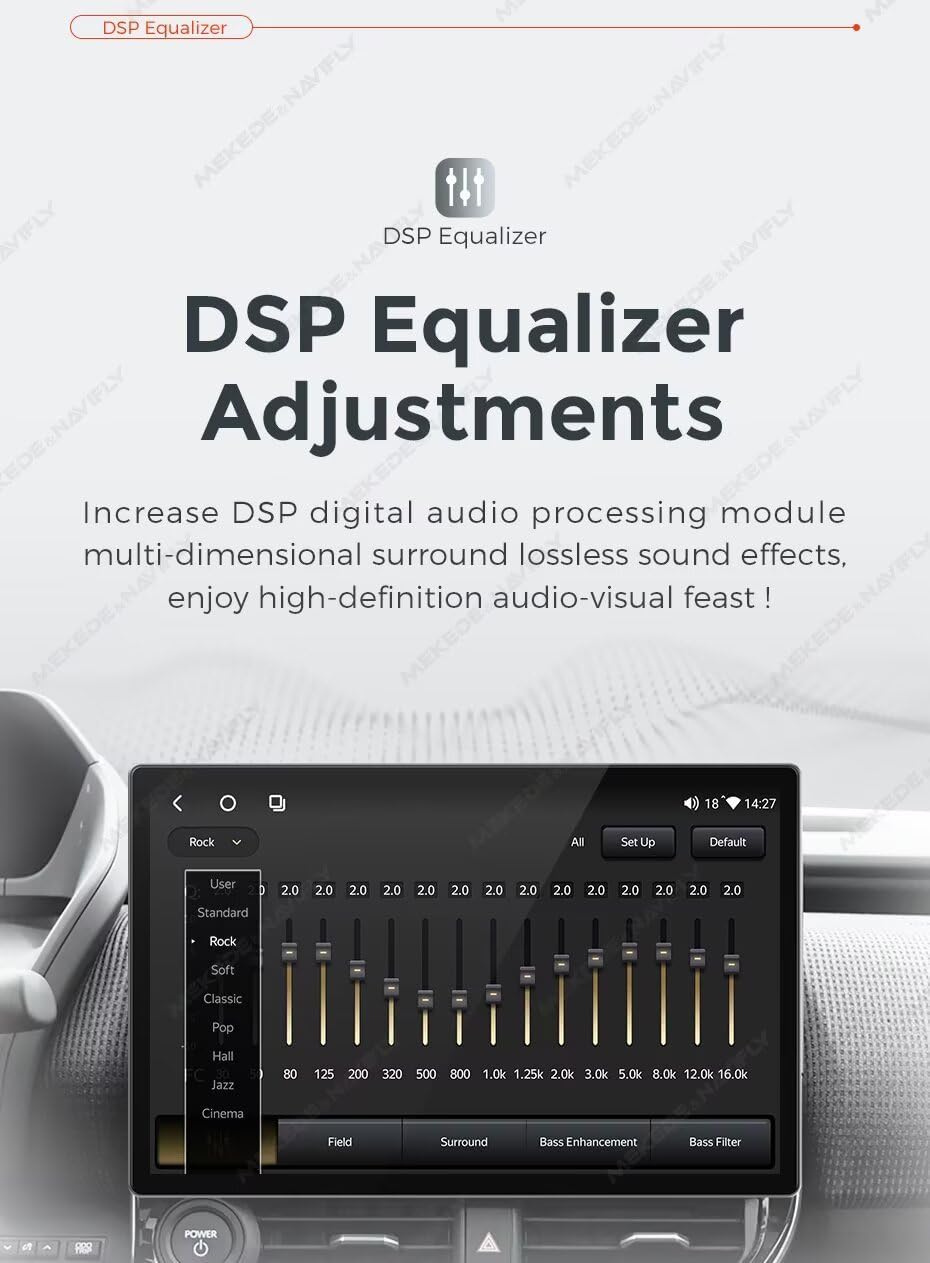
Image: DSP Equalizer Adjustments. This image shows the graphical interface of the DSP equalizer on the car stereo, with sliders for various frequency bands and preset options like Rock, Pop, Jazz, and Cinema.
GPS Navigation
The car stereo includes a built-in GPS module and an external GPS antenna for accurate navigation. You can use online maps or download offline maps for worldwide coverage, ensuring guidance even without mobile data.
Steering Wheel Control (SWC)
Connect your vehicle's steering wheel controls to the unit for convenient and safe operation. This allows you to manage music playback, answer calls, and adjust volume without taking your hands off the steering wheel.

Image: Steering Wheel Control. This image illustrates a hand interacting with steering wheel buttons to control music playback on the car stereo, highlighting the integration of vehicle controls with the unit.
Split Screen and Picture-in-Picture (PIP)
The split-screen function allows you to display two applications simultaneously, such as navigation and music, for enhanced multitasking. Picture-in-Picture (PIP) provides a similar capability for certain applications.

Image: Split Screen and PIP. This image demonstrates the split-screen feature on the car stereo, showing a navigation map on one side and a radio interface on the other, allowing simultaneous use of two applications.
WiFi Connectivity
Connect the car stereo to your home WiFi network or a mobile hotspot to access online features, download applications from the app store, and receive software updates.
Maintenance
- Cleaning: Use a soft, dry cloth to clean the screen and exterior of the unit. Avoid abrasive cleaners or solvents.
- Software Updates: Periodically check for software updates via the WiFi connection to ensure optimal performance and access to new features.
- Temperature: Do not leave the unit in direct sunlight or extreme temperatures for extended periods, as this can affect its lifespan.
Troubleshooting
| Problem | Possible Cause | Solution |
|---|---|---|
| Unit does not power on | Incorrect wiring; Blown fuse; Vehicle power issue | Check power cable connections; Inspect vehicle fuses; Consult a professional installer. |
| No sound output | Speaker wires disconnected; Volume too low; Mute activated | Verify speaker connections; Increase volume; Check if mute is active. |
| GPS signal lost or inaccurate | GPS antenna obstructed or disconnected; Poor satellite reception | Ensure GPS antenna has a clear view of the sky; Check antenna connection. |
| Bluetooth connection issues | Device not in pairing mode; Interference; Unit's Bluetooth off | Ensure phone's Bluetooth is on and in pairing mode; Restart both devices; Clear previous pairings. |
| Touch screen unresponsive | Software glitch; Screen damage | Restart the unit; If issue persists, contact customer support. |
Specifications
- Brand: RONGJI
- Model: MS-8Core 4+64GB
- Screen Size: 13 Inches
- Operating System: Android
- CPU: Octa Core
- Memory (RAM): 4GB
- Storage (ROM): 64GB
- Display Resolution: 1280*720
- Touch Screen Type: Capacitive
- Display Type: LCD (QLED)
- Special Features: Bluetooth, Touchscreen, Wireless Android Auto, Wireless CarPlay, DSP, FM/AM Radio, GPS Navigation, Steering Wheel Control
- Connectivity Technology: Wireless (BT, Wi-Fi)
- Map Type: Worldwide
- Human Interface Input: Buttons, Keyboard, Mouse, Touchscreen
- Control Method: Touch
- Connectivity Protocol: BT, Ethernet, Wi-Fi
- Manufacturer: Shenzhen Rongji Electronics Co., Ltd
Warranty and Support
For warranty information, technical support, or service inquiries, please refer to the warranty card included with your product or contact the seller directly. Keep your purchase receipt as proof of purchase.