
Introduction
Welcome to the Blinky Bot Camera user manual. This guide provides detailed instructions for setting up, operating, and maintaining your new 1080p HD movable robot camera. Designed for home security, pet monitoring, and baby monitoring, the Blinky Bot offers advanced features like two-way audio, night vision, and app remote control for comprehensive surveillance.

Image: The Blinky Bot Camera positioned next to a golden retriever puppy, with a smartphone showing the camera's live feed and two-way talk options. This illustrates the camera's primary use for pet interaction and monitoring.
Package Contents
Please verify that all items are present in your package:
- 1 x Blinky Bot Robot Camera
- 1 x Charging Cable (USB)
- 1 x User Manual (this document)
Product Overview
Familiarize yourself with the key components of your Blinky Bot Camera:

Image: A detailed view of the Blinky Bot Camera highlighting the locations of the TF (microSD) card slot for local storage, the SIM card slot (if applicable for cellular models, though this model is Wi-Fi), and the Reset button for device configuration.
- Front Camera Lens: Captures 1080p HD video.
- Infrared LEDs: For night vision functionality.
- Microphone: For two-way audio communication.
- Speaker: For two-way audio communication.
- TF Card Slot: Insert a microSD card (up to 128GB, not included) for local video storage.
- Reset Button: Used to reset the device to factory settings or initiate pairing mode.
- Charging Port: For connecting the USB charging cable.
- Crawler Wheels: Enable movement across various indoor surfaces, including small obstacles.
Setup
1. Charging the Blinky Bot
Before first use, fully charge your Blinky Bot Camera. Connect the provided USB charging cable to the charging port on the robot and plug the other end into a standard USB power adapter (not included). The indicator light will show charging status and turn off when fully charged. A full charge provides approximately 30 days of standby battery life.
2. App Installation
The Blinky Bot Camera is controlled via a dedicated mobile application. Search for "Blinky Bot" or "SHFOUZY Camera" in your device's app store (Google Play Store for Android, Apple App Store for iOS) and install the application.
- Ensure your smartphone meets the minimum system requirements for the app.
- Allow necessary permissions (e.g., camera, microphone, notifications) when prompted by the app.
3. Connecting to Wi-Fi
- Power on the Blinky Bot Camera by pressing and holding the power button (if applicable, or it powers on automatically when charged).
- Open the Blinky Bot app on your smartphone and create an account or log in.
- Follow the in-app instructions to add a new device. This typically involves scanning a QR code displayed on your phone with the Blinky Bot's camera, or connecting via an audible pairing sound.
- Select your 2.4GHz Wi-Fi network and enter the password. The Blinky Bot does not support 5GHz Wi-Fi networks.
- Once connected, the indicator light on the Blinky Bot will change, and the app will confirm successful pairing.
4. Storage Setup (Optional)
For local video recording, insert a formatted microSD card (Class 10 or higher, up to 128GB) into the TF card slot. The app will guide you through formatting the card if necessary. Cloud storage options are also available through the app, often requiring a subscription.
Operating Instructions
1. Remote Control and Movement
Control the Blinky Bot's movement directly from the app. Use the directional controls to navigate the camera around your home. The "Crawler Wheels" design allows it to traverse small obstacles like rugs and thresholds.

Image: The Blinky Bot Camera positioned on a carpet, illustrating its "Crawler Wheels" capability to move over various home surfaces and minor obstacles, ensuring comprehensive coverage.
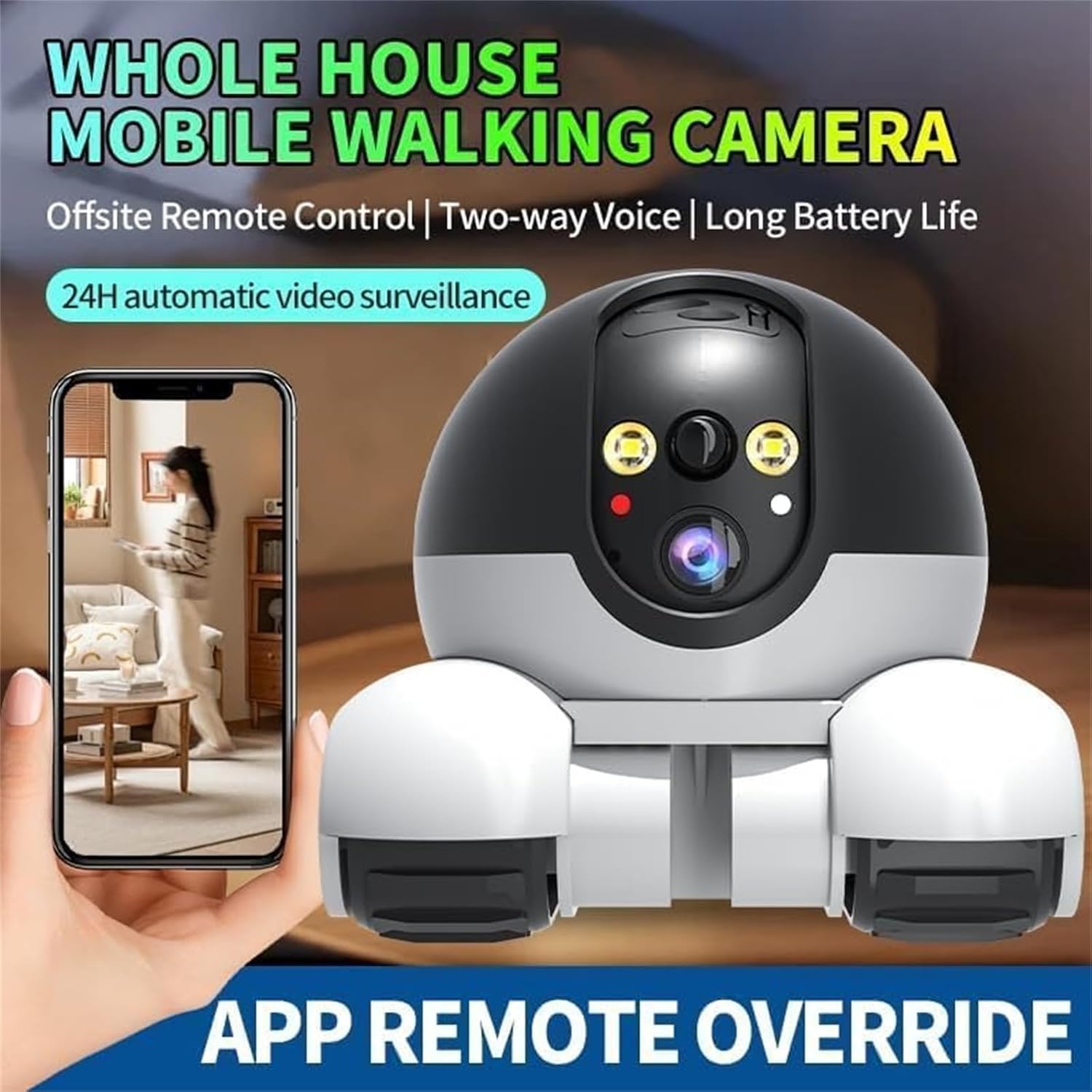
Image: The Blinky Bot Camera next to a hand holding a smartphone, which displays the camera's live feed and remote control options, emphasizing its "Whole House Mobile Walking Camera" feature for offsite monitoring and two-way voice communication.
2. Live View and Recording
Access the live video feed from the Blinky Bot Camera through the app. You can manually start and stop video recording or capture still images. Recorded footage is saved to your microSD card or cloud storage, depending on your setup.

Image: The Blinky Bot Camera alongside a smartphone displaying a dual-screen view from the camera's two lenses, indicating its "Dual Lens Dual Screen" capability for comprehensive panoramic surveillance and remote monitoring.
3. Two-Way Audio
Use the two-way audio feature to communicate with pets or family members. Tap the microphone icon in the app to speak, and the sound will be projected through the Blinky Bot's speaker. You can also hear sounds from the camera's environment through its microphone.
4. Night Vision
The Blinky Bot Camera automatically switches to night vision mode in low-light conditions, providing clear black-and-white video. This ensures continuous monitoring even in complete darkness.
5. Motion Detection and AI Features
Enable motion detection in the app to receive alerts on your smartphone when movement is detected. The AI-powered features can differentiate between human and pet movement, reducing false alarms and providing more relevant notifications.
Maintenance
1. Battery Care
- Charge the battery regularly, even if not in constant use, to maintain battery health.
- Avoid exposing the device to extreme temperatures, which can degrade battery performance.
- Use only the provided charging cable or a certified equivalent.
2. Cleaning
- Wipe the camera lens and body with a soft, dry, lint-free cloth.
- Do not use harsh chemicals, cleaning solvents, or strong detergents.
- Keep the wheels free from hair, dust, and debris to ensure smooth movement.
3. Storage
When storing the Blinky Bot Camera for extended periods, ensure it is fully charged and stored in a cool, dry place away from direct sunlight.
Troubleshooting
| Problem | Possible Cause | Solution |
|---|---|---|
| Camera not connecting to Wi-Fi | Incorrect Wi-Fi password; 5GHz network selected; camera too far from router; network congestion. | Double-check password. Ensure you are connecting to a 2.4GHz network. Move camera closer to router. Restart router. |
| No video feed in app | Camera offline; poor Wi-Fi signal; app issue. | Check camera's indicator light. Restart camera. Restart app. Check internet connection. |
| Two-way audio not working | Microphone/speaker muted in app; app permissions not granted. | Ensure audio is unmuted in the app. Check app permissions in your phone settings. |
| Robot not moving | Low battery; obstruction; app control issue. | Charge the camera. Check for physical obstructions around wheels. Restart app and camera. |
| SD card not recording | SD card full; not formatted; faulty card. | Check storage in app. Format SD card via app. Try a different SD card. |
Specifications
| Feature | Detail |
|---|---|
| Model Name | Robot Camera |
| Brand | SHFOUZY |
| Video Capture Resolution | 1080p |
| Connectivity Technology | Wireless (Wi-Fi) |
| Power Source | Battery Powered (5200mAh rechargeable battery) |
| Indoor/Outdoor Usage | Indoor |
| Special Features | HD Resolution, 2-Way Audio, Night Vision, Image Sensor, Motion Sensor, AI-Powered Detection |
| Storage Options | Cloud storage / SD card (up to 128GB) |
| Controller Type | Android (via app) |
| Product Dimensions (L x W x H) | 5.2 x 4.8 x 4.5 inches |
| Included Components | Robot Camera |
Safety Information
- This device is designed for indoor use only.
- Keep the device away from water and moisture.
- Do not attempt to disassemble or repair the device yourself. Contact customer support for assistance.
- Keep out of reach of small children and pets to prevent accidental damage or ingestion of small parts.
- Use only the specified power adapter and charging cable.