
1. Product Overview
The ikaufen E88 Drone is a foldable quadcopter designed for both beginners and experienced users. It features a built-in 720P HD dual camera with a manually adjustable front lens (90°), 6-channel control with gyroscope for stable flight, and various intelligent flight functions.
Key Features:
- Upgraded design with arm lights and an 8G memory card.
- 720P HD Dual Camera with 90° manual adjustment.
- 6-channel control with gyroscope for stable and easy operation.
- Wi-Fi FPV for real-time photo, video, and transmission.
- Intelligent functions: Emergency stop, trajectory flight, one-key surround, intelligent follow, music integration, screen rotation.
- Speed gear free switching and adjustable headless mode.
- Foldable arms and blades for compact storage and portability.
2. Package Contents
Upon opening the package, ensure all components are present:
- ikaufen E88 Drone
- Remote Controller (No screen control)
- 2 x Lithium Ion Batteries
- USB Charging Cable
- Screwdriver
- Replacement Propellers (4 pieces)
- Propeller Guards (4 pieces)
- Phone Holder
- User Manual

Image: Unboxing the ikaufen E88 Drone, showing the drone, remote, batteries, charging cable, screwdriver, and propeller guards.
3. Setup Guide
3.1 Drone Preparation
- Unfold the Drone Arms: Gently unfold all four arms of the drone until they lock into position.
- Install Propeller Guards: For beginners or indoor flight, attach the propeller guards to protect the propellers from damage. Hook the bottom of the guard first, then push the top part into place until it clicks. Ensure they are securely fastened.
- Insert Drone Battery: Slide the charged drone battery into the battery compartment on the back of the drone until it clicks into place.
Video: Demonstrates how to attach propeller guards to the drone for beginner use.
3.2 Remote Controller Setup
- Install Controller Batteries: Open the battery compartment on the back of the remote controller and insert 3 AA batteries (not included), ensuring correct polarity. Close the compartment.
- Attach Phone Holder: If using the FPV feature, attach the phone holder to the remote controller.
3.3 Power On & Pairing
- Power On Drone: Press and hold the power button on the drone until the LED lights start blinking.
- Power On Remote Controller: Press the power button on the remote controller. It will emit a beep sound.
- Pairing: Push the left joystick (throttle) all the way up, then all the way down. The remote will beep, and the drone's lights will stop blinking, indicating successful pairing.
3.4 App Download & Wi-Fi Connection (for FPV)
- Download App: Scan the QR code in the manual or search for "RC FPV" in your smartphone's app store and download the application.
- Connect to Drone Wi-Fi:
- Turn on the drone.
- Go to your smartphone's Wi-Fi settings.
- Look for a Wi-Fi network named similar to "WIFI_8K_1650a0" (or similar alphanumeric string without a lock icon). This is the drone's direct Wi-Fi signal.
- Connect to this network. Note: It will show "No Internet Connection" as it's a direct drone connection, not an internet network.
- Open the "RC FPV" app. Press "Start" to view the real-time camera feed.
Video: Detailed instructions on connecting the drone camera to a smartphone via Wi-Fi and using the FPV app.
4. Operating Instructions
4.1 Basic Flight Controls
- Left Joystick (Throttle): Controls altitude (up/down) and rotation (left/right yaw).
- Right Joystick: Controls forward/backward movement (pitch) and left/right sideward movement (roll).
- One-Key Takeoff/Landing: Press the dedicated button for automatic takeoff or landing.
- Speed Switching: Use the speed button to cycle through different flight speeds (slow, medium, fast).
4.2 Hovering Practice
After takeoff, the drone should maintain a stable hover. If it drifts, use the trim buttons on the remote control to adjust its stability. For example, if the drone drifts left, press the right trim button to correct it.
Video: Demonstrates stable drone hovering and how to use trim controls for stability.
4.3 Advanced Flight Modes
- Headless Mode: Activates a mode where the drone's orientation is relative to the pilot, simplifying control regardless of the drone's front direction.
- Trajectory Flight: Draw a path on the app screen, and the drone will follow it automatically.
- One-Key Surround: The drone will circle a point of interest.
- Intelligent Follow: The drone will follow a designated subject.
4.4 Camera and Video Functions
- Photo/Video Capture: Use the dedicated buttons on the remote or within the app to take photos or start/stop video recording.
- Real-time Transmission (FPV): View the live camera feed on your smartphone via the RC FPV app.
- Image Quality: The drone captures video at 720p resolution.

Image: Close-up of the ikaufen E88 Drone's remote control camera and its dual camera switching capability.

Image: The ikaufen E88 Drone showcasing its non-destructive amplification feature for enhanced image capture.
5. Maintenance
5.1 Battery Care
- Charging: Use the provided USB charging cable to charge the drone batteries. Connect the cable to a USB power source (e.g., computer, USB adapter). The charging indicator will show status.
- Storage: Store batteries in a cool, dry place away from direct sunlight and extreme temperatures.
- Disposal: Dispose of depleted batteries according to local regulations.
5.2 Propeller Replacement
If propellers are damaged, replace them using the provided screwdriver and spare propellers. Ensure the correct propeller type (A or B) is installed on the corresponding motor arm.
5.3 Cleaning
Wipe the drone's body with a soft, dry cloth. Avoid using water or harsh chemicals that could damage electronic components.
6. Troubleshooting
- Drone Not Powering On: Ensure the battery is fully charged and correctly inserted. Press and hold the power button for a few seconds.
- Failure to Pair: Ensure both the drone and remote controller are powered on. Repeat the pairing sequence (throttle up, then down). Make sure there are no other strong Wi-Fi signals interfering.
- Unstable Flight/Drifting: Perform calibration as described in the manual. Use the trim buttons on the remote controller to fine-tune stability during flight.
- No FPV Feed on App: Verify that your smartphone is connected to the drone's Wi-Fi network (not your home Wi-Fi). Ensure the RC FPV app is open and the drone's camera is active.
- Short Flight Time: Ensure batteries are fully charged before each flight. Flight time can vary based on environmental conditions and flight maneuvers.
- Drone Not Responding to Controls: Check battery levels of both drone and remote. Ensure they are properly paired.
7. Specifications
| Feature | Detail |
|---|---|
| Model Name | E88 |
| Brand | ikaufen |
| Color | Black |
| Product Dimensions (Folded) | 5.11"L x 2.95"W x 2.16"H |
| Item Weight | 14.4 ounces (407 Grams) |
| Video Capture Resolution | 720p |
| Video Capture Format | MP4 |
| Connectivity Technology | Bluetooth, Wi-Fi |
| Control Type | App Control |
| Battery Capacity | 500 Milliamp Hours (Lithium Ion) |
| Skill Level | Beginner |
| Special Feature | First Person View (FPV) |
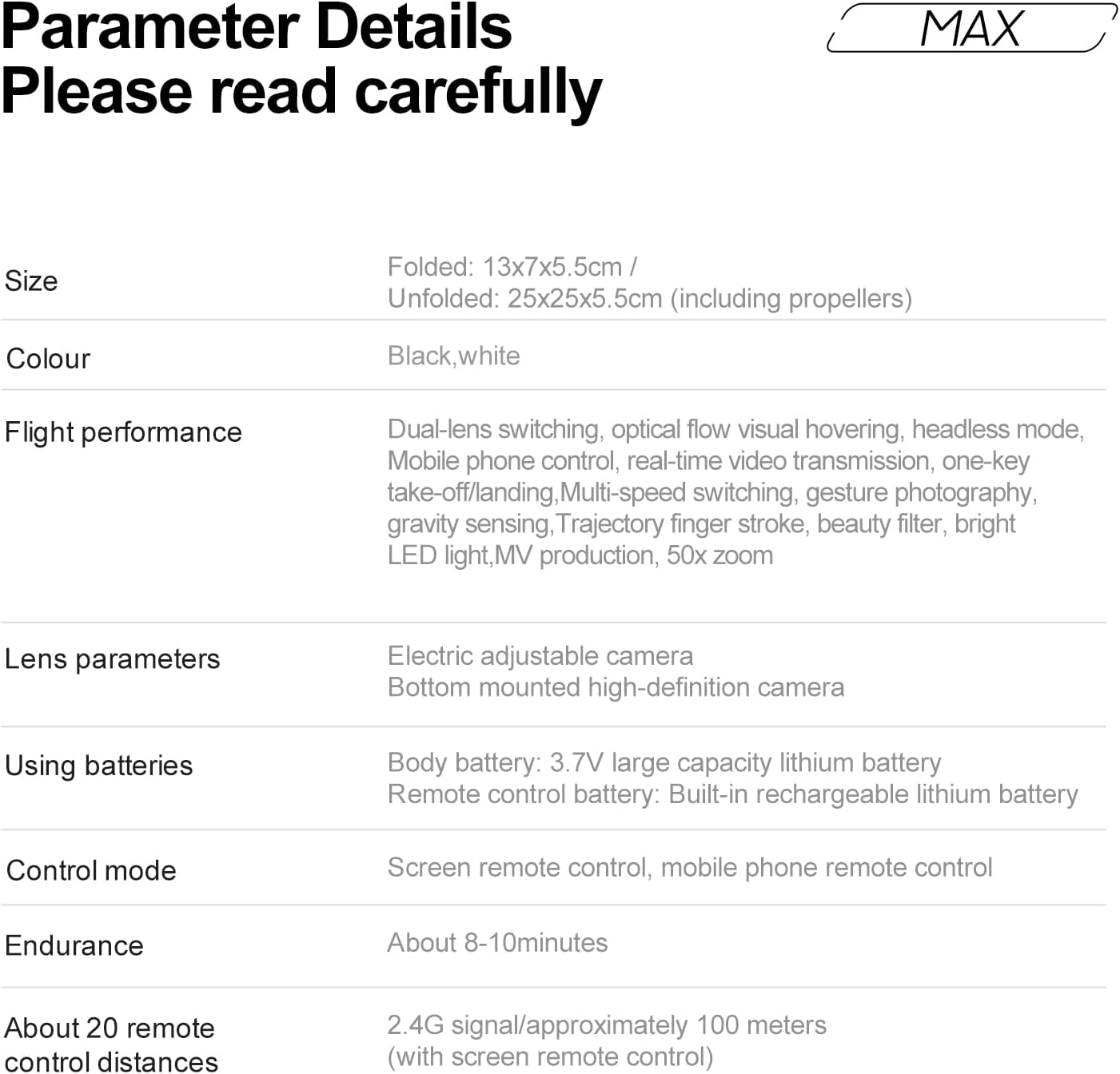
Image: Detailed parameter specifications for the ikaufen E88 Drone.
8. Warranty and Support
Specific warranty information is not provided in the product details. For any warranty claims or technical support, please contact ikaufen customer service directly through their official channels or the retailer where the product was purchased.