
Ultrbeka An tag
Ultrbeka Ultra-Thin Wallet Tracker Card User Manual
Model: An tag
1. Introduction
This manual provides detailed instructions for the setup, operation, and maintenance of your Ultrbeka Ultra-Thin Wallet Tracker Card. This device is designed to help you locate personal items such as wallets, passports, and bags using the Apple Find My network.

Image 1.1: The Ultrbeka Wallet Tracker Card, a wallet, and an iPhone showing the Find My application interface.
2. Product Overview
The Ultrbeka Wallet Tracker Card is an ultra-thin, MFi-certified tracking device compatible with the Apple Find My network. Its compact design allows it to fit seamlessly into wallets, cardholders, and passport sleeves.
Key Features:
- Ultra-Thin Design: Measures approximately 1.8mm (0.07 inches), similar to 2.5 bank cards, ensuring minimal bulk.
- Apple MFi Certified: Ensures seamless compatibility and reliable performance with iOS devices and the Apple Find My network.
- Wireless Charging: Rechargeable via any Qi wireless charger, eliminating the need for battery replacement.
- IP68 Waterproof: Provides protection against dust and water immersion.
- Separation Alerts: Receive instant notifications when the tracker and your iPhone become separated.
- Global Tracking: Utilize the Apple Find My network to locate items on a map.

Image 2.1: Dimensions of the Ultrbeka Wallet Tracker Card (85.5mm x 54mm x 1.8mm) and icons representing wireless rechargeability, waterproof rating, global precision search, and privacy protection.

Image 2.2: The tracker card displayed with a shield icon, emphasizing its privacy and security features within the Apple Find My network.

Image 2.3: The Ultrbeka Wallet Tracker Card placed in a wallet alongside a passport, illustrating its suitability for tracking travel documents.
3. Setup Instructions
Follow these steps to pair your Ultrbeka Wallet Tracker Card with your Apple device using the Find My app.
- Power On: Press and hold the power button on the tracker card for 5 seconds to turn it on.
- Enable Bluetooth: Ensure Bluetooth is enabled on your iPhone, iPad, or Mac.
- Open Find My App: Launch the "Find My" application on your iOS device.
- Add Item: Navigate to the "Items" tab and tap "Add Item".
- Select Other Supported Item: Choose "Other Supported Item" from the options.
- Connect: When the "AN Card" appears, tap "Connect".
- Link to Apple ID: Agree to link the item to your Apple ID.
- Finish: Follow any remaining on-screen prompts to complete the setup.
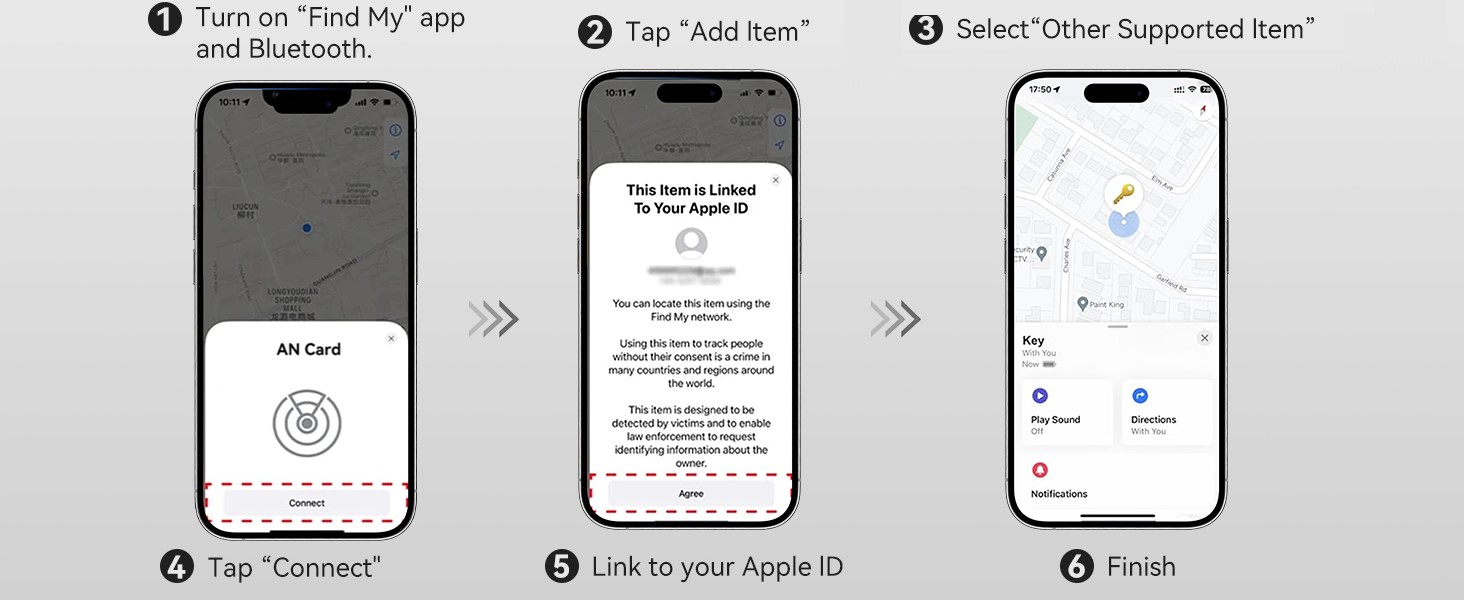
Image 3.1: Visual guide illustrating the pairing process with the Apple Find My app, from opening the app to connecting the tracker card.

Image 3.2: The Ultrbeka Wallet Tracker Card being placed into a wallet, with a clear note stating that Android devices are not supported.
Note: Android devices are not supported. This tracker is exclusively for iOS devices.
4. Operating Instructions
4.1 Locating Your Item
To find your item, open the Find My app on your iOS device. Select your Ultrbeka Wallet Tracker Card from the "Items" list. You can then:
- Play Sound: Tap "Play Sound" to make the tracker emit an audible alert (80-100dB), helping you locate it when nearby.
- View on Map: See the item's last known location on a map. If the item is far away, the Find My network will update its location anonymously using other Apple devices.
- Get Directions: Tap "Directions" to get navigation to your item's location.

Image 4.1: An iPhone screen showing the "Play Sound" option in the Find My app, with an illustration of the tracker card emitting sound to help locate a wallet.

Image 4.2: An iPhone showing the Find My app with map directions to a distant lost item, demonstrating the global tracking capability.
4.2 Separation Alerts
To receive alerts when you leave your item behind:
- In the Find My app, select your tracker card.
- Enable "Notify When Left Behind" and configure your preferred locations.
- Ensure "Always Allow" for location access is enabled in your iOS settings for the Find My app.

Image 4.3: An iPhone screen showing a "Left Behind" notification, indicating that the tracker card (and associated item) has been separated from the user.
4.3 Sharing Your Item
You can share your tracker card's location with others through the Find My app. This allows trusted individuals to also locate the item.

Image 4.4: An iPhone screen illustrating the "Share This Item" feature within the Find My app, allowing users to share the tracker's location with others.
5. Maintenance
5.1 Charging the Device
The Ultrbeka Wallet Tracker Card features wireless charging. To recharge:
- Place the tracker card onto any Qi-compatible wireless charging pad.
- Ensure the side with the charging icon is aligned with the charging area of the pad.
- A red indicator light will illuminate during charging.

Image 5.1: The Ultrbeka Wallet Tracker Card placed on a wireless charging pad, demonstrating the charging process.
Note: A wireless charger is not included with the product.
5.2 Cleaning
Wipe the device with a soft, dry cloth. Avoid using harsh chemicals or abrasive materials.
6. Troubleshooting
- Device not connecting to Find My:
- Ensure the tracker card is powered on (press and hold for 5 seconds).
- Verify Bluetooth is enabled on your iOS device.
- Make sure your iOS device is running a compatible version of iOS.
- Try restarting your iOS device and the tracker card.
- No sound when "Play Sound" is activated:
- Check if the tracker card's battery is charged.
- Ensure the tracker is within Bluetooth range of your iOS device or another device on the Find My network.
- Separation alerts not working:
- Confirm "Notify When Left Behind" is enabled in the Find My app for your tracker.
- Verify that the Find My app has "Always Allow" location access in your iOS device settings.
- Tracker not charging:
- Ensure the wireless charging pad is powered on and functioning correctly.
- Properly align the tracker card with the charging pad's charging area.
7. Specifications
| Feature | Detail |
|---|---|
| Brand | Ultrbeka |
| Model Number | An tag |
| Operating System Compatibility | iOS Only |
| Dimensions (LxWxH) | 3.37 x 2.15 x 0.07 inches (85.5 x 54 x 1.8 mm) |
| Item Weight | 1.06 ounces |
| Color | Black |
| Material | Acrylonitrile Butadiene Styrene (ABS) |
| Water Resistance | IP68 Rated |
| Battery Type | Rechargeable (Wireless Charging) |
| Certifications | Apple MFi Certified |
8. Warranty and Support
For warranty information and customer support, please refer to the product packaging or contact Ultrbeka customer service through the retailer where the product was purchased. Keep your proof of purchase for warranty claims.
Return Policy: The standard return policy allows for returns within 30 days for refund or replacement.
Ask a question about this manual
Ask about setup, troubleshooting, compatibility, parts, safety, or missing instructions. Manuals+ will review the question and use this page’s manual context to help answer it.