
M02
TOKQI M02 Handheld 3-Axis Gimbal Stabilizer User Manual
Model: M02
1. Introduction
Thank you for choosing the TOKQI M02 Handheld 3-Axis Gimbal Stabilizer. This device is designed to provide stable and smooth video recording and photography with your smartphone. Its advanced stabilization technology, versatile modes, and detachable remote control make it an ideal tool for vlogging, live streaming, and capturing professional-looking content. Please read this manual carefully before use to ensure proper operation and maintenance.
2. Package Contents
Please verify that all items are present in your package:
- 1 x TOKQI M02 Gimbal Stabilizer
- 1 x Mini Tripod
- 1 x USB Type-C Charging Cable
- 1 x Storage Bag
- 1 x User Manual (English)
3. Product Overview

This image displays the TOKQI M02 gimbal stabilizer with a smartphone securely mounted in its holder. The gimbal features a comfortable handle and a control panel. A separate mini tripod is shown below the gimbal, indicating its detachable nature for versatile use.
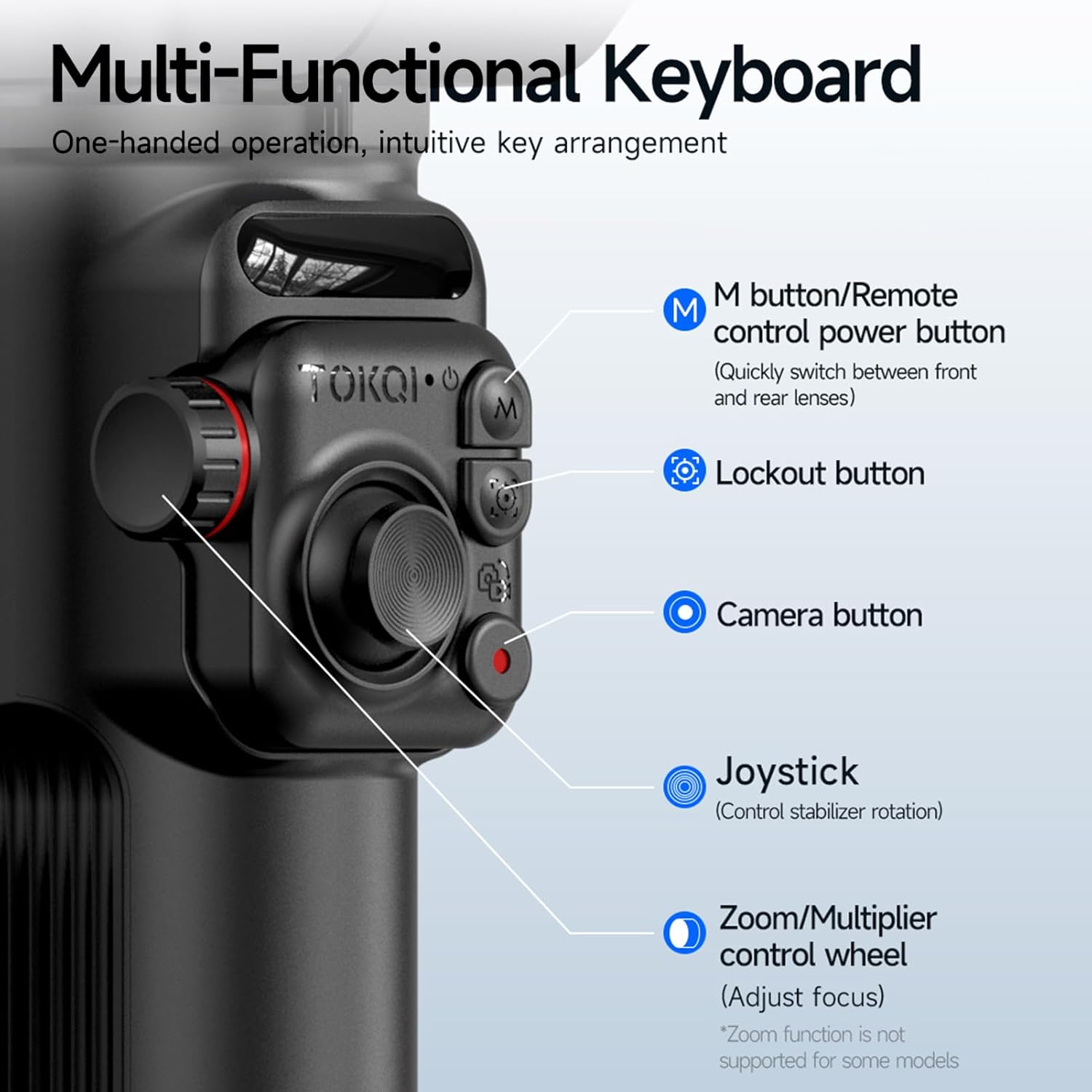
This image provides a detailed view of the gimbal's control panel, highlighting key buttons and their functions. It includes the M button (mode/power), Lockout button, Camera button, Joystick for stabilizer rotation, and a Zoom/Multiplier control wheel for focus adjustment.
Key Components:
- Phone Holder: Securely holds your smartphone. Supports 360° rotation for horizontal and vertical modes.
- 3-Axis Stabilization System: Utilizes three motors for stable and smooth footage.
- Control Panel: Features buttons for power, mode switching, camera control, and a joystick.
- Zoom/Multiplier Control Wheel: Allows for real-time adjustment of zoom or focus.
- Detachable Remote Control: Enables remote operation of the gimbal. Attaches magnetically to the handle.
- Built-in Battery: 2600mAh capacity for extended use.
- 1/4" Screw Mount: Located at the bottom for attaching the included tripod or other accessories.
4. Setup
4.1 Charging the Gimbal
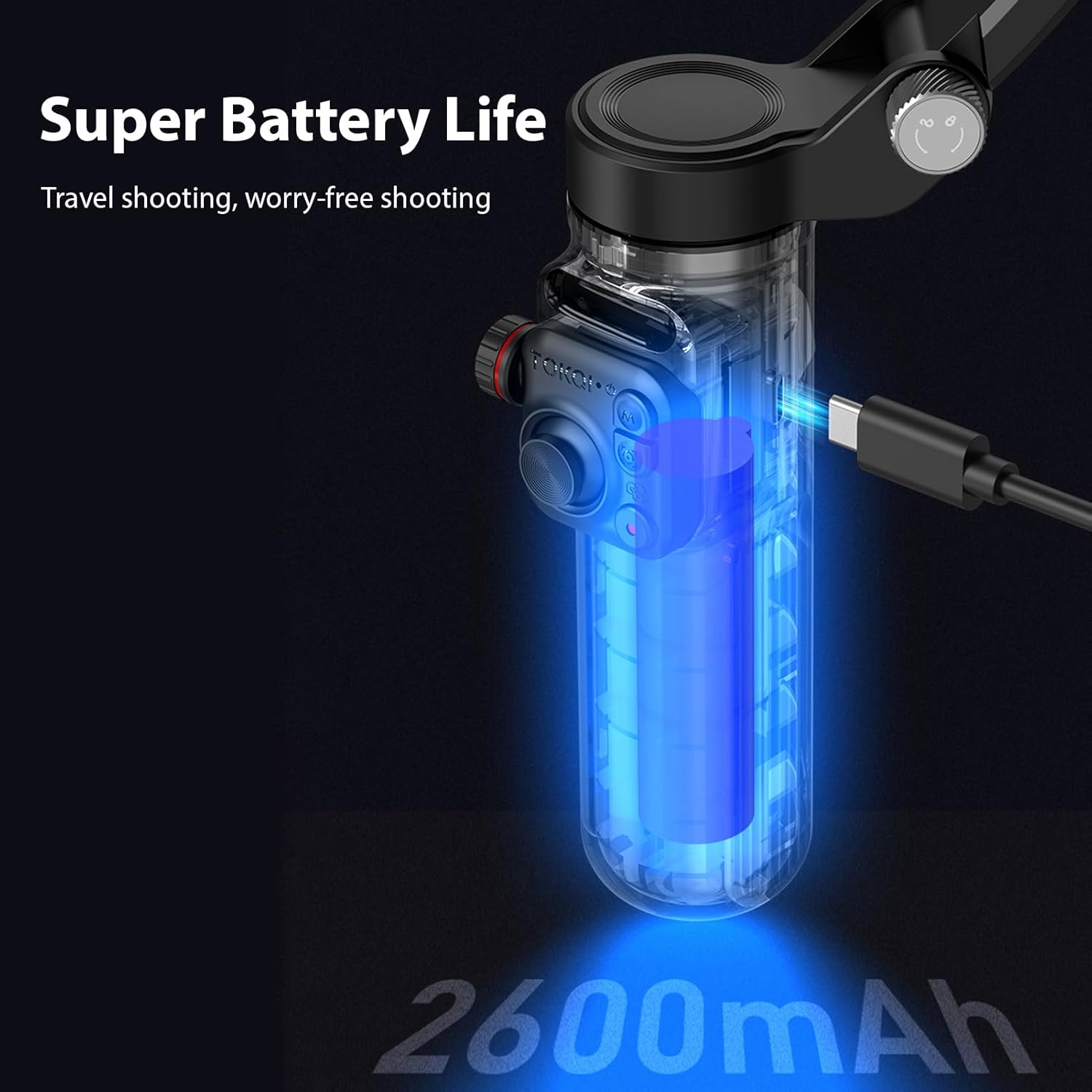
This image illustrates the internal 2600mAh battery of the TOKQI M02 gimbal being charged via a USB Type-C cable. The blue glow indicates the battery's power, emphasizing its 'Super Battery Life' for extended shooting sessions.
Before first use, fully charge the gimbal. Connect the included USB Type-C charging cable to the gimbal's charging port and a 5V 2A power adapter (not included). The charging indicator light will show the charging status. A full charge takes approximately 6 hours of runtime.
4.2 Attaching and Balancing Your Phone
1. Unfold the gimbal. Ensure the phone holder is in the correct orientation.
2. Gently pull open the phone holder and insert your smartphone. Ensure the phone is centered and securely clamped. The gimbal supports smartphones with a width of 50mm-90mm and thickness less than 11mm.
3. Balance Adjustment: After mounting the phone, slightly adjust its position within the clamp until the phone remains level when the gimbal is powered off. This helps reduce motor strain and prolong battery life.
4.3 Attaching the Tripod
Screw the mini tripod onto the 1/4" screw mount at the bottom of the gimbal handle. Ensure it is tightened securely for stable placement on flat surfaces.
4.4 Pairing the Detachable Remote Control
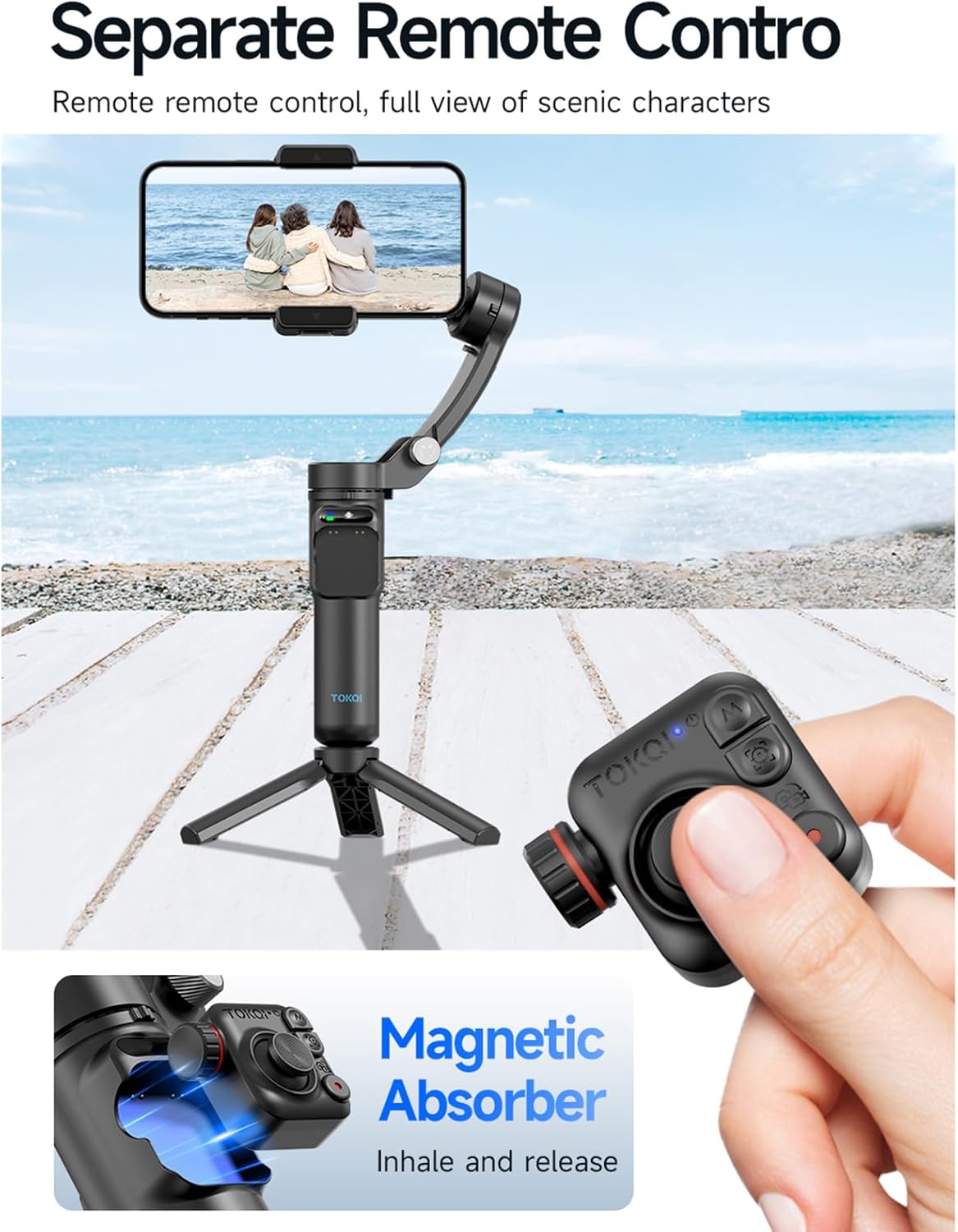
This image shows the TOKQI M02 gimbal mounted on its tripod, with the remote control detached and held separately. The remote control features a magnetic absorption design, allowing it to be easily attached to or removed from the gimbal handle for convenient remote operation.
The remote control is magnetically attached to the gimbal handle. To use it remotely, simply detach it. The remote control should automatically pair with the gimbal upon power-on. If pairing issues occur, ensure both devices are charged and within the 10-meter operating range.
5. Operating Instructions
5.1 Powering On/Off
Press and hold the 'M' button on the control panel (or remote control) for 3 seconds to power on or power off the gimbal.
5.2 Gimbal Modes
The TOKQI M02 supports seven gimbal modes. Press the 'M' button briefly to cycle through the modes:
- Semi Follow Mode: Pan and tilt axes follow, roll axis locked.
- Full Follow Mode: All three axes follow your movement.
- Fully Locked Mode: All three axes are locked, maintaining a fixed direction.
- POV Mode: All three axes follow, providing a first-person perspective.
- Inception Space Mode: Rotates the phone 360 degrees along the roll axis.
- Semi-Follow Go Mode: Faster response in semi-follow mode.
- Full Follow Go Mode: Faster response in full follow mode.
5.3 Horizontal and Vertical Mode Switching
The phone holder supports 360° rotation. Simply rotate the phone holder manually to switch between horizontal (landscape) and vertical (portrait) shooting modes. No need to adjust settings via buttons.
5.4 Using the Zoom/Multiplier Control Wheel
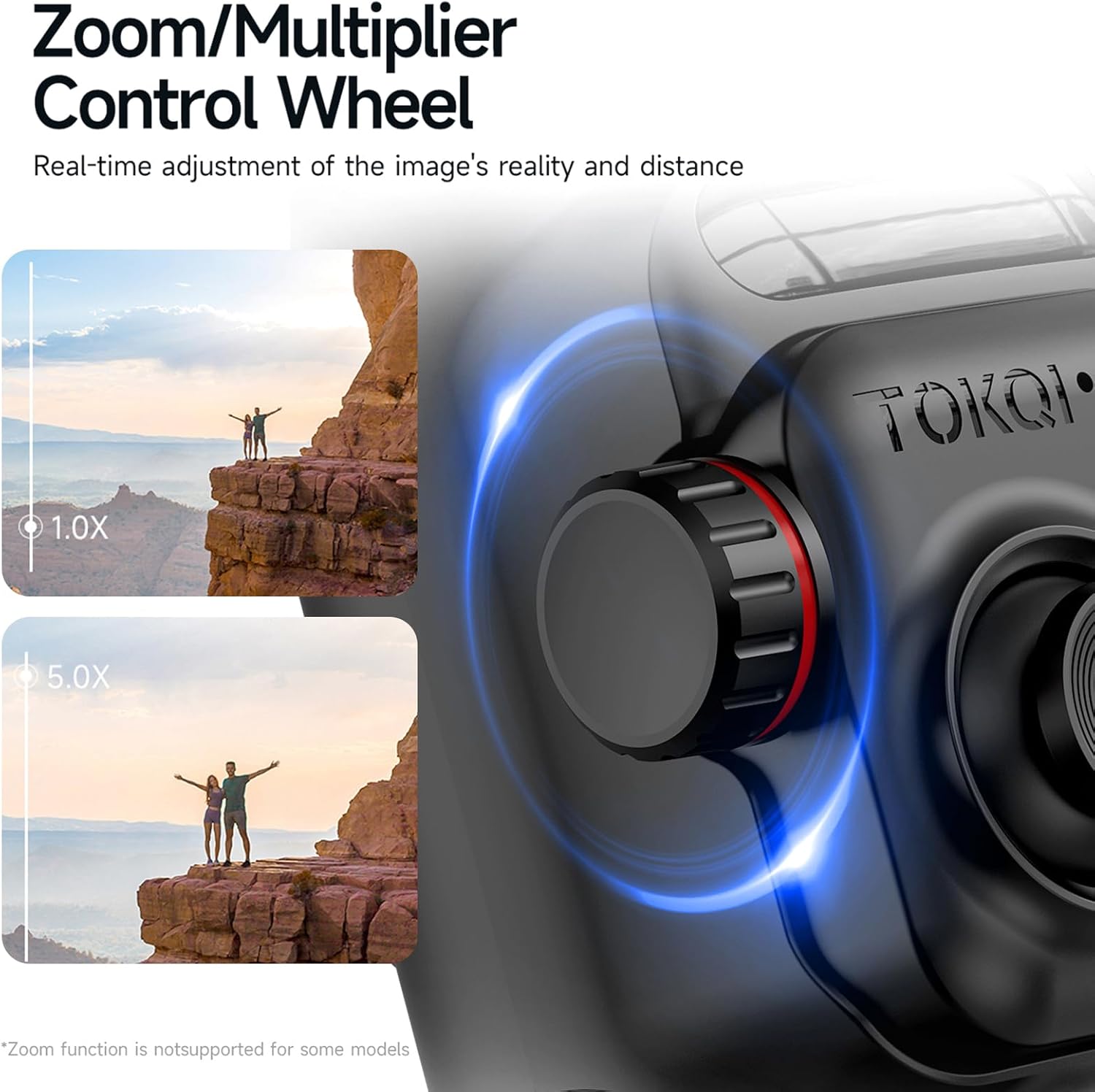
This image highlights the Zoom/Multiplier Control Wheel on the gimbal, demonstrating its function for real-time adjustment of image reality and distance. It shows a comparison between 1.0X and 5.0X zoom levels, indicating its capability to adjust focus or zoom. Note: Zoom function may not be supported for all smartphone models.
Rotate the Zoom/Multiplier Control Wheel to adjust the zoom level or focus in real-time. This function's availability may vary depending on your smartphone model and camera application.
5.5 Using the Gimbal Show Application
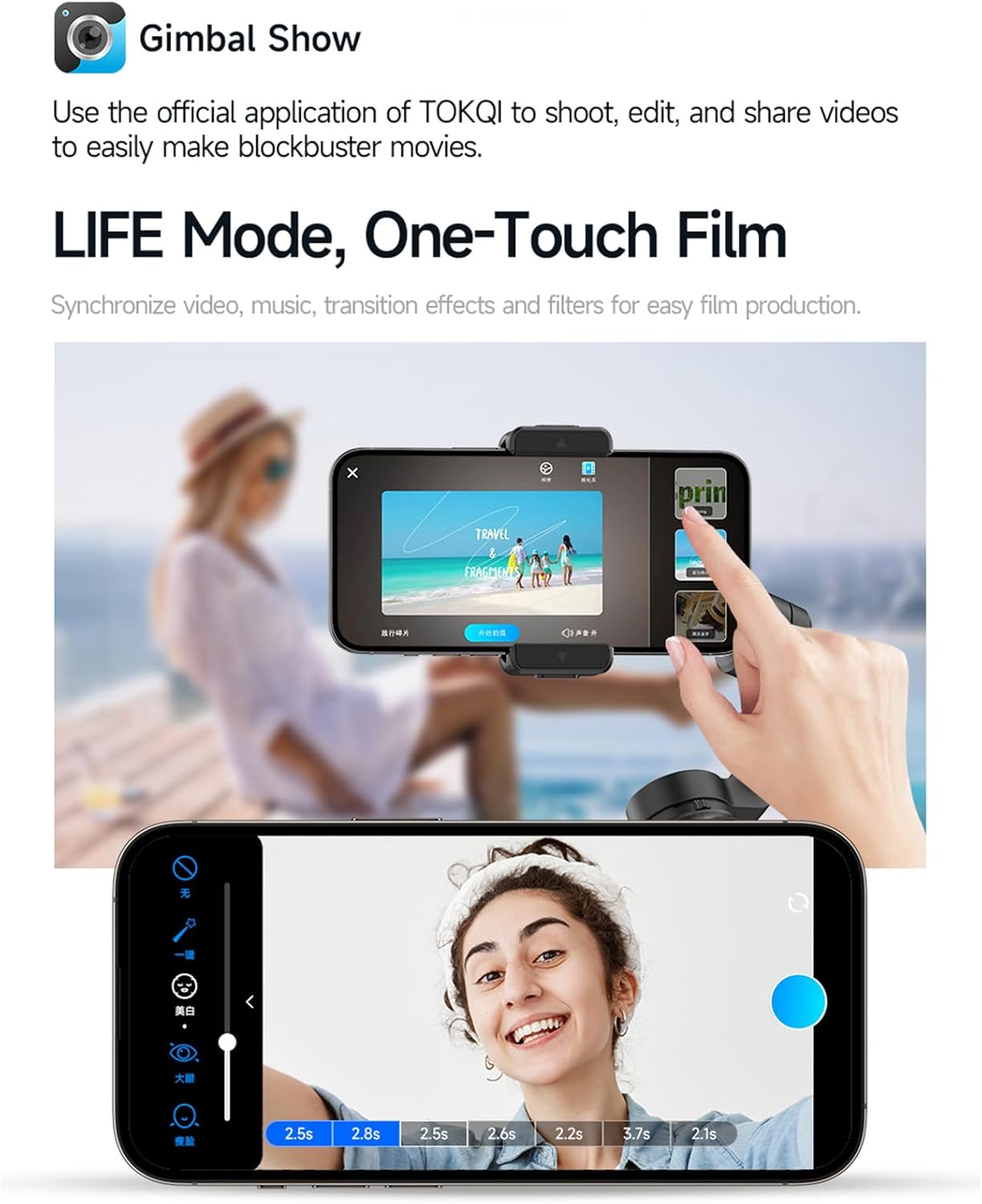
This image displays the 'Gimbal Show' application interface on a smartphone, illustrating its capabilities for shooting, editing, and sharing videos. It highlights features like 'LIFE Mode' and 'One-Touch Film', which allow users to synchronize video, music, transition effects, and filters for easy film production.
For enhanced functionality, download the official 'Gimbal Show' application from your smartphone's app store. The app allows you to shoot, edit, and share videos, offering features like 'LIFE Mode' and 'One-Touch Film' for advanced video production.
6. Maintenance
1. Keep the gimbal clean and dry. Wipe with a soft, dry cloth. Do not use harsh chemicals or abrasive materials.
2. Avoid exposing the gimbal to extreme temperatures, direct sunlight, or dusty environments.
3. When not in use, store the gimbal in its provided storage bag to protect it from dust and scratches.
4. Do not attempt to disassemble or repair the gimbal yourself. Contact customer support for assistance.
7. Troubleshooting
- Gimbal not powering on: Ensure the battery is charged. Connect to a power source and try again.
- Gimbal unstable or vibrating: Ensure your phone is properly balanced in the holder. Check for any obstructions to the gimbal's motors.
- Remote control not responding: Ensure the remote control is charged (if applicable) and within the 10-meter operating range. Re-pair if necessary.
- App connection issues: Ensure Bluetooth is enabled on your phone and the gimbal is powered on. Restart both the app and the gimbal.
- Zoom function not working: This feature may not be supported by all smartphone models or camera applications. Try using your phone's native camera app or the Gimbal Show app.
8. Specifications
| Feature | Specification |
|---|---|
| Rotatable Angle | Tilt 320°, Roll 345°, Pan 320° |
| Battery Capacity | 3.7V 2600mAh |
| Battery Runtime | Up to 6 hours |
| Charging Input | 5V 2A (USB Type-C) |
| Remote Control Distance | Up to 10 meters |
| Payload Capacity | Max. 280g |
| Mounting Clamp Support | 50mm-90mm (width) |
| Smartphone Thickness | <11mm |
| Mobile Phone System | Android 9.0 or above; iOS 11 or above |
| Product Size (folded) | 157mm x 106mm x 65mm |
| Net Weight | 360g |
| Model Number | NWZCA255220661 |
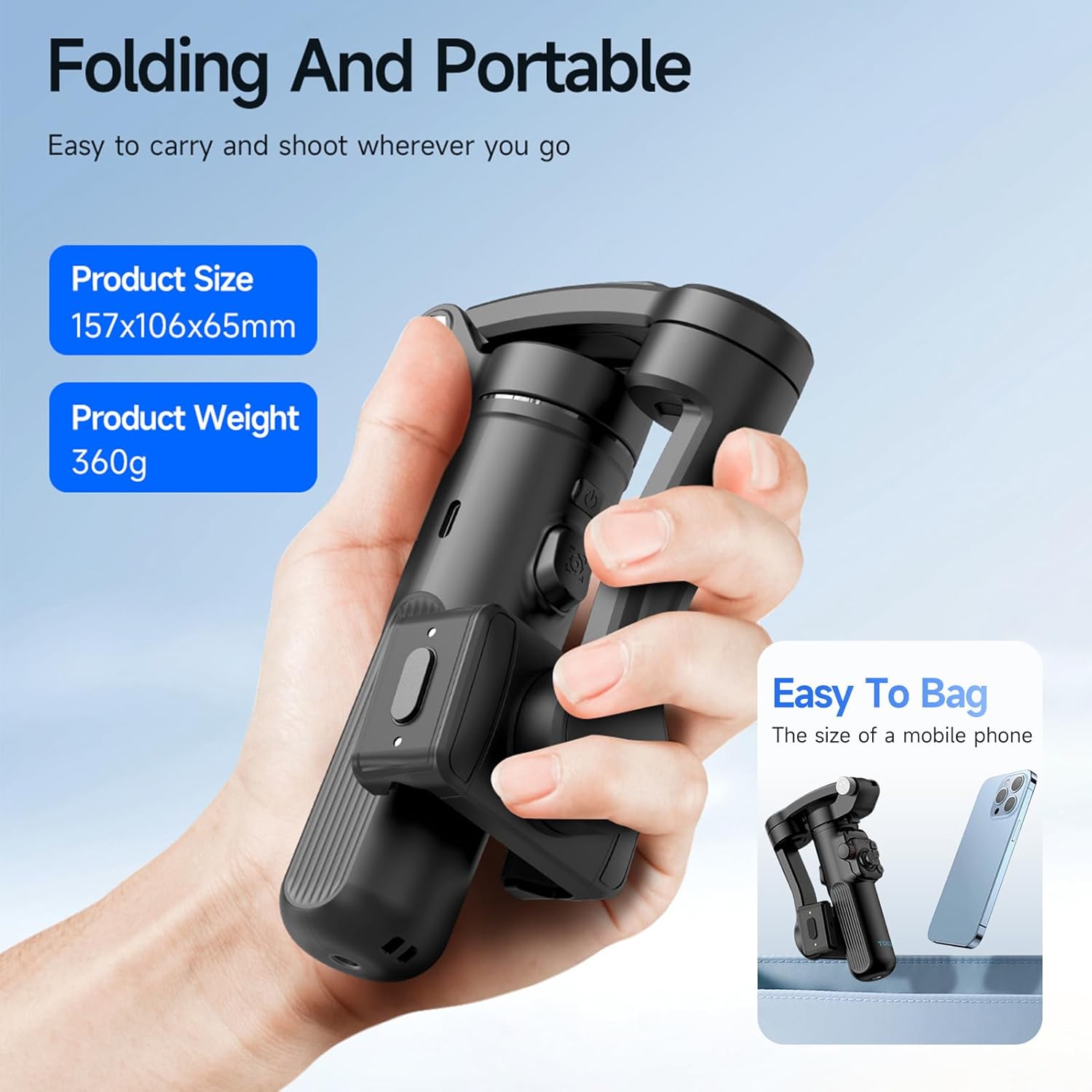
This image illustrates the compact, folded size of the TOKQI M02 gimbal, highlighting its portability. It specifies the product dimensions as 157x106x65mm and a net weight of 360g, emphasizing its 'Folding And Portable' design that is 'Easy To Bag', comparable to the size of a mobile phone.
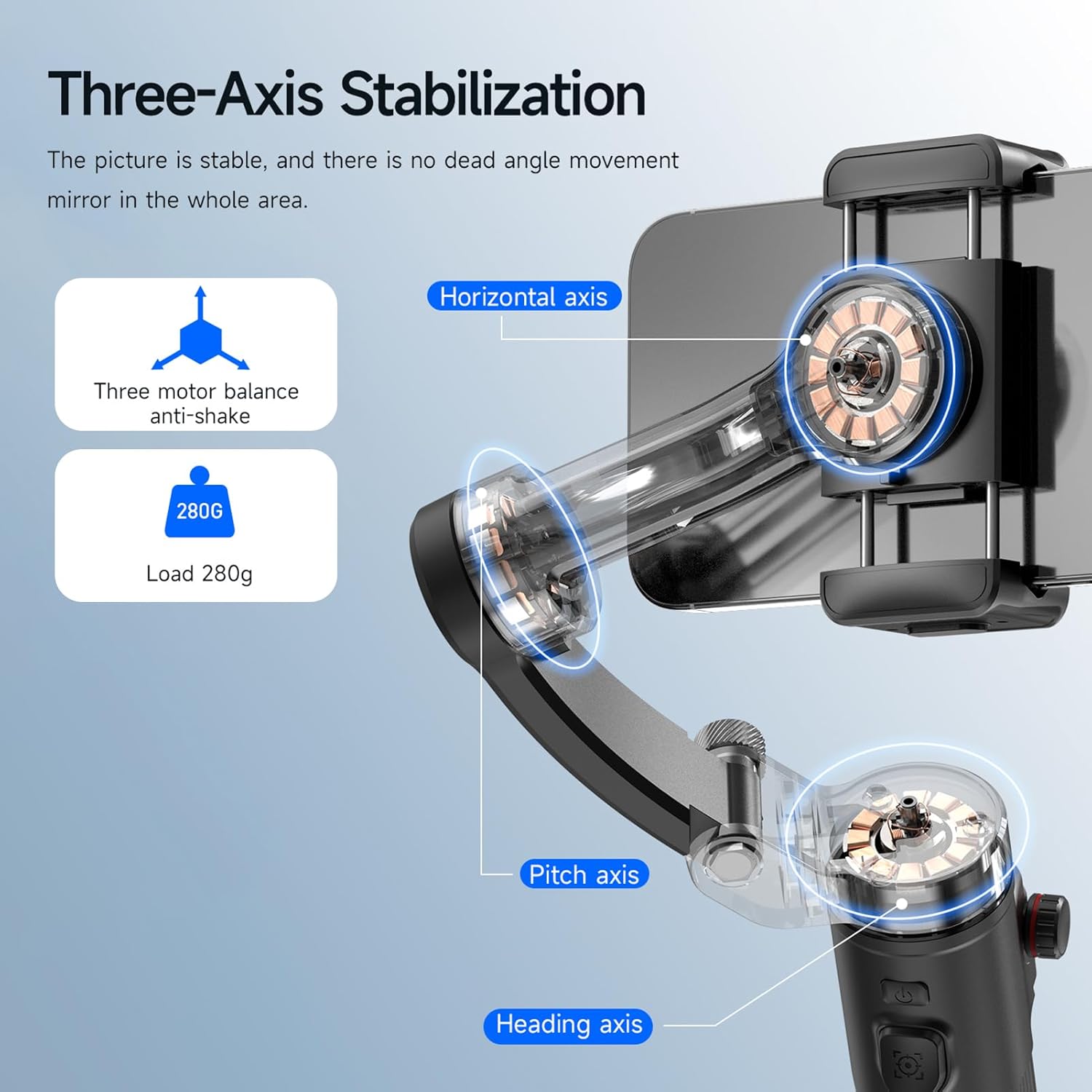
This diagram visually explains the three-axis stabilization system of the TOKQI M02 gimbal, showing the Horizontal axis, Pitch axis, and Heading axis. It also indicates the three-motor balance anti-shake mechanism and the maximum load capacity of 280g, ensuring stable picture capture without dead angle movement.
9. Warranty and Support
For warranty information, technical support, or service inquiries, please refer to the warranty card included with your product or visit the official website of the manufacturer. You may also contact the seller directly for assistance.
Related Documents - M02
 |
M02 AI Camera Glasses: Smart Wearable Technology Overview An in-depth overview of the M02 AI Camera Glasses, detailing their advanced features, technical specifications, operational controls, and physical attributes for recording, photography, AI assistance, and communication. |
 |
M02 Smart AI Glasses User Manual Comprehensive user manual for the M02 Smart AI Glasses. Learn how to operate, pair, and utilize AI features, camera, and Bluetooth functions. |
 |
M02 Smart AI Glasses User Manual: Features, Controls, and Connection Guide Comprehensive user manual for the M02 Smart AI Glasses, detailing appearance, button functions, touch controls, AI voice assistant, object recognition, music playback, and connection instructions with the HeyCyan app. |
 |
M02 Smart AI Glasses User Manual - Features, Setup, and Usage Comprehensive user manual for the M02 Smart AI Glasses, covering appearance, key functions, connection instructions, precautions, and warm tips for optimal use. |
 |
TOKQI M03 Gimbal Quick Start Guide A quick start guide for the TOKQI M03 Gimbal, covering setup, charging, modes, app connection, and specifications. Includes safety precautions and FCC/ISED statements. |
 |
My Little Pony MLP-M02 Wireless Mouse User Manual User manual for the My Little Pony MLP-M02 wireless mouse, providing instructions on usage, features, system support, and troubleshooting. Includes multilingual content and FCC compliance information. |
Ask a question about this manual
Ask about setup, troubleshooting, compatibility, parts, safety, or missing instructions. Manuals+ will review the question and use this page’s manual context to help answer it.