
mangoal Front 4K & Rear 1080P Dash Cam
Mangoal Front 4K & Rear 1080P Dash Cam User Manual
Model: Front 4K & Rear 1080P Dash Cam | Brand: Mangoal
1. Introduction
This manual provides comprehensive instructions for the installation, operation, and maintenance of your Mangoal Front 4K & Rear 1080P Dash Cam. Designed for seamless integration, this dash cam offers advanced features to enhance your driving safety and recording capabilities.

The Mangoal dash cam is designed to integrate discreetly behind your vehicle's rearview mirror, providing a clean, OEM-like appearance. The image shows the main camera unit, a smartphone displaying its live feed, and compatible Subaru Outback models.
2. What's in the Box
Verify that all items listed below are included in your package:
- OEM Look 4K Dashcam x1
- Rear Cam x1
- Rear Cam Cable x1
- 128G MircoSD Card x1
- User Manual x1
- Reading Light Plug Power Y-Adapter x1
- Crowbar x1
- Strap x2
3. Compatibility
This dash cam is custom-fit for specific Subaru Outback models. Please ensure your vehicle matches the compatible models shown below before installation.

The image illustrates the three compatible rearview mirror bracket types for Subaru Outback Gen5 BS 2016-2019 and Gen6 BT 2020+ models. Verify your vehicle's bracket type against these examples for proper fitment.
The Mangoal dash cam is perfectly integrated with Subaru Outback Gen5 BS 2016-2019, Gen6 BT 2020+ (Model B), 2.5i Limited, 2.5i Premium, 3.6R Limited, and more. No messy wiring exposed, no complicated rewire at all.
4. Installation
Follow these steps for a seamless installation. It is recommended to watch the comprehensive installation guidance videos provided by Mangoal for visual assistance.
4.1. Front Dash Cam Installation
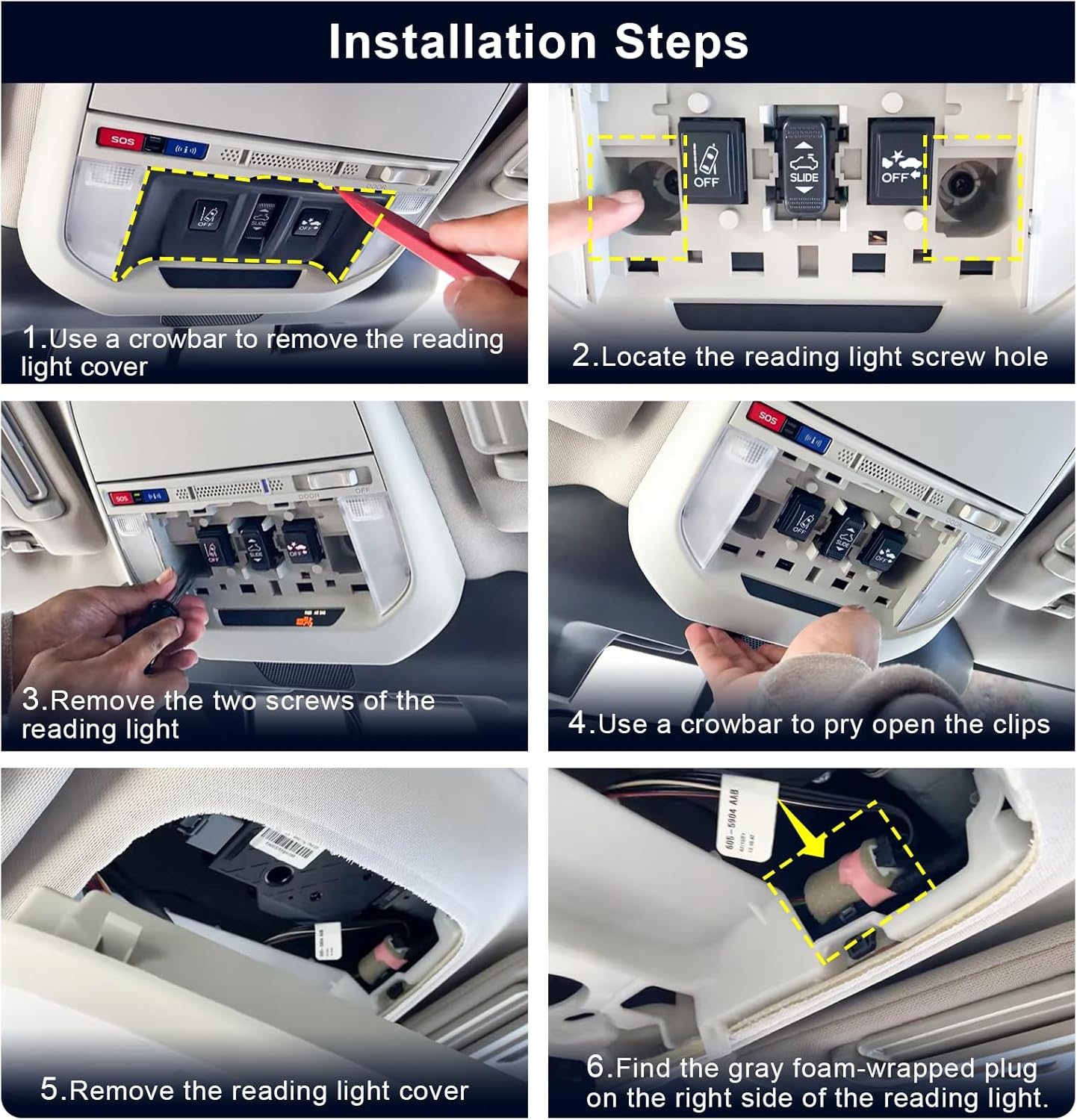
This image provides a step-by-step visual guide for installing the dash cam. It details how to access the vehicle's overhead console to connect the power supply, including using the provided crowbar to remove the reading light cover and locate the power plug.

This image highlights the specific gray foam-wrapped plug required for the dash cam's power connection. It clarifies that this is not the connector on the interior map light assembly and advises careful identification.

This comparison demonstrates how the Mangoal dash cam integrates seamlessly into your vehicle's interior, maintaining an original equipment manufacturer (OEM) look without obstructing the driver's view.
4.2. Rear Dash Cam Installation
Before rear cam installation, please use the rear cam power cable to test whether it is working properly. The rear camera offers 360-degree rotation for optimal positioning.

The diagram illustrates the recommended routing of the rear camera's power cable within the vehicle's interior.
5. Key Features
5.1. 4K Front & 1080P Rear Video
The dash cam records in stunning 4K (2160P/30fps) for the front camera and 1080P for the rear camera, capturing clear and detailed footage. Upgraded with f/1.8 big aperture lens and CMOS IMX335 chip, it provides excellent image performance in various lighting conditions.

This image showcases the high-resolution recording capabilities, with the front camera capturing in 4K UHD and the rear camera in 1080P, ensuring critical details are visible.
5.2. Built-in WiFi & Mobile App
Connect your dash cam to your smartphone via built-in Wi-Fi using the free dedicated app. This allows for real-time video viewing, footage download, and easy sharing.

The mobile app provides convenient access to your dash cam. You can preview live footage, quickly download important videos to your phone, and easily share them.
5.3. Loop Recording
Seamless loop recording ensures continuous operation by overwriting the oldest footage with new content when the memory card is full. This prevents the recording from stopping due to a full card.

Loop recording automatically manages storage. The graphic indicates approximate recording durations: 2 hours for 32GB, 4 hours for 64GB, and 8 hours for 128GB, before older files are overwritten.
5.4. G-Sensor (Automatic Incident Detection)
The built-in G-Sensor automatically detects sudden collisions or impacts. In such an event, it immediately saves and locks the current video footage to a specified folder, preventing it from being overwritten by loop recording.
5.5. Parking Monitor
When enabled (requires optional OBD Power Adapter or Fuse Box Power Adapter), the parking monitor automatically switches to parking mode and provides 24-hour protection for your vehicle by recording events while parked.

The parking monitor feature provides 24-hour surveillance for your vehicle when parked, automatically recording incidents. Note that this feature requires an optional power adapter.
5.6. Night Vision
Equipped with an f/1.8 big aperture lens and CMOS IMX335 chip, the dash cam delivers enhanced night vision capabilities, ensuring clear video recording even in low-light conditions.

The dash cam's advanced night vision technology, featuring a Sony Sensor and f/1.8 aperture, ensures clear and detailed recordings during nighttime driving.
6. Setup
Initial setup involves connecting the dash cam to your smartphone via Wi-Fi and configuring settings through the mobile application. Ensure the 128GB MicroSD card is inserted and formatted within the app.
- Download the App: Download the free Mangoal app (SkyComm) from your smartphone's app store.
- Power On: Turn on your vehicle's ignition to power the dash cam.
- Connect to Wi-Fi: On your smartphone, go to Wi-Fi settings and connect to the dash cam's Wi-Fi network. The SSID and password are usually found on the device or in the user manual.
- Open App: Open the Mangoal app and follow the on-screen prompts to connect to the camera.
- Format SD Card: Format the inserted 128GB MicroSD card through the app for optimal performance and to ensure proper recording.
7. Operating Instructions
Once set up, the dash cam operates automatically. It begins recording when the vehicle starts and saves footage to the MicroSD card.
- Viewing Live Feed: Use the mobile app to view real-time video from both front and rear cameras.
- Downloading Footage: Select desired video clips in the app and download them to your phone for easy access and sharing.
- Event Recording: The G-Sensor automatically detects impacts and locks the corresponding footage to prevent overwriting.
- Parking Monitoring: If enabled, the dash cam will record events when the vehicle is parked and detects motion or impact.
8. Maintenance
Regular maintenance ensures the longevity and optimal performance of your dash cam.
- SD Card Care: Periodically format the MicroSD card (e.g., once a month) to prevent data corruption and ensure smooth recording. Replace the card if it shows signs of degradation or errors.
- Cleaning: Gently wipe the camera lens and body with a soft, dry cloth. Avoid using abrasive cleaners or solvents that could damage the device.
- Firmware Updates: Check the Mangoal website or the mobile app for available firmware updates. Keeping your dash cam's firmware up-to-date can improve performance and add new features.
9. Troubleshooting
If you encounter issues, refer to the common problems and solutions below.
| Issue | Solution |
|---|---|
| Camera not powering on | Check power connection, ensure vehicle ignition is on. Verify the Y-adapter is correctly installed. |
| Wi-Fi connection issues | Ensure correct Wi-Fi password. Try restarting both the dash cam (by turning off/on vehicle ignition) and your phone. Move closer to the dash cam. |
| Recording stops or footage is corrupted | Format the SD card in the app. Try a different, high-speed (Class 10 or U3) MicroSD card from a reputable brand. |
| Poor video quality | Clean the camera lens. Ensure the camera is securely mounted and not vibrating. Check resolution settings in the app. |
10. Specifications
| Feature | Detail |
|---|---|
| Product Dimensions | 2.14 x 8.6 x 3.8 inches |
| Item Weight | 5.6 ounces |
| Video Capture Resolution | Front 4K and Rear 1080P |
| Optical Sensor Technology | CMOS |
| Effective Still Resolution | 8.3 MP |
| Lens Type | Fixed Wide Angle |
| Real Angle of View | 150 Degrees |
| Connectivity Technologies | Wi-Fi |
| Special Features | Built-In Microphone, Built-In Speaker, Built-In Supercapacitor, Built-In WiFi, OEM Style, Motion Sensing, Mute Function, Night Vision, Loop Recording, G-Sensor, Automatic Incident Detection, Parking Monitor, App Control |
| Color | Black |
| Manufacturer | mangoal |
11. Warranty and Support
Mangoal offers a 12-month warranty for this product. We are committed to providing prompt technical support for the optimal user experience.
For technical assistance, installation guidance, or to inquire about warranty claims, please contact Mangoal customer service. Refer to the contact information provided in the original product packaging or on the official Mangoal website.
Related Documents - Front 4K & Rear 1080P Dash Cam
 |
MANGOAL Dash Cam User Manual: Features and Settings Comprehensive user manual for the MANGOAL dash cam, detailing setup, video settings, parking modes, Wi-Fi connectivity, firmware updates, and warranty information. |
 |
MANGOAL OEM Style Dash Cam User Manual Comprehensive user manual for the MANGOAL OEM Style Dash Cam, covering installation, features, Wi-Fi connectivity, app usage, and troubleshooting. |
 |
MANGOAL MG-0xxX OEM Fit Dash Cam User Manual User manual for the MANGOAL MG-0xxX OEM Fit Dash Cam. Learn about installation, features like 4K recording, Wi-Fi, GPS, G-Sensor, Parking Mode, and troubleshooting for your vehicle's black box recorder. |
 |
MANGOAL OEM Style Dash Cam Benutzerhandbuch Umfassendes Benutzerhandbuch für die MANGOAL OEM Style Dash Cam (Modell MGA-0xxX). Enthält Anleitungen zur Installation, Bedienung, Funktionen wie 4K-Aufnahme, WLAN-Konnektivität und Fehlerbehebung. |
 |
Scope Certificate: Shenzhen Honglianda Technology Co., Ltd. (GRS 4.0) Official Global Recycled Standard (GRS) 4.0 scope certificate for Shenzhen Honglianda Technology Co., Ltd., verifying recycled material content for mangoal brand dash cams and power adapters. |
 |
Dell Latitude Laptop Inventory and Condition Report Detailed inventory and condition report for various Dell Latitude laptop models, including Latitude 3490, 3380, 3480, 3379, and E5470. Lists specifications, screen size, battery status, and specific cosmetic and functional notes for each unit. |
Ask a question about this manual
Ask about setup, troubleshooting, compatibility, parts, safety, or missing instructions. Manuals+ will review the question and use this page’s manual context to help answer it.