Introduction
The DAYTECH Emergency Call Button is a smart device designed to provide immediate assistance for seniors and individuals requiring quick support. This system offers security and rapid help with a single button press, integrating with the Tuya Smart application for comprehensive monitoring and alerts.
Key features include instant notifications to selected contacts, 24/7 monitoring capabilities, flexible system expansion, and app-controlled customization for user-friendly operation.

Image Description: This image displays the versatility of the DAYTECH emergency call button system, showing different users such as an elderly woman, a person in a hospital bed, a child, and a pregnant woman, all wearing or interacting with the emergency call devices. This illustrates the broad applicability of the system for various individuals who might need immediate assistance.
Package Contents
Please verify that all components are present in your package:
- 1 x Receiver Unit
- 1 x Emergency Call Wristband Button
- 1 x Emergency Call Pendant Button
- 1 x AAA Battery (included)

Image Description: This image shows the complete DAYTECH emergency call system. It features the main receiver unit, which is a white square device with a blue bell icon. Alongside it are two emergency call buttons: one designed as a wristband and another as a pendant, both prominently displaying 'SOS' in red. A smartphone screen on the right illustrates the accompanying Tuya Smart app interface, demonstrating the system's digital integration.
Setup Instructions
- Install Batteries: Insert the provided AAA battery into the receiver unit. Ensure correct polarity. The emergency call buttons use CR2032 batteries, which are pre-installed.
- Download Tuya Smart App: Download and install the free Tuya Smart or Smart Life application on your smartphone from your device's app store.
- Register/Log In: Open the app and register for a new account or log in with an existing one.
- Add Device: Follow the in-app instructions to add the DAYTECH Emergency Call Button system. Ensure your smartphone is connected to a 2.4GHz Wi-Fi network during the pairing process.
- Configure Settings: Use the Tuya app to customize settings such as ringtones, volume levels, and LED signal behaviors for the receiver.
- Share Access (Optional): If desired, share device access with family members through the app so they can also receive notifications.

Image Description: This image shows a smartphone displaying the Tuya Smart app's settings for the emergency call system. The interface allows users to configure various parameters such as the device name, ringtone volume, ring duration, and delay time. It also presents different operational modes, enabling personalized setup of the alert system.

Image Description: This image illustrates the Tuya Smart app interface for customizing the wireless WiFi pager. The screen displays options for selecting different ringtones, adjusting the volume, and choosing between various alert modes such as 'Light&Sound', 'Sound only', or 'Light only'. This allows users to tailor the notification method to their preferences.
Operating Instructions
Triggering an Emergency Alert
To activate an emergency alert, simply press the large 'SOS' button on either the wristband or pendant device. Upon activation:
- The receiver unit will emit an audible alarm and/or visual signal (depending on app settings).
- Your smartphone, and any other linked family members' smartphones, will receive an immediate notification via the Tuya Smart app.
- The system operates reliably as long as your smartphone maintains a Wi-Fi connection, ensuring alerts are transmitted even over long distances.
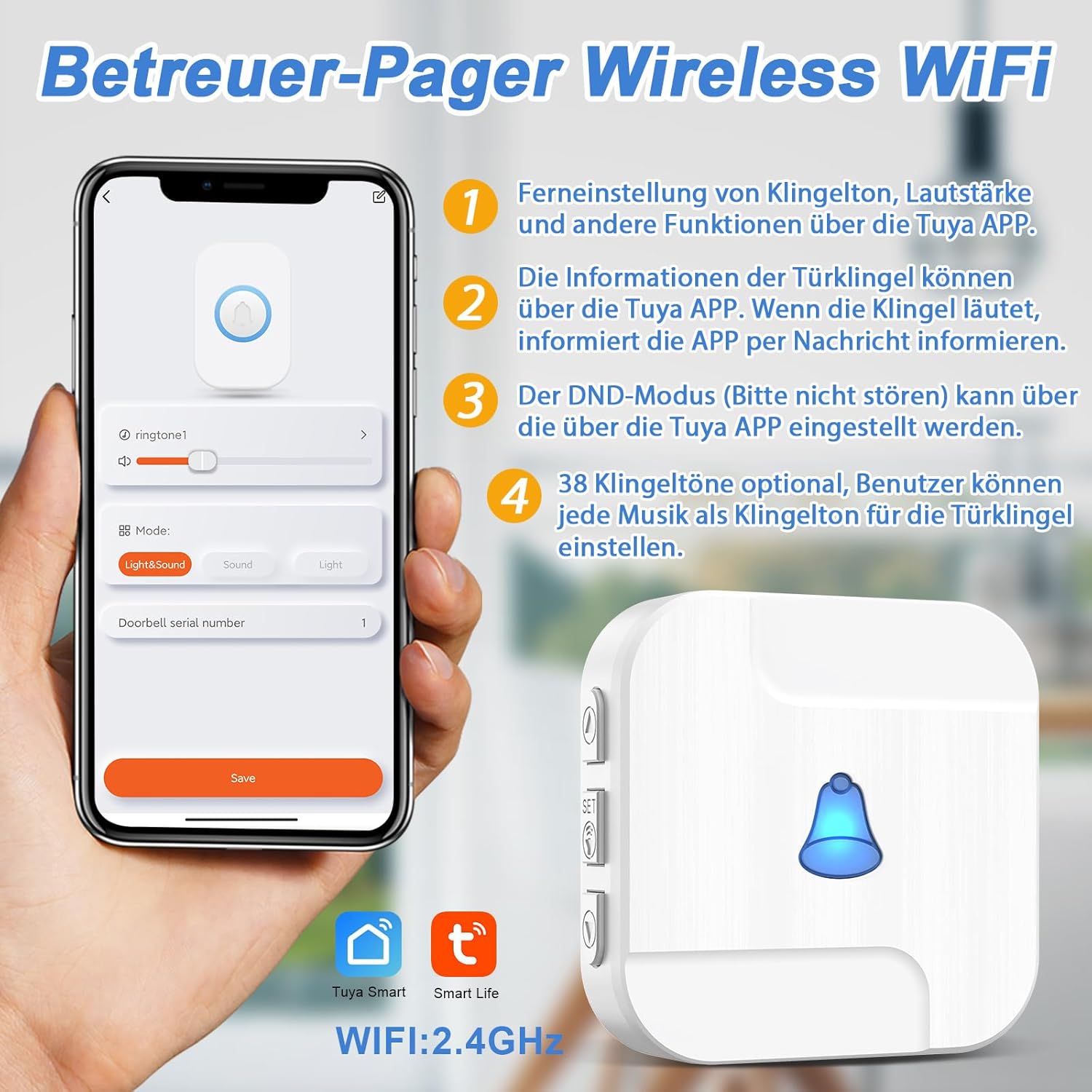
Image Description: This image depicts the three-step process of an emergency alert. The first panel shows an elderly woman pressing the SOS button on her wristband. The second panel illustrates the receiver unit activating with a musical note, signifying an alert. The third panel shows a person receiving an immediate notification on their smartphone, demonstrating the system's rapid response.
System Range and Connectivity
The system is designed for broad coverage within a typical home or care environment. The emergency buttons communicate wirelessly with the receiver, which then uses your home's 2.4GHz Wi-Fi network to send notifications to your smartphone. The effective range between the button and receiver can vary based on environmental factors such as walls and interference.
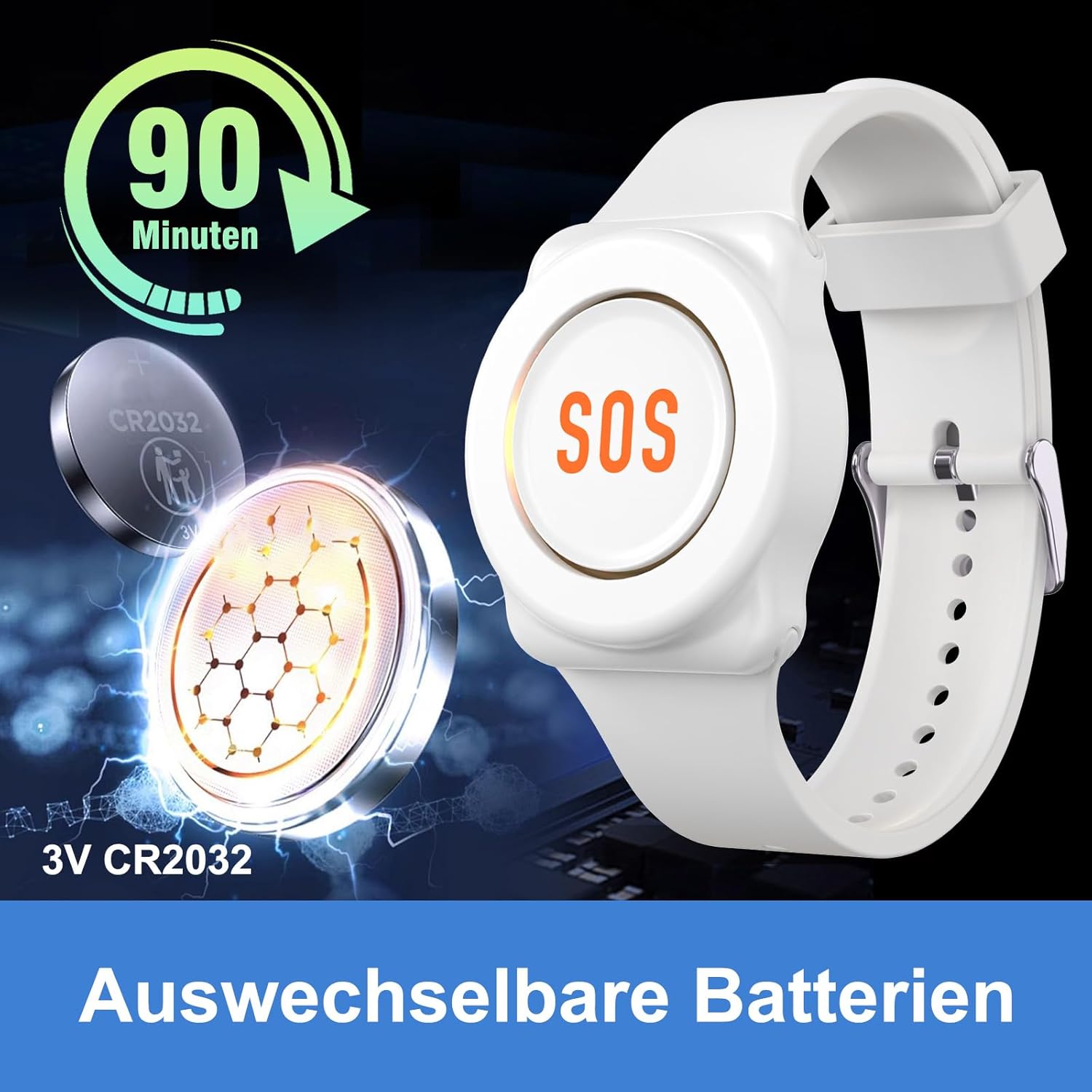
Image Description: This image provides an overhead diagram of a house, illustrating the signal transmission range of the DAYTECH emergency call system. The central receiver unit is depicted, with emergency SOS buttons placed in various rooms. Signal ranges of 20 meters, 50 meters, and 70 meters are indicated, showing how the system covers different areas of the home. A smartphone is shown receiving notifications, emphasizing remote alert capabilities.
Maintenance
Battery Replacement
The emergency call buttons (wristband and pendant) are powered by CR2032 coin cell batteries. The receiver unit uses AAA batteries. When the battery in an emergency call button is low, an LED indicator will illuminate on the button itself. Additionally, the Tuya Smart app will send an immediate warning to your smartphone, prompting timely battery replacement.
To replace the CR2032 battery in the emergency call button:
- Carefully open the battery compartment on the back of the button.
- Remove the old CR2032 battery.
- Insert a new 3V CR2032 battery, ensuring the positive (+) side faces up.
- Close the battery compartment securely.

Image Description: This image provides a close-up view of the DAYTECH emergency call wristband button with its battery compartment open. A CR2032 3V coin cell battery is visible inside, ready for replacement. The text '90 Minuten' (90 minutes) is prominently displayed, which may refer to the battery's operational duration or a recommended replacement interval.
Troubleshooting
- No Notifications Received:
- Ensure your smartphone has a stable internet connection (Wi-Fi or mobile data).
- Verify that the Tuya Smart app has notification permissions enabled in your phone's settings.
- Check if the receiver unit is powered on and connected to your 2.4GHz Wi-Fi network.
- Confirm that the emergency call button has sufficient battery power. Replace if necessary.
- Limited Signal Range:
- The effective range between the emergency button and the receiver can be affected by thick walls, metal objects, or other wireless interference.
- Try repositioning the receiver unit to a more central location within the desired coverage area.
- Consider adding additional receivers or signal repeaters if a larger coverage area is required.
- Difficulty with App Setup:
- Ensure your Wi-Fi network is 2.4GHz. The device may not connect to 5GHz networks.
- Restart your router, smartphone, and the receiver unit, then attempt the pairing process again.
- Refer to the Tuya Smart app's help section for specific pairing instructions or common issues.
- Receiver Not Responding:
- Check if the receiver unit is properly plugged in and powered on.
- Verify that the AAA battery in the receiver is correctly installed and not depleted.
- If the issue persists, try resetting the receiver unit (refer to the app for specific reset procedures).
Specifications
| Brand | DAYTECH |
| Model Number | TY02-TY01 |
| Product Dimensions (L x W x H) | 6 x 4 x 6 cm |
| Weight | 500 grams |
| Power Source | Battery Powered |
| Receiver Battery Type | 1 x AAA (included) |
| Button Battery Type | CR2032 (included) |
| Battery Composition | Alkaline (AAA), Lithium (CR2032) |
| Control Method | Push Button |
| Compatible Devices | Smartphone (via Tuya Smart app) |
| Wireless Connectivity | 2.4GHz WiFi |
Warranty Information
Specific warranty details for the DAYTECH Emergency Call Button (Model TY02-TY01) are not provided in this manual. Please refer to the product packaging or the manufacturer's official website for the most current warranty information.
Support
For technical assistance, troubleshooting beyond this manual, or general inquiries regarding your DAYTECH Emergency Call Button (Model TY02-TY01), please consult the following resources:
- Manufacturer's Website: Visit the official DAYTECH website for product support, FAQs, and contact information.
- Tuya Smart App: The Tuya Smart application often includes a help section or customer support contact within the app itself.
Please have your product model number (TY02-TY01) and purchase details ready when contacting support.


