
Introduction
This manual provides essential information for setting up, operating, maintaining, and troubleshooting your AVENKA 15.6-inch Gaming Laptop R5-7430U. Please read this guide thoroughly to ensure proper use and to maximize your device's performance and longevity.

Image: The AVENKA 15.6-inch Gaming Laptop R5-7430U, showcasing its display and keyboard.

Image: Overview of the AVENKA 15.6-inch laptop, highlighting its 15.6-inch FHD display, 7430U processor, 16GB RAM, 512GB SSD, Wi-Fi 5, Bluetooth 5.0, and 6000mAh battery.
1. Setup
1.1 Unboxing
Upon receiving your laptop, carefully open the packaging and ensure all components are present. The box should contain:
- 15.6 Inch Laptop
- AC Adapter
- Instructions (this manual)
1.2 Initial Power On and Charging
- Connect the AC adapter to the laptop's charging port and then to a power outlet.
- Allow the laptop to charge for at least 30 minutes before initial use, or until the battery indicator shows sufficient charge.
- Press the power button to turn on the laptop.
- Follow the on-screen prompts to complete the Windows 11 Pro setup process, including language selection, network connection, and user account creation.

Image: Illustration of the laptop's side profile, highlighting the various ports (TF Card, USB 3.0, Headphone jack, Charging Port, HDMI, Type-C) and indicating its weight (1.6KG) and dimensions (357x230x20.5mm).
2. Operating Your Laptop
2.1 Power Management
- Power On: Press the power button located on the keyboard.
- Sleep Mode: Close the lid or press the power button briefly.
- Shut Down: Click the Start button, then Power, and select "Shut down."
2.2 Keyboard and Touchpad
The laptop features a backlit keyboard for improved visibility in low-light conditions. The ergonomic layout and tactile keys are designed for comfortable typing.
- Backlight Control: Use the dedicated function keys (Fn + Fx, refer to keyboard legends) to adjust or toggle the keyboard backlight.
- Fn Lock: If function keys (F1-F12) are not behaving as expected (e.g., volume/brightness controls not working), check if the Fn Lock is active. This can usually be toggled by pressing the Fn key in combination with another key (often Esc or Fn Lock key).
- Touchpad: Supports multi-touch gestures for navigation. Ensure your fingers are clean and dry for optimal responsiveness.
2.3 Fingerprint Reader
For enhanced security and quick login, configure the integrated fingerprint reader through Windows Hello settings in Windows 11 Pro.
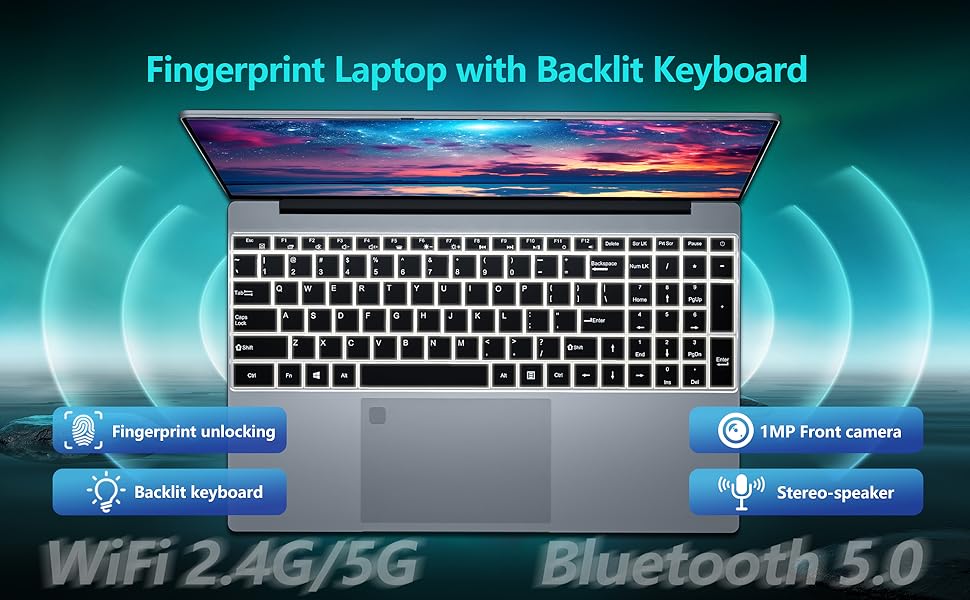
Image: Top-down view of the laptop keyboard, highlighting the backlit keys and the fingerprint unlocking feature.
2.4 Display
The 15.6-inch Full HD (1920x1080) IPS display offers clear visuals and wide viewing angles. It features eye protection technology for comfortable extended use. The screen can open up to 180 degrees for flexible viewing.

Image: The laptop's 15.6-inch IPS narrow screen, emphasizing its 1920x1080 resolution, IPS technology, bright view, and eye protection features.
2.5 Performance and Multitasking
Equipped with 16GB of RAM and a 512GB SSD, the laptop is designed for smooth multitasking and quick application loading. The R5 7430U processor ensures efficient handling of various computing tasks.

Image: The laptop display showing multiple applications open simultaneously, illustrating its multitasking capabilities with 16GB RAM and 512GB SSD.
2.6 Connectivity
Your laptop is equipped with various ports and wireless technologies for versatile connectivity:
- Wireless: Wi-Fi 5 (802.11a/b/g/n/ac) for internet access and Bluetooth 5.0 for connecting wireless peripherals.
- USB Ports: 2x USB 3.0 ports for high-speed data transfer.
- USB Type-C Port: 1x USB Type-C port for modern peripherals and data transfer.
- HDMI Port: 1x HDMI port for connecting to external displays or projectors.
- Audio Jack: 3.5mm audio jack for headphones or external speakers.
- TF Card Slot: For expanding storage or transferring data from memory cards.
2.7 Camera and Audio
- Front Camera: A 1MP front camera is integrated for video calls and conferences.
- Stereo Speakers: Built-in stereo speakers provide audio output.
3. Maintenance
3.1 Cleaning
- Use a soft, lint-free cloth to clean the screen. For stubborn smudges, dampen the cloth with a screen-specific cleaning solution.
- Wipe the keyboard and chassis with a soft, dry cloth. Avoid using harsh chemicals or abrasive materials.
- Periodically use compressed air to clear dust from vents and ports.
3.2 Battery Care
To prolong battery life:
- Avoid fully discharging the battery frequently.
- Store the laptop in a cool, dry place when not in use for extended periods.
- If storing for a long time, ensure the battery is charged to around 50-70%.
- The average battery life is approximately 6 hours, depending on usage.

Image: Diagram illustrating the laptop's 6000mAh battery capacity (46.2W/7.7V) and estimated 5-6 hours of battery life.
3.3 Software Updates
Regularly check for and install Windows updates and driver updates to ensure optimal performance, security, and compatibility.
4. Troubleshooting
This section addresses common issues you might encounter. If the problem persists, please contact customer support.
| Problem | Possible Solution |
|---|---|
| Laptop does not power on. | Ensure the AC adapter is securely connected to both the laptop and a working power outlet. Verify the power outlet is functional. Allow the battery to charge for at least 30 minutes. |
| Keyboard backlight or function keys are not working. | Check if the Fn Lock is enabled. Refer to your keyboard layout for the specific key combination to toggle Fn Lock (often Fn + Esc or a dedicated Fn Lock key). |
| Slow performance or system freezes. | Close unnecessary applications. Check for and install any pending Windows updates. Ensure sufficient free space on the SSD. Restart the laptop. |
| Wi-Fi or Bluetooth connectivity issues. | Ensure Wi-Fi/Bluetooth is enabled in Windows settings. Restart your router/modem. Update wireless drivers. |
| External display not detected via HDMI. | Ensure the HDMI cable is securely connected. Check the input source on your external display. Press Windows key + P to cycle through display modes. |
| Keyboard and mouse unresponsive after waking from sleep. | Allow a few seconds for the system to fully wake up. If unresponsive, try pressing any key or clicking the mouse. If the issue persists, a restart may be necessary. |
5. Specifications
Detailed technical specifications for the AVENKA 15.6-inch Gaming Laptop R5-7430U:

Image: Detailed view of the Ryzen 7430U processor, showing its 8 cores, 16 threads, 4.3GHz frequency, 7nm technology, and 8MB cache.
| Feature | Detail |
|---|---|
| Model Name | R5-7430U |
| Screen Size | 15.6 Inches |
| Screen Resolution | 1920 x 1080 pixels (Full HD) |
| Processor | AMD Ryzen 5 7430U (up to 4.3 GHz) |
| RAM | 16 GB LPDDR4 |
| Storage | 512 GB SSD (eSATA interface) |
| Graphics Coprocessor | Radeon Graphics (Integrated) |
| Operating System | Windows 11 Pro |
| Wireless Connectivity | Wi-Fi 5 (802.11a/b/g/n/ac), Bluetooth 5.0 |
| USB Ports | 2x USB 3.0, 1x USB Type-C |
| Video Output | 1x HDMI Port |
| Audio | 3.5mm Audio Jack, Stereo Speakers |
| Camera | 1MP Front Camera |
| Battery | 6000mAh (46.2W/7.7V), approx. 6 hours average life |
| Special Features | Backlit Keyboard, Fingerprint Reader, 180-Degree Opening, HD Audio, Numeric Keypad |
| Dimensions (LxWxH) | 14 x 0.8 x 9 inches (357 x 230 x 20.5 mm) |
| Item Weight | 5.46 pounds (approx. 2.48 kg) |
| Color | Silver |
6. Warranty and Support
6.1 Manufacturer's Warranty
AVENKA offers a 1-year free maintenance service for all its products. This warranty covers manufacturing defects and ensures your product functions as intended under normal use conditions.
6.2 Customer Support
If you have any questions, require technical assistance, or need to claim warranty service, please contact the AVENKA support center. They aim to reply within 24-48 hours.
For more information, you can visit the AVENKA Store on Amazon.