1. Introduction and Overview
The Amazfit Balance 2 is a premium multi-sport training partner designed for driven professionals and athletes. It combines elite fitness tracking, intelligent wellness insights, and next-level versatility to optimize performance, recovery, and everyday life. Featuring a sleek aluminum body and a 1.5-inch durable sapphire crystal glass screen, the Balance 2 offers a resilient design with dual speakers for clear audio cues. It boasts up to 21 days of battery life under typical use, ensuring prolonged performance without frequent charging.

The watch supports over 170 sports modes, including specialized HYROX training and competition modes, and offers downloadable maps for 40,000 golf courses. Its industry-leading dual-band GPS with six satellite systems ensures accurate tracking and allows for offline map downloads with turn-by-turn directions. Continuous health monitoring includes heart rate, sleep quality, blood-oxygen, stress, and recovery metrics like HRV. With military-grade endurance and 10 ATM water-resistance, the Balance 2 is suitable for deep dives and extreme conditions.
2. What's in the Box
Your Amazfit Balance 2 package includes the following items:
- Amazfit Balance 2 Smart Watch (with pre-installed black silicone strap)
- Magnetic charging base (USB Type-C cable not included)
- User Manual
- Extra Red Silicone Strap

The eco-friendly packaging ensures your smartwatch and accessories are securely contained.
3. Setup
3.1. Strap Installation
The Amazfit Balance 2 comes with two straps: a black strap and an orange strap. Both straps connect to the watch in the same way using a quick-release pin mechanism. While it can be a bit fiddly initially, patience will ensure proper installation.
Video: Setup the Strap - Amazfit Balance 2 Watch Tutorial
This video demonstrates the step-by-step process of installing and changing the watch straps on your Amazfit Balance 2. It highlights how to handle the quick-release pins and secure the straps to the watch body.
To install a strap: Locate the small pin on the strap. Pull the mechanism on the pin inwards to retract one end. Align the exposed pin end with the corresponding hole on the watch lug. Once one end is in, release the mechanism and gently push the strap until the other end of the pin snaps into place. Ensure both ends are securely seated before use.
3.2. Initial Pairing with Zepp App
To unlock the full potential of your Amazfit Balance 2, you need to pair it with the Zepp app on your smartphone. The Zepp app is available for both Android and iPhone devices.

Steps for Pairing:
- Download the Zepp app from your device's app store (App Store for iOS, Google Play Store for Android).
- Open the Zepp app and create an account or log in.
- Ensure Bluetooth is enabled on your smartphone.
- On the Zepp app, navigate to the 'Profile' tab and tap 'Add device'.
- Select 'Watch' and then 'Watch with a QR code'.
- Power on your Amazfit Balance 2. A QR code will appear on the watch screen.
- Use the Zepp app to scan the QR code displayed on your watch.
- Follow the on-screen prompts on both your phone and watch to complete the pairing process.
Video: Amazfit Balance 2 Unboxing Video
This official unboxing video provides a quick overview of the Amazfit Balance 2 and its initial setup, including the pairing process with the Zepp app.
4. Operating Instructions
4.1. General Navigation
The Amazfit Balance 2 features a responsive AMOLED touchscreen and a physical crown for intuitive navigation. Swipe left/right, up/down to access different widgets and notifications. Use the crown to scroll through menus and lists, and press it to return to the watch face or confirm selections.
4.2. 24/7 Health Monitoring
The Balance 2 continuously monitors your health metrics, providing comprehensive insights into your well-being.

- Heart Rate: Real-time monitoring of your heart rate throughout the day.
- Blood-Oxygen (SpO2): Measures your blood oxygen saturation levels.
- Stress: Tracks your stress levels and provides insights for relaxation.
- Sleep Quality: Monitors sleep stages (light, deep, REM) and provides a sleep score.
- HRV (Heart Rate Variability): Provides recovery metrics to assess your body's readiness.
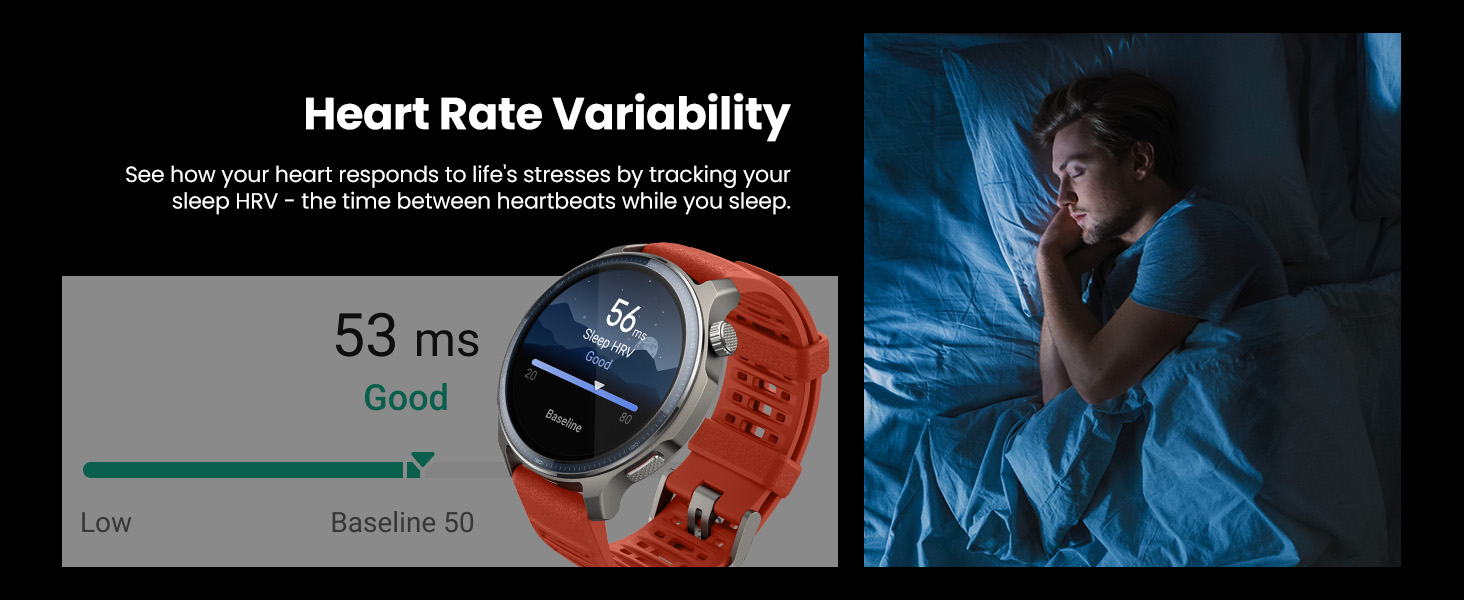
All health data can be viewed in detail within the Zepp app, offering trends and historical information.
4.3. Sport Modes and Tracking
The Amazfit Balance 2 supports over 170 built-in sport modes, catering to a wide range of activities from running and strength training to golf and scuba diving.

To start a workout: Press the physical button on the side of the watch to access the app list. Select 'Workout' and choose your desired sport mode. The watch will then prepare for tracking, often acquiring a GPS signal for outdoor activities.
4.4. Golf Mode
The Amazfit Balance 2 offers a dedicated Golf Mode with access to maps for 40,000 courses worldwide, providing an immersive golf experience with distance to green, hazards, hole layout, and swing metrics.
Video: How to use Golf on Amazfit Balance 2
This video guides you through setting up and using the Golf Mode on your Amazfit Balance 2, including downloading courses, adjusting settings, and tracking your score during a round.
Before playing, ensure you download the desired golf course map via the Zepp app (see section 4.5). Once on the course, select Golf Mode, and the watch will display relevant course information and allow for score adjustment.
4.5. Offline Maps and GPS
The Balance 2 features industry-leading dual-band GPS and supports six satellite systems for accurate location tracking. You can download free offline maps directly to your watch for navigation without a network connection.

Downloading Offline Maps:
- Open the Zepp app on your smartphone.
- Navigate to the 'Device' section for your Balance 2.
- Scroll down to 'Device Application Settings' and select 'Map Management'.
- The app will display a map of your current location. You can pan and zoom to select the area you wish to download, or search for a specific city/region.
- Choose the map type (Base Map, Ski Map, Contour Map) and tap 'Download'.
- Select 'Wi-Fi Download' for faster transfer if connected to Wi-Fi.
- Confirm the download on your watch when prompted.
Video: Amazfit Balance 2 - Downloading Offline Maps
This tutorial demonstrates how to download and use offline maps on your Amazfit Balance 2, ensuring navigation capabilities even without a network connection.
Once downloaded, you can access these maps during outdoor workouts or navigation directly from your watch.
4.6. Battery Life
The Amazfit Balance 2 offers impressive battery longevity:
- Typical Use: Up to 21 days
- Heavy Use: Up to 10 days
- Power Saving GPS Mode: Up to 67 hours

Battery life may vary based on usage patterns, enabled features (e.g., always-on display, continuous heart rate monitoring), and environmental factors.
4.7. Zepp OS 5 and Voice Control
Powered by Zepp OS 5, the Amazfit Balance 2 offers a rich user experience with over 550 watch faces, message replies, and total voice control via Zepp Flow voice assistance.
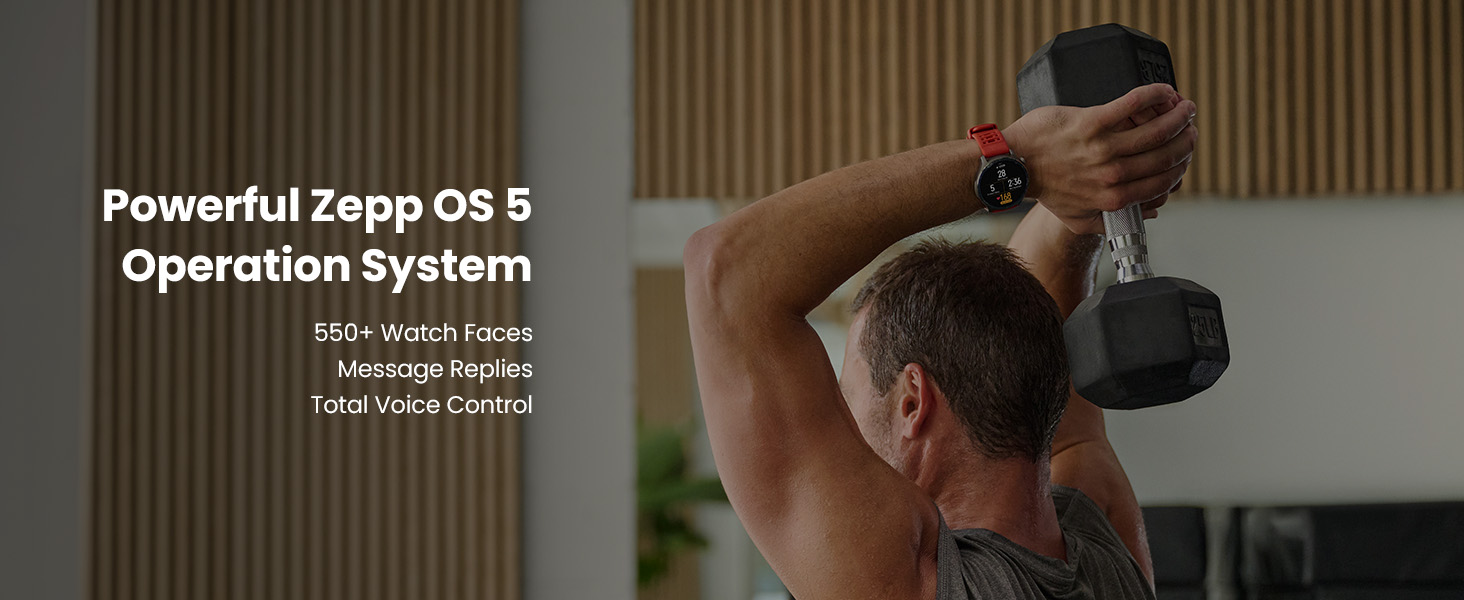
Zepp Flow allows you to check real-time stats, start or pause activities, and access key features instantly using voice commands. You can also type Android message replies using a full QWERTY keyboard or dictate them via speech-to-text input.
5. Maintenance
Proper maintenance ensures the longevity and optimal performance of your Amazfit Balance 2.
- Cleaning: Regularly wipe the watch screen and body with a soft, lint-free cloth. For stubborn smudges, slightly dampen the cloth with water. Avoid using harsh chemicals, abrasive cleaners, or solvents.
- Strap Care: Clean the silicone straps with mild soap and water. Ensure they are completely dry before reattaching to the watch.
- Water Resistance: The watch has a 10 ATM water-resistance rating and 45m diving certification. It is suitable for swimming, showering, and shallow diving. However, avoid pressing buttons underwater or exposing the watch to hot water, steam, or high-velocity water.
- Charging: Use only the provided magnetic charging base. Ensure the charging contacts on both the watch and the base are clean and dry before charging.
6. Troubleshooting
If you encounter issues with your Amazfit Balance 2, try the following steps:
- Watch Not Turning On: Ensure the watch is fully charged. Connect it to the magnetic charging base and a power source.
- Pairing Issues:
- Ensure Bluetooth is enabled on your phone and the watch is within range.
- Restart both your watch and your phone.
- Clear the Bluetooth cache on your phone (Android).
- Try unpairing and re-pairing the device through the Zepp app.
- GPS Not Locking:
- Ensure you are in an open outdoor area with a clear view of the sky.
- Wait a few minutes for the watch to acquire a signal.
- Ensure offline maps for your area are downloaded if you are in a remote location.
- Inaccurate Health Data:
- Ensure the watch is worn snugly on your wrist, one finger-width above the wrist bone.
- Clean the sensor on the back of the watch.
- Battery Draining Quickly:
- Disable features like Always-On Display if not needed.
- Reduce screen brightness or set a shorter screen-off time.
- Limit continuous heart rate monitoring to longer intervals.
- Factory Reset: If issues persist, you may need to perform a factory reset. This will erase all data on the watch. Navigate to 'Settings' > 'System' > 'Factory Reset' on your watch.
7. Specifications
| Feature | Specification |
|---|---|
| Model Number | A2430 |
| Display | 1.5" AMOLED Sapphire Glass Display |
| Battery Life (Typical Use) | Up to 21 Days |
| GPS | Dual Band, 6 Satellite Systems, Offline Maps |
| Sport Modes | 170+ (including Hyrox & Golf Mode) |
| Health Monitoring | Heart Rate, Sleep, Blood-Oxygen, Stress, HRV |
| Water Resistance | 10 ATM (45m diving certification) |
| Operating System | Zepp OS 5 |
| Voice Assistant | Zepp Flow |
| Item Weight | 1.48 ounces |
| Manufacturer | Amazfit |
| Country of Origin | China |
| Release Date | June 24, 2025 |
8. Warranty and Support
Amazfit products typically come with a standard manufacturer's warranty. For specific warranty terms and conditions, please refer to the warranty card included in your product packaging or visit the official Amazfit website.
For technical support, troubleshooting assistance, or any product-related inquiries, please contact Amazfit Customer Service through the following channels:
- Official Amazfit Website: Visit the support section for FAQs, user guides, and contact information.
- Zepp App: The Zepp app often includes a 'Help' or 'Support' section with resources and direct contact options.
Please have your product model number (A2430) and purchase information ready when contacting support.