
1. Introduction
This manual provides essential instructions for setting up, operating, maintaining, and troubleshooting your JINSHANGZI VP29 Smartwatch. Please read this manual thoroughly before using your device to ensure proper function and longevity.
2. Safety Information
- Do not expose the device to extreme temperatures, direct sunlight, or high humidity.
- Avoid dropping or subjecting the device to strong impacts.
- Use only approved chargers and accessories.
- Keep the device away from children and pets.
- Consult a professional for any repairs; do not attempt to disassemble the device yourself.
3. Product Overview
The JINSHANGZI VP29 is a 5G Android 10.0 smartwatch featuring a 2.29-inch AMOLED display, an 8MP retractable camera, and comprehensive connectivity options including Wi-Fi and GPS. It supports independent 4G calls via a Nano SIM card.
Key Features:
- Android 10.0 Operating System
- 2.29" AMOLED HD Display (490x580 resolution)
- 8MP Retractable Camera
- 4G Independent Call Support (Nano SIM)
- Wi-Fi, Bluetooth, GPS Connectivity
- Heart Rate Tracking and Step Counting
- 1380 mAh Battery
- Multiple Language Support
4. Setup
4.1 Unboxing
Verify that the following items are included in your package:
- 1 x JINSHANGZI VP29 Smartwatch
- 1 x Original Strap
- 1 x User Manual
- 1 x Original Box
4.2 Charging the Smartwatch
Before first use, fully charge your smartwatch. Connect the charging cable to the charging port on the back of the watch and to a compatible USB power adapter. The screen will indicate charging status.

Image: The smartwatch being charged on its magnetic dock.
4.3 Power On/Off
- To Power On: Press and hold the power button (usually located on the side) until the JINSHANGZI logo appears.
- To Power Off: Press and hold the power button, then select 'Power Off' from the options on the screen.
4.4 SIM Card Installation
The VP29 supports a Nano SIM card for independent 4G connectivity. Locate the SIM card slot on the side of the watch. Carefully insert the Nano SIM card with the gold contacts facing down, ensuring it clicks into place.
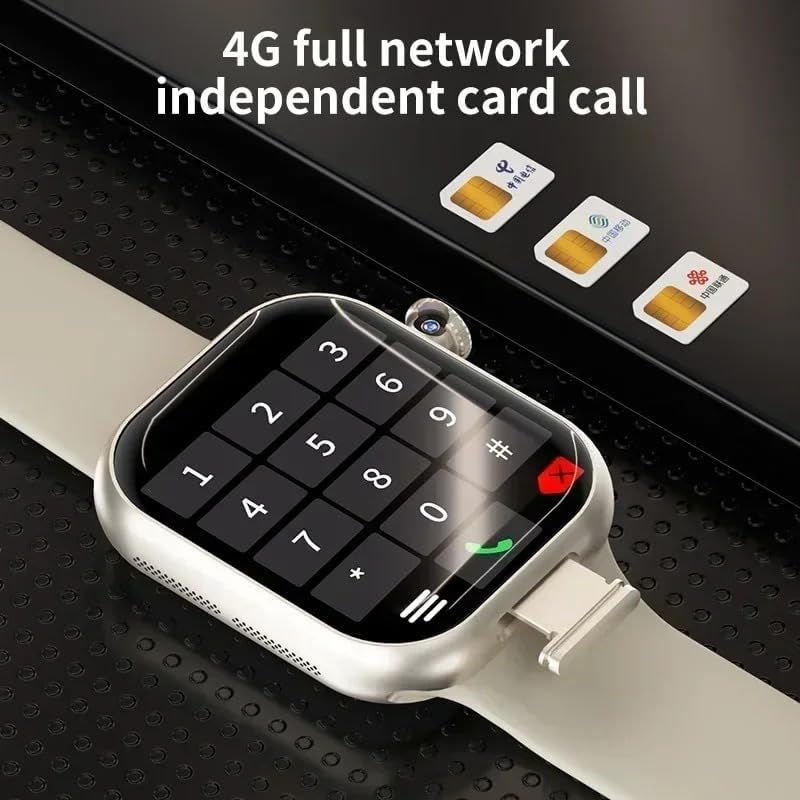
Image: The smartwatch displaying a dialer, with SIM cards in the background, illustrating SIM card functionality.
4.5 Initial Setup
Upon first power-on, follow the on-screen prompts to:
- Select your preferred language.
- Connect to a Wi-Fi network.
- Sign in with your Google account (optional, but recommended for app downloads).
- Set date and time.
5. Operating Instructions
5.1 Navigation
- Touchscreen: Swipe left, right, up, or down to navigate through menus and screens. Tap to select items.
- Power Button: Short press to return to the home screen or wake/sleep the display. Long press for power options.
5.2 Making Calls
With a Nano SIM card inserted and active, you can make and receive calls directly from your smartwatch. Open the 'Phone' app, dial the number, and press the call icon.
5.3 Connectivity
- Wi-Fi: Go to Settings > Network & Internet > WLAN to connect to available Wi-Fi networks.
- Bluetooth: Go to Settings > Connected devices > Bluetooth to pair with headphones or other Bluetooth accessories.
- Hotspot & Tethering: Share your watch's internet connection with other devices via Settings > Network & Internet.
5.4 Applications
The VP29 runs on Android 10.0, allowing you to download and install various applications from the app store (e.g., Google Play Store, if available, or a pre-installed app market). Ensure you are connected to Wi-Fi or have an active SIM data plan.

Image: The smartwatch screen showing various application icons, indicating app download and installation capabilities.
5.5 Camera Functionality
The smartwatch features an 8MP retractable camera. To use it, open the 'Camera' app. The camera module will extend. Tap the screen to take photos or record videos. Adjust settings within the camera app as needed.
5.6 GPS and Location Tracking
The integrated GPS allows for accurate location tracking and navigation. Use compatible map applications to view your current location or get directions.

Image: The smartwatch displaying a map with navigation, highlighting its GPS and positioning features.
5.7 Health and Fitness Tracking
The VP29 includes features for tracking your health and fitness:
- Heart Rate Monitor: Access the heart rate app to measure your pulse.
- Step Counter: The watch automatically tracks your steps throughout the day.
5.8 System Settings Overview
Navigate to 'Settings' to customize your smartwatch:
- Network & Internet: Manage Wi-Fi, mobile data, hotspot, and VPN.
- Bluetooth: Manage Bluetooth connections.
- Display: Adjust brightness, screen timeout, and watch faces.
- Sound: Control volume and notification sounds.
- Apps & Notifications: Manage installed applications, permissions, and notifications.
- Security & Privacy: Set screen lock, manage app permissions.
- System: Check software version, perform updates, reset options.
6. Maintenance
6.1 Cleaning
Wipe the smartwatch and strap with a soft, damp cloth. Avoid using harsh chemicals or abrasive materials. Ensure the charging contacts are clean and dry before charging.
6.2 Battery Care
- Avoid fully discharging the battery frequently.
- Do not leave the device charging for extended periods after it is full.
- Store the device in a cool, dry place if not used for a long time.
6.3 Software Updates
The smartwatch supports Over-The-Air (OTA) updates. Regularly check for software updates via Settings > System > Software Update to ensure optimal performance and access to new features.
7. Troubleshooting
- Device not powering on: Ensure the battery is charged. Connect to the charger for at least 30 minutes.
- Cannot connect to Wi-Fi/Bluetooth: Check if Wi-Fi/Bluetooth is enabled in settings. Restart the device and try again. Ensure you are within range of the network/device.
- SIM card not detected: Ensure the Nano SIM card is correctly inserted and activated by your carrier. Check network bands compatibility.
- Apps crashing or freezing: Close background applications. Clear app cache (Settings > Apps & Notifications > [App Name] > Storage & cache). Restart the device.
- Poor battery life: Reduce screen brightness, disable unnecessary features (GPS, Wi-Fi, Bluetooth) when not in use. Close background apps.
- Touchscreen unresponsive: Restart the device. If the issue persists, contact support.
8. Specifications
| Feature | Specification |
|---|---|
| Brand | JINSHANGZI |
| Model Number | VP29 |
| Operating System | Android 10.0 |
| Processor | Spreadtrum 8541E 10 cores 1.4 GHz |
| Memory (RAM + ROM) | Available configurations: 4GB+64GB, 4GB+128GB, 8GB+128GB, 16GB+256GB, 32GB+256GB |
| SIM Card | Nano SIM (4G independent call) |
| Display | 2.29" AMOLED HD Touchscreen, 490 x 580 resolution |
| Camera | 8MP Rotatable/Retractable Camera |
| Connectivity | Bluetooth, Wi-Fi, GPS (integrated) |
| Battery Capacity | 1380 mAh |
| Health Features | Heart Rate Tracking, Step Counting |
| Supported Languages | English, Arabic, German, Spanish, Persian, Finnish, French, Italian, Japanese, Hebrew, Malay, Dutch, Polish, Portuguese, Russian, Thai, Turkish, Vietnamese, Korean, Filipino, Hindi |
| Form Factor | Rectangular |
9. Warranty and Support
9.1 Warranty Information
Warranty terms and conditions for the JINSHANGZI VP29 Smartwatch are typically provided with your purchase documentation or can be found on the official JINSHANGZI website. Please retain your proof of purchase for warranty claims.
9.2 Customer Support
For further assistance, technical support, or service inquiries, please refer to the contact information provided by your retailer or visit the official JINSHANGZI support website. Have your model number (VP29) and purchase details ready when contacting support.