

1. What's Included
Verify that all components are present in your package:
- InCliick D7-W Camera Pen
- 32GB Micro SD Card
- USB Data Cable
- Ink Refills (3 pieces)
- Reset Pin
- Card Reader
- Instruction Manual

All items included with your InCliick D7-W Camera Pen.
2. Product Features
- Video Resolution: 1080P (1920x1080) at 15 frames per second.
- Viewing Angle: 100 degrees.
- Storage: Supports Micro SD card up to 128GB (32GB card included).
- Connectivity: 2.4G Wi-Fi for app connection and live viewing.
- Battery: Built-in 250mAh rechargeable battery, providing 60-90 minutes of continuous recording.
- Recording Features: Motion-activated alerts, loop recording (automatically overwrites old files).
- Functionality: Operates as a functional writing pen.
- Audio: No audio recording capability.
- Dimensions: 5.9 x 0.63 x 0.63 inches.
- Material: Acrylonitrile Butadiene Styrene (ABS).
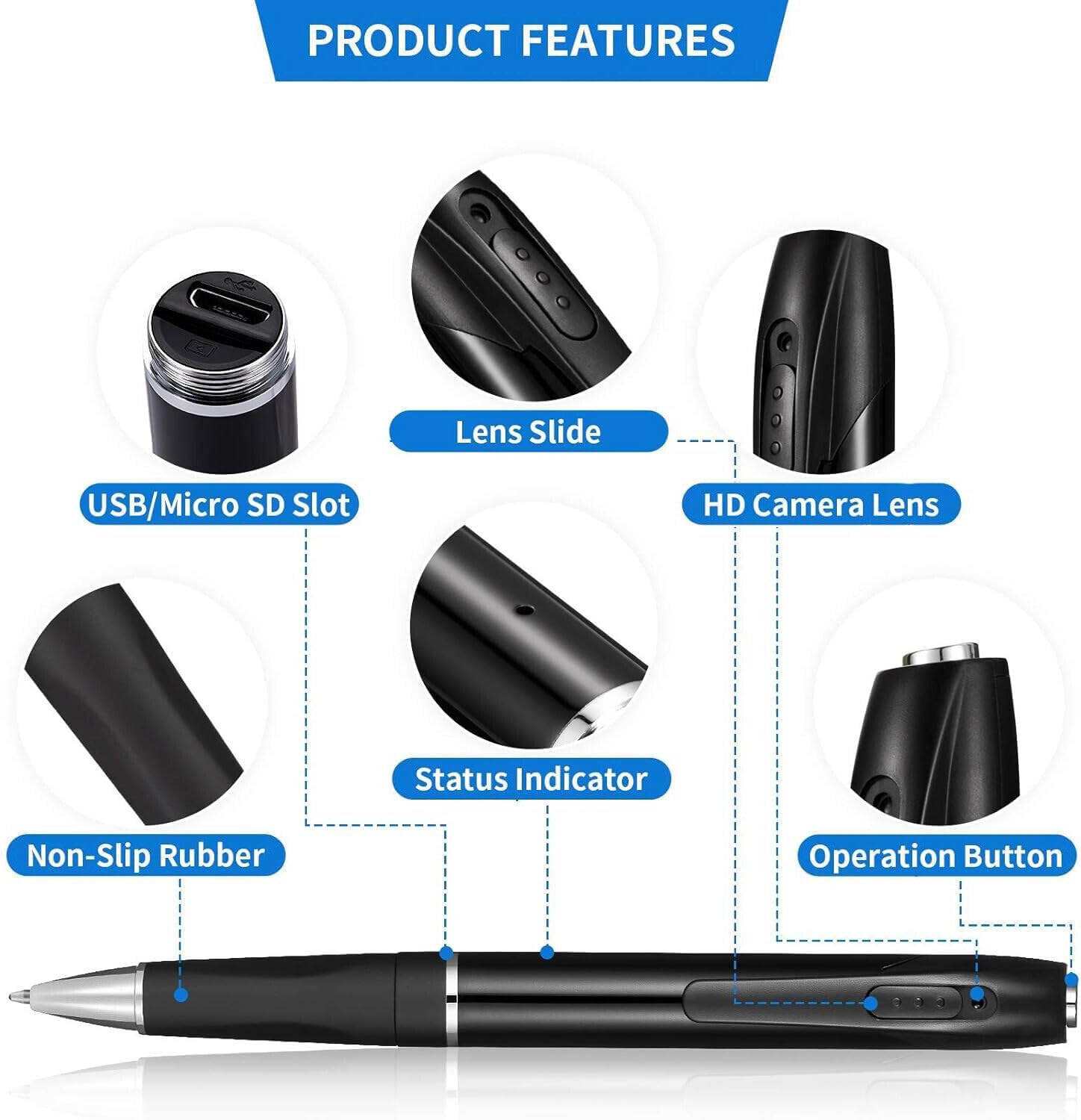
Key features and components of the InCliick D7-W Camera Pen.
3. Setup
3.1 Inserting the Micro SD Card
- Gently twist the pen to separate the two halves, revealing the USB port and Micro SD card slot.
- Insert the provided 32GB Micro SD card into the designated slot until it clicks into place. Ensure correct orientation.
- Reassemble the pen by twisting the halves back together.

Inserting the Micro SD card and connecting the charging cable.
3.2 Powering On/Off
- To Power On: Press and hold the operation button (located near the top of the pen) for 3 seconds. The blue indicator light will flash 3 times and then go out, indicating the camera is on.
- To Power Off: Short press the operation button once.

Instructions for powering the camera pen on and off using the one-click button.
3.3 Connecting to Wi-Fi and App
The camera pen connects via 2.4G Wi-Fi to a dedicated app on your smartphone for live viewing and control.
- Ensure the 32GB card is inserted and the pen is powered on. The indicator light will blink.
- Use the provided reset pin to press the reset hole for 3 seconds. The indicator light will blink rapidly.
- On your smartphone, turn on Wi-Fi and Bluetooth.
- Open the dedicated camera app (refer to the included manual for app name and download instructions).
- Within the app, select 'Add Device' and follow the on-screen prompts to connect to your camera pen's Wi-Fi network.
Video demonstrating the setup process, including inserting the SD card, charging, and connecting to the app.
4. Operating the Camera
4.1 Recording Video
Once powered on and connected to the app, you can initiate video recording directly from the app interface. The camera records in 1080P resolution.
4.2 Taking Pictures
The camera pen supports taking still images during daytime use. This function is also controlled via the connected app.
4.3 Loop Recording
The device features loop recording. When the 32GB Micro SD card is full, the camera will automatically overwrite the oldest files to continue recording, ensuring continuous operation without manual intervention.
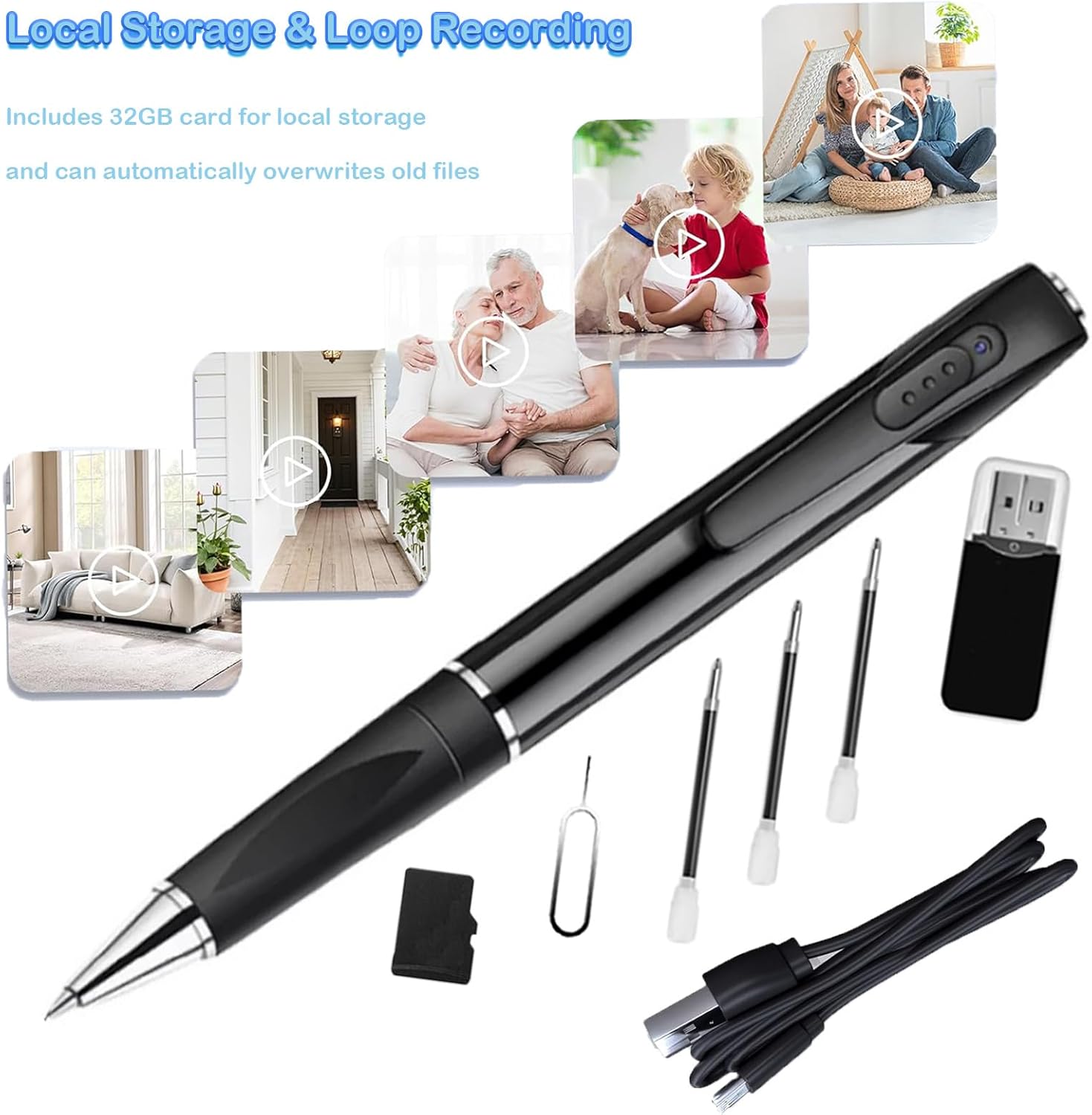
The camera pen supports local storage and loop recording.
4.4 Motion Detection
The camera pen is equipped with motion-activated alerts. When motion is detected, the camera can send alerts to your connected app, notifying you of activity.
5. Charging and Battery Life
The InCliick D7-W Camera Pen has a built-in 250mAh rechargeable battery, providing approximately 60-90 minutes of continuous working time.
5.1 Charging Instructions
- Unscrew the pen to expose the USB charging port.
- Connect the camera pen to a power source using the provided USB data cable.
- The indicator light will show charging status (refer to the full manual for specific light indications).
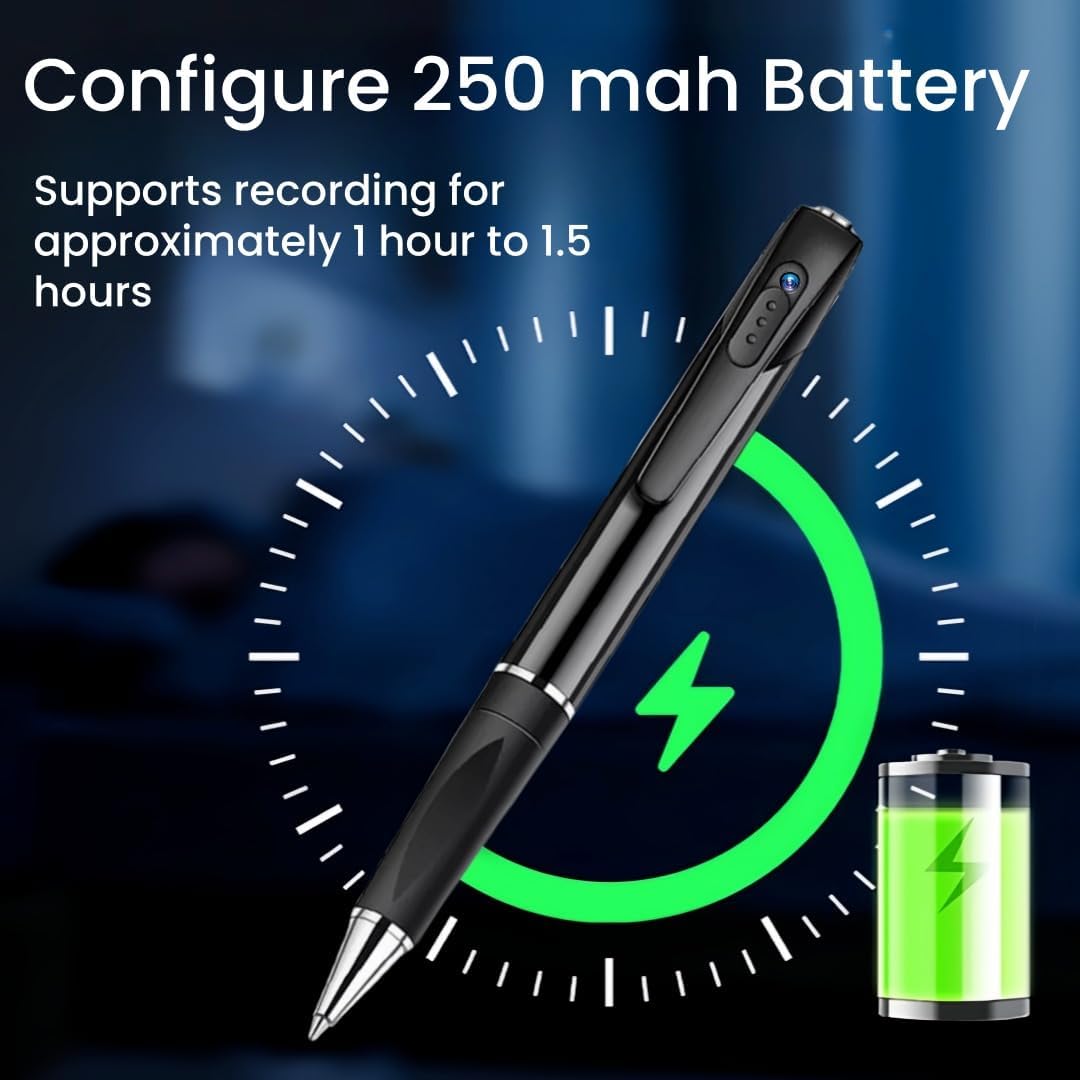
The camera pen features a 250mAh battery for extended use.
6. Viewing Footage
Recorded footage can be viewed in two primary ways:
- Via App: Connect the camera pen to your smartphone app via Wi-Fi for live viewing and to access recorded files directly on your phone.
- Via Computer: Remove the Micro SD card from the pen and insert it into the provided card reader. Connect the card reader to your computer to transfer and view files.
Video demonstrating live viewing and playback of recorded footage through the mobile application.
7. Maintenance
7.1 Cleaning
Wipe the exterior of the pen with a soft, dry cloth. Avoid using liquid cleaners or abrasive materials that could damage the camera lens or finish.
7.2 Ink Refill
To replace the ink, unscrew the pen tip and carefully remove the empty ink cartridge. Insert a new ink refill (3 included) and reassemble the pen.
7.3 Storage
Store the camera pen in a cool, dry place away from direct sunlight and extreme temperatures to prolong battery life and device integrity.
8. Troubleshooting
8.1 Connection Issues
- If the camera pen fails to connect to the app, ensure your phone's Wi-Fi and Bluetooth are enabled.
- Perform a reset using the reset pin as described in Section 3.3.
- Verify that the app is updated to the latest version.
8.2 SD Card Errors
- If an "SD card error" message appears, ensure the card is properly inserted.
- Try reformatting the SD card (this will erase all data, so back up important files first).
- If the issue persists, try a different compatible Micro SD card.
Video showing an SD card error and how to refresh the connection.
9. Specifications
| Indoor/Outdoor Usage | Indoor, Outdoor |
| Compatible Devices | Laptop |
| Power Source | Battery Powered |
| Connectivity Protocol | Wi-Fi |
| Controller Type | Push Button |
| Mounting Type | Tabletop Mount |
| Video Capture Resolution | 1080p |
| Color | black |
| Number of Items | 1 |
| Included Components | camera pen |
| Wireless Communication Technology | Wi-Fi |
| Form Factor | Pen |
| Effective Video Resolution | 1080.0 |
| Viewing Angle | 100 Degrees |
| Frame Rate | 15 frames per second |
| Material | Acrylonitrile Butadiene Styrene (ABS) |
| Wattage | 1 watts |
| Item dimensions L x W x H | 5.9 x 0.63 x 0.63 inches |
| Batteries Required? | Yes |
| Flash Memory Type | Micro SD |
| Video encoding | H.265 |
| Shape | Dome |
| Focus Type | Auto Focus |
| Low light technology | NO |
| Alert Type | Motion Only |
| Video Capture Format | Image |
| Specific Uses For Product | cameras for home security |
| Unit Count | 1.0 Count |
| Photo Sensor Technology | Other |
| Effective Still Resolution | 2 MP |
| Maximum Webcam Image Resolution | 2 MP |
| Control Method | App, Push Button |
| Audio Visual Recording Capabilities | Still Images |
| Item Weight | 2.39 ounces |
| Product Dimensions | 5.9 x 0.63 x 0.63 inches |
| Batteries | 1 Nonstandard Battery (included) |
| Number of Component Outputs | USB |
| Special Features | HD Resolution, Portable |
10. Warranty and Support
For warranty information and technical support, please refer to the contact details provided in the packaging or visit the official InCliick website. Keep your purchase receipt for warranty claims.


