
1. Introduction
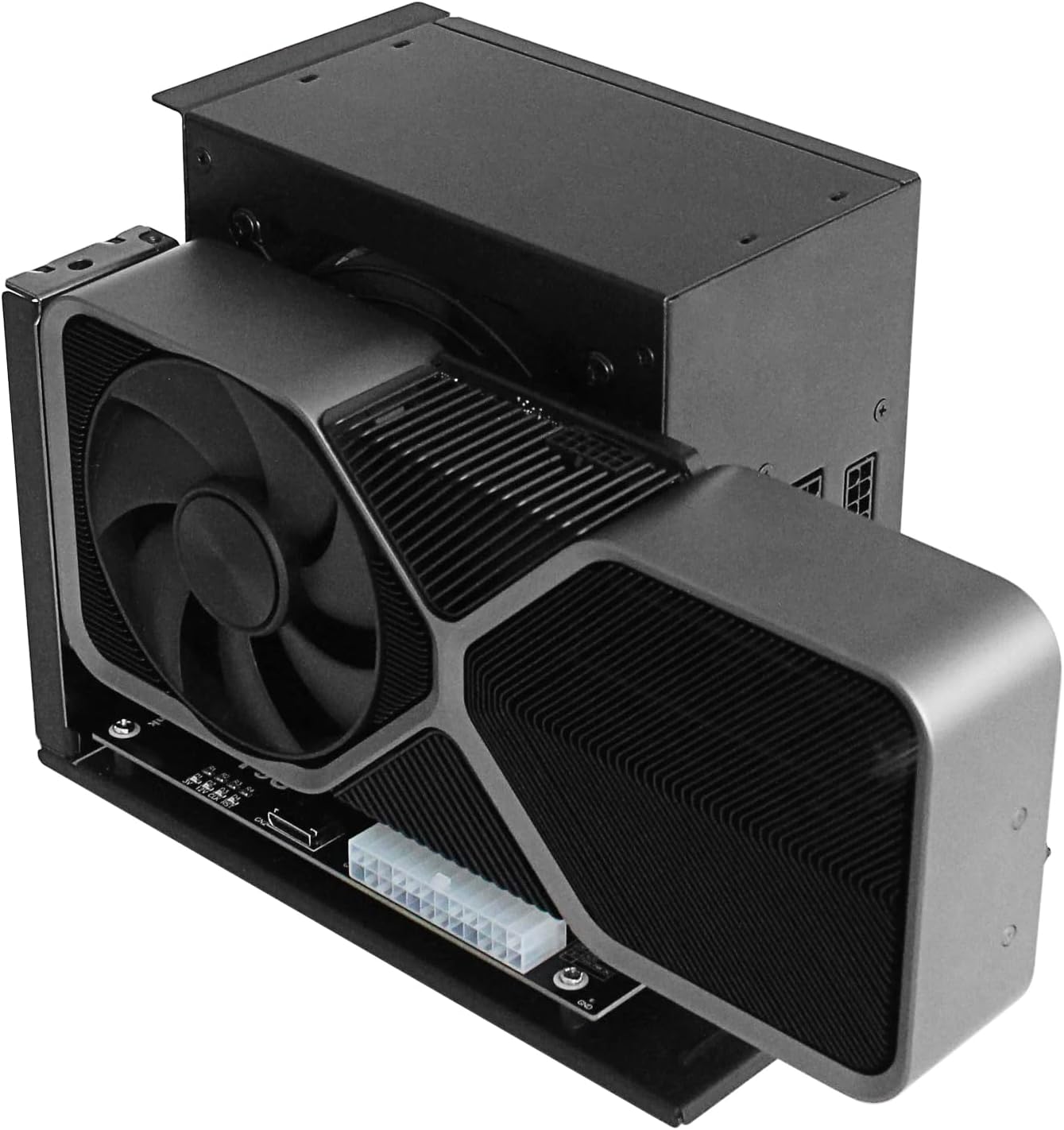
This manual provides detailed instructions for the installation, operation, and maintenance of your OwlTree PCIe 4.0 x4 64Gbps Compatible eGPU Dock. This external graphics card enclosure is designed to enhance the graphical performance of compatible laptops and mini PCs by allowing the connection of a desktop-grade graphics card via an OCuLink interface.
2. Package Contents
Please verify that all items listed below are included in your package:
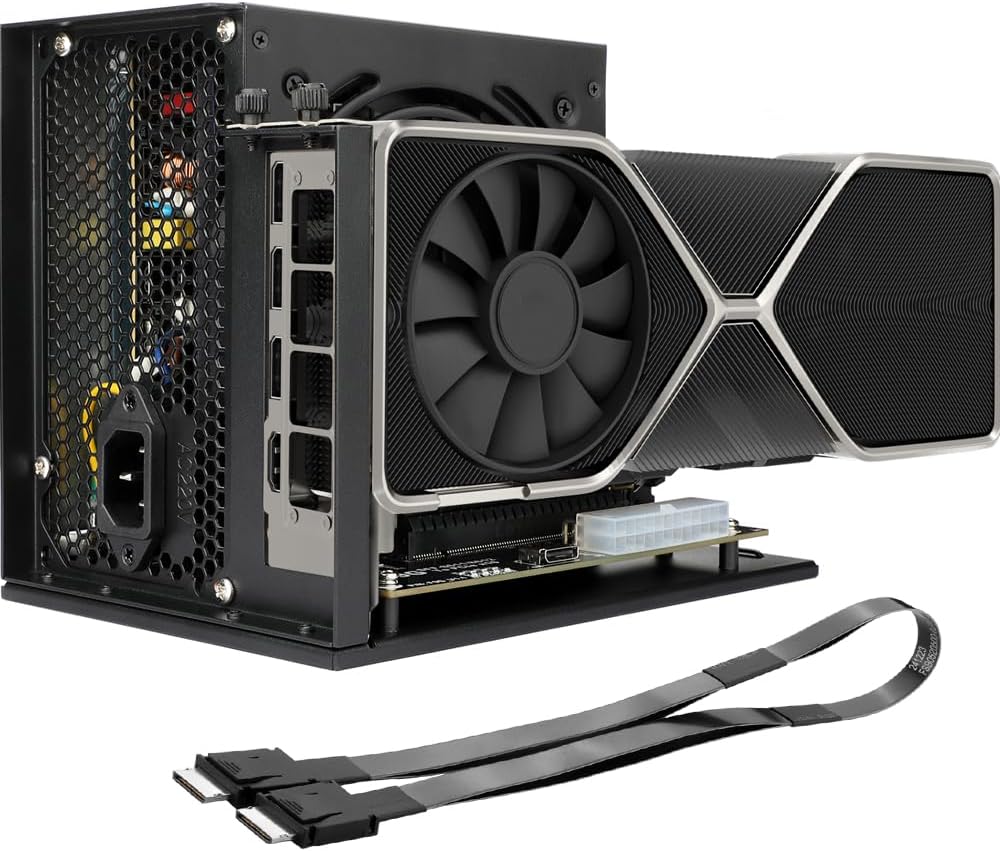
- OCuLink SFF-8612 Female to PCIe x16 Enclosure Dock
- SFF-8611 Male to Male Cable (50cm/19.7inch)
- PCIe x4 riser card
- Mounting screws and accessories

3. Features & Advantages
- Detachable Design: The enclosure features a detachable design on both ends for improved portability and easy storage.
- Superior Conductivity: The PCB board is equipped with 10μ gold-plated contacts to ensure superior conductivity and reduce oxidation/rust-related resistance, which can prevent system crashes or Blue Screen of Death (BSOD).
- Real-time Monitoring: Multi-status LED indicators provide clear visual feedback for real-time device monitoring.
- High Transfer Speed: Supports PCIe 4.0 x4 (64Gbps) transfer speed.
- Ultra-thin & Flexible Cable: The SFF-8611 Male to Male Cable features an ultra-thin and flexible design (0.5mm thickness) with premium aesthetics, eliminating port damage risks associated with rigid traditional OCuLink cables.
- Minimized Interference: Flat cable architecture with full-coverage shielding and advanced EMI materials minimizes interference and performance degradation.


4. Compatibility
- Compatible Graphics Cards: Compatible with graphics cards of various sizes, including high-end models like RTX 4090 and AMD RX 7900 XTX. There are no restrictions on graphics card length.
- Compatible Power Supply: Compatible with standard ATX power supplies ONLY. Features dual screw mounting (top & bottom) for PSU stability.
- Compatible Devices: Designed for use with laptops and mini PCs equipped with an OCuLink interface.

5. Setup & Installation
Follow these steps to set up and install your eGPU Dock:
- Mounting the Bracket: Secure the side panels to the base plate using the provided black screws and foot pads.
- Secure the PCB: Place the PCIe x16 slot PCB onto the base plate and secure it with silver screws.
- Install Power Supply: Secure your standard ATX power supply (PSU) into the designated area with silver screws. Plug the 24-pin connector from the PSU into the PCB's 24-pin connector.
- Install GPU: Install your graphics card (GPU) into the PCIe x16 slot. Secure the GPU with black screws. Connect the PCIe power cable(s) from the PSU directly to the GPU.
- Connect to PC: Connect the eGPU dock to your laptop or mini PC using the OCuLink cable. Ensure your computer is turned off before connecting or disconnecting the OCuLink cable.
Installation Videos:
6. Operation
After connecting the eGPU dock to your computer, ensure proper recognition and functionality:
- Driver Installation: Once powered on with your PC, install the correct driver from the graphics card's website for the Display Adapter in Device Manager to finish setup.
- Indicator Lights: The PCB features LED indicators for various statuses:
- D1: Cable detection (may not activate with certain cables).
- D2: ATX power status (On = power on normally, Off = check switch or cable connection).
- D3: May not activate with certain AMD Graphics Cards.
- D4: Normally off, flashes briefly only during startup/shutdown.
- Operational Condition: D2 light must be ON; D4 light must be OFF. Note: D1 and D3 lights are for detection only and do not impact functionality.
- Switch Settings (SW1):
- Position 1 (Auto-start): Follows the system's power state. This is the recommended setting.
- Position 2 (Force-start): Directly supplies power to the dock. Warning: Using Force-start may pose risks. It is advised to keep the switch in Position 1.


7. Troubleshooting
- OCuLink Port Not Detected: If your PC with a built-in OCuLink port fails to detect the dock in Device Manager, follow this forced startup procedure: First, turn on the dock using its physical switch. Then, start your computer.
- Graphics Card Error (Code 43 or 12): Some PCs may show a yellow exclamation mark on the eGPU in Device Manager, or display "Windows has stopped this device because it has reported problems (Code 43 or Code 12)". A simple restart might fix this. If the error persists, you may need to download a patch to resolve the issue.
- No Hot-Plugging: The OCuLink interface does not support hot-plugging. Always turn off your computer before unplugging the OCuLink cable to prevent damage.
8. Specifications
| Feature | Detail |
|---|---|
| Package Dimensions | 9.96 x 5.67 x 1.61 inches |
| Item Weight | 1.04 pounds (0.47 Kilograms) |
| Manufacturer | OwlTree |
| Compatible Devices | Laptop, Mini PC |
| Connector Type | PCI Express (OCuLink SFF-8612 to PCIe x16) |
| Form Factor | ATX (for power supply) |
| Cooling Method | Air (via GPU fans) |
| Maximum Input Voltage | 240 Volts (AC) |
| Minimum Input Voltage | 100 Volts (AC) |
9. Warranty & Support
For warranty information, technical support, or any inquiries regarding your OwlTree eGPU Dock, please refer to the manufacturer's official website or contact their customer service directly. Details can typically be found on the product packaging or the OwlTree brand store.
Manufacturer: OwlTree
Brand Store: Visit the OwlTree Store on Amazon