
1. Introduction
Thank you for choosing the La Crosse Technology WS6281 Thermo-Hygrometer Station. This device is designed to provide accurate indoor temperature and humidity readings, along with time display and comfort level indication. Its compact design allows for versatile placement, either on a tabletop or mounted on a wall. Please read this manual carefully to ensure proper setup and operation of your new device.
Key features include:
- Accurate indoor temperature and humidity display.
- Min/Max record for temperature and humidity.
- Temperature and humidity trend arrows.
- Comfort level indicator.
- Selectable Celsius or Fahrenheit temperature display.
- Backlight for easy viewing.
- Versatile placement: tabletop stand or wall mount with removable self-adhesive fixation.
2. Package Contents
- 1 x La Crosse Technology WS6281 Thermo-Hygrometer Station
- 2 x CR2032 Batteries
- 1 x User Manual (this document)
3. Product Overview
Familiarize yourself with the main components of your WS6281 station:
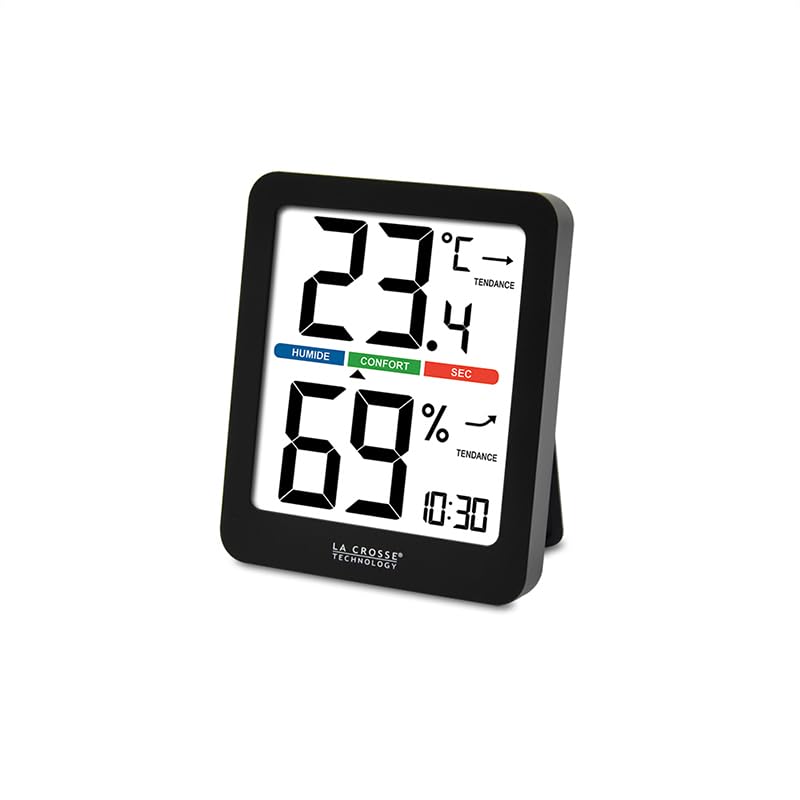
Figure 1: Front view of the La Crosse Technology WS6281 Thermo-Hygrometer Station. The display shows indoor temperature (23.4°C), indoor humidity (69%), time (10:30), and comfort level indicators (Humide, Confort, Sec) along with temperature and humidity trend arrows.
Display Elements:
- Time Display: Shows current time.
- Indoor Temperature: Displays the current indoor temperature in Celsius or Fahrenheit.
- Temperature Trend Arrow: Indicates if the temperature is rising, falling, or stable.
- Indoor Humidity: Displays the current indoor relative humidity.
- Humidity Trend Arrow: Indicates if the humidity is rising, falling, or stable.
- Comfort Level Indicator: Shows the current indoor comfort level (Humid, Comfort, Dry).
- MIN/MAX Indicator: Appears when viewing minimum or maximum recorded values.
- Battery Indicator: Shows when batteries are low.
Buttons (typically on the back or side):
- MODE/SET Button: Used to switch display modes and enter settings.
- UP/+/C/F Button: Used to adjust values in settings or switch temperature units.
- DOWN/-/MIN/MAX Button: Used to adjust values in settings or view Min/Max records.
- LIGHT Button: Activates the backlight.
4. Setup
4.1. Battery Installation
- Locate the battery compartment on the back of the unit.
- Open the battery compartment cover.
- Insert 2 new CR2032 batteries, observing the correct polarity (+ and - markings).
- Close the battery compartment cover securely.
- The device will power on automatically and display initial readings.
4.2. Setting the Time
- Press and hold the MODE/SET button for approximately 3 seconds to enter time setting mode. The hour digit will flash.
- Use the UP/+ or DOWN/- buttons to adjust the hour.
- Press the MODE/SET button again to confirm the hour and move to minute setting. The minute digit will flash.
- Use the UP/+ or DOWN/- buttons to adjust the minute.
- Press the MODE/SET button to confirm the minute and exit time setting mode.
4.3. Placement
The WS6281 offers flexible placement options:
- Tabletop Placement: Extend the integrated stand on the back of the unit and place it on any flat surface.
- Wall Mounting: Use the removable self-adhesive fixation provided. Ensure the wall surface is clean and dry before applying. Avoid placing the unit in direct sunlight, near heat sources, or in areas with high drafts, as this can affect accuracy.
5. Operation
5.1. Reading Temperature and Humidity
Once powered on, the current indoor temperature and humidity will be displayed automatically on the main screen.
5.2. Switching Temperature Units (°C/°F)
Press the UP/+ button (often labeled C/F) to toggle between Celsius (°C) and Fahrenheit (°F) temperature display.
5.3. Viewing Minimum and Maximum Records
The device records the minimum and maximum temperature and humidity values over a period. To view these records:
- Press the DOWN/- button (often labeled MIN/MAX) once to display the maximum recorded temperature and humidity. The "MAX" indicator will appear.
- Press the DOWN/- button again to display the minimum recorded temperature and humidity. The "MIN" indicator will appear.
- Press the DOWN/- button a third time to return to the current temperature and humidity display.
- To clear the MIN/MAX records, press and hold the DOWN/- button for approximately 3 seconds while viewing the MIN or MAX values.
5.4. Temperature and Humidity Trend Arrows
Next to the temperature and humidity readings, you will see trend arrows:
- ↑ (Up Arrow): Indicates the temperature/humidity is rising.
- ↓ (Down Arrow): Indicates the temperature/humidity is falling.
- → (Horizontal Arrow): Indicates the temperature/humidity is stable.
5.5. Comfort Level Indicator
The comfort level indicator provides a quick visual reference for indoor conditions:
- HUMID: Indicates high humidity.
- COMFORT: Indicates ideal temperature and humidity conditions.
- DRY: Indicates low humidity.
5.6. Backlight
Press the LIGHT button to activate the display backlight for a few seconds, improving visibility in low-light conditions.
6. Maintenance
6.1. Battery Replacement
When the low battery indicator appears on the display, it is time to replace the batteries. Follow the steps in Section 4.1. Battery Installation, ensuring to use 2 new CR2032 batteries.
6.2. Cleaning
Clean the unit with a soft, damp cloth. Do not use abrasive cleaners or solvents, as these may damage the display or casing. Avoid submerging the unit in water.
7. Troubleshooting
| Problem | Possible Cause | Solution |
|---|---|---|
| No display or faint display | Dead or incorrectly installed batteries. | Replace batteries with new CR2032 batteries, ensuring correct polarity. |
| Inaccurate temperature/humidity readings | Unit placed in direct sunlight, near heat/cold sources, or in a draft. | Relocate the unit to a stable indoor environment away from extreme conditions. Allow 20-30 minutes for readings to stabilize. |
| Display frozen or unresponsive | Temporary electronic glitch. | Remove batteries for 1 minute, then reinsert them to perform a soft reset. |
8. Specifications
| Feature | Specification |
|---|---|
| Model Number | WS6281 (Manufacturer Reference: WS6236-BLA) |
| Brand | La Crosse Technology |
| Indoor Temperature Range | -9.9°C to 50°C (14.2°F to 122°F) |
| Temperature Accuracy | ±1°C |
| Indoor Humidity Range | 20% RH to 95% RH |
| Power Source | 2 x CR2032 batteries |
| Base Dimensions (L x W x H) | 83.3 x 106 x 16.8 mm (approx. 3.28 x 4.17 x 0.66 inches) |
| Screen Dimensions (L x W) | 64.5 x 76 mm (approx. 2.54 x 2.99 inches) |
| Weight | 130 grams (approx. 0.29 lbs) |
9. Warranty and Support
La Crosse Technology products are manufactured to high-quality standards. For specific warranty information, please refer to the warranty card included with your product or visit the official La Crosse Technology website. If you encounter any issues or require technical assistance, please contact La Crosse Technology customer support through their official channels.
For further assistance, please visit: www.lacrossetechnology.com/support