1. Introduction
This manual provides essential information for setting up, operating, maintaining, and troubleshooting your KAIGERR LX16 16.0-inch laptop. Please read this guide thoroughly to ensure optimal performance and longevity of your device.

Image 1.1: The KAIGERR LX16 laptop, showcasing its 16-inch display, Windows 11 operating system, 512GB SSD, and 16GB RAM.
2. Package Contents
Verify that all items are present in your product packaging:
- 1 × KAIGERR LX16 Laptop (16GB RAM + 512GB SSD)
- 1 × Power Adapter
- 1 × User Manual (this document)
3. Product Overview
3.1. External Features and Ports
Familiarize yourself with the various ports and features of your KAIGERR LX16 laptop.

Image 3.1: Left side of the laptop showing DC Jack, Type-C port, HDMI port, and USB 3.2 port. Right side showing 3.5mm Headphone jack, two USB 3.2 ports, and an SD Card Socket.
- DC Jack: For connecting the power adapter to charge the laptop.
- Type-C Port: Supports data transfer and can also be used for charging.
- HDMI Port: For connecting to external displays or projectors.
- USB 3.2 Ports (x3): For connecting USB devices such as external hard drives, mice, or keyboards.
- 3.5mm Headphone Jack: For connecting headphones or external speakers.
- SD Card Socket: For reading and writing data from SD cards.
3.2. Keyboard and Touchpad
The laptop features a full-sized QWERTY keyboard with a numeric keypad for enhanced typing efficiency. The large touchpad provides precise cursor control.

Image 3.2: The laptop's full QWERTY keyboard layout, including a numeric keypad, designed for an enhanced typing experience.
3.3. Display
The KAIGERR LX16 is equipped with a 16.0-inch FHD+ (1920x1200 pixels) IPS display. This thin-bezel screen offers vibrant colors and wide viewing angles, providing an immersive visual experience.

Image 3.3: The 16-inch IPS display showcasing its Full HD 1920x1200 resolution and eye protection features.
4. Setup
4.1. Initial Charging
Before first use, connect the power adapter to the DC Jack on your laptop and plug it into a power outlet. Allow the laptop to charge for at least 30 minutes, or until the battery indicator shows a sufficient charge, before powering it on.
4.2. Powering On and Initial Setup
- Press the power button located on the keyboard to turn on the laptop.
- Follow the on-screen instructions to complete the Windows 11 initial setup. This includes selecting your region, language, connecting to a Wi-Fi network, and creating a user account.
- Ensure you have a stable internet connection during the setup process for necessary updates.
5. Operating Your Laptop
5.1. Basic Operations
- Power On/Off: Press the power button to turn on. To shut down, click the Start button, then Power > Shut down.
- Sleep Mode: Close the lid or click the Start button, then Power > Sleep.
- Restart: Click the Start button, then Power > Restart.
5.2. Connecting to Networks
Your laptop supports Wi-Fi 6 for high-speed wireless internet connectivity and Bluetooth 5.0 for connecting wireless peripherals.

Image 5.1: Visual representation of the laptop's stable wireless data capabilities, including WiFi 5 and Bluetooth 5.0, alongside its stereo speakers.
- Wi-Fi: Click the Wi-Fi icon in the taskbar, select your network, enter the password, and click Connect.
- Bluetooth: Go to Settings > Bluetooth & devices, turn on Bluetooth, and pair with your desired device.
5.3. External Display Connection
Use the HDMI port to connect an external monitor or projector. This allows for dual-screen display, enhancing productivity.
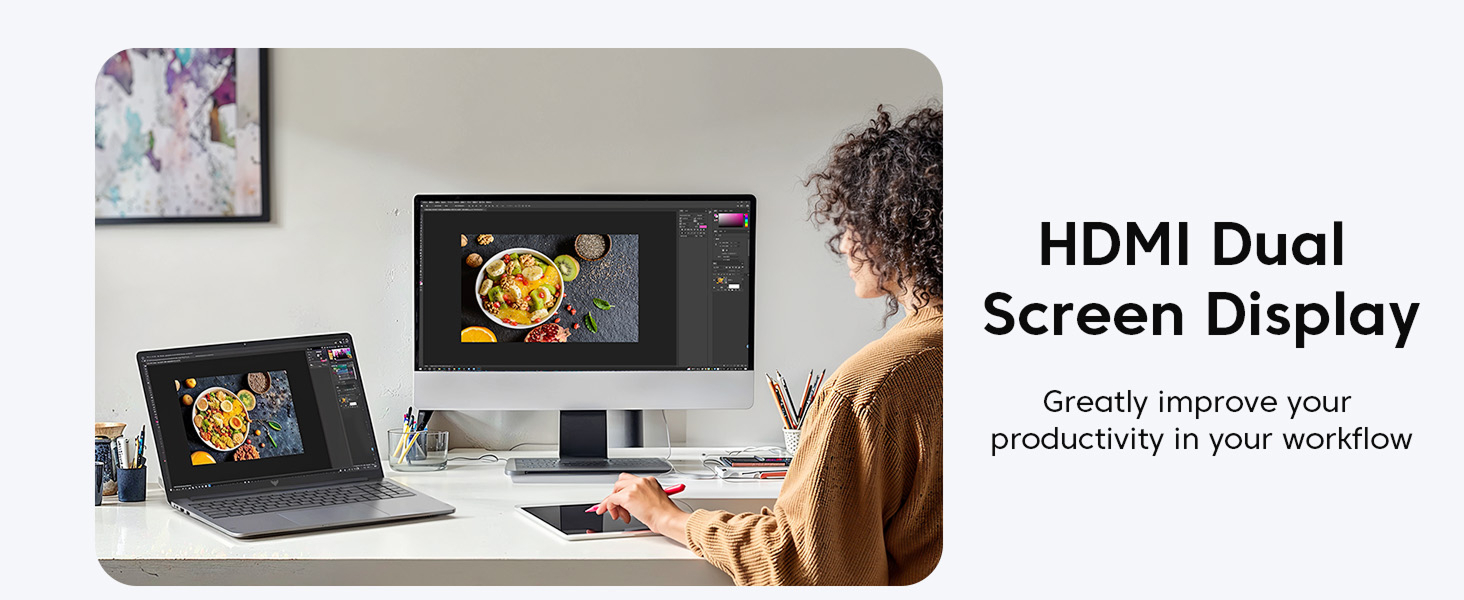
Image 5.2: A laptop connected to an external screen, demonstrating the HDMI Dual Screen Display feature to improve workflow.
5.4. Storage and Memory
The laptop comes with 16GB DDR4 RAM and a 512GB M.2 SSD. Storage can be expanded using a TF card (up to 128GB) or by replacing the M.2 SSD with a larger capacity drive (up to 2TB).

Image 5.3: Illustration of the laptop's capacity to handle multiple applications and store various file types, supported by 16GB DDR4 RAM and a 512GB M.2 2280 SSD.
6. Maintenance
6.1. Cleaning
- Use a soft, lint-free cloth to clean the screen and exterior surfaces.
- For stubborn marks, slightly dampen the cloth with water or a screen-safe cleaner.
- Avoid using harsh chemicals or abrasive materials.
6.2. Battery Care
- To prolong battery life, avoid fully discharging the battery frequently.
- Store the laptop in a cool, dry place when not in use for extended periods.
- The 38Wh battery provides approximately 8 hours of usage, depending on workload.
6.3. Software Updates
Regularly update your Windows 11 operating system and device drivers to ensure optimal performance, security, and compatibility. You can check for updates via Windows Settings > Windows Update.
7. Troubleshooting
7.1. Common Issues and Solutions
| Issue | Possible Solution |
|---|---|
| Laptop does not power on | Ensure the power adapter is securely connected and the battery has sufficient charge. Try holding the power button for 10-15 seconds to perform a hard reset. |
| Screen remains black after opening lid | Press any key or move the mouse to wake the laptop. If unresponsive, perform a hard reset by holding the power button. Check external display connections if applicable. |
| Wi-Fi or Bluetooth not connecting | Check if Wi-Fi/Bluetooth is enabled in Windows settings. Restart the laptop and your router/Bluetooth device. Update network drivers if necessary. |
| Keyboard function keys (e.g., mute, brightness) not working | Ensure all system drivers are up to date. Visit the KAIGERR support website for the latest driver downloads. |
| Slow performance | Close unnecessary background applications. Check for malware. Ensure sufficient free storage space on the SSD. Update Windows and drivers. |
If you encounter issues not listed here or if the suggested solutions do not resolve the problem, please contact KAIGERR customer support.
8. Specifications
Detailed technical specifications for the KAIGERR LX16 laptop:
| Feature | Specification |
|---|---|
| Model | LX16 |
| Operating System | Windows 11 |
| Processor | 12th Gen Intel Quad-Core Processor (up to 3.6GHz) |
| RAM | 16GB DDR4 SDRAM |
| Storage | 512GB M.2 2280 SSD (expandable up to 2TB) |
| Display | 16.0-inch IPS FHD+ (1920x1200 pixels) |
| Graphics | Integrated UHD Graphics |
| Wireless Connectivity | WiFi 6, Bluetooth 5.0 |
| Ports | 1x DC Jack, 1x Type-C, 1x HDMI, 3x USB 3.2, 1x 3.5mm Headphone Jack, 1x SD Card Socket |
| Battery | 38Wh Lithium Ion (up to 8 hours usage) |
| Dimensions (LxWxH) | 14.05 x 8.97 x 0.66 inches |
| Weight | 5.39 pounds |
9. Warranty and Support
KAIGERR provides comprehensive support for your LX16 laptop:
- Warranty: Enjoy peace of mind with 12 months of repair service for all customers.
- Technical Support: Unlimited technical support is available.
- Contact Information:
- Email: service@ikaigerr.com
- Phone (US): +1 833 988 3568 (Mon-Fri 9am-5pm EST)

Image 9.1: KAIGERR customer support details, including email and phone number for assistance.
For any questions or concerns, please do not hesitate to reach out to our support team.