
1. Introduction
The Voinap F3 Phone Camera Remote Control is a versatile Bluetooth device designed to enhance your mobile photography and videography experience. This compact, rechargeable remote allows you to control your smartphone's camera functions, including triggering photos, starting/stopping videos, zooming, and switching between front and rear cameras, all from a distance. It also offers features for scrolling short videos and turning e-book pages, providing hands-free convenience for various digital activities.
2. Key Features
- Remote Camera Shutter: Remotely trigger image or video recording within 33 feet, ideal for group photos, selfies, and videos without touching your phone.
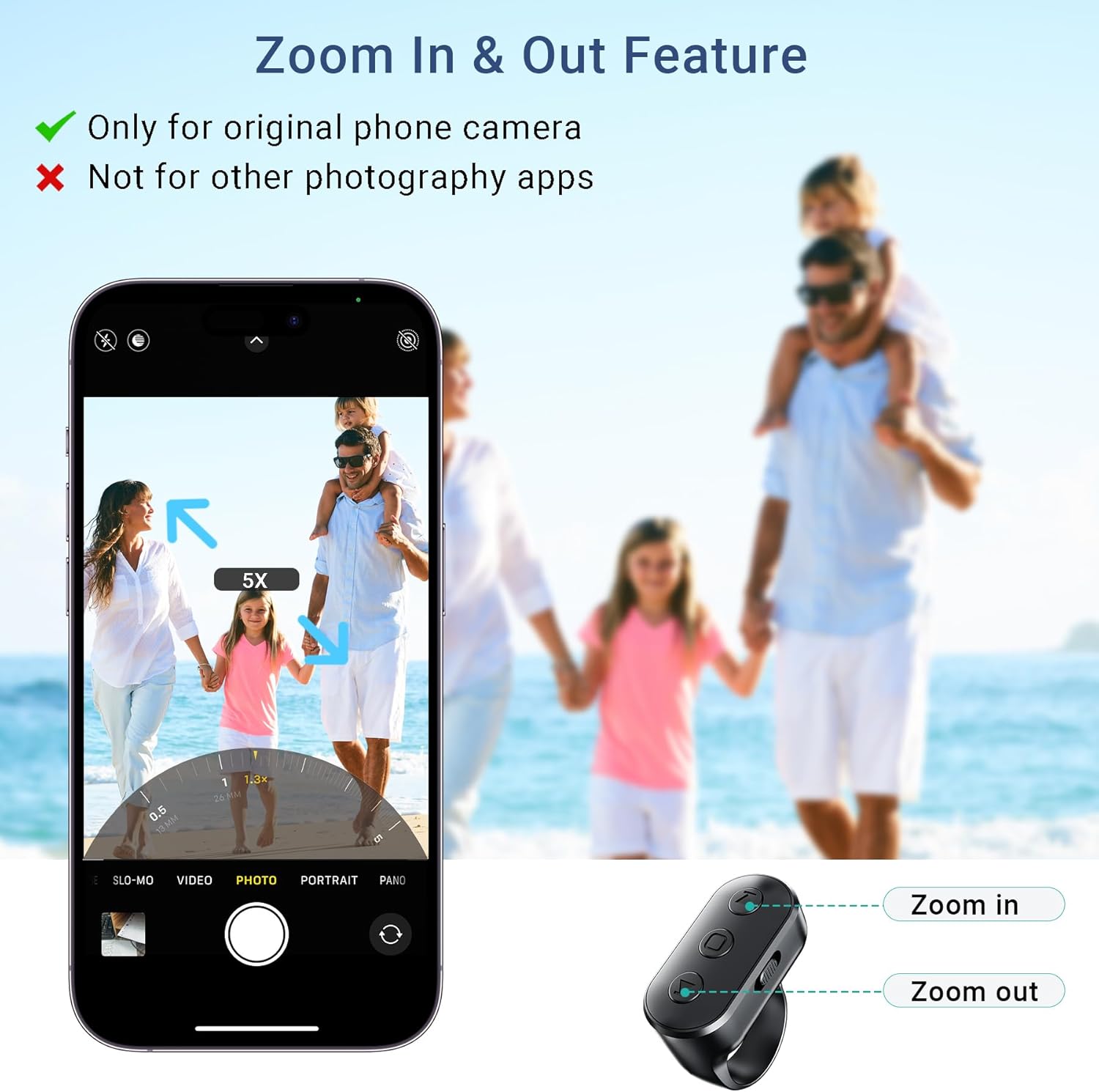
- Zoom & Camera Switch: Easily zoom in and out, and quickly switch between front and rear cameras for professional-looking shots.
- Video Scrolling & Page Turner: Beyond camera control, this remote supports scrolling short videos (e.g., TikTok, YouTube) and turning pages in e-books.
- Compact & Rechargeable: Designed as a fingertip ring, it frees your hands during use. Features a USB-C charging port and long battery life.
- Widely Compatible: Works with most iPhone, iPad, iPod, and Android smartphones and tablets, compatible with most camera applications.
3. Package Contents
- 1 x Voinap F3 Phone Camera Remote Control
- 1 x USB-C Charging Cable
- 1 x User Manual
4. Setup Guide
4.1. Charging the Device
Before first use, ensure the remote is fully charged. Connect the provided USB-C charging cable to the charging port on the side of the remote and to a compatible USB power source. The indicator light will show charging status.
4.2. Bluetooth Pairing
- Power On: Locate the slide switch on the side of the remote. Slide it from 'O' (Off) to either 'T' or 'C' mode to power on the device. The indicator light will flash, indicating it's in pairing mode.
- Enable Bluetooth on your Phone/Tablet: Go to your device's Bluetooth settings and turn on Bluetooth.
- Connect: Look for 'F3' in the list of available devices and select it to pair. The indicator light on the remote will stop flashing once successfully paired.
- For iPhone/iPad Users (Important): To ensure full functionality, especially for zoom features, navigate to your device's settings: Settings > Accessibility > Zoom and enable the Zoom accessibility feature. If functions stop working after a while, turn off Zoom accessibility, reboot your device, and then re-enable Zoom accessibility.
Text Description for Image: This image illustrates the Bluetooth pairing process for both iOS and Android devices. For iOS, it shows navigating through Settings > Accessibility > Zoom to enable it, then connecting via Bluetooth. For Android, it shows directly connecting via Bluetooth settings. The Voinap F3 remote is shown prominently, highlighting its compatibility with various smartphones and tablets.

Text Description for Video: This video demonstrates the Voinap F3 remote's features, including zoom and front/rear camera switching. It shows a user operating the remote to control a smartphone camera, highlighting the ease of use for both photo and video recording. The video is provided by the seller, VN-US.
5. Operating Instructions
5.1. Mode Selection
The remote features a slide switch with three positions: 'O' (Off), 'T' (TikTok/Scrolling Mode), and 'C' (Camera Mode).
- 'O' Mode: Power off.
- 'T' Mode: Optimized for scrolling short videos (e.g., TikTok, YouTube) and turning pages in e-book apps.
- 'C' Mode: Dedicated for camera control, including photo/video capture, zoom, and camera switching.
5.2. Button Functions
The remote has three main buttons: an Up arrow, a Middle button (square icon), and a Down arrow.
| Button | 'T' Mode (TikTok/Scrolling) | 'C' Mode (Camera) |
|---|---|---|
| Up Arrow | Single press: Previous page/scroll up Double click: Previous page Long press: Previous page | Single press: Swipe left Long press: Zoom in |
| Middle Button | Single press: Play/Pause Double click: Next video/page | Single press: Photo/Video trigger Double click: Camera flip (Front/Rear) |
| Down Arrow | Single press: Next page/scroll down Double click: Next page Long press: Next page | Single press: Swipe right Long press: Zoom out |
Text Description for Image: This image displays the Voinap F3 remote being used to take a group photo on a beach, demonstrating its function as a remote camera shutter. The remote is shown in a hand, with a visual representation of its signal reaching the smartphone on a selfie stick.

Text Description for Image: This image illustrates the zoom in and out feature of the Voinap F3 remote. A smartphone screen shows a camera interface with a zoom slider, and the remote is depicted with labels for 'Zoom in' and 'Zoom out' buttons. A note indicates this feature is primarily for original phone camera apps.
Text Description for Image: This image shows the front and rear camera switch function of the Voinap F3 remote. Two separate photos display a scene captured first with the front camera and then with the rear camera, with the remote control shown next to an icon indicating camera switching.

Text Description for Image: This image highlights the
Ask a question about this manual
Ask about setup, troubleshooting, compatibility, parts, safety, or missing instructions. Manuals+ will review the question and use this page’s manual context to help answer it.