
1. Product Overview
This manual provides detailed instructions for the installation, operation, and maintenance of your B4U Android 13 Car Radio, designed specifically for Toyota Camry models from 2015 to 2017. This unit features a 10.2-inch IPS touchscreen, 4GB RAM, 64GB ROM, Wireless CarPlay, Android Auto, Bluetooth 5.2, GPS, WiFi, and support for a backup camera.
Before installation, please verify your vehicle’s center console dimensions and shape to ensure compatibility. If unsure, consult with a professional or the manufacturer.
2. Included Components
The package includes the following items:
- Main Head Unit (10.2-inch IPS Touchscreen)
- Power Cable & RCA Cable
- USB Cable & Microphone Cable
- Camera & Camera Cable (Note: Backup camera may be included or sold separately, refer to product packaging)
- GPS Antenna & Signal Cable
- User Manual

Image: All components included with the B4U Android 13 Car Radio, showing the main unit, various cables (power, RCA, USB, microphone, camera), GPS antenna, and a manual.
3. Installation Guide
Professional installation is recommended. Ensure the vehicle's power is disconnected before beginning installation.
- Preparation: Carefully remove the original car stereo and trim panels.
- Wiring: Connect the provided power cable, RCA cables, USB cables, microphone cable, and GPS antenna to the corresponding ports on the new head unit and your vehicle's wiring harness. Ensure all connections are secure.
- Backup Camera (if applicable): If installing a backup camera, connect its video cable to the "CAM-IN" port on the head unit and its power to the vehicle's reverse light circuit.
- Mounting: Secure the new head unit into the dashboard opening. Reinstall any removed trim panels.
- Testing: Reconnect the vehicle's power. Turn on the ignition and test all functions of the car radio, including audio, touchscreen, GPS, Bluetooth, and camera input.

Image: The B4U Android 13 Car Radio seamlessly integrated into the dashboard of a Toyota Camry, showcasing its 10.2-inch display.

Image: A visual comparison showing the original car stereo and the upgraded B4U Android 13 Car Radio installed in a Toyota Camry, highlighting the modern display.
4. Operating Instructions
4.1. Basic Operation
- Power On/Off: Press and hold the power button on the left side of the unit.
- Volume Control: Use the physical buttons or the on-screen controls to adjust volume.
- Home Screen: Tap the home icon to return to the main Android interface.
- Navigation: Swipe left/right on the screen to access different application pages.
4.2. Wireless CarPlay & Android Auto
Enjoy seamless smartphone integration with Wireless CarPlay and Android Auto.
- Ensure Bluetooth and Wi-Fi are enabled on your smartphone.
- On the car radio, open the CarPlay/Android Auto application.
- Follow the on-screen prompts to pair your phone via Bluetooth. Once paired, the system will automatically establish a Wi-Fi connection for wireless functionality.
- You can now access navigation, music, calls, and messages directly from the car radio display.
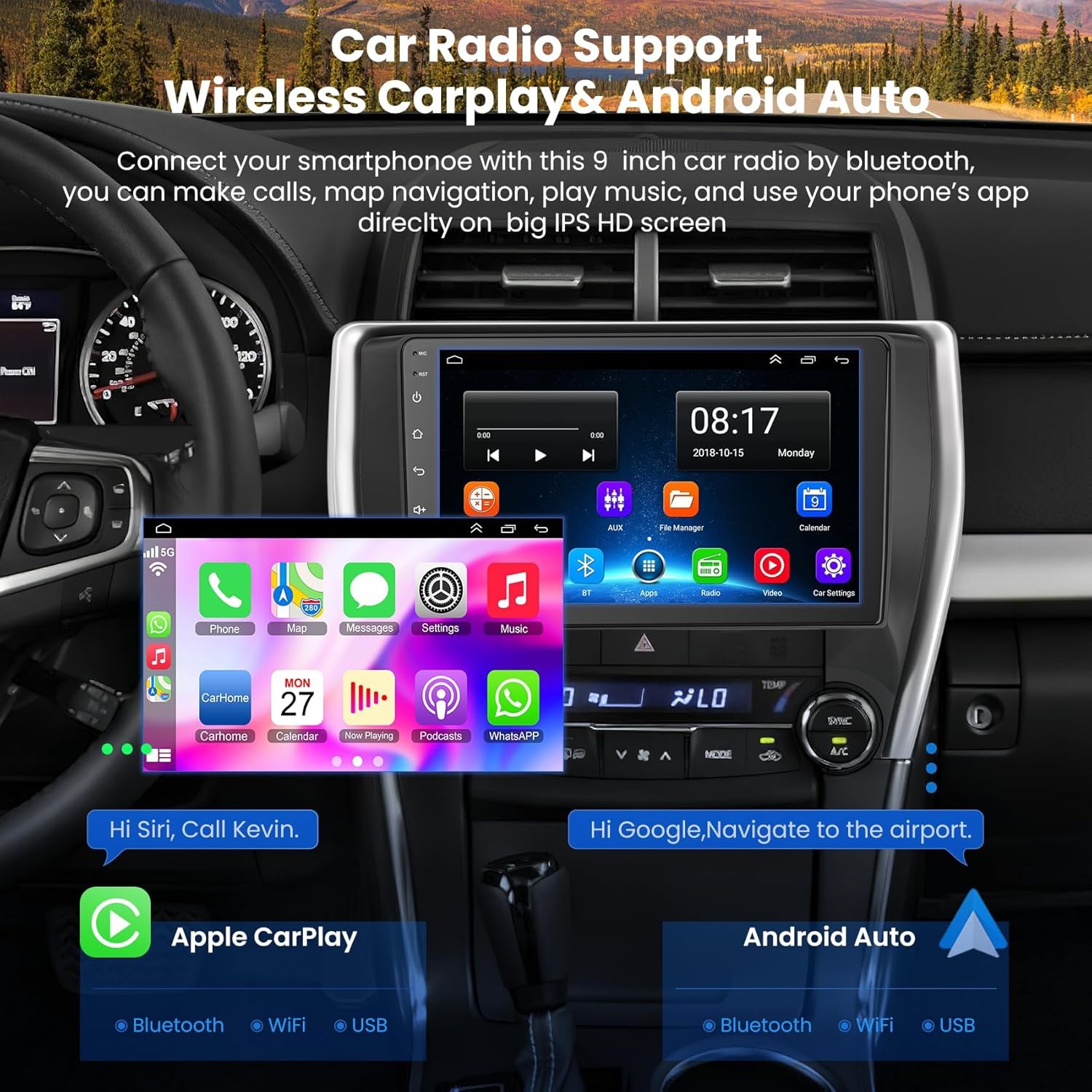
Image: The car radio display showing the Wireless CarPlay and Android Auto interfaces, demonstrating phone connectivity for navigation, music, and calls.
4.3. Bluetooth 5.2 & Voice Control
Connect your phone via Bluetooth for hands-free calls and audio streaming.
- Pairing: Go to the Bluetooth settings on the car radio and your phone. Select the car radio from your phone's available devices to pair.
- Hands-Free Calls: Use the built-in microphone and speakers for clear calls.
- Voice Control: Activate Siri or Google Assistant through the car radio for hands-free commands.

Image: The car radio screen displaying Bluetooth connectivity for phone calls and music, alongside an illustration of voice control functionality.
4.4. GPS Navigation & WiFi Hotspot
The unit comes preloaded with offline maps and supports online navigation via WiFi.
- Offline Maps: Access preloaded maps for navigation without an internet connection.
- Online Maps: Connect to a WiFi hotspot (from your phone or a dedicated device) to use apps like Google Maps or Waze for real-time traffic updates.
- App Downloads: Use the WiFi connection to download other applications from the Play Store.

Image: The car radio display showing both offline and online GPS navigation options, along with icons for various streaming and social media apps accessible via WiFi.
4.5. Backup Camera Support
Enhance safety with rearview camera functionality.
- When the vehicle is shifted into reverse, the screen automatically displays the rearview camera feed.
- The system supports a 170° wide-angle camera for broad visibility.

Image: The car radio screen displaying a wide-angle view from a backup camera, showing parking guidelines and obstacles.
4.6. Steering Wheel Control
Control essential functions without taking your hands off the wheel.
- The unit supports existing steering wheel controls for volume adjustment, track changes, and call management.
- Configuration may be required in the system settings to map your vehicle's steering wheel buttons.
5. Media Integration
5.1. Product Images
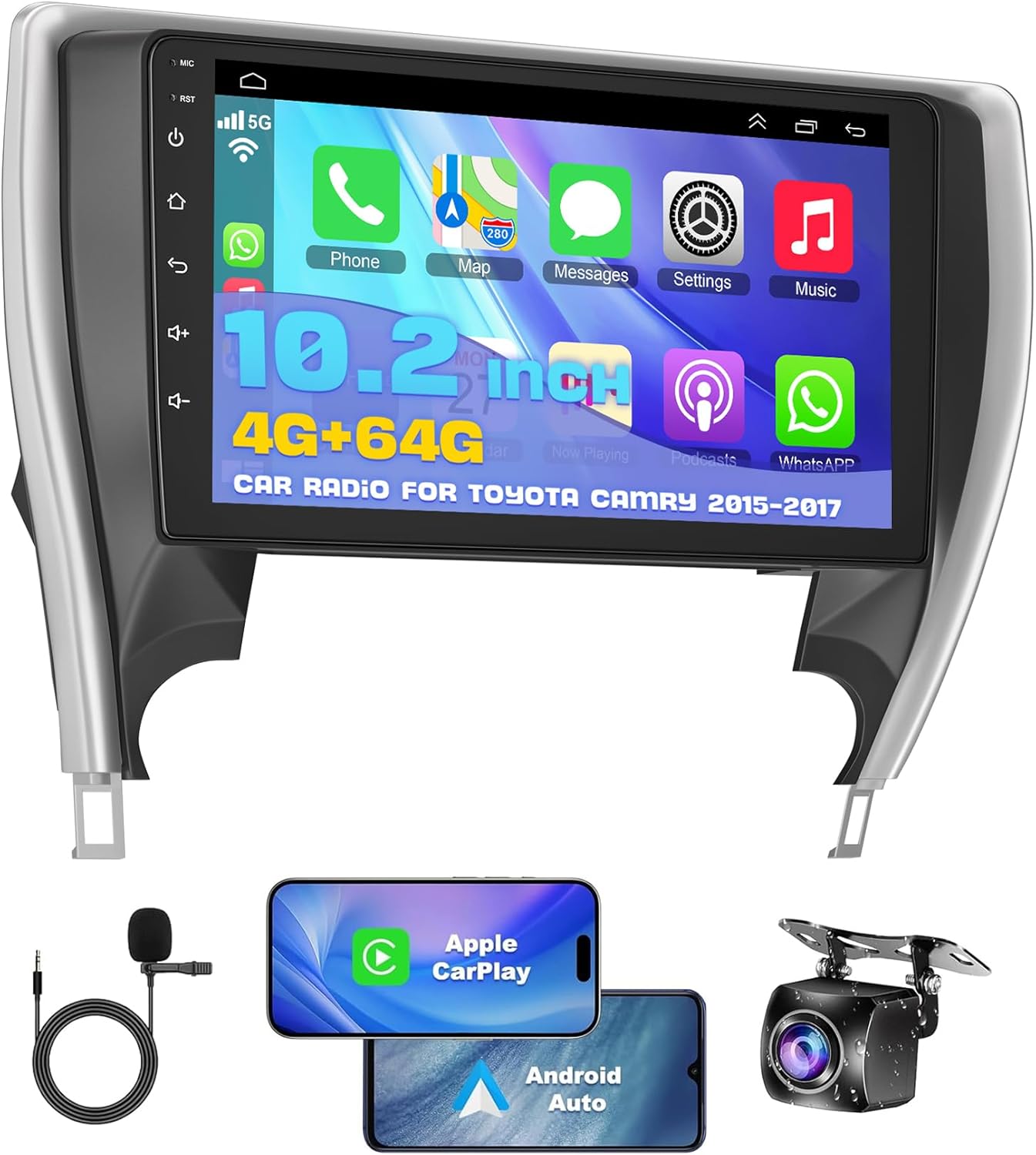
Image: The main unit of the B4U Android 13 Car Radio, showcasing its sleek design and large touchscreen.
Image: The B4U Android 13 Car Radio seamlessly integrated into the dashboard of a Toyota Camry, showing the user interface.
Image: The car radio display showing the Wireless CarPlay and Android Auto interfaces, demonstrating phone connectivity for navigation, music, and calls.
Image: The car radio display showing both offline and online GPS navigation options, along with icons for various streaming and social media apps accessible via WiFi.
Image: The car radio screen displaying a wide-angle view from a backup camera, showing parking guidelines and obstacles.
Image: The car radio screen displaying Bluetooth connectivity for phone calls and music, alongside an illustration of voice control functionality.
Image: All components included with the B4U Android 13 Car Radio, showing the main unit, various cables (power, RCA, USB, microphone, camera), GPS antenna, and a manual.
5.2. Official Product Videos
No official product videos from the seller (B4U) were available for embedding based on the provided data.
6. Specifications
| Feature | Detail |
|---|---|
| Brand | B4U |
| Operating System | Android 13 |
| RAM | 4GB |
| Storage (ROM) | 64GB |
| Screen Size | 10.2 Inches |
| Display Type | IPS Capacitive Touchscreen |
| Connectivity Technology | Bluetooth 5.2, USB, Wi-Fi |
| Special Features | Wireless CarPlay & Android Auto, Mirrorlink, DSP & EQ Setting, FM Radio, Backup Camera Support, Steering Wheel Control, Voice Control, GPS Navigation |
| Map Type | Worldwide (Preloaded offline maps) |
| Vehicle Service Type | Car (Toyota Camry 2015-2017) |
| Item Weight | 1.96 Kilograms |
7. Troubleshooting
If you encounter issues, please refer to the following common solutions:
- No Power:
- Check all power cable connections.
- Verify the vehicle's fuse for the stereo is intact.
- Weak or No Wi-Fi/Bluetooth Signal:
- Ensure the Wi-Fi antenna and Bluetooth antenna (if external) are properly connected.
- Try inserting the Camera Input wire or shortening the two blue wires of the CAM-IN wire as per manufacturer's suggestion for signal improvement.
- For Bluetooth, ensure your phone's Bluetooth is on before the car radio, and try deleting previous pairings before re-matching.
- GPS Not Working:
- Ensure the GPS antenna is installed correctly and has a clear view of the sky.
- Check GPS settings in the system to ensure it's enabled.
- Backup Camera Not Displaying:
- Verify the camera's video input cable is securely connected to the "CAM-IN" port.
- Ensure the camera's power supply is correctly wired to the reverse light circuit.
- Touchscreen Unresponsive:
- Perform a soft reset by pressing the RST button (usually a small pinhole).
- Ensure the screen is clean and free from debris.
For persistent issues, please contact customer support.
8. Maintenance
- Screen Cleaning: Use a soft, lint-free cloth to clean the touchscreen. Avoid abrasive cleaners or harsh chemicals.
- Software Updates: Periodically check for software updates through the system settings to ensure optimal performance and access to new features.
- Environmental Care: Avoid exposing the unit to extreme temperatures or direct sunlight for prolonged periods.
9. Warranty and Support
This product comes with a 2-Year Warranty from the date of purchase. Please retain your proof of purchase for warranty claims.
For technical support, warranty inquiries, or further assistance, please contact B4U customer service through the retailer where the product was purchased or refer to the contact information provided in your product packaging.
Additional protection plans may be available for purchase, offering extended coverage for 2 or 3 years, or a monthly complete protect plan. Refer to your purchase details for more information.


