
LaoZiCao Z10
LaoZiCao 4K UHD Spy Camera Hidden Clock User Manual
Model: Z10
Wireless IP Camera Indoor Home Security Monitoring Nanny Cam
1. Product Overview
The LaoZiCao Z10 is a discreet 4K UHD spy camera integrated into a functional clock, designed for indoor home security monitoring. It offers high-definition video recording, motion detection, and night vision capabilities, allowing for remote viewing via a smartphone application.

Figure 1: The LaoZiCao Z10 hidden camera clock and its remote viewing capability on a smartphone.
Key Features:
- 4K Full UHD Video Resolution: Captures clear and detailed footage at 4K or 1980 x 1080P.
- Wireless Wi-Fi Connectivity: Connects to your home Wi-Fi network (2.4GHz only) for remote live streaming.
- Motion Detection: Automatically sends snapshots and push alerts to your app when motion is detected.
- Night Vision: Equipped with IR LEDs for clear recording in low-light conditions, without visible light emission.
- Loop Recording: Overwrites the oldest files to ensure continuous recording when the memory card is full.
- Micro SD Card Support: Supports up to 128 GB Micro SD cards for local storage.
- Long Battery Life: Provides up to 4 hours of autonomy on a full charge.
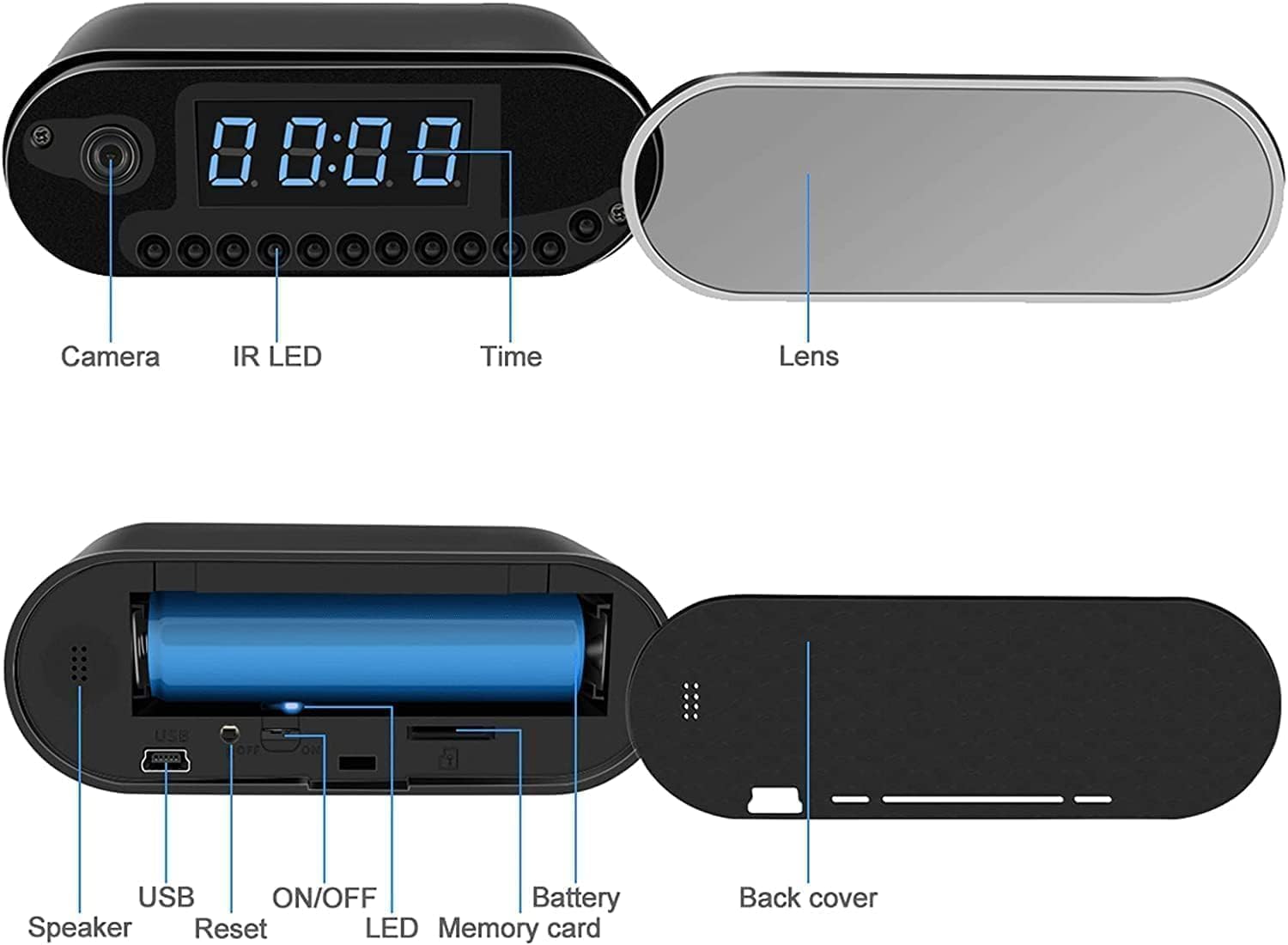
Figure 2: Component diagram of the LaoZiCao Z10 hidden camera clock.
2. Setup Guide
2.1 Charging the Device
Before initial use, fully charge the device. Connect the camera to a 5V DC power source using the provided USB cable. The charging time is approximately 5 hours.
2.2 Inserting the Micro SD Card
Locate the memory card slot on the device (refer to Figure 2). Gently insert a Micro SD card (up to 128 GB, not included) into the slot until it clicks into place. Ensure the card is inserted in the correct orientation.
2.3 Downloading the App
Download the "Lookcam" application from your smartphone's app store. It is available for both iOS and Android operating systems.
2.4 Wi-Fi Connection and Configuration
- Turn on the camera using the ON/OFF switch.
- Open the "Lookcam" app on your smartphone.
- Follow the in-app instructions to add a new device. This typically involves scanning a QR code displayed by the camera or connecting to the camera's temporary Wi-Fi hotspot.
- Once connected to the camera's hotspot, configure the camera to connect to your home Wi-Fi network (2.4GHz only). Enter your Wi-Fi network name (SSID) and password when prompted.
- After successful configuration, the camera will connect to your home Wi-Fi, and you can view the live feed remotely from anywhere.
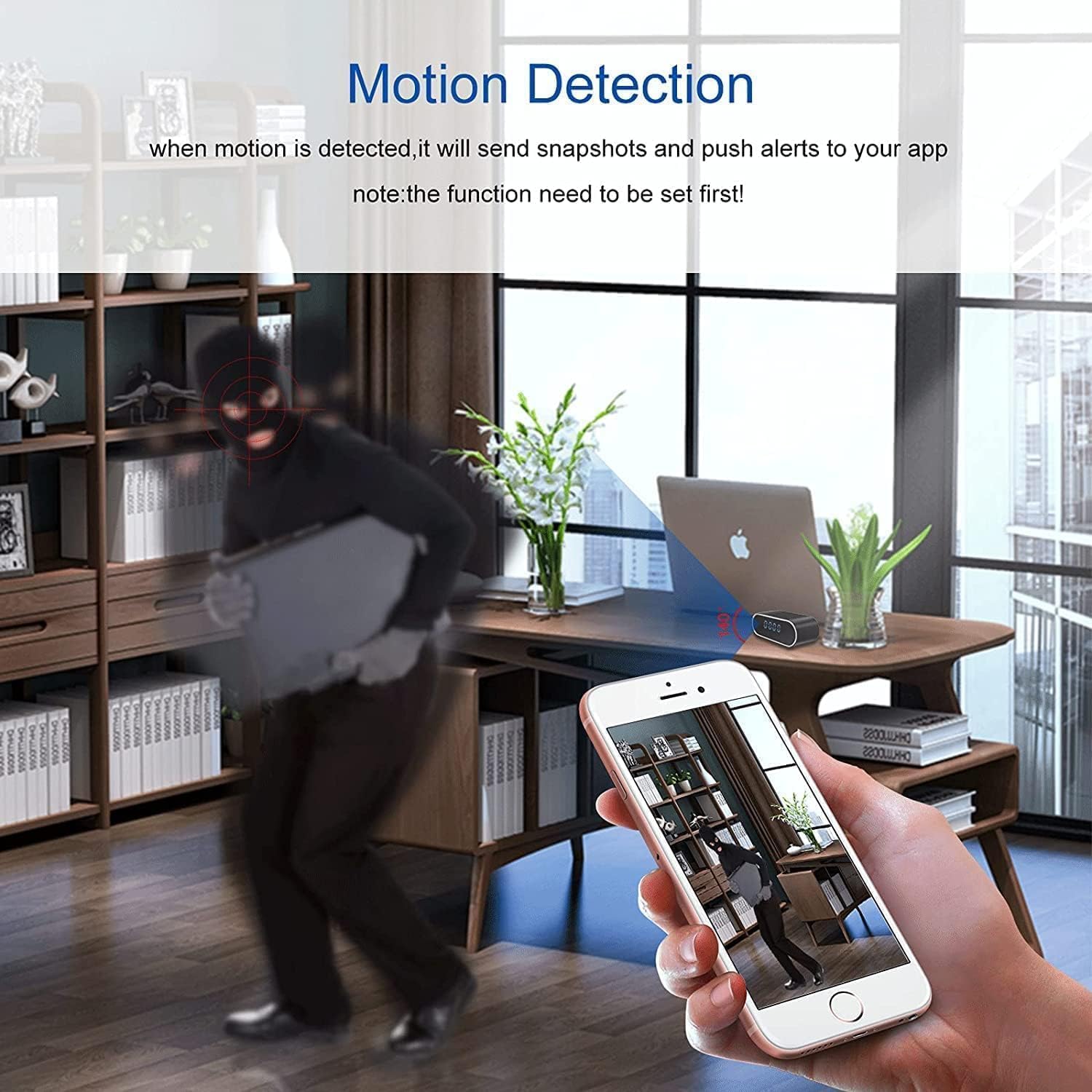
Figure 3: Wi-Fi connection diagram for remote monitoring.
3. Operating Instructions
3.1 Live Viewing
Once the camera is connected to your Wi-Fi network and configured with the "Lookcam" app, open the app to access the live video feed. You can monitor your space in real-time from your smartphone.
3.2 Video Recording
The camera supports continuous recording and event-triggered recording (e.g., motion detection). Video resolution can be set to 4K Full UHD or 1080P. Recordings are saved to the inserted Micro SD card.

Figure 4: Visual comparison of 1080P vs. 4K video quality.
3.3 Motion Detection
To enable motion detection, access the settings within the "Lookcam" app. When motion is detected, the camera will automatically capture snapshots and send push notifications to your smartphone. Ensure this function is enabled for alerts.
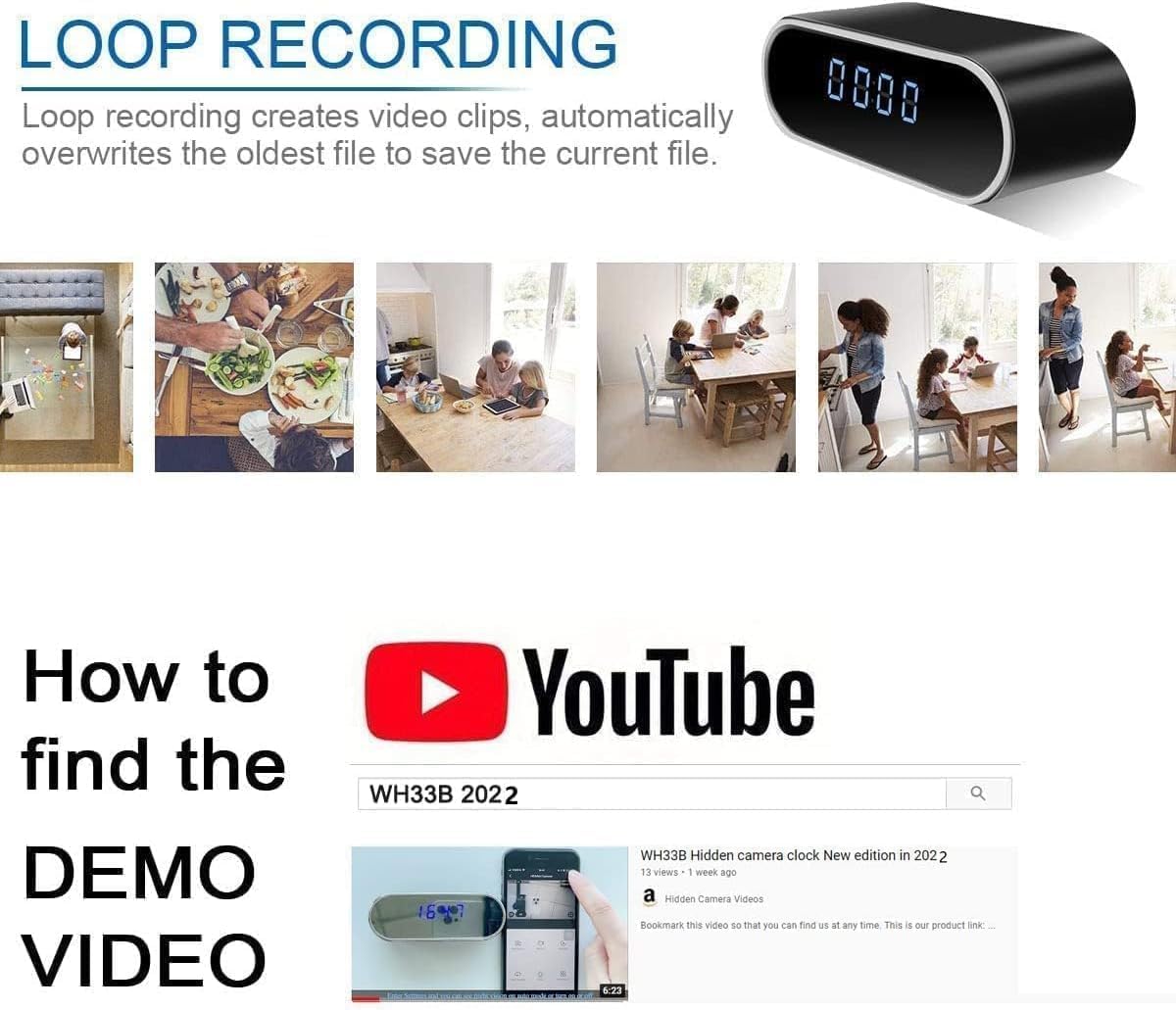
Figure 5: Motion detection feature in action, sending alerts to your device.
3.4 Night Vision
The camera is equipped with infrared (IR) LEDs for night vision. This allows the camera to capture clear video in low-light or dark conditions without emitting visible light, making it discreet.
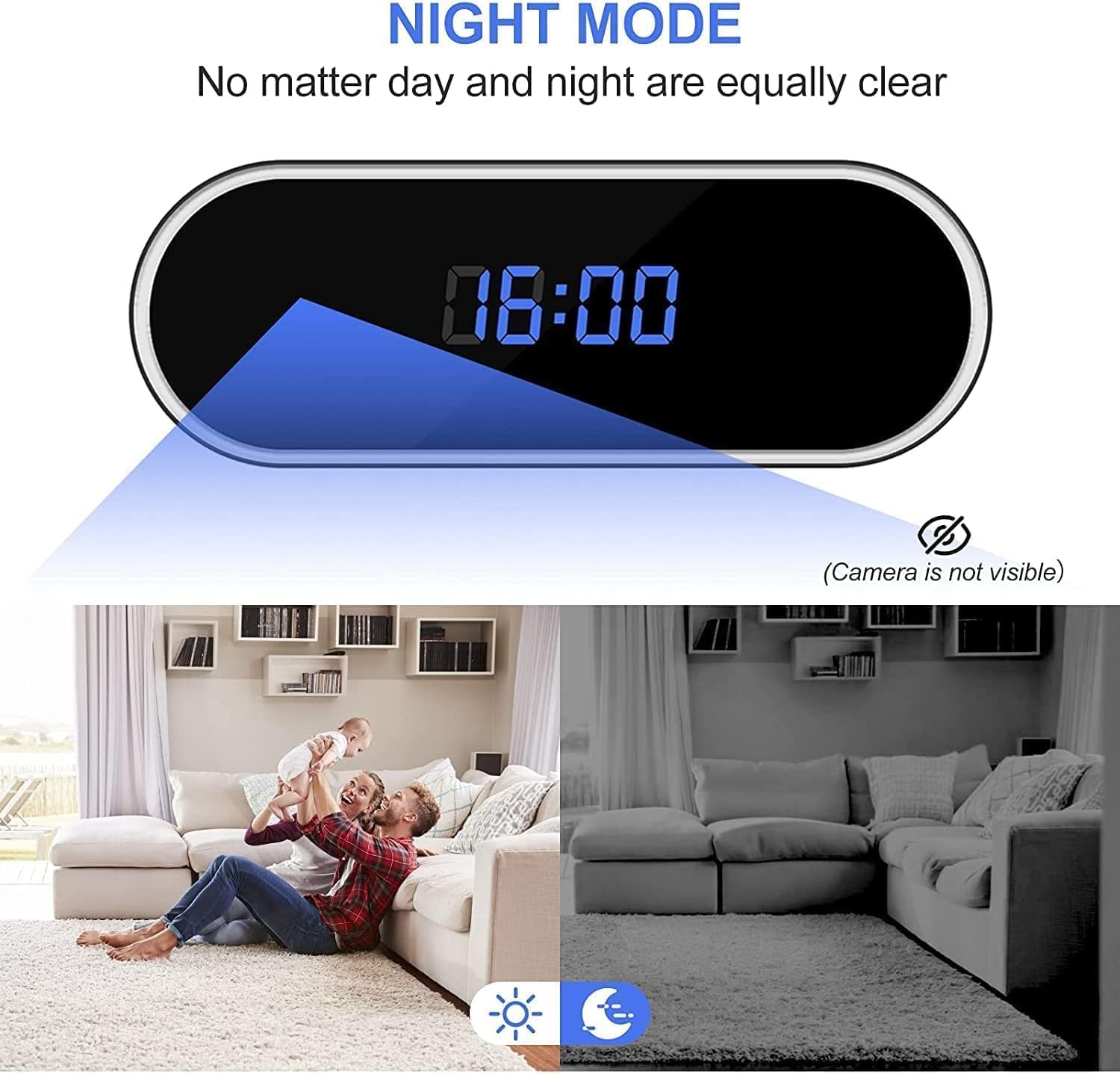
Figure 6: Night mode functionality, providing clear images in darkness.
3.5 Loop Recording
When the Micro SD card's storage is full, the loop recording feature automatically overwrites the oldest video files with new ones. This ensures continuous recording without the need for manual deletion of old footage.
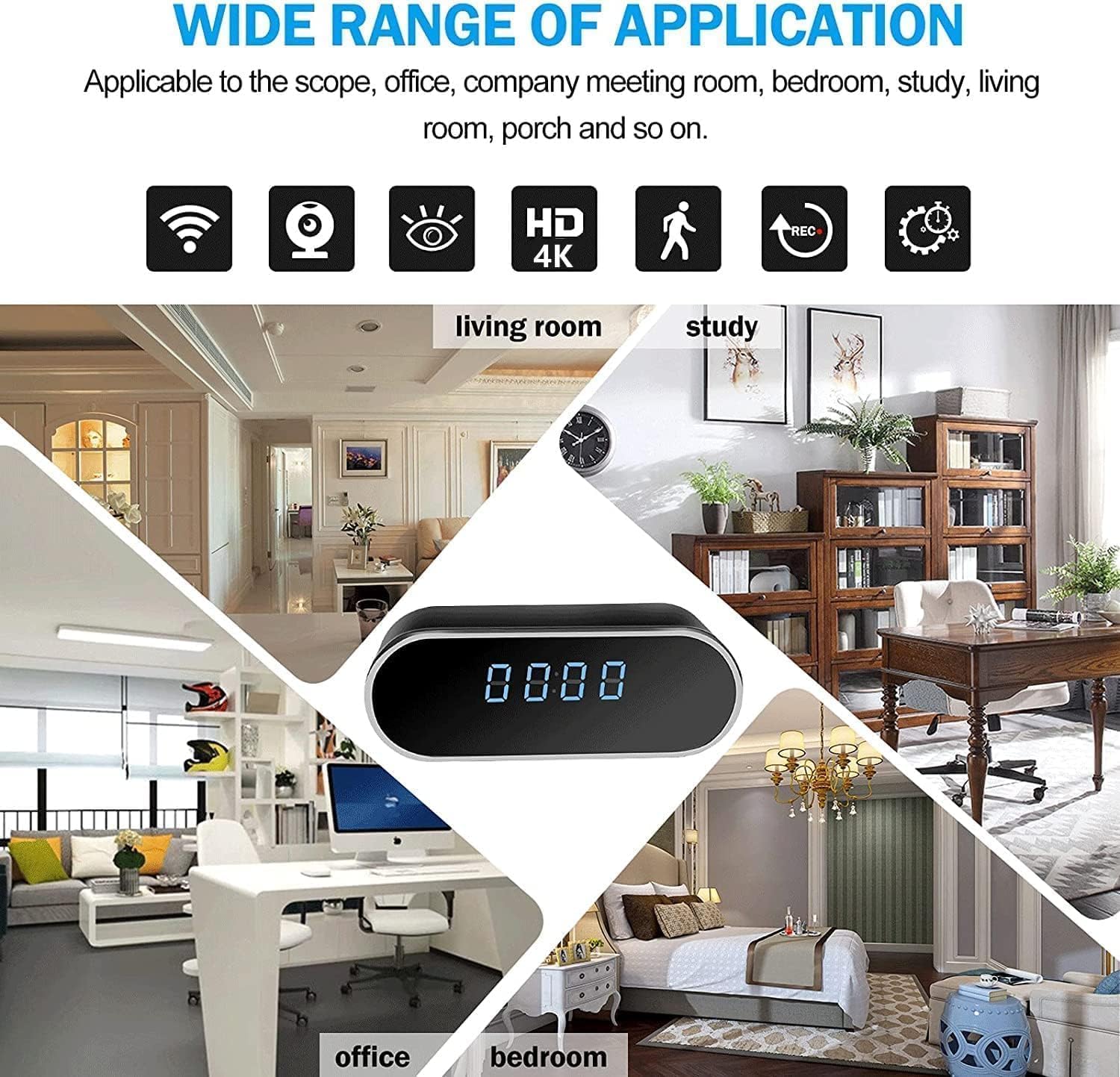
Figure 7: Loop recording mechanism for continuous video capture.
4. Maintenance
To ensure optimal performance and longevity of your LaoZiCao Z10 camera, follow these maintenance guidelines:
- Cleaning: Use a soft, dry cloth to clean the exterior of the device. Do not use liquid cleaners or abrasive materials, as they may damage the surface or internal components.
- Lens Care: Gently wipe the camera lens with a microfiber cloth designed for optics to avoid scratches and ensure clear video quality.
- Storage: When not in use for extended periods, store the camera in a cool, dry place away from direct sunlight and extreme temperatures.
- Battery: For optimal battery health, avoid completely draining the battery frequently. Charge the device regularly, even if not in constant use.
- Firmware Updates: Periodically check the "Lookcam" app or the manufacturer's website for any available firmware updates to ensure your device has the latest features and bug fixes.
5. Troubleshooting
If you encounter issues with your LaoZiCao Z10 camera, refer to the following common troubleshooting steps:
5.1 Camera Not Turning On
- Ensure the battery is fully charged. Connect the camera to a power source and allow it to charge for at least 30 minutes before attempting to turn it on again.
- Check the ON/OFF switch to ensure it is in the 'ON' position.
5.2 Unable to Connect to Wi-Fi
- Verify that your Wi-Fi network is 2.4GHz. The camera does not support 5GHz networks.
- Ensure you have entered the correct Wi-Fi password.
- Move the camera closer to your Wi-Fi router to improve signal strength.
- Restart your Wi-Fi router and the camera.
- Use the reset button on the camera (refer to Figure 2) to restore factory settings and attempt the Wi-Fi setup process again.
5.3 No Video Recording or Footage Missing
- Ensure a Micro SD card is properly inserted into the camera.
- Check if the Micro SD card is full. If loop recording is not enabled, old footage may need to be manually deleted or the card replaced.
- Format the Micro SD card using the option in the "Lookcam" app or on a computer.
- Verify that recording settings (e.g., continuous recording, motion detection recording) are correctly configured in the app.
5.4 Poor Video Quality
- Ensure the camera lens is clean and free from dust or smudges.
- Check the video resolution setting in the app. For best quality, select 4K UHD.
- Ensure adequate lighting in the environment, especially if night vision is not active.
6. Specifications
| Feature | Specification |
|---|---|
| Model Number | Z10 |
| Video Resolution | 4K Full UHD / 1980 x 1080P |
| Video Format | ASF |
| Video Recording Frame Rate | 25/30 fps |
| Microphone | Integrated |
| Memory Support | Micro SD cards up to 128 GB |
| Autonomy (Battery Life) | 4 hours |
| Charging Time | 5 hours |
| Operating System for Smartphones | iOS or Android |
| Charging Voltage | 5 V DC |
| Operating Temperature | -10 °C to 60 °C |
| Product Dimensions (L x W x H) | 110 x 38 x 48 mm (4.3 x 1.5 x 1.9 inches) |
| Weight | 250 g (8.8 ounces) |
| Indoor/Outdoor Usage | Indoor |
| Connectivity Protocol | Wi-Fi (2.4GHz) |
7. Warranty and Support
For detailed warranty information, please refer to the documentation included with your product or visit the official LaoZiCao website. Warranty terms and conditions may vary by region and retailer.
If you require technical support or have questions not covered in this manual, please contact LaoZiCao customer service through their official website or the contact information provided at the point of purchase. Ensure you have your product model number (Z10) and purchase details ready when contacting support.
Ask a question about this manual
Ask about setup, troubleshooting, compatibility, parts, safety, or missing instructions. Manuals+ will review the question and use this page’s manual context to help answer it.