
1. Introduction
This manual provides detailed instructions for the TIETI Wireless and Bluetooth Keyboard, Model B0F99Z6VLQ. This keyboard offers versatile connectivity options, a comfortable typing experience, and a durable design. Please read this manual thoroughly before using the product to ensure proper operation and longevity.
Key Features:
- Dual Connectivity: 2.4G Wireless and Bluetooth (BT1, BT2) modes.
- Rechargeable 420mAh Lithium-ion battery.
- Ultra-slim design with a full-size layout and numeric keypad.
- Low-profile scissor-switch keys for quiet and comfortable typing.
- Broad compatibility with Windows, macOS, iOS, and Android devices.
- Stainless steel construction for durability.
2. Package Contents
Verify that all items are present in the package:
- TIETI Wireless and Bluetooth Keyboard
- USB Charging Cable (Type-C)
- 2.4G USB Receiver (Dongle)
- User Manual (this document)
3. Setup and Connection
The TIETI keyboard supports three connection modes: two Bluetooth channels (BT1, BT2) and one 2.4G wireless channel. You can connect up to three devices simultaneously and switch between them.
3.1 Charging the Keyboard
Before first use, fully charge the keyboard. The built-in 420mAh rechargeable battery provides extended usage time.
- Locate the Type-C charging port on the keyboard.
- Connect the provided USB charging cable to the keyboard and a USB power source (e.g., computer USB port, USB wall adapter).
- The charging indicator light will illuminate. Once fully charged, the light will change or turn off (refer to specific indicator behavior in the product's physical manual if available).

Image: The underside of the TIETI keyboard showing the Type-C charging port and charging cable connected. Text indicates 1.5 hours charge time, 200 hours working time, 420mAh battery, and 30 minutes automatic sleep.
3.2 2.4G Wireless Connection
This mode uses the included USB receiver for a stable connection to devices without Bluetooth or for a direct plug-and-play experience.
- Insert the 2.4G USB receiver into an available USB port on your computer or device.
- Turn on the keyboard using the power switch (usually located on the side or back).
- Press the Fn + 2.4G dongle icon button (often F10 or F11, check keyboard markings) to switch to 2.4G mode. The indicator light for 2.4G will flash and then become solid when connected.
- The keyboard should automatically connect to your device.
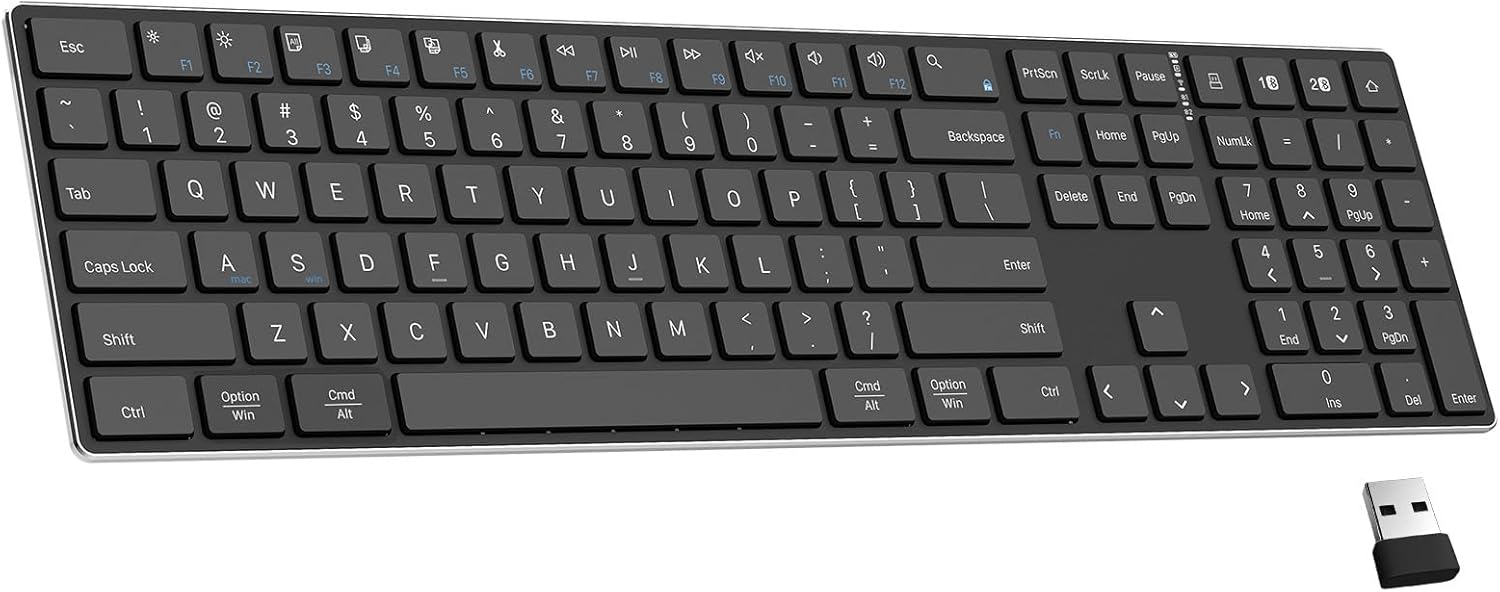
Image: Top-down view of the TIETI keyboard in black, with the 2.4G USB receiver shown separately. This illustrates the keyboard's full layout and the wireless dongle.

Image: The TIETI keyboard connected wirelessly to a laptop via the 2.4G USB receiver. The image highlights the 2.4G wireless connection and its effective range.
3.3 Bluetooth Connection (BT1 / BT2)
The keyboard offers two independent Bluetooth channels for connecting to different devices.
- Turn on the keyboard using the power switch.
- Press the Fn + Bluetooth button 1 (BT1) or Fn + Bluetooth button 2 (BT2) (often F1, F2, or F3, check keyboard markings) to select a Bluetooth channel. The corresponding indicator light will flash rapidly, indicating pairing mode.
- On your device (computer, tablet, smartphone), enable Bluetooth and search for new devices.
- Select "TIETI Keyboard" (or similar name) from the list of available devices.
- Follow any on-screen prompts to complete the pairing process. The indicator light on the keyboard will become solid when successfully connected.
- Repeat these steps for the second Bluetooth channel (BT2) to connect another device.

Image: An overhead view of the TIETI keyboard on a desk with a mouse and monitor. An overlay shows icons for connecting to three devices (1, 2, 3), representing a desktop, laptop, and tablet, illustrating the multi-device connectivity feature.

Image: The TIETI keyboard positioned in front of a monitor, laptop, tablet, and smartphone, demonstrating its compatibility with Android, Windows, and Mac/iOS operating systems via 2.4G Wireless and Bluetooth 5.2.
4. Operation
4.1 Switching Between Connected Devices
To switch between devices connected via 2.4G wireless or Bluetooth:
- Press Fn + 2.4G dongle icon button to switch to the device connected via the 2.4G USB receiver.
- Press Fn + BT1 to switch to the device connected via Bluetooth channel 1.
- Press Fn + BT2 to switch to the device connected via Bluetooth channel 2.
4.2 Multimedia and Function Keys
The keyboard features 15 shortcut keys, often combined with the Fn key. The specific functions may vary slightly depending on the operating system (Windows, macOS, Android, iOS).
For macOS users, the keyboard layout includes specific multimedia keys. Refer to the image below for common Mac layout functions:

Image: A close-up of the TIETI keyboard showing the function keys (F1-F12) and their corresponding multimedia actions for Mac layout, such as brightness control, mission control, search, microphone, media playback, and volume control.
Common Function Key Combinations (Fn + Key):
- Fn + F1: Brightness Decrease
- Fn + F2: Brightness Increase
- Fn + F3: Open Mission Control (macOS)
- Fn + F4: Search
- Fn + F5: Microphone
- Fn + F7: Previous Track
- Fn + F8: Play/Pause
- Fn + F9: Next Track
- Fn + F10: Mute
- Fn + F11: Volume Down
- Fn + F12: Volume Up
4.3 Automatic Sleep Mode
To conserve battery life, the keyboard features an environmentally friendly auto-sleep mode. After 30 minutes of inactivity, the keyboard will enter sleep mode. To wake it up, simply press any key.
5. Maintenance
To ensure the longevity and optimal performance of your TIETI keyboard, follow these maintenance guidelines:
- Cleaning: Use a soft, dry, lint-free cloth to clean the keyboard surface. For stubborn dirt, slightly dampen the cloth with water or a mild cleaning solution. Avoid excessive moisture.
- Storage: When not in use for extended periods, store the keyboard in a cool, dry place away from direct sunlight and extreme temperatures.
- Avoid Liquids: Do not expose the keyboard to liquids. Spills can cause damage to internal components.
- Handle with Care: Avoid dropping the keyboard or subjecting it to strong impacts.
- Charging: Use only the provided USB charging cable or a certified equivalent. Do not attempt to open or replace the internal battery.

Image: A close-up view of the TIETI keyboard keys, highlighting the scissor-switch mechanism. A robotic arm is shown pressing a key, emphasizing the responsive and quiet typing experience.
Image: An exploded view of the TIETI keyboard showing the matte finished keys, stainless steel metal frame, and anti-slip pads on the underside, illustrating the durable construction and stability features.
6. Troubleshooting
If you encounter issues with your TIETI keyboard, refer to the following common solutions:
| Problem | Possible Solution |
|---|---|
| Keyboard not connecting via 2.4G. |
|
| Keyboard not connecting via Bluetooth. |
|
| Keys are unresponsive or typing is delayed. |
|
| Keyboard frequently disconnects. |
|
| Keyboard does not wake up from sleep mode. |
|
7. Specifications
| Feature | Detail |
|---|---|
| Model | B0F99Z6VLQ |
| Connectivity Technology | 2.4G Wireless, Bluetooth Dual Mode |
| Compatible Devices | Laptop, PC, Tablet (Windows, macOS, iOS, Android) |
| Keyboard Description | Accessible, Full-Size with Numeric Keypad |
| Special Features | Lightweight, Low-Profile Key, Rechargeable, Silent, Quiet |
| Color | Black |
| Style | Modern |
| Product Dimensions | 16.7 x 4.5 x 0.57 inches (42.42 x 11.43 x 1.45 cm) |
| Item Weight | 1.57 pounds (0.71 kg) |
| Material | Stainless Steel Metal |
| Battery Capacity | 420mAh Lithium-ion (Rechargeable) |
| Manufacturer | TIETI |
Image: A side profile and top-down view of the TIETI keyboard illustrating its ultra-slim design and precise dimensions (16.7 inches length, 4.5 inches width, 0.57 inches height).
8. Warranty and Support
TIETI products are designed for reliability and performance. For information regarding warranty coverage, technical support, or customer service, please refer to the warranty card included with your product or visit the official TIETI website. Please retain your proof of purchase for warranty claims.
For further assistance, you may contact TIETI customer support through their official channels.