
Introduction
This manual provides detailed instructions for the installation, operation, and maintenance of your METEESER 5-Inch HD IPS Touch Screen Motorcycle Stereo. This device offers wireless CarPlay and Android Auto functionality, GPS navigation, and voice control, designed for motorcycle use with a waterproof and durable build. Please read this manual thoroughly before using the product to ensure proper function and safety.
Package Contents
Verify that all items listed below are included in your package:
- 5-Inch Smart CarPlay Screen
- Universal Mount
- User Manual
- Power Cable (3.4m)
- Accessories (Waterproof Rings, Strip Rolling/Cable Ties, Screws)

Image: The package contents including the 5-inch screen, universal mount, power cable, user manual, waterproof rings, and cable ties. Also shows the dimensions of the screen and mount.
Video: Unboxing and overview of the METEESER Motorcycle Stereo and its accessories.
Setup and Installation
Follow these steps to properly install your motorcycle stereo.
Mounting the Device
- Attach the Mount: Secure the universal mount to your motorcycle's handlebar using a Phillips screwdriver.
- Clamp Connecting Rod: Clamp the connecting rod to the mount. The mount offers 360-degree adjustability for optimal positioning.
- Insert Device and Adjust: Insert the CarPlay screen onto the mount and adjust its position as desired. Tighten the adjustment ring to secure the device.
- Installation Complete: Ensure the device is firmly attached and positioned for safe viewing during operation.
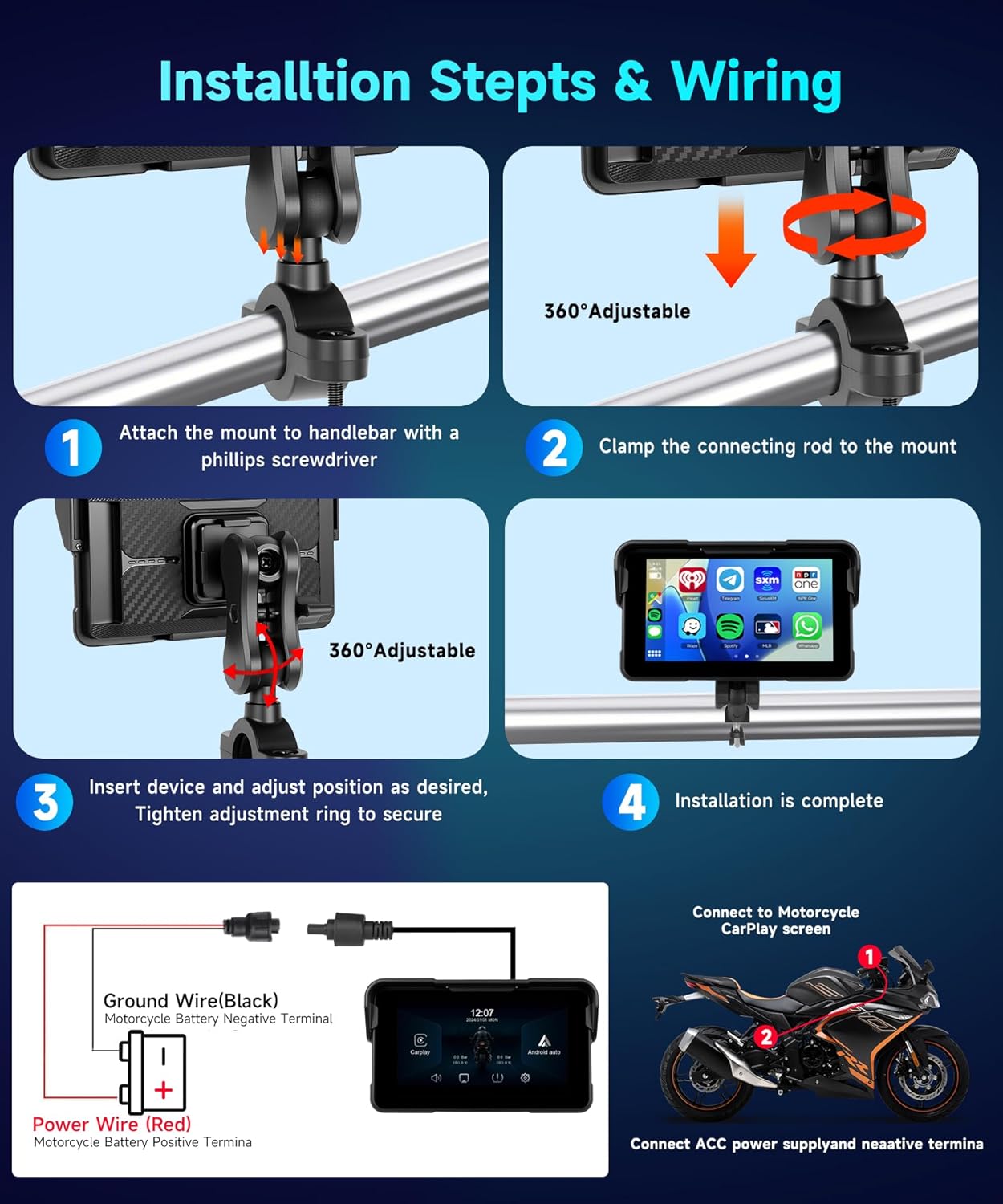
Image: Step-by-step visual guide for attaching the mount to the handlebar, clamping the connecting rod, inserting the device, and adjusting its position.
Wiring Instructions
Proper wiring is crucial for the device's functionality. Connect the power cable as follows:
- Red Wire (+): Connect the red power wire to the motorcycle battery's positive terminal.
- Black Wire (-): Connect the black ground wire to the motorcycle battery's negative terminal.
- ACC Power Supply: Ensure the device is connected to an ACC power supply to prevent battery drain when the motorcycle is off.

Image: Wiring diagram illustrating the connection of the power cable to the motorcycle battery.
Operating Instructions
Smart Connection: Wireless CarPlay and Android Auto
The device supports wireless CarPlay and Android Auto, allowing seamless integration with your smartphone for navigation, audio, calls, and voice control.
- Enable Bluetooth and Wi-Fi: On your smartphone, enable both Bluetooth and Wi-Fi.
- Pair Device: On the motorcycle stereo, navigate to the Bluetooth settings and search for your phone. Select your phone to pair.
- Confirm Connection: Follow any on-screen prompts on both your phone and the stereo to confirm the connection.
- Dual Bluetooth: The system supports dual Bluetooth. The CarPlay screen connects to your phone, and your phone can simultaneously connect to a Bluetooth headset or helmet for audio and calls.

Image: The device interface showing wireless CarPlay and Android Auto connectivity, including hands-free calling and online music playback.
Voice Control and GPS Navigation
Utilize voice commands for safer navigation and control without diverting attention from the road.
- Activate Voice Assistant: Use "Hey Siri" for Apple CarPlay or "Ok Google" for Android Auto to activate your phone's voice assistant.
- Navigation: Request directions to a destination (e.g., "Hey Siri, open the map and navigate to [address]").
- Calls and Music: Make calls or control music playback using voice commands.

Image: Display of voice control functionality for GPS navigation, calls, and music, compatible with Google Maps and Apple Maps.
Bluetooth Connection for Audio
Connect your phone and Bluetooth headset/helmet for wireless audio and communication.
- Phone to Display: Ensure your phone is paired with the motorcycle display via Bluetooth and Wi-Fi.
- Headset/Helmet to Phone: Connect your Bluetooth headset or helmet directly to your smartphone for audio output and microphone input.
- Music and Calls: Audio from the display (e.g., navigation prompts, music) will be routed through your phone to your connected headset/helmet.

Image: Visual guide for establishing Bluetooth connections for hands-free calling and music playback, including pairing with a phone and a Bluetooth helmet.
Wireless Mirror Link (Android Cast & Airplay)
Mirror Link technology allows you to display your smartphone screen directly on the motorcycle stereo.
- For iOS (Airplay): Open your phone's Wi-Fi and connect to the device's Wi-Fi hotspot. Then, use Airplay to mirror your screen.
- For Android (Android Cast): Download and open the appropriate mirroring app on your phone. Connect to the device's Wi-Fi hotspot and follow the app's instructions to cast your screen.

Image: Demonstration of Wireless Mirror Link functionality, supporting both Airplay for iOS and Android Cast for Android devices.
Software Upgrade
The device supports software upgrades via a TF card (SD card not included).
- Insert a TF card containing the upgrade files into the designated slot on the device.
- Follow the on-screen prompts to initiate the software upgrade.
Image: Illustration of the software upgrade process using a TF card.
Quick Release Anti-Theft Design
For security, the device features a 3-second quick-release mechanism.
- Press the release button located on the mount.
- The screen can be easily detached from the mount for safekeeping when parked.

Image: Visual representation of the 3-second quick release feature for anti-theft protection.
Tyre Pressure Monitoring (Accessory Required)
The device supports tire pressure monitoring to enhance driving safety. This function requires the purchase of an additional accessory.
- Install the tire pressure monitoring sensors (sold separately) according to their instructions.
- Pair the sensors with the motorcycle stereo through the device settings.
- Monitor real-time tire pressure and temperature directly on the screen.

Image: Screen display showing the tire pressure monitoring interface, including unit settings and alarm values.
Maintenance and Care
To ensure the longevity and optimal performance of your METEESER Motorcycle Stereo, follow these maintenance guidelines:
- Waterproof and Dustproof: The device is IP68 rated, making it waterproof and dustproof. However, avoid prolonged submersion or high-pressure water jets.
- Temperature Range: The device is designed to operate in temperatures ranging from -4°F to 149°F (-20°C to 65°C). Avoid exposing it to extreme temperatures outside this range.
- Cleaning: Use a soft, damp cloth to clean the screen and body. Avoid abrasive cleaners or solvents.
- Storage: When not in use for extended periods, detach the screen using the quick-release mechanism and store it in a cool, dry place.

Image: Features highlighting the device's IP67 waterproof, quake-proof, and dustproof capabilities, suitable for various riding environments.
Troubleshooting
If you encounter issues with your device, refer to the following common solutions:
- Device Not Powering On:
- Check all power cable connections to ensure they are secure and correctly wired to the motorcycle battery.
- Verify that the motorcycle battery has sufficient charge.
- Battery Drain When Motorcycle is Off:
- Ensure the power cable is connected to an ACC (Accessory) power source that turns off with the ignition.
- If connected directly to the battery, unplug the device when not riding to prevent battery drain.
- Bluetooth/CarPlay/Android Auto Connectivity Issues:
- Ensure Bluetooth and Wi-Fi are enabled on your smartphone.
- Forget the device from your phone's Bluetooth settings and re-pair.
- Restart both your smartphone and the motorcycle stereo.
- Ensure your phone's operating system is up to date.
- Screen Visibility in Bright Sunlight:
- Adjust the screen brightness in the device settings.
- Ensure the sunshade is properly positioned to minimize glare.
Specifications
| Feature | Detail |
|---|---|
| Brand | METEESER |
| Vehicle Service Type | Motorcycle |
| Screen Size | 5 Inches |
| Display Type | IPS |
| Touch Screen Type | Capacitive |
| Connectivity Technology | Bluetooth |
| Special Features | IPS Touchscreen, Wireless Android Auto, Wireless CarPlay, Support tyre pressure monitoring (accessory purchased separately) |
| Map Type | Worldwide |
| Mounting Type | Handlebar Mount |
| Operating System | Android |
| Compatible Devices | iOS/Android phone |
| Supported Satellite Navigation System | GPS |
| Item Weight | 0.3 Kilograms |
Warranty Information
The METEESER Motorcycle Stereo comes with a 2-Year Warranty from the date of purchase. This warranty covers manufacturing defects and malfunctions under normal use. Please retain your proof of purchase for warranty claims.
Customer Support
METEESER specializes in car electronics and is committed to providing excellent customer service. If you have any issues with this motorcycle CarPlay screen, including compatibility, installation, or usage, please do not hesitate to contact us. Our technical support team is available to assist you.
For support, please visit the METEESER Store on Amazon or refer to the contact information provided in your product packaging.