
RIJAHO M8
RIJAHO 64GB MP3 Player User Manual
Model: M8
Introduction
Thank you for choosing the RIJAHO 64GB MP3 Player. This portable Hi-Fi lossless music player is designed to provide a rich audio experience with versatile features including Bluetooth connectivity, FM radio, voice recording, and more. This manual will guide you through the setup, operation, and maintenance of your new device.

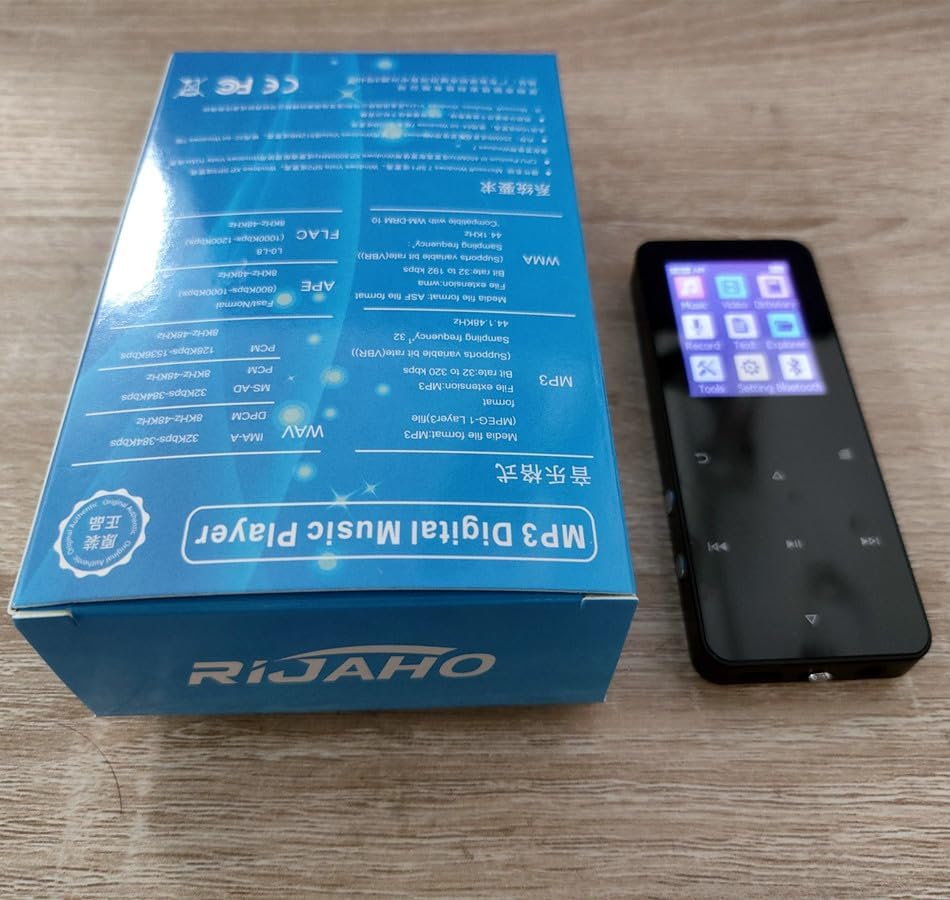
Front and back view of the RIJAHO 64GB MP3 Player, showcasing its compact design and touch buttons.
Key Features
- Built-in 4GB + 64GB TF Card: Comes with a 32GB memory card and supports expansion up to 128GB, allowing storage of over 10,000 songs.
- One-Click Recording & Screensaver: Quickly initiate voice recording or activate the screensaver with dedicated buttons.
- Bluetooth 5.0 & External Speaker: High-speed and stable wireless transmission (5-7 meters) for connecting to Bluetooth speakers or headphones. Features a built-in speaker for direct audio playback.
- Multi-Format & Multi-Functional: Supports various audio (MP3, APE, FLAC, WMA), video (AVI, AMV - requires conversion), and image (JPEG) formats. Includes FM radio, alarm clock, pedometer, and e-book reader (TXT).
- Background Playback: Listen to music while performing other tasks like reading e-books.
Visual representation of the MP3 player's core functions, including quiet touch, Bluetooth play, English listening, lyrics display, HD audio, E-Book, bookmark saving, alarm clock, and English dictionary.
What's in the Box
Please check the contents of your package to ensure all items are present:
- RIJAHO 64GB MP3 Player
- User Manual (this document)
- Wired Earphones
- USB-to-Micro USB Cable
Getting Started
Charging the Device
Before first use, fully charge your MP3 player. Connect the provided USB-to-Micro USB cable to the device's charging port and plug the other end into a USB power adapter (not included) or a computer's USB port. The battery indicator on the screen will show charging status.
Inserting a TF Card
Your MP3 player comes with a 32GB TF card pre-installed. If you wish to expand storage, you can replace it with a TF card up to 128GB. Locate the TF card slot on the side of the device. Gently insert the TF card into the slot until it clicks into place. To remove, push the card in slightly until it springs out.

Illustration showing the TF card slot for memory expansion up to 128GB.
Powering On/Off
- To Power On: Press and hold the Power button (usually located on the side) for a few seconds until the screen lights up.
- To Power Off: Press and hold the Power button until the power-off prompt appears, then confirm.
Operating Instructions
Basic Navigation
The MP3 player features touch-sensitive buttons below the screen for navigation. Use the directional buttons (Up, Down, Left, Right) to move between menu items and the central button to select. The 'Back' button (usually an arrow or 'U' shape) returns to the previous screen.

The MP3 player's screen displaying the main menu icons for Music, Video, Dictionary, Record, E-book, Folder, Tool, Set, and Bluetooth.
Music Playback
To play music, select the 'Music' icon from the main menu. You can browse your music by artist, album, genre, or through the 'Folders' option. The player supports MP3, APE, FLAC, and WMA formats. Use the navigation buttons to select songs, and the central button to play/pause. Volume can be adjusted using dedicated volume buttons or through the menu.

The MP3 player screen showing music playback, highlighting Hi-Fi sound quality, background playback capability, and the option for loudspeaker release.
Bluetooth Connection
The device features Bluetooth 5.0 for wireless audio. From the main menu, select 'Bluetooth'. Turn on Bluetooth and search for available devices. Select your Bluetooth headphones or speaker from the list to pair. Once connected, audio will be routed wirelessly. The transmission distance is 5-7 meters.

The MP3 player shown connecting wirelessly to Bluetooth earbuds, demonstrating its stable connection and sound quality.
Voice Recording
To start recording, you can either select the 'Record' icon from the main menu or use the dedicated one-click recording button on the side of the device. Press the button once to enter the recording interface and start recording. Press and hold the same button to save and exit the recording mode. The device supports digital high-definition noise reduction for clear recordings.

The MP3 player's screen showing the recording interface, indicating HD Classroom Recording capability with digital noise reduction.
FM Radio
Plug in the wired earphones (they act as an antenna) to use the FM radio function. Select 'FM Radio' from the main menu. You can auto-scan for stations or manually tune to a specific frequency.
Alarm Clock
Set an alarm to wake up to your favorite music. Navigate to the 'Alarm Clock' function in the settings or main menu. You can customize the alarm time and select a specific song as your alarm tone.
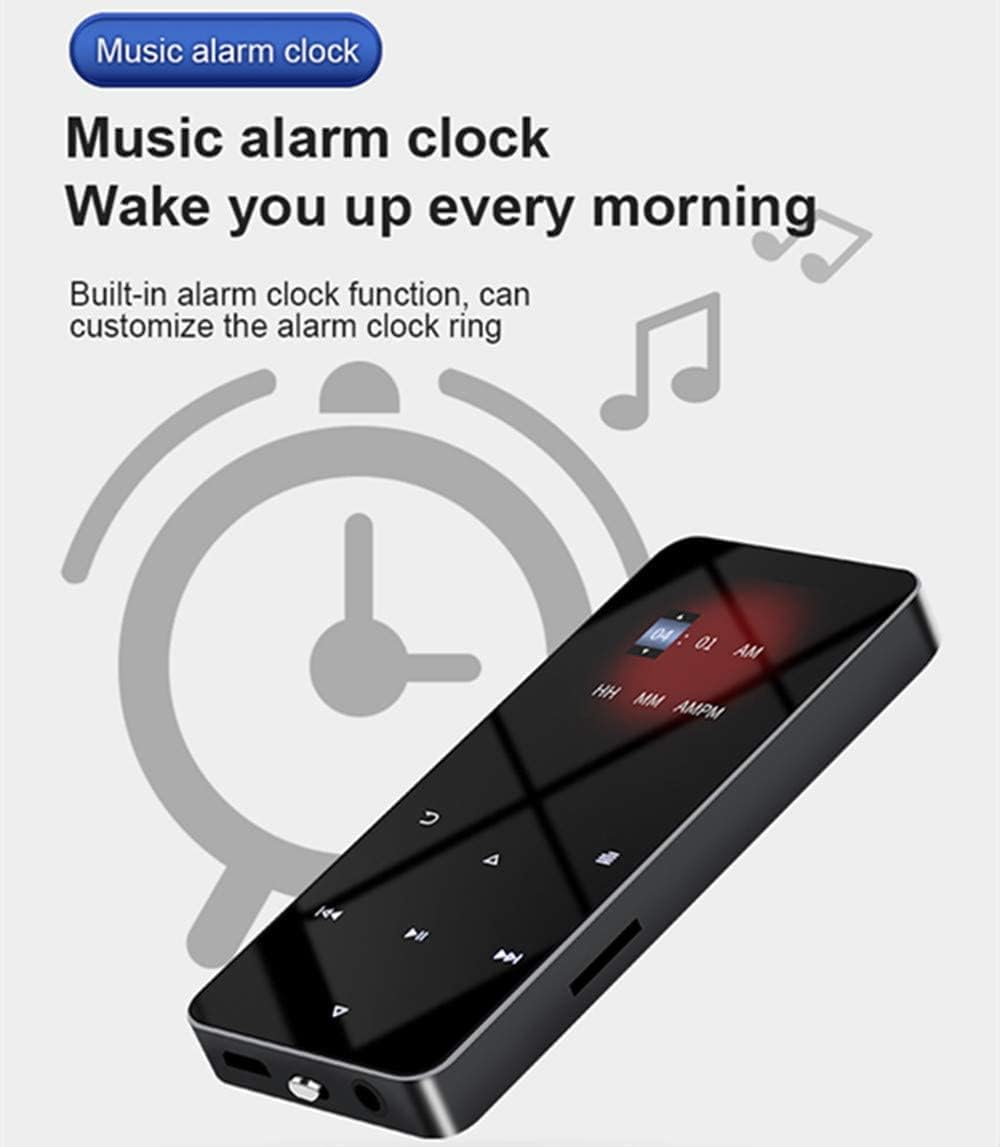
The MP3 player illustrating its built-in music alarm clock function, allowing users to customize their wake-up sound.
Pedometer
The built-in pedometer can track your steps. Access this feature from the main menu or 'Tools' section. Follow the on-screen instructions to start and stop step counting.
E-book Reader
The device supports TXT format e-books. Transfer your TXT files to the 'E-book' folder on the device. Select the 'E-book' icon to browse and read your documents. You can listen to music in the background while reading.
Video Playback & Photo Viewing
The player supports AVI and AMV video formats (requires conversion tools for optimal playback) and JPEG photo format. Transfer your media files to the respective 'Video' or 'Photo' folders. Select the corresponding icon to view your content.
File Management
Use the 'Folder' icon to browse and manage files stored on the device and the TF card. You can view, delete, and organize your media and documents directly from the player.
Maintenance and Care
- Cleaning: Use a soft, dry cloth to clean the device. Do not use liquid cleaners or aerosols.
- Storage: Store the player in a cool, dry place away from direct sunlight and extreme temperatures.
- Battery Care: To prolong battery life, avoid fully discharging the battery frequently. Charge the device regularly, even if not in use for extended periods.
- Water Resistance: This device is not waterproof. Avoid exposure to water or high humidity.
Troubleshooting
| Problem | Possible Solution |
|---|---|
| Device won't turn on. | Ensure the device is fully charged. If the battery is completely drained, it may take a few minutes of charging before it responds. |
| No sound from headphones/speaker. | Check volume level. Ensure headphones are properly plugged in. If using Bluetooth, ensure it's paired correctly and the volume on both devices is up. |
| Bluetooth connection issues. | Ensure Bluetooth is enabled on both devices. Move devices closer to each other. Try unpairing and re-pairing. |
| Cannot transfer files. | Ensure the USB cable is securely connected to both the player and the computer. Check if the player is in 'Mass Storage' mode if prompted. |
| Screen is unresponsive. | Try restarting the device. If unresponsive, locate the reset pinhole (if available) and gently press with a thin object. |
Product Specifications
| Feature | Detail |
|---|---|
| Model Name | M8 |
| Memory Storage Capacity | 64 GB (expandable up to 128 GB via TF card) |
| Connectivity Technology | USB, Bluetooth 5.0 |
| Screen Size | 2 Inches |
| Product Dimensions | 0.39 x 1.56 x 3.5 inches |
| Item Weight | 2.82 ounces |
| Batteries | 1 9V battery (included) |
| Supported Audio Formats | MP3, APE, FLAC, WMA |
| Supported Video Formats | AVI, AMV (requires conversion) |
| Supported Photo Formats | JPEG |
| Supported E-book Formats | TXT |
| Special Feature | Built-In Speaker, FM Radio, Recorder, Alarm Clock, Pedometer |
Warranty and Support
Your RIJAHO MP3 Player comes with a standard manufacturer's warranty. For specific warranty terms and conditions, please refer to the warranty card included in your package or visit the official RIJAHO website.
If you encounter any issues or have questions not covered in this manual, please contact RIJAHO customer support. Contact information can typically be found on the product packaging or the official brand website.