Introduction
The ZK4500 USB Fingerprint Collector is a high-performance, maintenance-free optical fingerprint sensor designed for single finger recognition. This device offers a reliable and efficient solution for various applications, including attendance systems and access control. It features a high-speed USB interface for easy connectivity and includes an LED indicator for device status.
Key features include:
- High-performance, maintenance-free optical fingerprint sensor.
- Readily accessible for any finger.
- Durable industrial-class ABS plastic material with scratchproof surface treatment.
- Removable weighted stand for stable placement.
- High-speed USB interface for quick data transfer.
- LED indicator to show device status.
- Driver CD included for easy installation.
- Available SDK for secondary development, allowing integration into custom applications.
Setup
Follow these steps to set up your ZK4500 USB Fingerprint Collector:
- Unpack the Device: Carefully remove the ZK4500 USB Fingerprint Collector and its accessories from the packaging.
- Connect to Computer: Plug the USB cable of the fingerprint collector into an available USB port on your computer. The device is designed for high-speed USB connectivity.
- Install Drivers: Insert the provided driver CD into your computer's CD-ROM drive. Follow the on-screen instructions to install the necessary drivers. The device supports Windows XP, Windows Vista, and Windows 7 (32-bit operating systems). Ensure the correct drivers are installed for proper functionality.
- Verify Installation: After driver installation, the LED on the device should indicate a ready status. You can verify the device recognition through your computer's Device Manager.
- Software Integration (Optional): If you are developing a custom application, utilize the available SDK (Software Development Kit) for seamless integration of the fingerprint collector's functionalities.
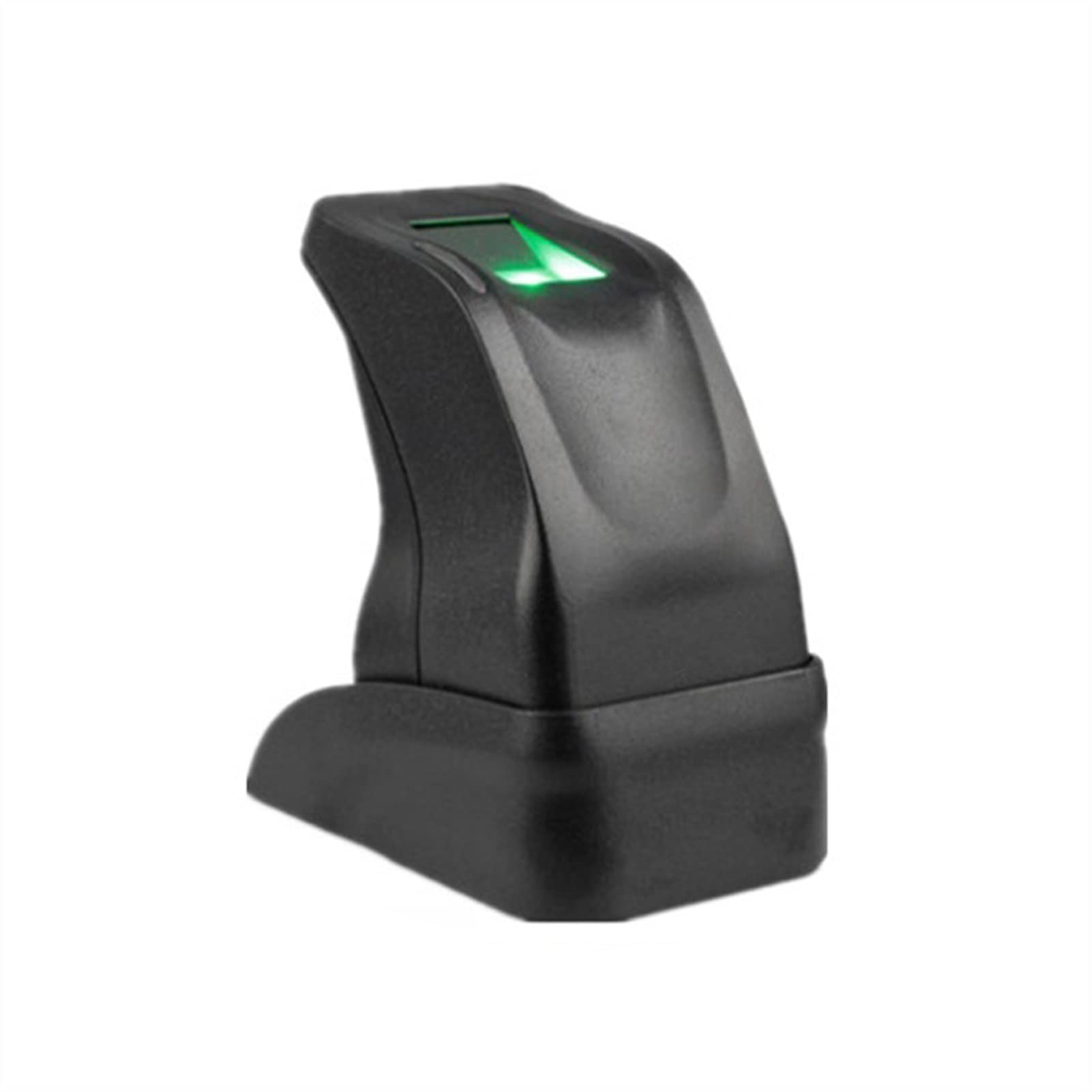
Image: The ZK4500 USB Fingerprint Collector with its USB cable, ready for connection. The green light indicates power or operational status.
Operating Instructions
The ZK4500 USB Fingerprint Collector is designed for straightforward operation in various biometric applications.
- Finger Placement: Gently place your finger flat on the optical sensor surface. Ensure full contact for accurate scanning. The sensor is readily accessible for any finger.
- LED Indicator: Observe the LED indicator on the device. It will change status to confirm a successful scan or indicate an error. Refer to your specific application software for detailed LED status interpretations.
- Enrollment Process: For initial setup in an attendance or access control system, follow the software's instructions to enroll fingerprints. This typically involves scanning the same finger multiple times to create a robust template. This simplifies the onboarding process for users.
- Verification/Identification: Once enrolled, users can place their finger on the sensor for verification (1:1 matching) or identification (1:N matching) as required by the application.
- Data Management: The device works in conjunction with software to manage fingerprint data and associated actions (e.g., recording attendance, granting access). The system supports high user capacity and information storage, suitable for small to medium enterprises.
- Offline Capability: For attendance systems, the device can often function to clock in/out normally even without a continuous Wi-Fi connection. Built-in backup mechanisms protect time data in the event of a power failure, preventing data loss.

Image: A top-down view of the ZK4500 USB Fingerprint Collector, highlighting the optical sensor area where a finger is placed for scanning.
Maintenance
The ZK4500 USB Fingerprint Collector is designed to be largely maintenance-free due to its high-performance optical sensor. However, proper care ensures longevity and optimal performance:
- Cleaning the Sensor: Periodically clean the optical sensor surface with a soft, lint-free cloth. If necessary, slightly dampen the cloth with a non-abrasive, alcohol-free cleaner. Avoid harsh chemicals or abrasive materials that could scratch the sensor.
- Environmental Conditions: Operate and store the device within the specified environmental ranges:
- Operating Humidity: 20% - 80% (non-condensing)
- Operating Temperature: 0°C - 55°C (32°F - 131°F)
- Physical Protection: While the device features a scratchproof surface, avoid dropping it or subjecting it to strong impacts. Use the removable weighted stand for stable placement to prevent accidental falls.
- Cable Care: Ensure the USB cable is not bent sharply, pinched, or subjected to excessive tension, which could damage the internal wiring.
Troubleshooting
If you encounter issues with your ZK4500 USB Fingerprint Collector, refer to the following common problems and solutions:
- Device Not Recognized by Computer:
- Check USB Connection: Ensure the USB cable is securely plugged into both the device and the computer. Try a different USB port.
- Driver Installation: Verify that the drivers were installed correctly. Reinstall drivers from the provided CD if necessary. Check your computer's Device Manager for any error indicators related to the fingerprint device.
- Operating System Compatibility: Confirm your operating system is Windows XP, Vista, or Windows 7 (32-bit). The device may not function correctly on unsupported OS versions.
- Fingerprint Scan Failure/Inaccuracy:
- Clean Sensor Surface: Ensure the optical sensor surface is clean and free of dust, dirt, or smudges. Refer to the Maintenance section for cleaning instructions.
- Proper Finger Placement: Make sure the finger is placed flat and covers the entire sensing area. Avoid pressing too hard or too lightly.
- Finger Condition: Dry or excessively wet fingers can affect scan quality. Ensure fingers are clean and dry.
- Re-enroll Fingerprint: If issues persist, try re-enrolling the fingerprint in your application software. This can create a new, clearer template.
- LED Indicator Not Lighting Up:
- Power Supply: Ensure the USB port is providing power. Try connecting to a different USB port or computer.
- Cable Damage: Inspect the USB cable for any visible damage. A damaged cable may prevent the device from receiving power or communicating.
Specifications
Detailed technical specifications for the ZK4500 USB Fingerprint Collector:
| Feature | Specification |
|---|---|
| Fingerprint Sensor Type | Optical |
| Resolution | 500 DPI / 256 gray |
| Image Size | 280 x 360 pixels |
| Sensing Area | 15mm x 18mm |
| Interface | USB |
| Supported Operating Systems | Windows XP, Windows Vista, Windows 7 (32-bit) |
| Operating Humidity | 20% - 80% |
| Operating Temperature | 0°C - 55°C (32°F - 131°F) |
| Material | Industrial-class ABS plastic with scratchproof texture surface |
| Product Dimensions | Approximately 1"W x 1"H (actual device dimensions may vary slightly) |
| Item Weight | Approximately 2.2 pounds (1000 grams) |
| Model Number | BAFEPFPDG |

Image: The retail packaging for the ZK4500 USB Fingerprint Collector, showing branding and basic product information.
Warranty Information
Specific warranty details for the Generic ZK4500 USB Fingerprint Collector are typically provided by the seller or manufacturer at the time of purchase. Please retain your proof of purchase for any warranty claims.
In general, products are covered against manufacturing defects for a limited period. For detailed terms and conditions, please refer to the documentation included with your purchase or contact the seller directly.
Customer Support
For technical assistance, troubleshooting beyond this manual, or inquiries regarding your ZK4500 USB Fingerprint Collector, please contact the following:
- Seller Support: Reach out to the retailer or seller from whom you purchased the device. They can often provide initial support and guidance.
- Manufacturer Support: If available, consult the manufacturer's official website for support resources, FAQs, and contact information.
When contacting support, please have your product model (ZK4500) and any relevant purchase information ready to expedite the process.