Introduction
This manual provides essential instructions for the proper installation and handling of your Lkfyyds replacement LCD screen and digitizer assembly for the Huawei MatePad 11.5s 2024 TGR-W09 Matte Version. Please read all instructions carefully before proceeding with installation to ensure a successful repair and to prevent damage to the product or your device.
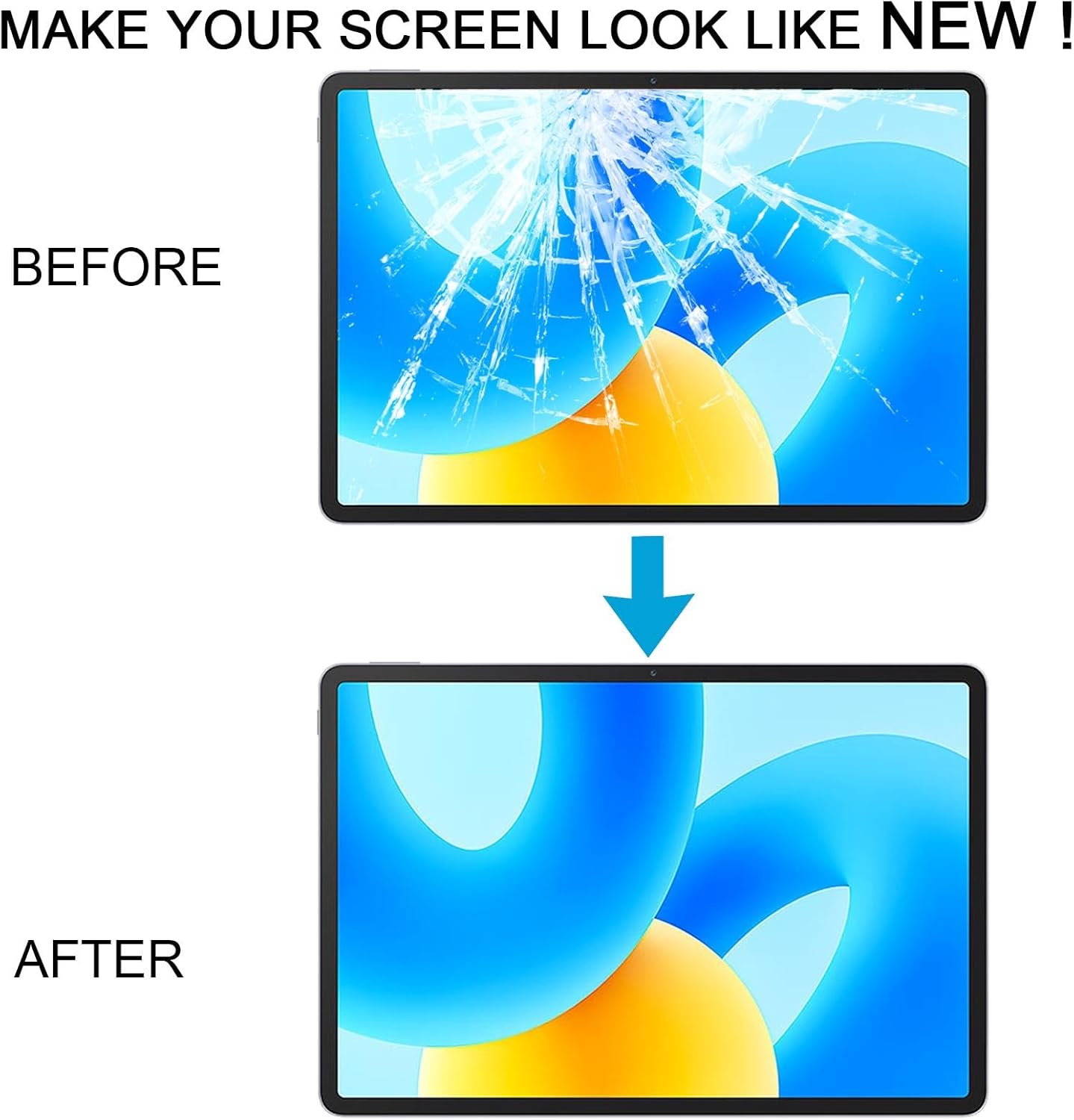
Figure 1: Visual representation of a screen before and after replacement, demonstrating the product's purpose.
Important Safety Information
- Electrostatic Discharge (ESD) Protection: Before attempting any repair, ensure you ground yourself using an ESD (electrostatic discharge) strap. This prevents static electricity from damaging the electronic components within your device.
- Eye Protection: Always wear eye protection during the repair process to safeguard against potential glass splinters or other debris.
- Handle with Care: The screen replacement is a very fragile product. Exercise extreme caution to avoid cutting your fingers with glass splinters from the original damaged screen or damaging the new component.
Pre-Installation Notes
Adhering to these notes is crucial for a successful installation and to prevent damage to the new screen assembly.
- Test Before Installation: Do not remove any protective film or tags from the new screen assembly before testing.
- Simulated Testing: Before full installation, perform a simulated test. This involves connecting the new LCD or screen to the device's motherboard and audio cable (if applicable), powering on the device, and verifying functionality. If the test is successful, proceed with installation. If the screen does not display correctly, contact support immediately and do not force installation.
- Cable Handling: Ensure the LCD flex cable is not over-bent. Bending the cable beyond 90 degrees can cause a black display or other display malfunctions.
- Product Condition: Each item has been inspected and confirmed to be in good condition before shipment.
- Compatibility Check: This LCD is a matte version. Please verify that this specific LCD type is suitable for your Huawei MatePad 11.5s 2024 TGR-W09 device before proceeding.
- Professional Installation Recommended: Due to the delicate nature of the components and the complexity of the repair, professional installation is highly recommended.
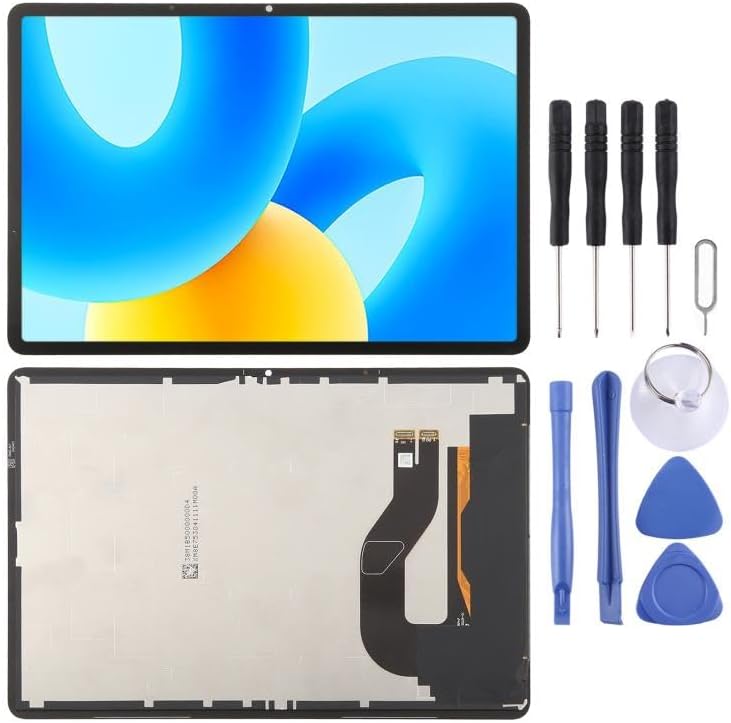
Figure 2: The replacement screen assembly and typical repair tools.

Figure 3: Detail of the flex cables on the reverse side of the screen. Handle these cables with extreme care.
Installation Guide
This section outlines the general steps for installing the replacement screen. Specific disassembly instructions for your device model may vary and should be referenced from a dedicated service manual or guide.
- Preparation: Power off your Huawei MatePad 11.5s 2024 TGR-W09 completely. Ensure you are grounded with an ESD strap.
- Disassembly: Carefully disassemble your device to remove the damaged screen. This typically involves heating the edges to loosen adhesive, then using prying tools to separate the screen from the frame. Disconnect the old screen's flex cables from the motherboard.
- Initial Testing (Re-emphasized): Before applying any adhesive, connect the new screen's flex cables to the motherboard. Power on the device to perform the simulated test as described in the 'Pre-Installation Notes'. Verify display functionality and touch response.
- Secure Installation: If the test is successful, power off the device. Carefully remove any remaining adhesive from the device frame. Apply new adhesive (not included) to the frame. Align the new screen assembly precisely and gently press it into place. Reconnect all internal components and secure them.
- Final Assembly: Reassemble the device, ensuring all screws and covers are correctly placed.
Post-Installation Functionality Check
After installation, perform the following checks to confirm proper operation:
- Display Quality: Power on the device and check for any abnormalities such as dead pixels, discoloration, lines, or uneven backlighting.
- Touch Response: Test the entire screen for touch sensitivity and accuracy. Ensure all areas respond correctly to touch input.
- Brightness and Sensors: Verify that brightness adjustment works and that proximity/ambient light sensors (if applicable to the screen component) function correctly.
Care and Handling of the Display
To maintain the longevity and performance of your new display:
- Cleaning: Use a soft, lint-free cloth, slightly dampened with water or a screen-specific cleaning solution, to clean the display. Avoid harsh chemicals or abrasive materials.
- Protection: Consider using a screen protector and a protective case for your tablet to guard against scratches and impacts.
- Temperature: Avoid exposing the device to extreme temperatures, which can affect display performance and lifespan.
Common Installation Issues and Solutions
- Black Display: If the screen remains black after installation, first check the flex cable connections. An over-bent cable (beyond 90 degrees) is a common cause. Carefully inspect and reseat the cable.
- Screen Not Showing: If the screen does not display any image during the simulated test or after full installation, ensure all connectors are firmly seated. If the issue persists after re-checking connections, contact customer support.
- Touch Not Responding: Verify that the digitizer flex cable is properly connected. If the issue continues, it may indicate a faulty digitizer or connection.

Figure 4: Example of a black screen, a common symptom of connection issues or cable damage.
Specifications
- Product Type: LCD Screen with Digitizer Full Assembly
- Compatibility: Huawei MatePad 11.5s 2024 TGR-W09 (Matte Version)
- Item Weight: 3.96 pounds
- ASIN: B0F98MJS6W
- Manufacturer: CHENYANENY for Huawei Spare Parts
Warranty and Support
For any questions regarding quality assurance, product functionality, or after-sales service, please contact Lkfyyds customer support directly. We are committed to providing friendly and timely assistance.
Please refer to your purchase documentation for specific warranty terms and contact information.