1. Introduction
This manual provides essential information for the safe and effective operation of your Generic HY260 PRO Projector. The HY260 PRO is designed to deliver a high-quality viewing experience with native 1080P resolution, 4K support, and smart features powered by Android 11. It includes advanced connectivity options like Bluetooth 5.4 and WIFI6, along with a 180-degree rotatable design and automatic keystone correction for flexible setup.
2. What's in the Box
Carefully unpack the box and ensure all items are present and in good condition. If any items are missing or damaged, please contact customer support.
- HY260 PRO Projector
- Remote Control
- Power Cord
- User Manual (this document)
- HDMI Cable

Image: Contents of the HY260 PRO Projector box, showing the projector, remote control, power cord, user manual, and HDMI cable.
3. Product Overview
Familiarize yourself with the projector's physical components and connection ports.
3.1 Front View

Image: Front view of the HY260 PRO Projector, highlighting the projection lens.
3.2 Side View and Ports
The side of the projector features various input/output ports for connecting external devices.

Image: Side view of the HY260 PRO Projector, showing the HDMI and USB ports, along with product information.
- HDMI Port: Connect to laptops, gaming consoles, TV boxes, etc.
- USB Port: Connect USB drives for media playback.
- Power Input: Connect the provided power cord.
4. Setup
4.1 Power Connection
- Connect the power cord to the projector's power input port.
- Plug the other end of the power cord into a suitable electrical outlet.
4.2 Placement and Image Adjustment
The HY260 PRO Projector offers flexible placement options and automatic image correction.
- 180-Degree Rotation: The projector's base allows for 180-degree rotation, enabling projection onto ceilings or walls from various angles.
- Auto Keystone Correction: The projector automatically adjusts the image to correct trapezoidal distortion, ensuring a rectangular picture even when placed at an angle.
- Optimal Projection Distance: For screen sizes ranging from 35 to 130 inches, an optimal projection distance of approximately 1.68 meters is recommended.

Image: Illustration of the HY260 PRO Projector's projection capabilities, showing recommended distances for screen sizes from 35 to 130 inches.
4.3 Connectivity
The projector supports multiple connection methods for various devices.
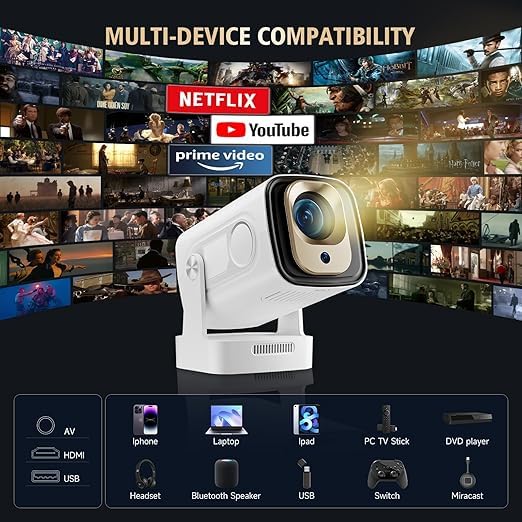
Image: Multi-device compatibility chart for the HY260 PRO Projector, showing connections for HDMI, USB, Bluetooth, and Miracast with various devices and streaming platforms.
- HDMI: Connect devices such as gaming consoles, laptops, and TV boxes using the provided HDMI cable.
- USB: Insert a USB drive into the USB port to play media files directly.
- Bluetooth 5.4: Pair with external Bluetooth speakers or headphones for enhanced audio. Navigate to the Bluetooth settings in the Android 11 interface to pair devices.
- WIFI6: Connect to your wireless network for internet access and streaming. Go to Network Settings in Android 11 to connect to a Wi-Fi network.
- Miracast: For screen mirroring from compatible smartphones and tablets.
5. Operating Instructions
5.1 Power On/Off
Press the power button on the projector or the remote control to turn the device on or off.
5.2 Android 11 Interface and Navigation
The projector runs on Android 11, providing a user-friendly interface for accessing applications and settings. Use the remote control to navigate through menus, select apps, and adjust settings.
5.3 Source Selection
To switch between different input sources (e.g., HDMI, USB, or internal Android apps), use the source selection button on the remote control or navigate through the input menu in the Android interface.
5.4 Google Voice Remote Control
The included remote control supports Google Voice commands, allowing for convenient navigation and content search.

Image: The Google Voice Remote Control, illustrating its functionality for quick access to services like YouTube and Google Play Music.
- Press the dedicated voice button on the remote.
- Speak your command clearly into the remote's microphone (e.g., "Open YouTube," "Search for movies").
5.5 Audio Output
The projector features integrated audio capabilities and supports external audio devices.
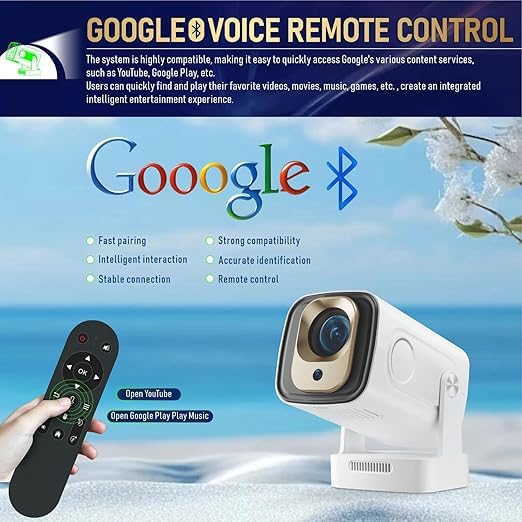
Image: Visual representation of the HY260 PRO Projector's immersive HD sound and advanced noise reduction, featuring Dolby Audio support.
- Internal Speaker: The projector has a built-in speaker for audio playback.
- Bluetooth Audio: Connect to Bluetooth speakers or headphones for a more personalized or powerful audio experience.
- Dolby Audio: The projector supports Dolby Audio, enhancing the cinematic experience.
6. Maintenance
Proper maintenance ensures the longevity and optimal performance of your projector.
6.1 Cleaning
- Lens: Use a soft, lint-free cloth specifically designed for optical lenses to gently wipe the projector lens. Avoid abrasive materials or harsh chemicals.
- Exterior: Wipe the projector's exterior with a soft, dry cloth. Do not use liquid cleaners directly on the device.
- Ventilation: Ensure the ventilation openings are clear of dust and obstructions to prevent overheating.
6.2 Storage
When not in use for extended periods, store the projector in a cool, dry place, away from direct sunlight and extreme temperatures. Use the original packaging or a protective case to prevent dust accumulation and physical damage.
7. Troubleshooting
If you encounter issues with your projector, refer to the following common problems and solutions.
| Problem | Possible Cause | Solution |
|---|---|---|
| No Power | Power cord not connected; Power outlet issue | Ensure power cord is securely connected; Try a different power outlet. |
| No Image | Incorrect input source; Device not connected; Lens cap on | Select correct input source; Check HDMI/USB connections; Remove lens cap. |
| Blurred Image | Focus not adjusted; Projector too close/far | Adjust focus manually if available; Reposition projector within optimal distance. |
| No Sound | Volume too low; Muted; External audio device not connected/paired | Increase volume; Unmute; Check Bluetooth connection or external speaker cable. |
| Wi-Fi/Bluetooth Connectivity Issues | Incorrect password; Out of range; Interference | Verify password; Move closer to router/device; Reduce interference. |
8. Specifications
Key technical specifications for the HY260 PRO Projector:

Image: Overview of the HY260 PRO Projector's core features, including brightness, Bluetooth, Wi-Fi, and native resolution.

Image: Visual confirmation of the HY260 PRO Projector's 4K resolution support.
- Native Resolution: 1920 x 1080 (1080P)
- Supported Resolution: Up to 4K (3840 Pixels)
- Brightness: 300 ANSI Lumens
- Operating System: Android 11
- Bluetooth: Version 5.4
- Wi-Fi: WIFI6 (2.4G & 5G)
- Aspect Ratio: 16:9
- Display Type: LCD
- Hardware Interface: HDMI, USB
- Compatible Devices: Gaming Console, Laptop, Smartphone, TV Box, USB Drive
- Special Features: 180 Degree Rotation, Auto Keystone Correction, Dolby Audio
- Product Dimensions: 25 x 25 x 8 cm
- Item Weight: 2.5 kg
- Voltage: 220 Volts
- Wattage: 100 Watts
- Refresh Rate: 60 Hz
9. Warranty and Support
For warranty information, please refer to the documentation provided at the time of purchase. For technical support or inquiries, please contact:
Customer Service: Support@hy260.com


