
Nillkin B0F5HC2J3M
Nillkin Foldable Keyboard with Touchpad User Manual
Model: B0F5HC2J3M
Introduction
This manual provides detailed instructions for the Nillkin Foldable Keyboard with Touchpad, Model B0F5HC2J3M. This full-size wireless keyboard is designed for portability and efficiency, featuring a multi-touch trackpad, numeric keypad, and multi-device connectivity. Please read this manual thoroughly before using the product to ensure proper operation and maintenance.

Image: The Nillkin Foldable Keyboard, fully unfolded and held in two hands, showcasing its compact yet full-size design with a numeric keypad and touchpad.
What's in the Box
- Nillkin Foldable Keyboard
- USB Cable
- Velvet Storage Bag
- Multilingual Manual
Setup and Connectivity
Initial Charging
Before first use, fully charge the keyboard using the provided USB-C cable. Connect the USB-C end to the keyboard's charging port and the other end to a USB power source. The red indicator light will stay on during charging and turn off when fully charged.
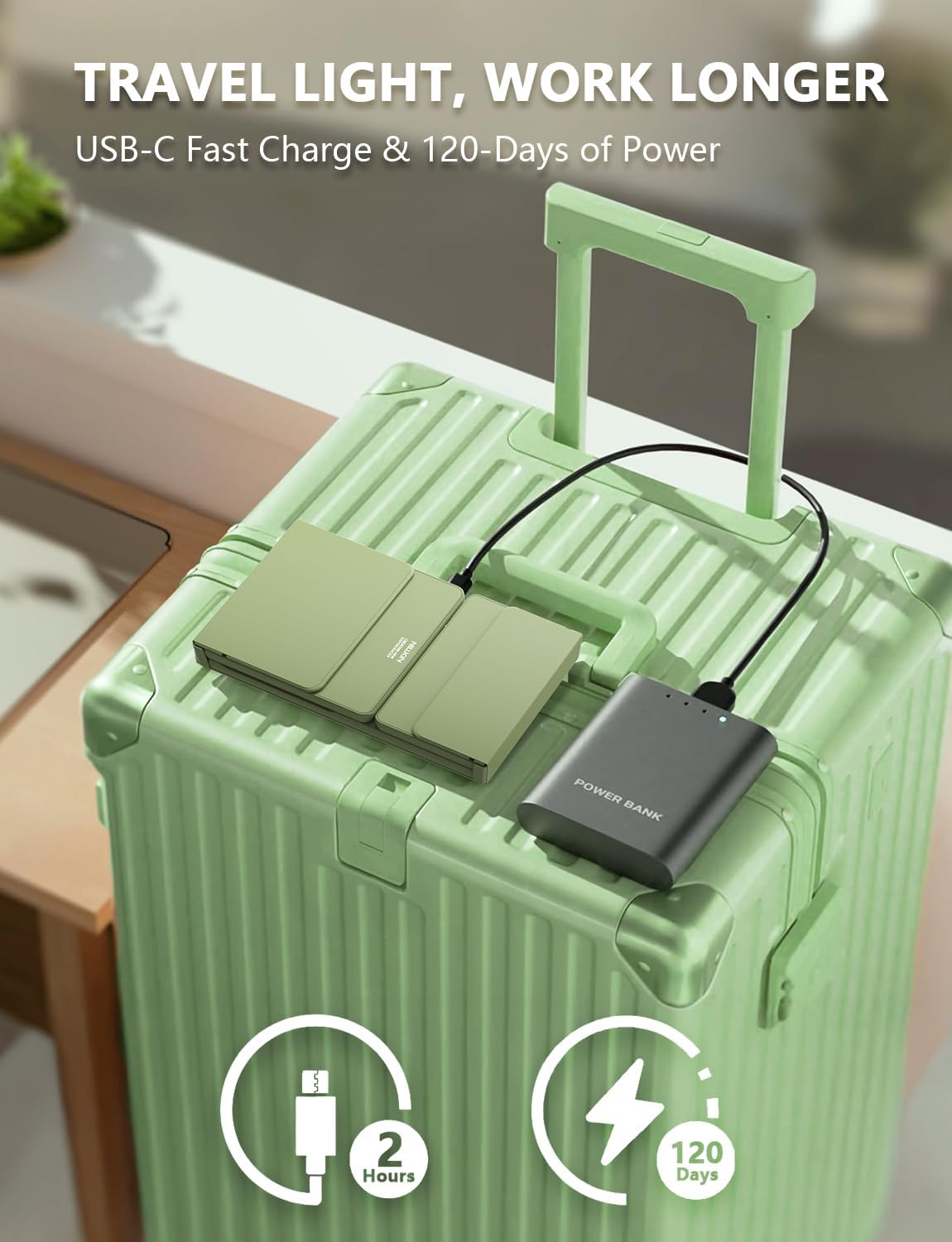
Image: The Nillkin Foldable Keyboard connected via a USB-C cable to a power bank, illustrating the charging process. The image highlights the USB-C port and charging indicator.
Bluetooth Pairing (Up to 3 Devices)
- Turn on the foldable keyboard's power switch.
- Select a Bluetooth channel by pressing FN + BT1, FN + BT2, or FN + BT3. The corresponding Bluetooth channel light will flash.
- Press FN + C to enter pairing mode. The selected Bluetooth channel light will flash rapidly.
- On your device (iPad, Laptop, PC, Tablet, Smartphone), turn on Bluetooth and search for "Nillkin Keyboard" or similar. Select it to pair and connect.
- Once connected, the light will stop flashing. You can effortlessly switch between connected devices by pressing FN + BT1/BT2/BT3.

Image: The Nillkin Foldable Keyboard shown connected wirelessly to a laptop, a desktop monitor, and a tablet, demonstrating its multi-device compatibility.
Operating Instructions
Keyboard Layout and Special Functions
The Nillkin Foldable Keyboard features a full-size layout with a dedicated numeric keypad and multi-touch trackpad. Many functions are accessed using the FN key in combination with other keys.
- FN + F1-F12: Access multimedia and system functions (e.g., volume, playback, screen brightness).
- FN + Command (Q/W/E): Switch between trackpad and numeric keypad modes. This allows the numeric keypad area to function as either a numerical input pad or a multi-touch trackpad.
- FN + BT1/BT2/BT3: Switch between paired Bluetooth devices.

Image: A close-up of the Nillkin Foldable Keyboard's right side, highlighting the integrated trackpad and numeric keypad. An arrow indicates the FN+Command key combination for switching modes.

Image: A visual comparison showing the larger keycap size of the Nillkin Foldable Keyboard compared to a standard keyboard, emphasizing comfortable typing.
Checking Battery Level
To view the current keyboard battery level, press FN + Right COMMAND. The indicator light will flash according to the battery percentage:
- Green light flashes 3 times: 70-100% battery
- Blue light flashes 3 times: 30-70% battery
- Red light flashes 3 times: 0-30% battery (low battery, please charge)
Video: Demonstrates how to check the battery indicator light on the Nillkin Foldable Keyboard by pressing FN + Right COMMAND, showing the different light colors corresponding to battery levels.
Maintenance
To ensure the longevity of your Nillkin Foldable Keyboard, follow these maintenance guidelines:
- Keep the keyboard clean by wiping it with a soft, dry cloth. Avoid using harsh chemicals or abrasive materials.
- Protect the keyboard from extreme temperatures, direct sunlight, and moisture.
- When not in use, fold the keyboard and store it in the provided velvet storage bag to prevent scratches and dust accumulation.
- Avoid placing heavy objects on the keyboard to prevent damage to the keys or hinges.
Troubleshooting
| Problem | Solution |
|---|---|
| Keyboard does not turn on. | Ensure the power switch is in the ON position. Charge the keyboard fully using the USB-C cable. |
| Unable to pair via Bluetooth. |
|
| Keys are not responding. | Check battery level. Re-pair the keyboard with your device. Ensure the keyboard is within Bluetooth range (up to 30ft). |
| Trackpad/Numeric Keypad not working. | Press FN + Command to switch between trackpad and numeric keypad modes. Ensure the correct mode is active for your intended use. |
Specifications
- Brand: Nillkin
- Model: B0F5HC2J3M
- Connectivity Technology: Bluetooth
- Compatible Devices: Laptop, PC, Tablet, Smartphone
- Keyboard Description: Multi Functional
- Special Features: Portable, Quiet, Foldable, Trackpad, Numeric Keypad
- Color: Black
- Number of Keys: 64
- Material: Polyurethane (PU), Acrylonitrile Butadiene Styrene (ABS)
- Item Weight: 1.04 pounds (approx. 472g)
- Package Dimensions: 10.04 x 5.75 x 1.14 inches
- Country of Origin: China
Warranty and Support
For warranty information or technical support, please contact Nillkin customer service or refer to the official Nillkin website. Keep your purchase receipt for warranty claims.
Manufacturer: Neekin-US
Ask a question about this manual
Ask about setup, troubleshooting, compatibility, parts, safety, or missing instructions. Manuals+ will review the question and use this page’s manual context to help answer it.