
1. Introduction
This manual provides detailed instructions for the installation, operation, and maintenance of your EagleNav F150 Android 13 Car Stereo. Please read this manual thoroughly before using the product to ensure proper function and safety. This unit is designed to enhance your driving experience with advanced features and connectivity.
2. Product Overview
2.1 Compatibility
This car stereo is specifically designed for Ford F150 models from 2009, 2010, 2011, and 2012.
2.2 Key Features
- Android 13 Operating System
- 9-inch Touch Screen Display
- Wireless CarPlay and Android Auto Support
- Bluetooth Hands-Free Calling and Audio Streaming
- Integrated GPS Navigation
- Wi-Fi Connectivity
- AM/FM Radio Tuner
- Steering Wheel Control (SWC) Compatibility
- Reversing Camera Assistance
- Mirror Link Functionality
- Digital Signal Processing (DSP) for enhanced audio
- Split Screen Function
- Customizable Colorful Lighting
3. Package Contents
Verify that all items are present in the package before installation.

All components included in the package.
- Car Stereo Unit
- RCA Cable
- Power Cable
- Screwdriver
- CAN Bus Decoder
- Crowbar (Pry Tool)
- Reversing Line
- Antenna
- Antenna Adapter Cable
- USB Cable (x2)
- Speaker
- Microphone
- GPS Module
4. Installation Guide
Professional installation is recommended. Ensure the vehicle's battery is disconnected before starting the installation process.
4.1 Pre-Installation Overview
The image below illustrates the appearance of the dashboard before and after the car stereo installation, highlighting the integrated fit.

Dashboard appearance before and after installation.
4.2 Wiring Diagram
Refer to the following diagram for correct wiring connections. Ensure all cables are securely connected to their respective ports.

Wiring diagram for the car stereo unit.
4.3 Special Installation Note
If the AUX interface screen appears when the right turn signal is activated, follow these steps to disable the function:
- Go to Settings.
- Select Vehicle Settings.
- Choose Factory Settings (Factory password: 000000).
- Navigate to CAN-related Settings.
- Select and turn off the right view shield function.
5. Operating Instructions
5.1 Power On/Off
Press the power button on the unit to turn it on or off. The unit will typically power on automatically with the vehicle's ignition.
5.2 Wireless CarPlay & Android Auto
This unit supports wireless connection for both Apple CarPlay and Android Auto, allowing you to project your phone's content onto the car stereo screen.

Wireless CarPlay and Android Auto interface.
Connection Steps:
- Ensure Bluetooth is enabled on your smartphone.
- On the car stereo, open the Zlink application.
- Pair your phone with the car stereo via Bluetooth. The car stereo's Bluetooth name is typically "Car BT".
- Confirm the pairing request on your phone and allow contact access if prompted.
- Once connected, CarPlay or Android Auto will launch automatically.
Video demonstrating the CarPlay function operation, including Bluetooth pairing and interface display.
5.3 Bluetooth Hands-Free and Audio
Connect your iOS or Android phone via Bluetooth for hands-free calling and audio streaming. The unit includes a built-in microphone. For improved call clarity, an external microphone is provided in the package.

Bluetooth call and music features.
5.4 GPS Navigation
Download your preferred map application from the Play Store. Connect the supplied GPS antenna for accurate positioning. You can plan routes using coordinates, zip codes, addresses, or points of interest. Real-time traffic flow information is available to help you make informed travel decisions.

Online GPS Navigation interface.
5.5 Radio (AM/FM)
The unit features a high-quality digital stereo (RDS) FM/AM tuner. It can automatically or semi-automatically search for radio stations. Adjust volume and use the stereo EQ (Jazz, Rock, Pop, Classic, etc.) for personalized sound.
5.6 Media Playback
Play multimedia content both offline and online. The unit supports various audio and video formats. You can also browse online videos when connected to Wi-Fi.
5.7 Steering Wheel Controls (SWC)
Utilize your vehicle's existing steering wheel controls to manage calls, adjust volume, and change songs for a safer driving experience. Ensure the 8-pin plug for CANbus is connected during installation for SWC functionality.
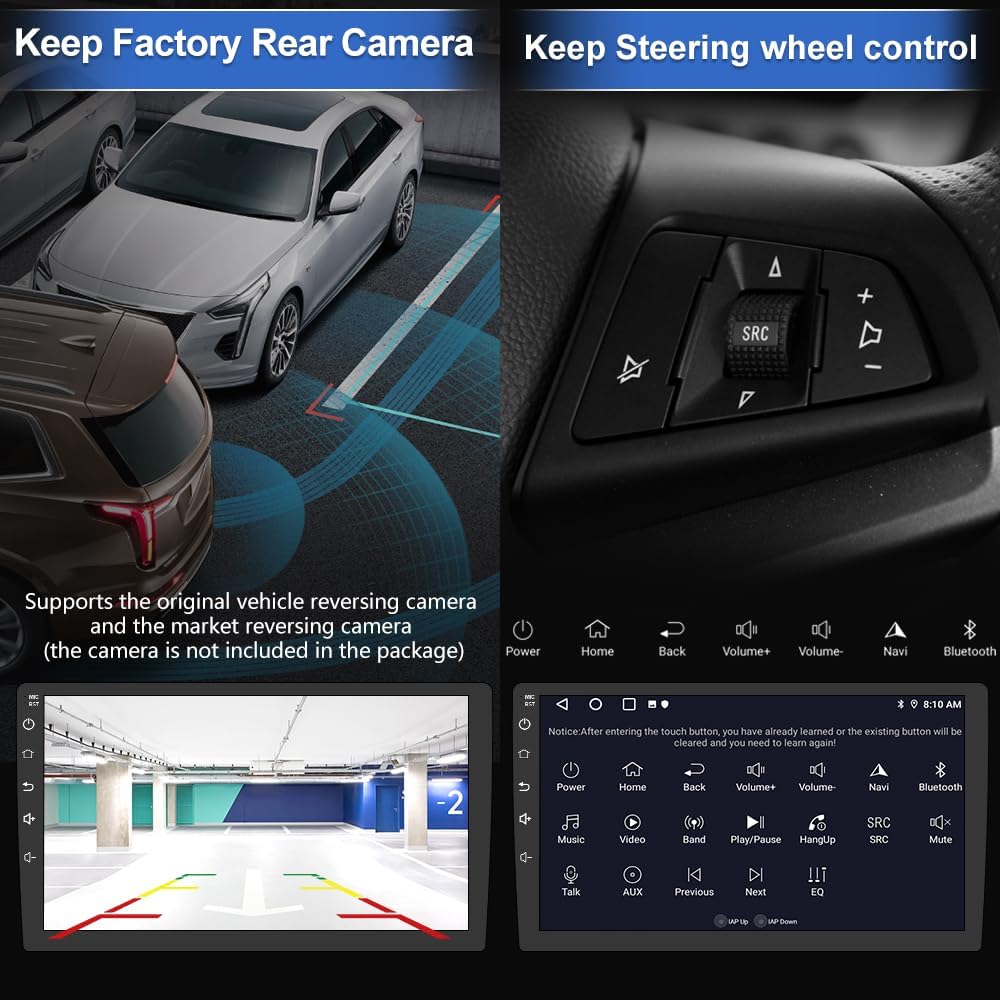
Steering wheel control functionality.
5.8 Reversing Camera Assistance
Connect a rear reversing camera (not included) to the unit for assistance when backing up. The screen will automatically display the camera feed when the vehicle is in reverse.
5.9 Mirror Link
The Mirror Link function is compatible with both Android and iOS mobile phones, allowing you to mirror your phone's screen content directly onto the car stereo display.
5.10 Wi-Fi / WLAN Internet
Connect to Wi-Fi or WLAN to access online features, download applications like YouTube and Gmail, and browse the internet directly from your car stereo.
5.11 Sound Settings (DSP)
The built-in Digital Signal Processing (DSP) function allows for precise control over speaker delay and stereo position, optimizing the sound experience within your vehicle.
5.12 Split Screen
The split-screen feature allows you to run two applications simultaneously on the 9-inch display, for example, navigation on one side and music on the other.
5.13 Customizable Lighting
The unit features customizable colorful lighting, allowing you to adjust the ambient lighting to match your vehicle's interior or personal preference.
6. Troubleshooting
If you encounter any issues, refer to the following common problems and solutions:
- Issue: AUX interface screen pops up when right turn signal is on.
Solution: This is a configurable feature. Go to Settings > Vehicle Settings > Factory Settings (password: 000000) > CAN-related Settings, then disable the right view shield function. - Issue: CarPlay/Android Auto not connecting or disconnecting.
Solution: Ensure your phone's Bluetooth is on and paired correctly. Open the Zlink app on the car stereo. If issues persist, try restarting both your phone and the car stereo. Verify that the CarPlay software is up to date. - Issue: AC control pop-up on screen.
Solution: This can sometimes be related to CANbus settings. Check the Factory Settings (password: 000000) for any AC-related display options and adjust as necessary. - Issue: Low audio output or sound quality.
Solution: Check the DSP and EQ settings in the sound control system to optimize audio output. Ensure all speaker connections are secure. If using an external amplifier, verify its connections and settings. - Issue: Screen unresponsive or slow.
Solution: Restart the unit. Ensure there are no excessive applications running in the background. If the issue persists, a factory reset might be necessary (note: this will erase all user data and settings).
For further assistance, please contact customer support.
7. Specifications
| Feature | Specification |
|---|---|
| Item Weight | 4.38 pounds |
| Package Dimensions | 16.54 x 11.89 x 5.28 inches |
| Item Model Number | F150 |
| Display Size | 9 Inches |
| Voice Command | Microphone |
| Vehicle Service Type | Car |
| Special Features | Android Auto, Built-In Bluetooth, Built-In Wi-Fi, CarPlay |
| Connectivity Technology | Bluetooth, Wi-Fi |
| Map Type | North America |
| Audio Output Mode | Stereo |
| Operating System | Android |
| Memory Storage Capacity | 32 GB |
8. Warranty and Support
8.1 Warranty Information
This product comes with a 1-year warranty from the date of purchase. Please retain your proof of purchase for warranty claims.
8.2 Customer Support
For any installation, usage, or technical issues, please contact EagleNav customer support at EagleNav-us@outlook.com. Our support team is available to assist you.