Introduction
This manual provides detailed instructions for the installation, operation, and maintenance of your Bobuluo 7-inch Car Stereo Radio. Designed specifically for Lexus CT200H CT20 models from 2010 to 2018, this unit integrates advanced features such as Wireless CarPlay, Android Auto, GPS Navigation, Bluetooth connectivity, and support for a backup camera to enhance your driving experience.
Package Contents
Verify that all items listed below are included in your package:
- 1 x Car MP5 Player
- 1 x Power Cable
- 1 x GPS Antenna
- 1 x RCA Cable
- 1 x Rear Camera Input Cable
- 2 x USB Cable
- 1 x AHD Camera
- 1 x Instruction Manual

Image: All components included in the Bobuluo car stereo package.
Key Features
- Android 13 System: Equipped with the latest Android 13 operating system for smooth performance.
- Memory: 2GB RAM + 32GB ROM for efficient multitasking and storage.
- Display: 7-inch IPS touch screen with 1024*600 resolution for clear and sensitive interaction.
- Wireless CarPlay & Android Auto: Seamless integration with iOS and Android smartphones via Bluetooth and Wi-Fi for navigation, music, calls, and app control.
- GPS Navigation: Supports both offline and online maps, ensuring navigation even in areas with no signal.
- Wi-Fi Connectivity: Connect to a Wi-Fi network to use phone features directly on the unit.
- Steering Wheel Control: Compatible with existing steering wheel controls for convenient operation.
- Backup Camera Support: Includes an AHD camera with 170° wide-angle lens, IP68 waterproofing, and night vision for safe parking.
- Bluetooth: Built-in Bluetooth for hands-free calls and music streaming, with support for internal and external microphones.
- FM Radio: Integrated FM radio function for listening to your favorite stations.
- High Definition 1080P: Delivers a clearer and more vibrant picture with brighter colors for an enhanced visual experience.

Image: The Bobuluo car stereo showcasing its CarPlay interface within a vehicle dashboard.
Installation Guide
Professional installation is recommended for this car stereo unit. Ensure the vehicle's power is disconnected before beginning installation.
1. Wiring Connections
- Connect the main power cable harness to the vehicle's wiring.
- Connect the GPS antenna to the designated port on the head unit.
- Connect the RCA cables for audio/video input/output as needed.
- Connect the USB cables for external devices.
- For the AHD Camera:
- Connect the black cable to the "GND" (ground).
- Connect the red cable to the backup light's positive (+) terminal.
- Connect the camera's video output to the "Rear Camera Input Cable" on the head unit.
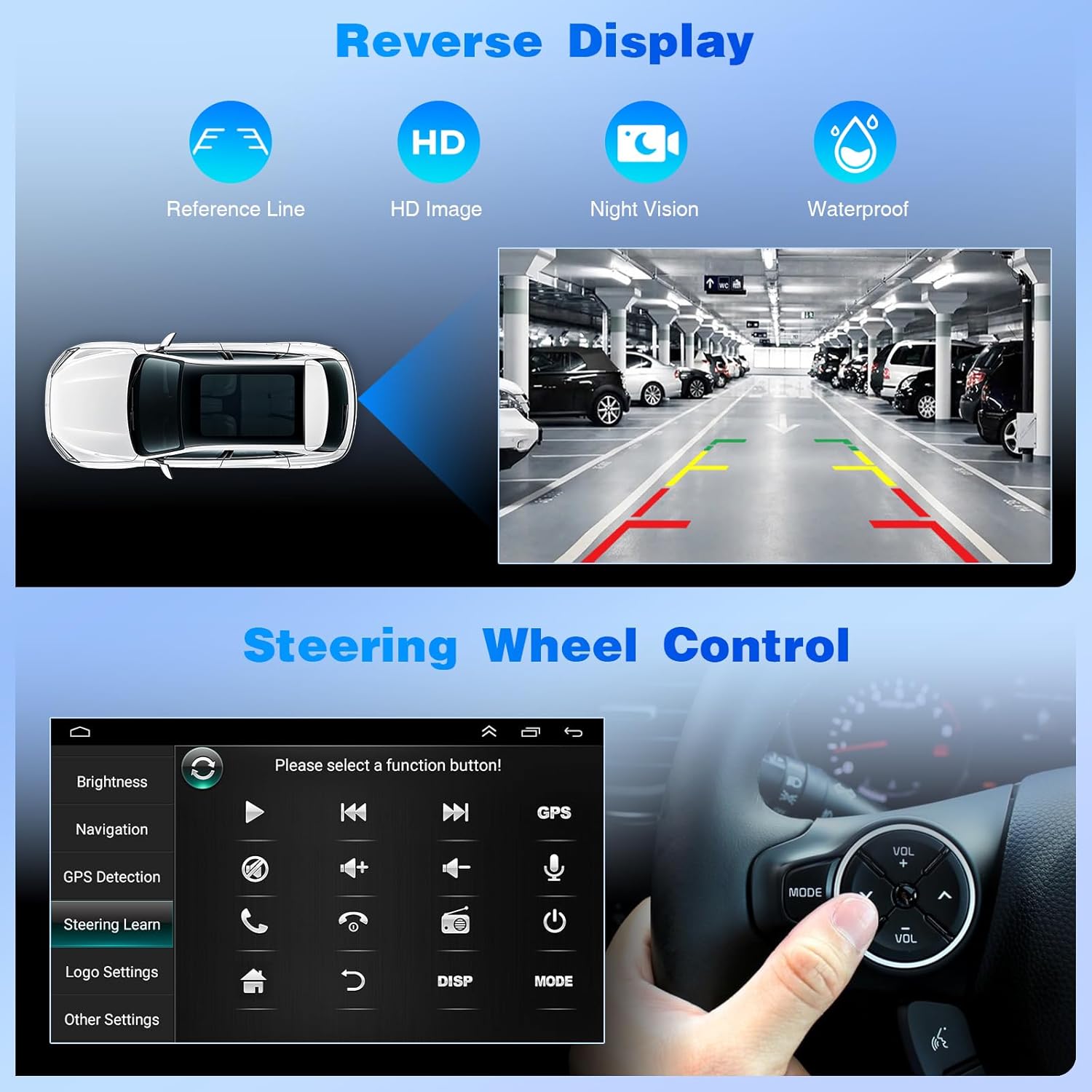
Image: Detailed view of the car stereo's rear connections.
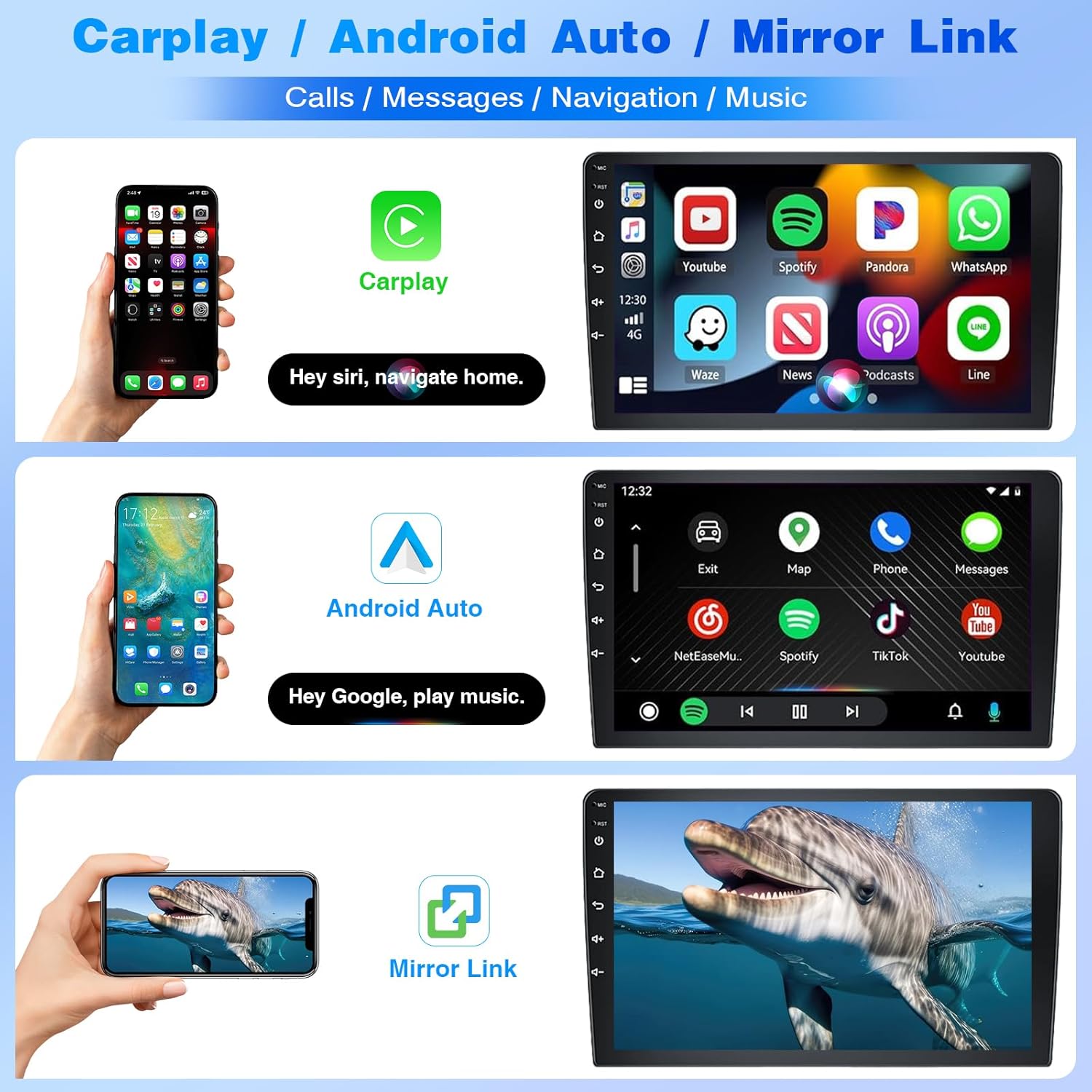
Image: Step-by-step diagram for connecting the rearview camera.
2. Physical Installation
- Carefully remove the original car stereo unit from your Lexus CT200H CT20.
- Mount the new Bobuluo car stereo into the dashboard opening, ensuring all cables are properly routed and secured.
- Secure the unit using the provided mounting hardware.
- Reconnect the vehicle's power.

Image: Visual comparison of the dashboard before and after the car stereo installation.
Operating Instructions
1. Initial Power On and System Setup
- Upon first power-on, the system will boot to the Android 13 interface.
- Follow any on-screen prompts for initial setup, such as language selection and time zone.
2. Wireless CarPlay & Android Auto Connection
To connect your smartphone for Wireless CarPlay or Android Auto:
- Ensure Bluetooth is enabled on your smartphone.
- On the car stereo, navigate to the Bluetooth settings and pair with your phone (default PIN is 0000).
- Once Bluetooth is connected, open the "ZLINK" application on the car stereo.
- The system will attempt to connect to CarPlay or Android Auto automatically.
- If the connection is not successful, manually connect the car stereo to your phone's Wi-Fi hotspot. After connecting to the Wi-Fi, delete the history record in the car stereo's Wi-Fi settings and then click ZLINK again.
- For subsequent connections, simply connect via Bluetooth, and the system should automatically activate CarPlay/Android Auto.
Video: Instructions on how to connect your smartphone to the car radio for CarPlay/Android Auto functionality.

Image: Overview of Wireless CarPlay, Android Auto, and Mirror Link features.
3. GPS Navigation
- Access navigation applications from the main menu.
- The unit supports both offline maps (pre-downloaded) and online maps (requires Wi-Fi connection).
- Ensure the GPS antenna is properly installed for optimal signal reception.
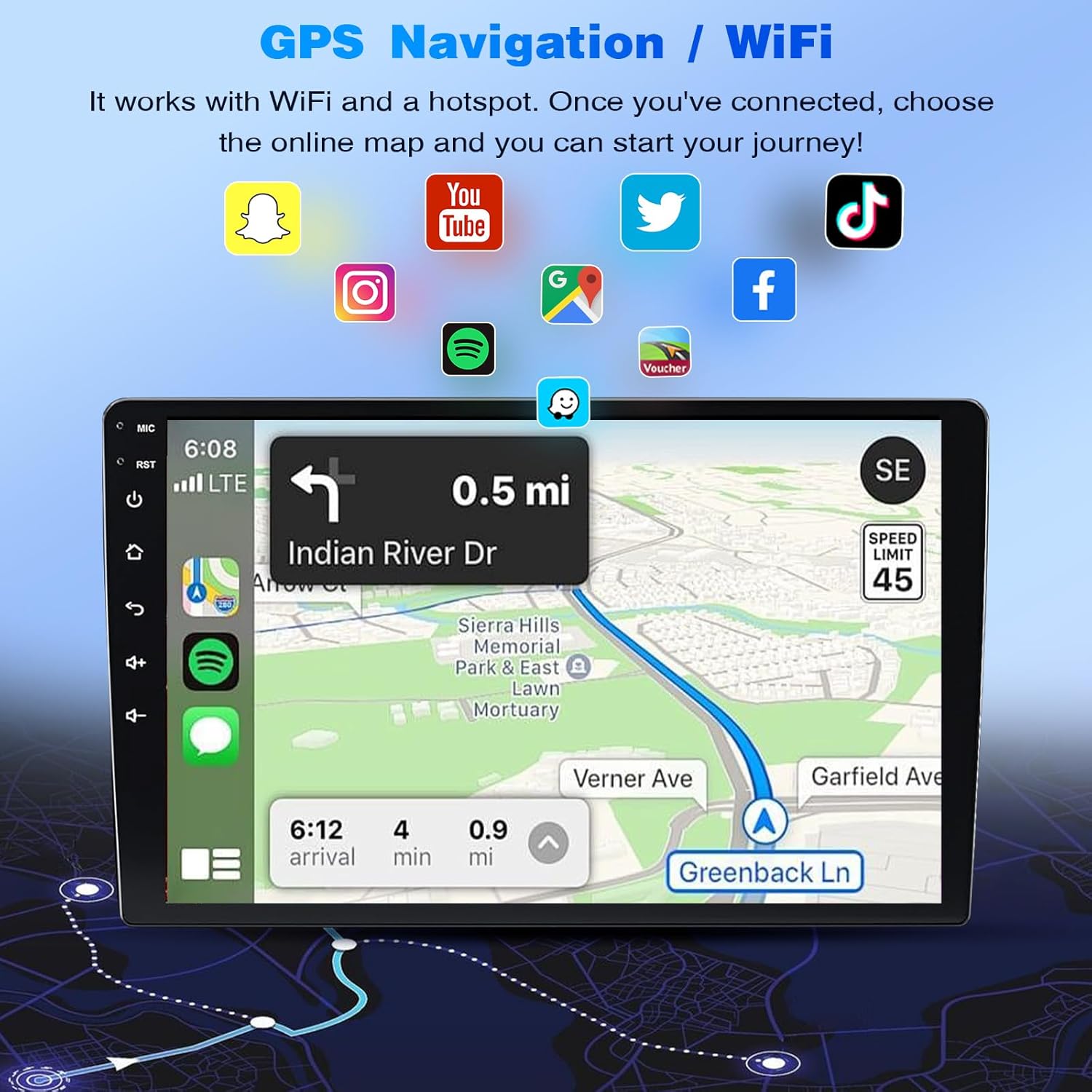
Image: GPS Navigation interface with Wi-Fi connectivity for online services.
4. Bluetooth Functions
- From the main menu, select the Bluetooth icon to access settings.
- Pair your phone to make hands-free calls and stream audio.
- Adjust settings for auto-answer and auto-connect as desired.
5. FM Radio
- Select the "Radio" application from the main menu.
- Use the on-screen controls to scan for stations, save presets, and adjust frequency.
6. Steering Wheel Control (SWC)
- Access the "Steering Learn" option in the car settings menu.
- Follow the on-screen instructions to program your vehicle's steering wheel buttons to control the stereo functions.
Image: Configuration screen for steering wheel controls.
7. Reverse Display (Backup Camera)
- When the vehicle is shifted into reverse, the display will automatically switch to the backup camera view.
- The camera provides a 170° wide-angle view with night vision and IP68 waterproofing.
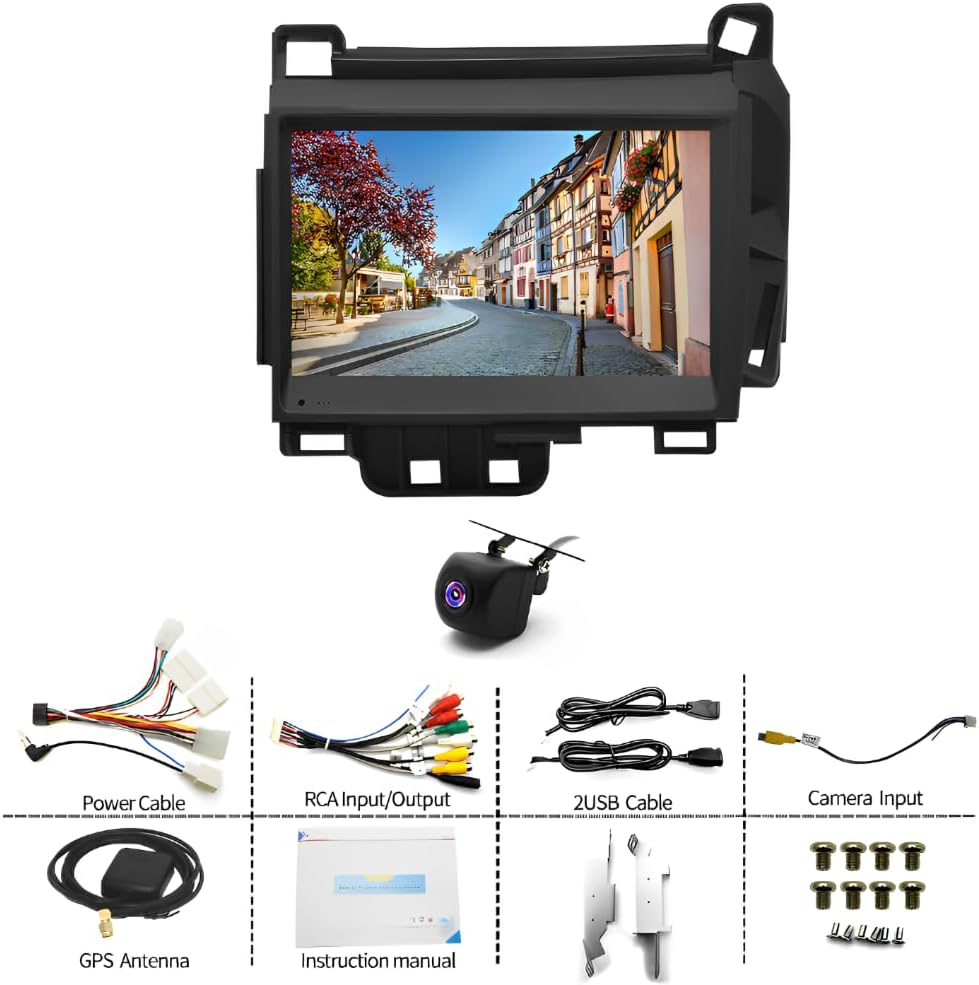
Image: Reverse display functionality with backup camera view.
Specifications
| Feature | Specification |
|---|---|
| Model Number | SW-2G+32G |
| Operating System | Android 13 |
| RAM | 2GB |
| Internal Storage | 32GB |
| Display Size | 7 Inches |
| Display Resolution | 1024*600 |
| Connectivity | Bluetooth, USB, Wi-Fi |
| Special Features | Android Auto, Apple CarPlay, Built-In Bluetooth, GPS Navigation, Touchscreen |
| Audio Output Mode | Stereo |
| Item Weight | 3.27 pounds |
| Package Dimensions | 11.42 x 8.58 x 5.2 inches |
Maintenance
- Cleaning: Use a soft, dry cloth to clean the screen and exterior surfaces. Avoid abrasive cleaners or solvents.
- Software Updates: Periodically check for system software updates to ensure optimal performance and access to new features. Updates can typically be found in the system settings under "About device" or "System updates."
- Environmental Conditions: Avoid exposing the unit to extreme temperatures, direct sunlight for prolonged periods, or excessive moisture.
Troubleshooting
| Problem | Possible Cause | Solution |
|---|---|---|
| Unit does not power on. | Loose power connection, blown fuse. | Check power cables and vehicle fuses. Ensure proper installation. |
| No sound from speakers. | Incorrect wiring, volume too low, mute activated. | Verify speaker wiring connections. Adjust volume. Check if mute is active. |
| CarPlay/Android Auto not connecting. | Bluetooth/Wi-Fi issues, incorrect ZLINK settings. | Ensure Bluetooth is paired and Wi-Fi hotspot is active on phone. Restart ZLINK app. Follow manual Wi-Fi connection steps if needed. |
| GPS signal is weak or inaccurate. | GPS antenna obstruction or improper placement. | Ensure GPS antenna has a clear view of the sky and is securely connected. |
| Backup camera not displaying. | Camera wiring issue, camera malfunction. | Check the camera's power and video input connections. Ensure the vehicle is in reverse. |
| Steering wheel controls not working. | Controls not programmed or incorrect wiring. | Access "Steering Learn" in settings and reprogram controls. Verify SWC wiring. |
Warranty and Support
The product comes with a 2-year warranty. For technical support, troubleshooting assistance, or warranty claims, please contact Bobuluo customer service through the platform where the product was purchased. Please have your model number (SW-2G+32G) and purchase details ready when contacting support.
You can visit the official Bobuluo store for more information: Bobuluo Store


