
1. Introduction
This manual provides detailed instructions for the setup, operation, maintenance, and troubleshooting of your ZWXYVUT P30 Plus Projector Game Console. Please read this manual thoroughly before using the product to ensure proper function and to maximize your viewing and gaming experience. This device combines a high-definition projector with an integrated retro game console, offering versatile entertainment options.
2. Package Contents
Carefully unpack the box and ensure all the following items are present:
- ZWXYVUT P30 Plus Projector
- Remote Control
- Power Cable
- Game Controllers (2 units)
- User Manual (this document)
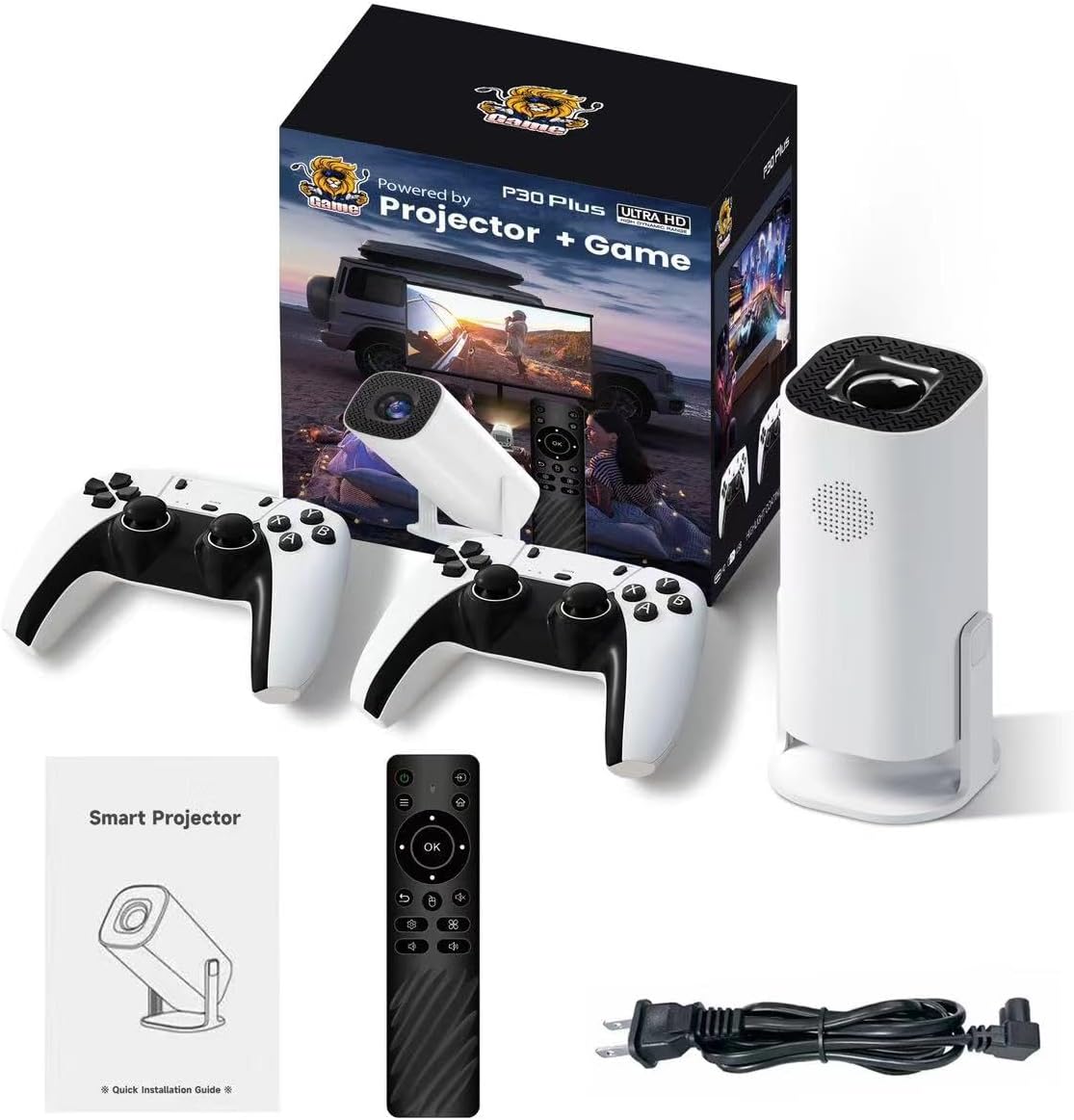
Image: All components included in the ZWXYVUT P30 Plus package, featuring the projector, two game controllers, a remote control, and a power cable.
3. Product Overview
The ZWXYVUT P30 Plus is a versatile device designed for both home theater and gaming. It features a compact design with advanced projection and connectivity capabilities.
3.1 Key Features
- High Definition Projection: Supports 4K video playback with a native 1280x720 resolution, offering clear and vibrant visuals.
- High Brightness: 8000 Lumens for bright and clear images in various lighting conditions.
- Automatic Keystone Correction: One-click adjustment for image geometry.
- Flexible Projection: 180° adjustable bracket for diverse viewing angles.
- Advanced Connectivity: Integrated Wi-Fi 6 and Bluetooth 5.4 for stable wireless connections.
- Integrated Game Console: Pre-installed with over 35,000 classic retro games on a 64GB TF card, supporting multiple emulators and two-player cooperative play.
- Quiet Operation: Operates at 25 dB for an undisturbed viewing experience.

Image: The ZWXYVUT P30 Plus Projector shown alongside its product packaging.
3.2 Projector Components
Familiarize yourself with the main parts of your projector:
- Projection Lens: Emits the image.
- Focus Ring: Manual adjustment for image clarity.
- Power Button: Turns the projector on/off.
- Input Ports: HDMI, USB, Power Input.
- Adjustable Stand: Allows for 180° rotation for flexible projection angles.
3.3 Remote Control
The included remote control allows for easy navigation and adjustment of projector settings.
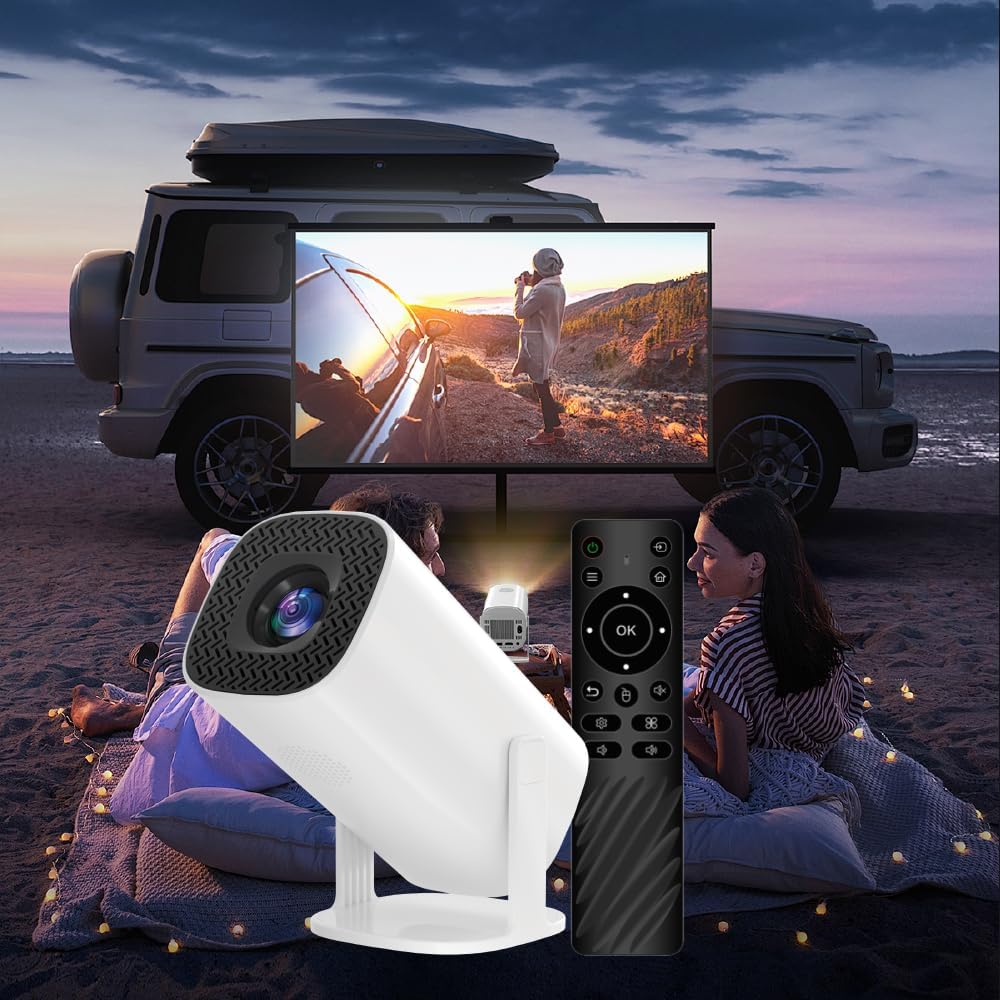
Image: The ZWXYVUT P30 Plus Projector positioned next to its remote control, highlighting the control interface.
4. Setup
4.1 Placement
Position the projector on a stable, flat surface. The 180° adjustable bracket allows for projection onto walls, ceilings, or screens. For a 130-inch screen, an optimal projection distance of 1.88 meters is recommended.
4.2 Power Connection
- Connect the power cable to the projector's power input port.
- Plug the other end of the power cable into a power outlet.
- Press the power button on the projector or remote control to turn on the device.
4.3 Image Adjustment
- Automatic Keystone Correction: The projector features one-click automatic keystone correction. If the image appears distorted (trapezoidal), press the dedicated keystone correction button on the remote or navigate to the setting in the menu to automatically adjust the image to a rectangular shape.
- Manual Focus: Rotate the focus ring on the projector lens until the image appears sharp and clear.

Image: Visual representation of the projector's automatic keystone correction and its ability to project at various angles, including ceiling projection.
5. Operating Instructions
5.1 General Projector Use
- Navigation: Use the arrow keys and OK button on the remote control to navigate through the projector's interface.
- Input Source: Select the desired input source (e.g., HDMI, Media Player, Screen Mirroring) from the main menu.
- Zoom Function: The projector supports a 50% zoom function to adjust the image size without moving the projector.
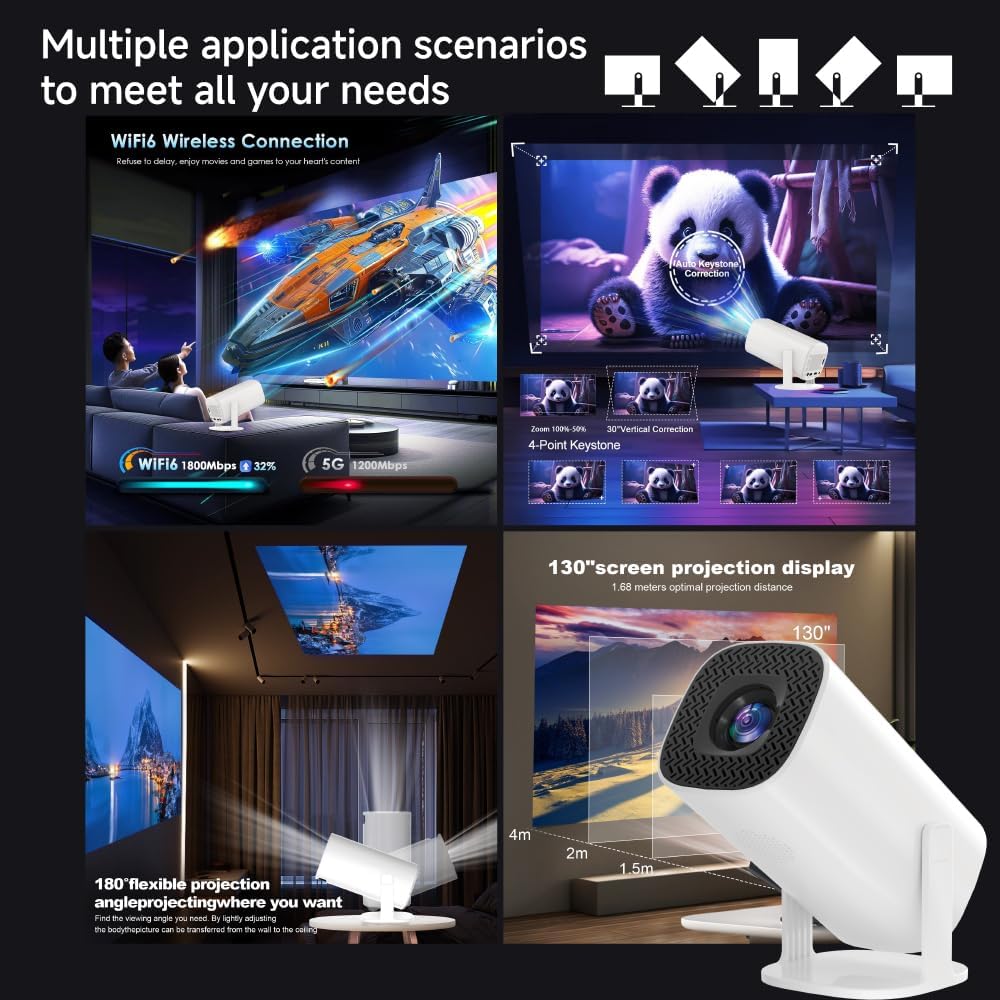
Image: Examples of the projector's versatile use, showcasing its application in gaming, movie viewing, and various projection setups.
5.2 Connectivity
- Wi-Fi Connection: Navigate to the network settings to connect to your Wi-Fi 6 network for internet access and online content streaming.
- Bluetooth Connection: Pair Bluetooth speakers or headphones via the Bluetooth settings for enhanced audio.
- HDMI Input: Connect external devices such as laptops, Blu-ray players, or other game consoles using an HDMI cable.
- Screen Mirroring: Connect your iPhone, Android phone, or tablet wirelessly via Wi-Fi for screen mirroring. Follow the on-screen instructions in the projector's menu for specific device pairing.

Image: The projector demonstrating wireless connectivity, mirroring content from a smartphone and a laptop onto a large screen.
5.3 Gaming
The P30 Plus comes with a built-in game console featuring a vast library of retro games.
- Accessing Games: From the main menu, select the 'Game' or 'Emulator' option to access the pre-installed games. The 64GB TF card contains over 35,000 classic arcade games and supports more than 10 game platform emulators.
- Connecting Controllers: The included dual game controllers are pre-paired or can be easily connected via Bluetooth. Refer to the on-screen instructions for pairing if necessary.
- Two-Player Mode: Enjoy cooperative or competitive gaming with the two provided controllers.
- Game Mode: The projector features a dedicated game mode with low latency (7ms) and a high refresh rate (up to 240Hz) for a smooth gaming experience.

Image: A user engaged in a racing game, projected onto a large screen by the P30 Plus, with the two white game controllers prominently displayed.
6. Maintenance
Proper maintenance ensures the longevity and optimal performance of your projector.
- Cleaning the Lens: Use a soft, lint-free cloth specifically designed for optical lenses to gently wipe the projector lens. Avoid abrasive materials or harsh chemicals.
- Dust Removal: Regularly clean the projector's exterior with a soft, dry cloth. Ensure ventilation openings are free from dust to maintain efficient multi-channel heat dissipation.
- Storage: When not in use for extended periods, store the projector in a cool, dry place, away from direct sunlight and extreme temperatures.
- Service Life: The projector lamp has an estimated service life of 50,000 hours.
7. Troubleshooting
If you encounter issues with your ZWXYVUT P30 Plus Projector, refer to the following common problems and solutions:
- No Image:
- Ensure the projector is powered on and the power cable is securely connected.
- Verify the correct input source is selected (e.g., HDMI, Media Player).
- Check the connection of any external devices.
- Blurred Image:
- Adjust the manual focus ring on the projector lens.
- Perform automatic keystone correction if the image is trapezoidal.
- No Sound:
- Check the volume settings on the projector and any connected external devices.
- Ensure Bluetooth audio devices are correctly paired and connected.
- If using HDMI, verify the audio output settings on the source device.
- Wi-Fi/Bluetooth Connectivity Issues:
- Ensure the projector is within range of your Wi-Fi router or Bluetooth device.
- Restart the projector and the network device/Bluetooth device.
- Check Wi-Fi password or Bluetooth pairing process.
- Projector Overheating:
- Ensure ventilation openings are not blocked.
- Operate the projector in a well-ventilated area.
8. Specifications
| Feature | Specification |
|---|---|
| Brand | ZWXYVUT |
| Model | P30 Plus |
| Display Resolution | Native 1280x720 (Supports 4K input) |
| Brightness | 8000 Lumens |
| Connectivity Technology | HDMI, Wi-Fi 6, Bluetooth 5.4 |
| Special Features | Built-In Speaker, Automatic Keystone Correction, 180° Adjustable Bracket, 50% Zoom Function, Game Mode (7ms latency, 240Hz refresh rate) |
| Recommended Uses | Home Cinema, Gaming |
| Pre-installed Games | 35,000+ classic retro games (on 64GB TF card) |
| Operating System | Android 11 |
| Noise Level | 25 dB |
| Lamp Service Life | 50,000 hours |
9. Warranty and Support
The ZWXYVUT P30 Plus Projector comes with a standard manufacturer's warranty. For specific warranty terms, duration, and to register your product, please refer to the warranty card included in your package or visit the official ZWXYVUT website. For technical support, troubleshooting assistance beyond this manual, or service inquiries, please contact the seller or ZWXYVUT customer support directly.