
1. Introduction
This manual provides detailed instructions for the installation, operation, and maintenance of your Rimoody 4G+64G Wireless Carplay Android Autoradio. Please read this manual thoroughly before using the device to ensure proper functionality and safety. Keep this manual for future reference.
2. Product Overview
Key Features:
- 4G+64G System Configuration
- Wireless CarPlay and Android Auto
- 2 DIN Standard Size
- Touchscreen Display
- Integrated GPS Navigation
- Built-in Wi-Fi and Bluetooth
- Voice Control Capability
- Support for Mirror Link
What's in the Box:
The package includes the main car radio unit and the following accessories:
- Instruction Manual
- GPS Antenna
- RCA Cable
- Reverse Line Cable
- USB Cable
- Antenna Adapter
- Original USB Cable
- Canbus Decoder
- Radio Antenna
- Power Cable
- Rear View Camera
- Microphone (MIC)

Image: Contents of the product box, showing the main car radio unit, instruction manual, GPS antenna, RCA cable, reverse line, USB cable, antenna adapter, original USB cable, Canbus, radio antenna, power cable, rear view camera, and microphone.
3. Setup and Installation
Professional installation is recommended for this device. Ensure the vehicle's power is disconnected before beginning installation.
Vehicle Compatibility:
This autoradio is designed for Fiat Punto models from 2005-2009 and Fiat Linea models from 2007-2011.
Installation Steps:
- Remove Original Radio: Carefully remove the existing car radio from your vehicle's dashboard. Refer to your vehicle's service manual for specific instructions.
- Connect Wiring Harness: Connect the provided power cable, RCA cable, USB cables, and other necessary wiring to the corresponding ports on the new autoradio and your vehicle's wiring harness. Ensure all connections are secure.
- Install Antennas: Connect the GPS antenna and radio antenna. Position the GPS antenna in a location with a clear view of the sky for optimal signal reception.
- Connect Rear View Camera: If installing the rear view camera, route the reverse line cable and video cable from the camera to the autoradio. Connect the camera's power to the vehicle's reverse light circuit.
- Mount Autoradio: Securely mount the new Rimoody autoradio into the 2 DIN slot in your dashboard.
- Test Functionality: Reconnect the vehicle's power and turn on the autoradio to test all functions, including audio, display, GPS, Bluetooth, and camera.
Image: Comparison of a car dashboard before and after the installation of the Rimoody Autoradio, demonstrating the fit for Fiat Punto 2005-2009 and Fiat Linea 2007-2011 models.
4. Operating Instructions
4.1 Wireless CarPlay and Android Auto
Connect your smartphone wirelessly to access CarPlay or Android Auto features. This allows for navigation, music, calls, and messages directly from the autoradio's display.
- CarPlay: For iPhone users, connect via Bluetooth and then follow on-screen prompts to enable wireless CarPlay.
- Android Auto: For Android users, connect via Bluetooth and then follow on-screen prompts to enable wireless Android Auto.
- Mirror Link: This feature allows you to mirror your smartphone's screen onto the autoradio display.

Image: Visual representation of Wireless CarPlay, Android Auto, and Mirror Link interfaces on the autoradio, showing phone, music, and navigation apps.
4.2 GPS Navigation and Wi-Fi
The unit features integrated GPS for navigation and Wi-Fi for internet connectivity.
- GPS Navigation: Utilize pre-installed offline maps or connect to Wi-Fi to use online navigation services. Ensure the GPS antenna is properly installed for accurate positioning.
- Wi-Fi Connectivity: Connect to a Wi-Fi hotspot (e.g., from your smartphone) to access online features, download apps, and stream content.
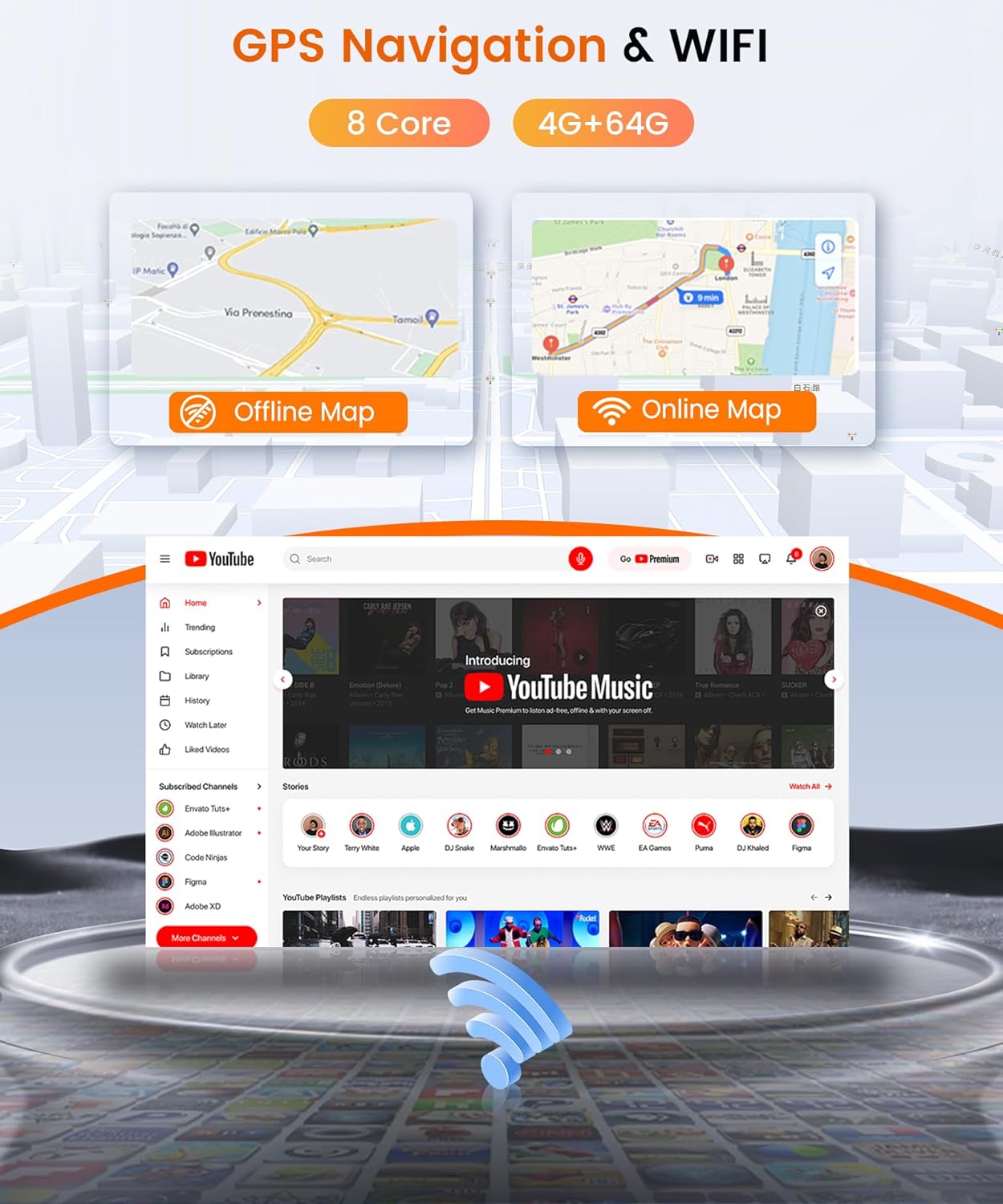
Image: Display of GPS navigation with both offline and online map views, alongside a YouTube application interface, highlighting the device's connectivity and multimedia capabilities.
4.3 Bluetooth Functions
Pair your smartphone via Bluetooth for hands-free calling and audio streaming.
- Hands-Free Calling: Make and receive calls directly from the autoradio. Your phone's contact list can be synchronized.
- Audio Streaming: Play music from your smartphone through the car's speakers.

Image: Bluetooth interface showing options for phone calls, contact synchronization, and music playback, with a visual of a connected phone.
4.4 FM/RDS Radio
Access local radio stations with the built-in FM tuner and RDS (Radio Data System) functionality.
- Station Tuning: Manually or automatically scan for available FM radio stations.
- RDS Display: View station information, song titles, and traffic announcements where available.
Image: FM/RDS radio interface displaying frequency tuning, preset stations, and a graphical representation of sound waves.
4.5 Rear View Camera
The included rear view camera provides assistance for parking and reversing.
- Automatic Display: The display automatically switches to the camera view when the vehicle is put into reverse gear.
- Features: The camera offers HD image quality, night vision, and is waterproof for reliable performance in various conditions.

Image: Rear view camera display with dynamic parking guidelines, showing a car reversing in a parking garage, and an inset image of the physical camera unit.
4.6 Steering Wheel Control
Control essential functions of the autoradio directly from your vehicle's steering wheel buttons (if supported by your vehicle and properly wired).
- Configuration: Access the settings menu to map your steering wheel buttons to functions like volume control, track skipping, mode selection, and answering calls.
Image: Steering wheel control interface on the autoradio display, showing options to select, short press, start, reset, save, and assign functions like volume, track, mode, power, band, and GPS.
4.7 Split Screen Functionality
Utilize the split-screen feature to run two applications simultaneously on the display, such as navigation and music playback.

Image: Autoradio display showing split-screen mode with a navigation map on one side and a music player interface on the other, along with various app icons.
4.8 32-Band Equalizer (32EQ Audio)
Customize your audio experience with the integrated 32-band equalizer, allowing precise adjustment of sound frequencies.
Image: 32-band audio equalizer interface with sliders for frequency adjustment and balance controls, displayed on the autoradio screen.
4.9 Intelligent Voice Control (Optional)
The device supports intelligent voice control for various functions, including navigation, music, and information retrieval. Some advanced features like Internet Radio and Global Climate may require additional setup or accessories.
Image: Display showing voice command examples like "Call Jenny" or "Play Beat it on Spotify," along with interfaces for optional Internet Radio and Global Climate features.
4.10 Optional Accessories Support
The autoradio supports external accessories such as DAB+ tuners, OBD2 diagnostic tools, and DVRs (Digital Video Recorders). These accessories are sold separately.
- DAB+: For enhanced digital audio broadcasting.
- OBD2: For vehicle diagnostics and real-time data display.
- DVR: For recording driving footage.
Image: Visuals of optional accessories including a DVR camera, a DAB+ antenna, and an OBD2 diagnostic dongle, indicating compatibility with the autoradio.
5. Maintenance
To ensure the longevity and optimal performance of your Rimoody Autoradio, follow these maintenance guidelines:
- Cleaning the Screen: Use a soft, lint-free cloth to gently wipe the touchscreen. Avoid abrasive cleaners or solvents that could damage the display.
- Software Updates: Periodically check for and install software updates to ensure the system has the latest features and security patches. Updates can typically be found on the manufacturer's website or through the device's settings menu.
- Avoid Extreme Temperatures: Do not expose the device to extreme heat or cold, as this can affect its electronic components.
- Secure Connections: Periodically check all cable connections to ensure they are secure and free from corrosion.
6. Troubleshooting
If you encounter issues with your autoradio, refer to the following common problems and solutions:
| Problem | Possible Cause | Solution |
|---|---|---|
| No Power | Loose power connection, blown fuse. | Check power cable connections. Inspect and replace vehicle's fuse if necessary. |
| No Sound | Volume too low, speaker wires disconnected, incorrect audio settings. | Increase volume. Check speaker wire connections. Verify audio output settings. |
| GPS Signal Lost | GPS antenna obstructed or disconnected. | Ensure GPS antenna has a clear view of the sky and is securely connected. |
| Bluetooth Not Connecting | Bluetooth off on phone or autoradio, device not in pairing mode. | Ensure Bluetooth is enabled on both devices. Put autoradio in pairing mode and search from phone. |
| Touchscreen Unresponsive | System freeze, dirt on screen. | Restart the device. Clean the screen. If issue persists, a factory reset may be required (consult support). |
If the problem persists after attempting these solutions, please contact customer support.
7. Specifications
| Feature | Specification |
|---|---|
| Brand | Rimoody |
| Model | B0F93M455C |
| Connectivity Technology | Ethernet, USB, Wi-Fi |
| Controller Type | Smartphone (CarPlay, Android Auto, Mirror Link), Bluetooth, Radio Tuner |
| Special Features | Touchscreen, GPS Navigation, Integrated Wi-Fi, Bluetooth, Voice Control, Wireless CarPlay and Android Auto |
| Compatible Devices | Smartphone, Tablet, PC |
| Connection Type | USB, RCA |
| Audio Output Types | Stereo, Surround, Speakers, Bluetooth, RCA |
| Video Encoding | H.264, H.265/HEVC |
| Output Power | 45 Watts (per channel) |
| Number of Channels | 2 |
| Total Wattage Output | 180 Watts |
| Wireless Technology | Wi-Fi |
| Item Weight | 1.58 Kilograms |
8. Warranty and Support
For warranty information, please refer to the documentation provided with your purchase or contact the seller directly. Warranty terms may vary based on region and retailer.
If you require technical assistance or have questions not covered in this manual, please contact Rimoody customer support through their official website or the retailer where the product was purchased.