1. Introduction
This manual provides essential information for setting up, operating, maintaining, and troubleshooting your Infinix Note 50s 5G+ smartphone. Please read this guide thoroughly to ensure optimal performance and longevity of your device.

Image 1.1: Infinix Note 50s 5G+ device overview.
The Infinix Note 50s 5G+ is a high-performance smartphone featuring a 144Hz 3D Curved AMOLED display, a MediaTek Dimensity 7300 Ultimate processor, a 64MP Sony dual rear camera, and a 5500mAh battery with 45W fast charging. It is designed for durability with MIL-STD-810H certification and an IP64 rating.
2. Setup
2.1. Unboxing and Package Contents
Verify that your package contains the following items:
- Infinix Note 50s 5G+ Smartphone
- Phone Case
- Power Adapter
- SIM Tray Ejector
- USB Cable
2.2. Inserting the SIM Card
- Locate the SIM card tray on the side of the device.
- Insert the SIM tray ejector tool into the small hole next to the tray and press gently until the tray pops out.
- Place your Nano-SIM card(s) into the designated slots on the tray. Ensure the gold contacts face downwards.
- Carefully reinsert the SIM tray into the phone until it clicks into place.
2.3. Initial Charging and Power On
- Connect the USB cable to the power adapter and then to the phone's USB-C port. Plug the adapter into a power outlet.
- Allow the phone to charge for at least 30 minutes before first use.
- To power on, press and hold the Power button (located on the side) until the Infinix logo appears on the screen.
- Follow the on-screen instructions to complete the initial setup, including language selection, Wi-Fi connection, and Google account setup.

Image 2.1: Device connected to 45W fast charger.
3. Operating Your Device
3.1. Display and Navigation
The Infinix Note 50s 5G+ features a 6.78-inch 144Hz 3D Curved AMOLED display. Navigate the interface using touch gestures:
- Tap: Select an item or open an app.
- Swipe: Scroll through screens or lists.
- Pinch: Zoom in or out on photos and web pages.
- Long Press: Access contextual menus or move app icons.

Image 3.1: The 3D Curved AMOLED Display.
3.2. Camera Functions
Your device is equipped with a 64MP Sony dual rear camera and a 13MP selfie camera. To access the camera, tap the Camera icon on your home screen or lock screen.
- Photo Mode: Tap the shutter button to take a picture.
- Video Mode: Switch to video mode and tap the record button to start/stop recording.
- AI Features: Utilize AI tools like AI Eraser for enhanced photography.

Image 3.2: Detail of the 64MP Sony Dual Rear Camera.
3.3. Audio and Multimedia
The device features JBL dual speakers with DTS audio for an immersive sound experience. Adjust volume using the volume buttons on the side of the phone.
3.4. Gaming Performance
Powered by the MediaTek Dimensity 7300 Ultimate processor and XArena optimizations, the Note 50s 5G+ supports ultra-smooth gaming at up to 90 FPS.

Image 3.3: MediaTek Dimensity 7300 Ultimate Processor.
3.5. AI Features
The updated XOS 15 interface includes One-Tap Infinix AI features such as Folax and AI Writing Assistant to enhance user interaction and productivity.
4. Maintenance
4.1. Cleaning Your Device
To clean your phone, use a soft, lint-free cloth. Avoid using harsh chemicals, abrasive cleaners, or compressed air, as these can damage the screen or finish.
4.2. Software Updates
Regularly check for and install software updates to ensure your device has the latest features, security patches, and performance improvements. Go to Settings > System > System Update to check for updates.
4.3. Battery Care
The 5500mAh battery supports 45W fast charging. To prolong battery life:
- Avoid extreme temperatures.
- Do not let the battery completely drain frequently.
- Use the original charger and cable provided.
4.4. Durability and Protection
The Infinix Note 50s 5G+ is MIL-STD-810H certified and IP64 rated, offering protection against drops, dust, and water splashes. While durable, avoid intentional exposure to harsh conditions to prevent damage.
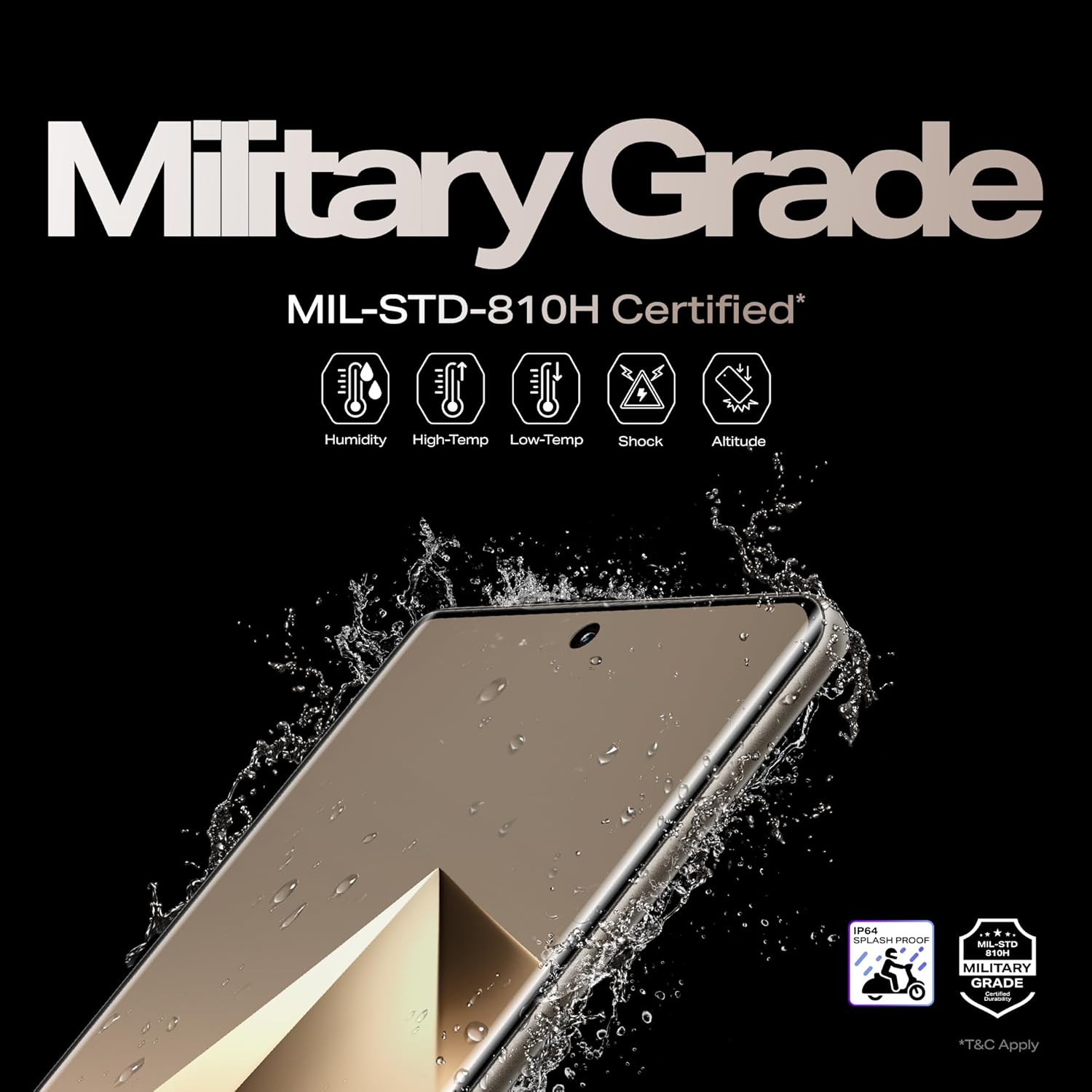
Image 4.1: Military Grade Durability features.
5. Troubleshooting
If you encounter issues with your Infinix Note 50s 5G+, refer to the following common solutions:
- Device not powering on: Ensure the battery is charged. Connect to the charger and wait a few minutes before attempting to power on again.
- Screen unresponsive: Restart the device by holding the Power button for approximately 10-15 seconds.
- Network issues: Check if your SIM card is properly inserted. Try restarting the device or toggling Airplane Mode on and off.
- App crashing: Clear the app's cache and data via Settings > Apps > [App Name] > Storage > Clear Cache/Clear Data. If the issue persists, reinstall the app.
- Slow performance: Close unnecessary background apps. Clear cache regularly. Consider a factory reset as a last resort (back up your data first).
For more complex issues, please contact Infinix customer support.
6. Specifications
| Feature | Specification |
|---|---|
| Model Number | X6870 |
| Operating System | Android 15 |
| RAM | 6 GB |
| Storage | 128 GB (variant specific) |
| Processor | MediaTek Dimensity 7300 Ultimate |
| Display | 6.78" FHD+ 144Hz 3D Curved AMOLED |
| Rear Camera | 64MP Sony Dual Camera |
| Front Camera | 13MP |
| Battery Capacity | 5500mAh |
| Charging | 45W Wired FastCharge |
| Connectivity | 5G, Wi-Fi, Bluetooth, USB-C |
| Dimensions (LxWxH) | 16.4 x 7.5 x 0.8 cm |
| Weight | 188 g |
| Durability | MIL-STD-810H Certified, IP64 Rated |
7. Warranty Information
Your Infinix Note 50s 5G+ comes with a standard manufacturer's warranty. For detailed information regarding warranty terms, conditions, and duration, please refer to the warranty card included in your product packaging or visit the official Infinix website.
8. Customer Support
For further assistance, technical support, or service inquiries, please contact Infinix customer support through their official website or the contact information provided in your product documentation. You can also visit the Infinix Store on Amazon for product-related information.