1. Introduction
This manual provides essential instructions for the proper use and maintenance of your Generic Smart Voice Translator Device. Please read this manual thoroughly before operating the device to ensure optimal performance and longevity. This device is designed to facilitate real-time, two-way language translation, supporting communication across various languages for learning, travel, shopping, and business.
2. Product Overview
The Smart Voice Translator Device is a portable, intelligent translation tool featuring a 2.4-inch IPS display and a user-friendly interface. It operates on Android 6.0 and includes a 1500mAh battery for extended use.
2.1 Package Contents
- 1 x Smart Voice Translator Device
- 1 x Charging Cable
- 1 x User Manual (this document)
2.2 Device Components

Image Description: A diagram illustrating the front and side views of the Smart Voice Translator Device. Key components are labeled with pointers: Microphone, Volume +, Volume -, 2.4-inch HD touch screen, Recorder key A, Recorder key B, Speaker, Power button, and Charging interface.
- Microphone: Captures spoken language for translation.
- Volume Buttons (+/-): Adjusts the audio output level.
- 2.4-inch HD Touch Screen: Displays translation results, settings, and navigation.
- Recorder Key A: Used for initiating translation for one language.
- Recorder Key B: Used for initiating translation for the second language in a two-way conversation.
- Speaker: Outputs translated audio.
- Power Button: Turns the device on/off and controls screen sleep/wake.
- Charging Interface: Connects the device to a power source for charging.
3. Specifications
| Feature | Description |
|---|---|
| Connectivity | WIFI (4G compatible) |
| AC Power Adapter | 5V/1A |
| Battery Capacity | 1500mAH |
| Operating System | Android 6.0 |
| Display Screen | 2.4-inch IPS Touch Screen |
| Memory | 8GB + 512MB |
| Effective Translation Distance | 1 Meter |
| Supported Languages | 26 languages (including Chinese (simplified/HK/traditional), English, Korean, French, German, Japanese, Spanish, Russian, Thai, Arabic, Portuguese, Italian, Greek, Dutch, Polish, Danish, Finnish, Hungarian, Czech, Swedish, Romanian, Vietnamese, Turkish) |
| Charging Time | Approximately 3 hours |
| Working Time | 8 to 12 hours |
| Standby Time | Up to 114 hours |
4. Setup
4.1 Charging the Device
- Connect the provided charging cable to the device's charging interface.
- Plug the other end of the cable into a 5V/1A AC power adapter (not included) or a compatible USB power source.
- The device will indicate charging status on the screen. A full charge typically takes about 3 hours.
4.2 Powering On/Off
- To Power On: Press and hold the Power button until the screen illuminates and the device starts up.
- To Power Off: Press and hold the Power button until a power-off option appears on the screen. Select 'Power Off' to shut down the device.
- Screen Sleep/Wake: Briefly press the Power button to put the screen to sleep or wake it up.
4.3 Connecting to Wi-Fi
The device requires an internet connection for translation. It supports Wi-Fi connectivity.
- From the home screen, navigate to 'Settings'.
- Select 'Wi-Fi'.
- Turn on Wi-Fi and select your desired network from the list.
- Enter the Wi-Fi password if prompted and connect.

Image Description: The Smart Voice Translator Device is shown next to a graphic indicating Wi-Fi compatibility. Text states, "Online translation is possible by connecting Wi-Fi in the UK and abroad."
5. Operating Instructions
The device offers real-time, two-way translation for 26 languages. Ensure a stable Wi-Fi connection for optimal performance.

Image Description: The Smart Voice Translator Device screen shows a conversation in progress, translating between English ("Hello") and Japanese ("こんにちは"). The interface clearly indicates the source and target languages for each spoken phrase.
5.1 Selecting Languages
- On the main translation interface, tap on the language indicators (usually flags or language names) to open the language selection menu.
- Select the two languages you wish to translate between. For example, set Language A to English and Language B to Japanese.
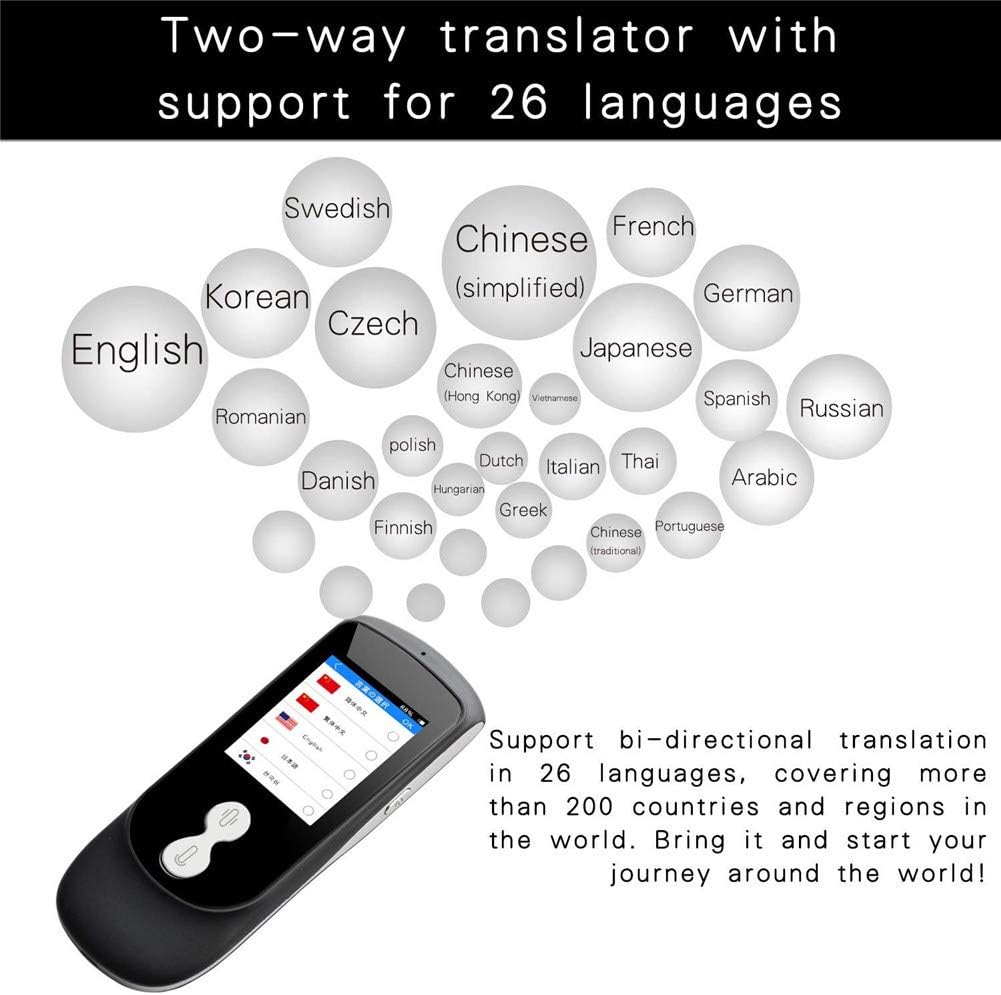
Image Description: A visual representation of the 26 languages supported by the translator device, displayed as bubbles. Languages include English, Chinese (simplified, Hong Kong, traditional), Japanese, French, German, Spanish, Russian, Korean, Czech, Romanian, Danish, Polish, Dutch, Italian, Thai, Arabic, Portuguese, Greek, Finnish, Hungarian, Swedish, Vietnamese, Turkish.
5.2 Performing Two-Way Translation
- Ensure the correct source and target languages are selected on the screen.
- When the first speaker (e.g., speaking Language A) wants to translate, press and hold Recorder Key A (typically the button corresponding to Language A's side on the screen).
- Speak clearly into the microphone. Release the button once you have finished speaking.
- The device will process your speech, display the translated text on the screen, and play the audio translation through the speaker.
- For the second speaker (e.g., speaking Language B) to respond, press and hold Recorder Key B.
- Speak clearly into the microphone. Release the button once you have finished speaking.
- The device will translate and play the response.
The device features intelligent noise reduction for clear voice capture even in noisy environments, and translations are typically delivered within 0.1 seconds with up to 98% accuracy.
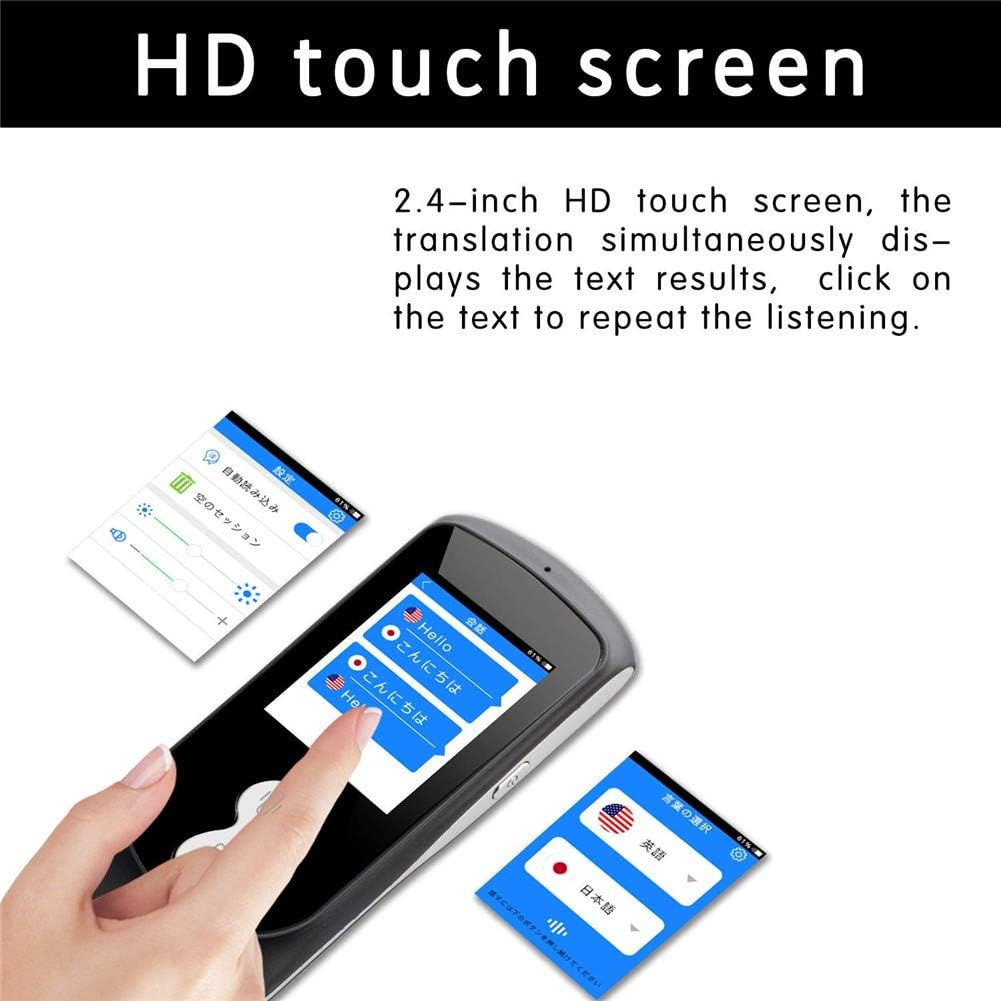
Image Description: A close-up view of the 2.4-inch HD touch screen of the translator device. It displays translation results, showing both the original and translated text. The interface allows users to tap on text to repeat listening.
6. Maintenance
6.1 Cleaning the Device
- Use a soft, dry, lint-free cloth to clean the device's screen and body.
- Do not use abrasive cleaners, solvents, or aerosol sprays, as these may damage the device.
- Avoid getting moisture into openings.
6.2 Battery Care
- Charge the device regularly, even if not in use, to maintain battery health.
- Avoid fully discharging the battery frequently.
- Store the device in a cool, dry place when not in use for extended periods.

Image Description: A graphic depicting the long standby time of the translator device. It highlights a large capacity lithium battery (1500 mAh), working hours up to 8 hours, and up to 280 hours of standby time (note: product description states 114 hours standby, this image may be for a different variant or an older specification. Please refer to the product specifications in Section 3 for accurate standby time).
7. Troubleshooting
7.1 Common Issues and Solutions
- Device not powering on:
Ensure the device is fully charged. Connect it to a power source and try again after a few minutes. If the issue persists, perform a hard reset by holding the power button for an extended period (e.g., 10-15 seconds). - No translation or slow translation:
Check your Wi-Fi connection. A stable internet connection is crucial for real-time translation. Ensure the device is within range of a strong Wi-Fi signal. Restart the device and try again. - Inaccurate translation:
Speak clearly and at a moderate pace. Ensure there is minimal background noise. Verify that the correct source and target languages are selected. - No sound from speaker:
Check the volume settings using the Volume + button. Ensure the device is not in silent mode. If connected to Bluetooth headphones, disconnect them or ensure they are functioning correctly. - Touch screen unresponsive:
Restart the device. If the screen remains unresponsive, ensure it is clean and dry.
8. Warranty and Support
8.1 Warranty Information
This Generic Smart Voice Translator Device comes with a 3-month warranty from the date of purchase. This warranty covers manufacturing defects and malfunctions under normal use. It does not cover damage caused by misuse, accidents, unauthorized modifications, or external factors.
Please retain your proof of purchase for warranty claims.
8.2 Customer Support
For technical assistance, warranty claims, or further inquiries, please contact your retailer or the manufacturer, UJRYERT, through the contact information provided at the point of purchase.